Handbook editors
You mainly write and edit longer pieces of text, and want to view pages and sources side by side.


For mostly text and layout work, a QHD monitor may be sufficient, provided text and page previews are easy to read on your computer. TÜV SÜD points out that the right resolution also depends on screen size. If you need to assess the colours of reference images for a colour-managed print workflow, you should also consider colour gamut and calibration options. Neither guarantees a particular print result on its own.
You mainly write and edit longer pieces of text, and want to view pages and sources side by side.
You choose reference images and place them in the handbook. The key question is whether the on-screen colours are just a guide or need to be assessed for print.
You connect a laptop and need an adjustable screen position, as well as ports that are compatible with your computer’s video output and power requirements.
A good fit if: Text, spreadsheets and page layout make up most of your work.
Trade-off: QHD has fewer pixels than 4K, and resolution alone says nothing about reliable print colour proofing.
A good fit if: You often work on text and images side by side, or use an sRGB-focused workflow. BenQ lists the PD2705U as a 27-inch 4K monitor with 99% sRGB.
Trade-off: 4K is no substitute for readable scaling or checking the colour workflow intended for print.
A good fit if: A colour-managed print workflow genuinely uses a wider colour gamut or regular calibration. ASUS lists 99% Adobe RGB for the PA279CRV, while EIZO describes the CS2400S as supporting hardware calibration.
Trade-off: Extra colour features offer little benefit if images are only used for illustration. A monitor that can be calibrated is no substitute for a colour-managed print workflow.
When choosing a monitor for a volunteer handbook with reference images, the main consideration is whether you need readable text space, image assessment, an adjustable screen position or laptop connectivity most.
| Buying priority | What to check | Who is it important to? |
|---|---|---|
| Readable text and space for handbook pages | Compare screen size and native resolution with the text and interface scaling you can use on your computer. | If I want to work on longer pieces of text and page previews, I need readable text and enough room for my windows. Around 37% of consumers are likely to prioritise text and layout. |
| Assessing reference images | First decide on the output you’re aiming for. For a colour-managed workflow, check the colour gamut, colour modes and calibration options of the specific model. | If the image colours matter for the final output, I want to choose a monitor that suits the intended colour workflow. Around 27% of consumers are likely to prioritise image colour. |
| Setting up your workspace | Consider desk space, height adjustment or a suitable mount, tilt, reflections and the lighting where the monitor will be set up. | If I spend a long time working on the handbook, I want to adjust the screen to suit my space and avoid distracting reflections. Around 18% of consumers are likely to prioritise their workspace setup. |
| Connecting a laptop | Check your computer’s video output, supported USB-C video mode, required charging power and what’s included with the specific model. | If I want to use my laptop with the monitor, I need a connection that genuinely supports video and, where required, power delivery. Around 18% of consumers are likely to prioritise laptop connectivity. |
A high resolution can make for an impractical working view if the scaling isn’t right.
Check your preferred text size and page preview on the computer you plan to use, then compare QHD and 4K at that size.
Colour gamut coverage and calibration options describe monitor features, but don’t guarantee the final print result.
First decide whether the images are just for illustration or whether you need to assess their colours for a colour-managed print workflow.
A colour-managed print workflow can involve extra work.
The stated charging power alone doesn’t confirm that your laptop can send video through the port or receive enough power.
Before you buy, check that your laptop’s video output, charging requirements and cable are compatible with the specific monitor.
Depending on the combination, you may need an extra cable or a separate laptop power supply.
The P2725DE and P2725QE are 27-inch options for document-based work. Dell lists QHD for the former and 4K for the latter, and both have a USB-C hub.
BenQ describes the PD2705U as combining a 27-inch 4K screen with an sRGB-focused colour display, while the manufacturer says the PD2732U is more geared towards graphics and print workflows.
ASUS describes the ProArt PA279CRV as a 27-inch 4K monitor with a wide colour gamut, USB-C and ergonomic adjustments.
LG describes the 27UP850K-W as a 27-inch 4K option with USB-C and an adjustable stand.
EIZO describes the ColorEdge CS2400S as a specialist 24-inch WUXGA option with hardware calibration via ColorNavigator.
The following Joybuy products may suit handbook pages with text, layouts and reference images. Compare screen size and resolution with your preferred window arrangement. If you’re connecting a laptop, check that video and power delivery are compatible.
 No image available
Could be worth considering if you’d like to view handbook pages and reference images on a 27-inch 4K screen.
Features listed in the product name: 27 inches, 4K UHD, IPS, 60 Hz and HDR Ready. The description also mentions an sRGB picture mode and a stand that can be adjusted for height, tilt, swivel and pivot.
 No image available
Could suit longer pieces of text and several windows side by side if you’d like to use a 40-inch ultrawide screen.
Features listed in the product name: 5120 × 2160 pixels, IPS, 100 Hz and 21:9. The product specifications also list USB-C with 65 W Power Delivery and a height-adjustable stand.
 No image available
Could be a good fit if you’re looking for a 27-inch 4K screen for pages and reference images, and want to make use of the listed stand adjustments.
The product specifications list 3840 × 2160 pixels, 120 Hz, HDR500, USB-C with 90 W Power Delivery, and PIP/PBP. Height adjustment and pivot are also listed.
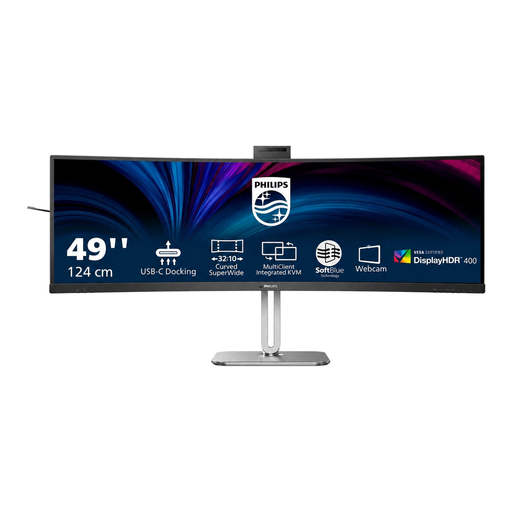 No image available
Could be worth considering if you’d like to arrange handbook pages and several views across a 49-inch screen.
The product specifications list 5120 × 1440 pixels, 75 Hz and a VA panel. USB-C with 100 W Power Delivery and a stand adjustable for height, tilt and swivel are also listed.
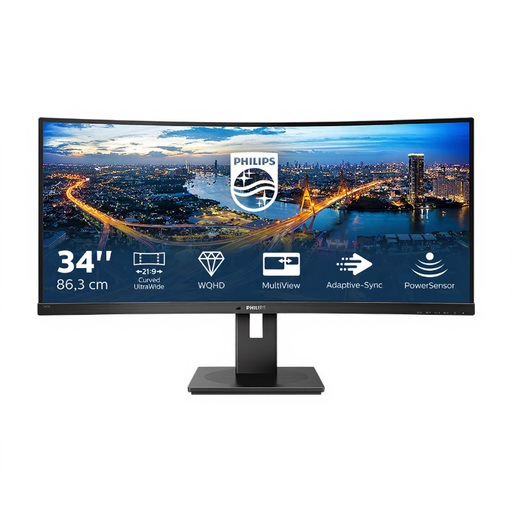 No image available
Could suit text and layout work if you’re looking for a 34-inch ultrawide screen with a height-adjustable stand.
Features listed in the product name: WQHD at 3440 × 1440 pixels, 100 Hz, VA panel and 21:9. The product specifications also list a USB hub and PIP/PBP.
QHD may be suitable for mostly text and layout work. Check on your own computer that the text, page preview and windows you need all fit at a comfortable, readable size. TÜV SÜD points out that the right resolution also depends on screen size.
No, not just because the handbook includes images. First decide whether you’re simply choosing illustrations or assessing colours for a colour-managed print workflow. Manufacturer specifications for colour gamut coverage alone don’t guarantee a particular print result.
This only works if your laptop can output a compatible video signal through the relevant port and the monitor’s charging power is suitable for your computer. Dell lists 90 W for the P2725DE and ASUS lists 96 W USB-C Power Delivery for the PA279CRV. Check your laptop, cable and port specifications before buying.
In its ASR A6 guidance, BAuA lists workplaces and telework workstations as areas of application, while excluding use in private homes outside telework workstations. So the word ‘voluntary’ alone doesn’t establish a general employer obligation for a private workspace.