If you need your manuscript and sources open side by side all the time, a 34-inch ultrawide with 3440 × 1440 pixels is an obvious choice, provided you have enough desk space and the text scaling works for you. AOC and LG list this resolution for specific models. If you mainly work on one text and only open sources occasionally, an adjustable 27-inch QHD monitor such as the Dell U2724DE may be enough. For checking fine image details, you could consider 27-inch 4K, such as the ASUS PA279CRV. However, more pixels do not replace the physical width of an ultrawide, nor do they automatically make text easier to read without suitable scaling.
Who are the different monitor options suited to?
Writers who keep their sources open
If you work on your manuscript and research material side by side, you’ll need plenty of horizontal workspace. AOC lists 3440 × 1440 pixels for the CU34P3CV. This describes a feature of the product, not how common this need is.
Writers who spend long hours working with text
If you mainly write or read, you may value a text view that you can position comfortably over having as many windows open at once as possible. The German Federal Institute for Occupational Safety and Health sets out requirements for screen-based work within its scope of application in ASR A6; these do not apply universally to every home desk.
Editorial teams working from laptops
If you’re connecting a laptop, check its display output, data connection and charging requirements against the specifications for the monitor and laptop in question. USB-C features vary by model.
What should you consider when choosing?
34-inch ultrawide
A good fit if: you want your manuscript and several sources to stay open side by side, and you have enough desk space. AOC and LG list 3440 × 1440 pixels for specific models.
The trade-off: the wide format takes up more desk space; USB-C charging power and other ports vary by model.
27-inch QHD
A good fit if: writing is your main focus and you only open sources alongside your text from time to time. Dell lists 2560 × 1440 pixels and an adjustable stand for the U2724DE.
The trade-off: compared with the 3440-pixel ultrawide models mentioned, there are fewer horizontal pixels available for two windows.
27-inch 4K
A good fit if: you also check fine images or layout details and want to make use of the 3840 × 2160 pixels offered by a model such as the ASUS PA279CRV.
The trade-off: the higher resolution does not replace the physical width of an ultrawide. Check that text remains comfortable to read at your chosen scaling.
| Buying priority |
What to check when buying |
Who it matters most to |
| Viewing your manuscript and sources at the same time |
Try your windows side by side at your preferred text scaling and check the space available on your desk. AOC lists 3440 × 1440 for the CU34P3CV, while Dell lists 2560 × 1440 pixels for the U2724DE. |
If I need my manuscript and research sources side by side all the time, I check the window widths at my preferred scaling and make sure I have enough desk space. Around 36% of consumers prioritise having this permanently side-by-side view. |
| Readable text during long writing sessions |
Try your font size and scaling in your own editor, and check height adjustment, reflections and screen position at your desk. Dell lists an adjustable stand for the U2724DE. |
When I spend a long time reading and writing, a clear, well-positioned text view matters more to me than having as many windows open as possible. Around 29% of consumers prioritise readability and an adjustable workstation. |
| Connecting and charging a laptop |
Check your laptop’s video output, cable and charging requirements against the specifications for the model in question. AOC lists up to 65 W for the CU34P3CV; ASUS lists 96 W for the PA279CRV. |
If I’m connecting my laptop to the monitor, I check that the video connection and charging power are right for my device. Around 21% of consumers put laptop connectivity first. |
| Checking fine image details and layouts |
Check whether detailed graphics are actually part of your work; assess text scaling and your own colour and output process separately. ASUS lists 3840 × 2160 pixels for the PA279CRV. Colour gamut figures alone do not guarantee an accurate print preview. |
If I regularly check fine images or layouts, I look for detailed image reproduction while making sure the text remains easy to read. Around 14% of consumers prioritise checking image details. |
Which buying and usage mistakes should you avoid?
-
Assuming screen size or pixel count automatically means a readable split-screen view
How easy two text windows are to read also depends on how they’re arranged and scaled. The resolutions of the models mentioned alone won’t tell you whether your specific editor layout will work well.
Set up your manuscript and sources side by side using a font size you find comfortable before choosing between QHD, ultrawide and 4K.
-
Assuming USB-C guarantees sufficient charging power
Maximum power delivery varies by model: AOC lists up to 65 W for the CU34P3CV, while ASUS lists 96 W for the PA279CRV. A USB-C port on its own doesn’t tell you whether your laptop will charge sufficiently.
Check your laptop’s video output, cable and charging requirements against the specifications for the exact monitor model.
Depending on your laptop and connection, you may still need a separate power supply.
-
Confusing a voluntary guarantee with your statutory rights
The German consumer advice centre distinguishes between your statutory claim against the seller and a voluntary guarantee. They have different legal bases and terms.
Read the guarantee terms separately and keep your proof of purchase in case you need to make a claim against the seller.
Which brands and models are worth considering?
AOC
The CU34P3CV is a specific 34-inch, 21:9 example for keeping work windows open side by side.
- AOC lists 3440 × 1440 pixels, a VA panel and USB-C with up to 65 W for this model.
- Check that the screen’s width and charging power suit your desk and laptop.
Dell
The UltraSharp U2724DE is a 27-inch QHD example for an adjustable writing setup with a Thunderbolt hub.
- Dell lists 2560 × 1440 pixels, height adjustment and Thunderbolt 4 for this model.
- It has fewer horizontal pixels than the 3440-pixel ultrawide models mentioned; that alone doesn’t mean one view will be easier for everyone to read.
ASUS
The ProArt PA279CRV is a 27-inch 4K example for checking fine graphics or layouts in greater detail.
- ASUS lists 3840 × 2160 pixels, USB-C Power Delivery at 96 W and colour gamut figures for this model.
- With the higher pixel density, you’ll need to consider text scaling. Colour specifications do not replace checking your specific output process.
LG
According to LG, the 34BA85QE-B combines a 34-inch ultrawide format with conferencing features and laptop connectivity.
- LG lists 3440 × 1440 pixels, a built-in camera and 90 W USB-C power delivery for this model.
- The additional conferencing features are only a reason to choose this monitor if you’ll actually use them.
EIZO
The FlexScan EV3450XC is a 34.1-inch ultrawide example with built-in conferencing features and docking functions.
- EIZO lists 3440 × 1440 pixels, Picture-by-Picture, a camera and USB-C power delivery of up to 94 W for this model.
- These specifications describe the EV3450XC’s features; they do not demonstrate a measured productivity improvement.
Joybuy monitors for split-screen writing setups
These Joybuy models are suited to split-screen writing setups: a 34-inch ultrawide and 27-inch QHD or WQHD monitors, some with laptop docking.
 No image available
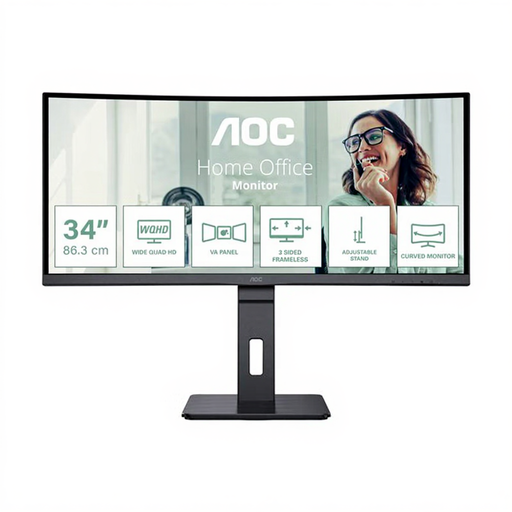
AOC Pro-Line CU34P3CV 34-inch curved ultrawide monitor
For keeping your manuscript and sources open side by side all the time.
34 inches, 21:9 and 3440 × 1440 pixels; USB-C with up to 65 W, KVM, USB hub and height-adjustable stand.
Joybuy
 No image available
INNOCN 2751S PLUS 27-inch Mini LED QHD monitor
For a 27-inch writing setup where you can open sources alongside your manuscript when needed.
QHD with 2560 × 1440 pixels; PBP and a height-adjustable stand are listed in the product description.
Joybuy
 No image available
Philips 276B9 27-inch QHD IPS monitor
For working with text and occasionally opening sources alongside it, as well as for a laptop setup.
2560 × 1440 pixels, USB-C Power Delivery of up to 65 W, and a stand with height, tilt, swivel and pivot adjustment.
Joybuy
 No image available
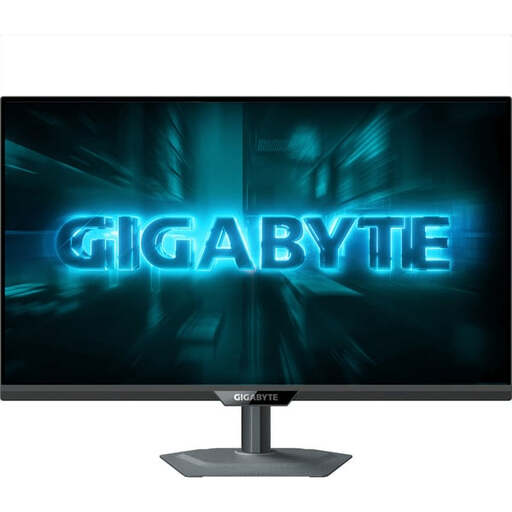
GIGABYTE G27Q20 27-inch QHD monitor
For a 27-inch writing setup with your manuscript and sources open alongside it from time to time.
2560 × 1440 pixels; the stand is height-adjustable and supports tilt, swivel and pivot.
Joybuy
 No image available
MSI PRO MP275QPDGDE 27-inch WQHD docking monitor
For working with text and sources open alongside it, plus a laptop setup with multiple devices.
2560 × 1440 pixels; USB-C docking with 98 W, KVM, daisy-chain and a height-adjustable stand are listed.
Joybuy
Frequently asked questions
Is 27 inches enough to view a manuscript and sources side by side?
It depends on how you arrange the windows and scale the text. Dell lists 2560 horizontal pixels for the U2724DE, while AOC lists 3440 for the CU34P3CV. Try them out to see whether your manuscript and sources remain readable at your preferred font size.
Can I connect a laptop with just one USB-C cable?
Some models support video, data and power over USB-C. AOC lists DisplayPort Alternate Mode and up to 65 W for the CU34P3CV. Whether one cable is enough also depends on your laptop, cable and charging requirements.
How do I compare the power consumption of monitors?
For specific models, compare the EU energy label and the associated model information in EPREL. The European Commission classifies computer monitors as electronic displays. You’ll also need to factor in how long you use the monitor and your electricity tariff to compare costs.
Is a manufacturer’s guarantee the same as your statutory rights?
No. The German consumer advice centre distinguishes between your statutory claim against the seller and a voluntary guarantee from the manufacturer or retailer; the guarantee is subject to its own terms and conditions.
Do German rules for screen-based workstations apply to every home writing setup?
No, not automatically. The German Federal Institute for Occupational Safety and Health’s ASR A6 sets out its scope of application for workplaces and teleworking locations, and excludes use in private settings outside such workplaces. Whether a particular workstation falls within that scope cannot be determined solely by the fact that you write there.


