If you’re checking collision geometry, code and logs at the same time, start by considering usable resolution, desk space and adjustability. If you regularly switch between laptops, you’ll also need compatible video connections and USB-C charging power. A higher refresh rate can matter when testing moving scenes, provided your computer, connection and test software support the display mode you want to use. The monitor displays the output, but it doesn’t replace collision diagnostics in your test software.
Who uses a monitor at a shared test station
People using a shared test station
If you share a desk with others, you’ll need to adjust the screen position and viewing distance for different people. BG BAU points out that the arrangement of multiple monitors depends on the task, and that monitor arms can make adjustments easier.
People testing moving scenes
When testing moving sequences, it’s important to distinguish between what the test application calculates and what the screen displays. Unity describes its Physics Debug window as a tool for visualising physics activity in a scene.
People checking geometry and logs
If you’re checking collision geometry, the editor, code or logs side by side, consider resolution and window readability together. Unity’s Physics Debug window visualises physics activity; the right amount of workspace depends on which views you need to see at the same time.
What to consider when buying
Adjustable QHD work monitor
A good fit if: You’re setting up a shared workstation for test scenes, the editor and logs, and QHD is enough for your window layout.
Consider: At the same screen size, you get fewer native pixels than with 4K. Also check the stand’s dimensions and how adjustable it is.
4K work monitor
A good fit if: You want to arrange several detailed views on screen at the same time.
Consider: More native pixels don’t automatically mean better collision diagnostics. Take text scaling, computer output, desk space and refresh rate into account too.
High-refresh-rate monitor
A good fit if: You’re visually checking moving collision sequences and your computer can output the display mode you want.
Consider: The monitor’s maximum refresh rate tells you neither the application’s frame rate nor the accuracy of its collision calculations.
At a shared test station, priorities mainly depend on whether you need to accommodate different users, test moving sequences, view several details at once or switch between laptops.
| Consideration |
What to check before buying |
Who it matters most to |
| Adjustability at a shared desk |
Check the height, tilt and swivel adjustments, and compare the stand’s dimensions with the available desk space. |
When I share a desk, I want to adjust the screen position without having to set up the whole workstation again. Around 31% of consumers put adjustability first. |
| Displaying moving sequences |
Check the refresh rate at your chosen resolution and connection mode, as well as the output from your computer and test application. |
When testing fast-moving scenes, I want to assess movement without assuming that the calculations are correct. Around 25% of consumers prioritise displaying moving sequences. |
| Geometry, code and logs |
Consider your window layout, native resolution, readable scaling and available desk width together. |
When I compare geometry, code and logs side by side, a workspace that’s easy to read matters to me. Around 25% of consumers focus on these detailed views. |
| Switching between laptops and connections |
Check each laptop’s video output, the monitor input, charging power and the peripherals you need. |
When switching between laptops, I don’t want to have to reorganise the connections and power supply every time. Around 19% of consumers prioritise an easy switch between laptops. |
Common misconceptions when buying a monitor
-
Assuming a high refresh rate means accurate collision calculations
The monitor’s stated refresh rate doesn’t tell you whether the application calculates collision events correctly or outputs them at a corresponding frame rate.
First decide whether you mainly need to watch movement or use software-based diagnostic views. Then check the display mode you’ll actually be using.
-
Assuming USB-C guarantees video, peripherals and enough charging power
Video output over USB-C and charging your laptop are separate compatibility considerations. Charging power varies between monitors.
For each laptop you use, compare its video output and power requirements with the connections and power specifications of the specific monitor.
Depending on the connection setup, you may also need an extra cable, adapter or power supply.
-
Comparing screen size alone
The stand, range of movement and orientation need to suit different people using the shared desk.
Measure the available space and check the monitor’s dimensions, including the stand, as well as its adjustment options. If you’re using a monitor arm, make sure it’s compatible with both the monitor and the desk.
A monitor arm may require extra equipment that’s compatible with your screen and desk.
Brands to consider
The examples below refer to specific models and specifications; they aren’t a general assessment of each brand.
Dell
The P2725DE is an example of an adjustable 27-inch QHD work monitor with USB-C.
- Dell lists a resolution of 2560 × 1440 pixels, a 100 Hz refresh rate and 90 W power delivery for the P2725DE.
- USB-C compatibility also depends on the laptop you’re using.
ASUS
The ProArt PA279CRV is a 27-inch 4K model for detailed work.
- ASUS lists USB-C with 96 W Power Delivery and height adjustment.
- ASUS lists a maximum refresh rate of 60 Hz, which is worth considering when testing moving scenes.
GIGABYTE
The M27UP is an example of a 27-inch 4K monitor with a high stated refresh rate.
- GIGABYTE lists a maximum refresh rate of 160 Hz and a height-adjustable stand.
- The maximum refresh rate is a manufacturer specification, not the measured frame rate of a test application. USB-C Power Delivery up to 18 W needs to be suitable for your laptop.
EIZO
The FlexScan EV2740S is a 27-inch 4K office model for working with several detailed windows.
- The manufacturer’s specifications list a USB-C hub, power delivery of up to 70 W and a design that can be positioned flexibly.
- The stated seven-year manufacturer’s warranty, including an on-site replacement service, applies to the EV2740S and not to the brand as a whole.
Philips
The 27E1N1600AE/00 is a QHD office model with USB-C Power Delivery.
- The German product page lists a 27-inch screen, QHD and 120 Hz for this version.
- Check the connections and charging specifications for the exact model, and make sure it’s compatible with your laptop.
Joybuy monitors for shared test stations
The following Joybuy products include QHD and 4K monitors for shared test stations. Depending on the model, the focus is on a higher stated refresh rate or an adjustable screen position.
 No image available
Z-Edge AGEX, 27-inch QHD monitor
For different users who need QHD and an adjustable screen position.
27 inches, QHD at 1440p, 144 Hz and a height-adjustable stand.
View at Joybuy
 No image available
INNOCN 2751S PLUS, 27-inch QHD monitor
An option if you want QHD views with a high stated refresh rate.
27 inches, QHD, Mini LED, 275 Hz and a height-adjustable stand.
View at Joybuy
 No image available
KTC M27P6, 27-inch 4K monitor
For detailed work when 4K and an additional FHD mode are useful.
4K at 160 Hz or FHD at 320 Hz in the stated dual mode; USB-C Power Delivery at 65 W.
Check that your laptop, connection and test software support the mode you want, and that the charging power is suitable for your laptop.
View at Joybuy
 No image available
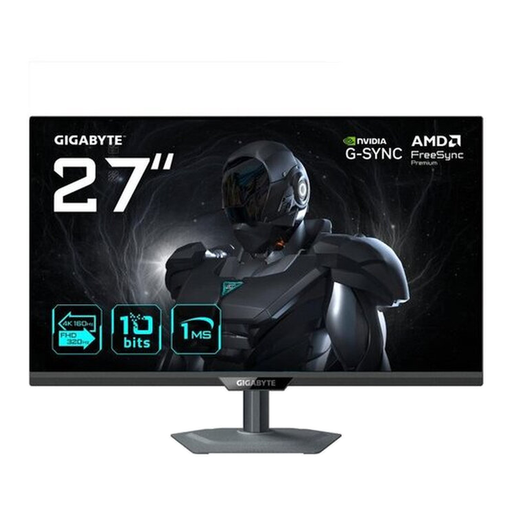
GIGABYTE G27UP, 27-inch 4K monitor
For detailed views when you need 4K and an adjustable position for a shared workstation.
4K UHD with 3840 × 2160 pixels, 144 Hz, height adjustment and pivot function.
View at Joybuy
 No image available
KOORUI G2741L, 27-inch 4K monitor
For detailed views when you want to choose between the stated 4K and FHD modes.
4K UHD at 160 Hz or FHD at 320 Hz in dual mode; height-adjustable stand.
Check that your computer, connection and test software support the mode you want.
View at Joybuy
Frequently asked questions
Can a fast monitor alone detect errors in collision behaviour?
No. The monitor displays the output; collision geometry and contact points are examined in the test software you use. Before choosing a monitor, decide whether you mainly need to watch moving scenes or read diagnostic views and logs.
What should you set up first at a shared workstation?
Set up the screen position and window layout to suit the person and task. Check that the monitor arrangement and adjustment options work with the available desk space.
Is a USB-C connector enough for video and charging?
Not necessarily. For each laptop, check whether its USB-C port supports video over DisplayPort or Thunderbolt, and compare its power requirements with the Power Delivery output of the specific monitor.
What rights apply when buying a monitor?
For a consumer purchase from a business seller in the EU, a statutory guarantee of at least two years from receipt of the goods generally applies, as the European Commission explains. This is separate from any additional manufacturer’s warranty. Consumer rights don’t necessarily apply to business purchases.
Are there rules in Germany for screens used at work?
Yes, if the workplace falls within the scope of the German Workplace Ordinance and ASR A6. The Federal Institute for Occupational Safety and Health explains that ASR A6 sets out requirements for screen-based workstations; it doesn’t set a blanket requirement for 4K or a specific minimum refresh rate for every monitor purchase.


