What to look for when buying
First decide what matters most to you: working with multiple windows, clearly readable text, an easy laptop connection or a compact setup. Then compare the specific resolution, adjustment options and connections with your workspace and computer.
| What matters to you |
What to check before buying |
Who it matters most to |
| Code and documentation side by side |
Try your usual window layout and check the resolution, operating system scaling and text size for readability. A coding picture mode won’t give you any extra screen space. |
If I need my editor and locally stored documentation side by side, usable screen space and clear text matter most. Around 36% of shoppers put having multiple windows open side by side first. |
| Readability and positioning |
Check the text size, height and tilt, as well as pivot adjustment if you need it. Try the screen at your own desk rather than taking comfort claims as a guaranteed result. |
For longer sessions, I want to read text comfortably and adjust the screen to suit my sitting position. Around 29% of shoppers prioritise readability and screen positioning. |
| Connecting a laptop and monitor |
Check your computer’s manual for video output over USB-C with DisplayPort Alt Mode or Thunderbolt, then make sure this meets the monitor connection and charging requirements. Dell Support notes that USB-C alone, for data or power, is not enough for video output. |
If I want to connect my laptop and peripherals with as few cables as possible, my computer needs to support the monitor’s features. Around 21% of shoppers prioritise connecting a laptop and monitor. |
| Desk space and power consumption |
Check whether the stand or an arm will fit your available desk space. For power comparisons, look at the EU energy label and EPREL information for the specific model; actual costs also depend on how you use it and your tariff. |
If I have limited desk space or want to keep power consumption in mind, the right size matters more than having the largest possible screen. Around 14% of shoppers focus on space and running costs. |
Joybuy monitors for coding and documentation
This selection from Joybuy includes 27-inch QHD and 4K monitors, as well as a wide 40-inch model. For each one, check that the resolution, text size and desk space suit the way you typically work.
 No image available
Samsung ViewFinity S7 S70H, 27-inch, 4K UHD IPS
A 27-inch 4K screen for code and documentation, if the text size and scaling work for you.
IPS panel with HDMI and DisplayPort inputs; the stand tilts.
View at Joybuy
 No image available
INNOCN 40C1U, 40-inch, 21:9
The wide format may suit you if you want to arrange code and reference pages side by side on a large screen.
IPS panel with 5120 × 2160 pixels and USB-C with 65 W Power Delivery. The stand is height-adjustable, swivels and tilts. The 40-inch format needs plenty of desk space.
View at Joybuy
 No image available
INNOCN CB27U1, 27-inch, 4K UHD IPS
A 27-inch 4K option for code and documentation, if the text stays easy to read at your chosen scaling setting.
3840 × 2160 pixels, USB-C with 90 W Power Delivery, plus HDMI and DisplayPort connections. The stand is height-adjustable, tilts, swivels and rotates.
View at Joybuy
 No image available
Philips 276B9, 27-inch, QHD IPS
A QHD screen for working with multiple windows, if a 27-inch monitor suits your space and preferred text size.
2560 × 1440 pixels, USB-C with up to 65 W Power Delivery and an integrated USB hub. The stand adjusts for height, tilt, swivel and pivot.
View at Joybuy
 No image available
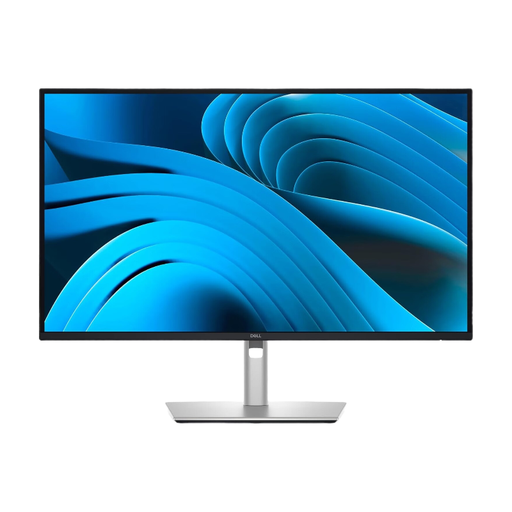
Dell Pro Plus P2725DE, 27-inch, QHD
A 27-inch QHD option for coding and offline documentation, with a USB-C hub for a compatible laptop.
2560 × 1440 pixels, USB-C hub with up to 90 W Power Delivery; height, tilt and pivot are adjustable. USB-C video output requires a compatible computer port, as explained by Dell Support.
View at Joybuy
Frequently asked questions
Will a coding monitor make documentation available offline?
No. A monitor displays content from the connected computer. Before working offline, make sure the documentation files you need, or a suitable local copy, are available on your computer.
Why is the screen blank when I connect it via USB-C?
First check whether your computer’s port supports video over DisplayPort Alt Mode or Thunderbolt. A port that only carries data or power won’t work for this; then check the cable and the specific monitor’s video input. Dell Support explains this requirement for USB-C video.
What happens if a monitor bought online in Germany develops a fault?
Statutory consumer rights apply against the seller and are separate from a voluntary warranty. If a product is faulty, the first step is generally to ask for it to be repaired or replaced. Verbraucherzentrale recommends checking the terms of any additional warranty separately.
Can I return a monitor bought online?
For an online consumer contract, you will generally have a 14-day right to cancel, starting from the day you receive the goods. Tell the other party to the contract that you wish to cancel, and check for any exceptions and the terms of your specific contract, as Verbraucherzentrale explains.
What labelling and disposal rules apply in Germany?
Computer monitors are generally covered by EU energy-labelling rules. The European Commission recommends using the energy label and EPREL to compare models. Take an old monitor to an authorised collection point or a retailer that is required to accept returns; don’t put it in household waste. Take-back requirements depend, among other things, on the retailer’s size and the return method.


