For organising frames and timelines
You move between lots of frames and layers, and want to keep your preview and tools in view.


If you arrange frames, layers and previews side by side, an ultrawide monitor could be a good fit: LG Germany lists the 34U650A-B as a 21:9 display with a resolution of 3,440 × 1,440 pixels. For detailed previews or colour-critical decisions, a 27-inch 4K display, the right target colour space and a verifiable calibration process matter more than screen width alone. BenQ, ASUS and EIZO all list specific features for their models. Also check the space on your desk, your computer’s ports and, for USB-C, the charging power you need from the particular model.
You move between lots of frames and layers, and want to keep your preview and tools in view.
You assess colours for a specific output workflow and need reliable colour modes or calibration, rather than simply a larger screen.
You switch between animation and other tasks, and need to make sure your display, connections and desk space work with your existing setup.
A good fit if: you want your timeline, layers and preview visible at the same time, and have enough desk space. LG Germany lists the 34U650A-B as a 34-inch, 21:9 display with a resolution of 3,440 × 1,440 pixels.
Trade-off: A wider screen doesn’t replace checking the target colour space, or the greater vertical resolution of a 4K display with 3,840 × 2,160 pixels.
A good fit if: you assess image detail and previews, and prefer a more compact format. The BenQ PD2705UA and ASUS PA279CRV are two examples with a resolution of 3,840 × 2,160 pixels and specified colour features.
Trade-off: You get less screen width than with a 34-inch ultrawide. The manufacturer’s colour coverage figures don’t replace checking that the project mode is right for your needs.
A good fit if: you need repeatable colour decisions for delivery or post-production, and will make use of the calibration features. EIZO lists an integrated sensor and hardware calibration for the ColorEdge CG2700X.
Trade-off: Not every home-working workflow needs these features, so first establish whether your project requires them.
| What you need | What to check before buying | Who it matters most to |
|---|---|---|
| Space for frames and previews | Check the aspect ratio, horizontal and vertical resolution, and how your windows will actually be arranged. | If I want to see frames, layers and previews at the same time, how my timeline is arranged is key. Around 36% of consumers also prioritise space for frames, layers and previews. |
| Colour for your output workflow | Check the target colour space, available colour modes and calibration options for the specific model. | For reliable colour decisions, I want the right mode and a clear calibration process. Around 29% of consumers put colour for their output workflow first. |
| Connecting your computer | Check the video output, supported USB-C video mode, charging power required and cables supplied. | When working with my existing computer, the connection needs to suit its ports and power requirements. Around 21% of consumers prioritise how their computer connects. |
| Space and day-to-day running | Compare the dimensions of the case and stand, adjustability and power consumption in your intended operating mode. | If space is limited in my home office, the screen and stand need to fit on my desk; day-to-day running costs matter too. Around 14% of consumers prioritise fit and running costs. |
According to LG Germany, the LG 34U650A-B has 1,440 vertical pixels, while the 4K BenQ PD2705UA and ASUS PA279CRV each have 2,160. These formats therefore suit different space requirements.
Compare your timeline window layout with the preview height you need, rather than looking only at screen size.
EIZO says that calibration cannot correct a colour gamut that is too small or inconsistencies in the panel.
First decide on your target colour space, then check the colour mode and calibration process for the specific model.
Repeatable colour checks may require a measuring device or time for regular rechecks.
For the BenQ PD2705UA, BenQ lists DisplayPort Alt Mode and 65 W Power Delivery for the USB-C port. Whether the video mode and charging power are sufficient depends on the computer you use.
Compare your laptop’s video output and power requirements with the specifications of the monitor you’re considering.
The DesignVue PD2705UA is a 27-inch 4K option with a specified animation mode and USB-C connectivity.
The ProArt PA279CRV is a 27-inch 4K option if Adobe RGB and DCI-P3 are relevant as well as sRGB.
The UltraWide 34U650A-B is an example of a wide workspace for arranging software windows side by side.
The ColorEdge CG2700X is an option if verifiable, repeatable colour decisions are central to your work.
The UltraSharp U2725QE is a 27-inch 4K option for a workspace where hub features and a higher refresh rate are also important.
These Joybuy models range from wide ultrawide formats to compact 27-inch 4K monitors for arranging your timeline, previews and tools.
 No image available
For a compact workspace when you need a 4K preview on a 27-inch screen.
27 inches, 4K UHD and IPS.
 No image available
For arranging your timeline and preview across a wide screen, if you have enough space for a 40-inch display.
5,120 × 2,160 pixels, IPS, 21:9 and 100 Hz.
 No image available
For a compact workspace when you need a 4K preview and the listed USB-C charging feature.
3,840 × 2,160 pixels, IPS, 120 Hz and USB-C with 90 W Power Delivery. The charging feature requires a compatible laptop.
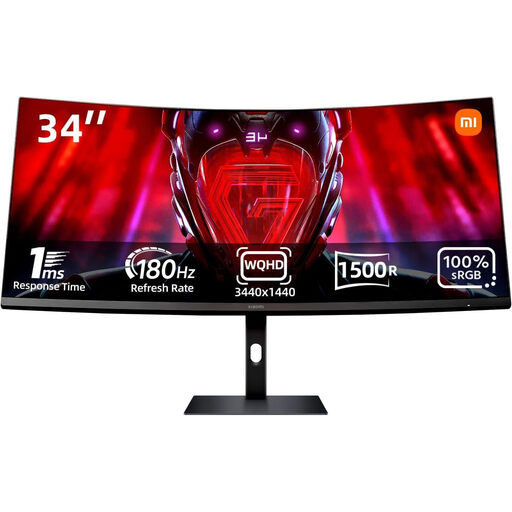 No image available
For a wide timeline layout on a 34-inch screen.
WQHD, 180 Hz and 100% sRGB according to the product name.
 No image available
For a 27-inch workspace if you need the switch between 4K UHD and FHD specified in the product name.
4K UHD at 160 Hz or FHD at 320 Hz; Fast IPS.
First, arrange the timeline, layers and preview in your animation software, then check that everything is easy to read at the monitor’s native resolution. Adobe describes frames, layers and the playhead as parts of the Animate timeline; this doesn’t mean there’s one monitor size that works best for every programme.
Factory calibration alone doesn’t prove that the display will continue to suit your workflow. Check the target colour space and choose a suitable measurement and calibration process. EIZO says that calibration cannot correct a colour gamut that is too small or panel inconsistencies. Calibration isn’t a general requirement for every animation workstation.
Compare specific models using the EU energy label and power consumption figures for your intended operating mode. The European Commission lists an A to G scale for computer monitors, with separate information for HDR mode. Your personal costs also depend on how you use the monitor and your electricity tariff.
No. The Verbraucherzentrale distinguishes between your statutory rights against the seller and a voluntary guarantee. Check the guarantee terms for the specific offer separately; if there’s a fault, contact the seller about your statutory rights.
EU energy labelling rules apply to new computer monitors covered by the regulations, and the label must also be visible when they’re sold online. In Germany, an old screen must be collected separately from other waste and must not go in household rubbish.