What should you look for when buying?
First decide whether fine detail in the original or two windows visible at once matters more. Then check the colour workflow, connections and desk space.
| Priority |
What to check when buying |
Who is this important to? |
| Seeing detail in scans |
View a typical scan at your usual zoom level and text size; check the resolution of the exact model. |
If I’m tracing fine lines and small labels, I want to be able to see them at my usual viewing size. Around 29% of consumers put checking detail in their scan first. |
| Scan and plan side by side |
Arrange both windows at the size you want; check the desk width and the stand’s dimensions. |
If I want to keep the original and new planting plan open at the same time, I need enough usable width. Around 24% of consumers prioritise having two clearly visible work windows. |
| Assessing colours |
Identify the colour mode and output process you need; don’t assume manufacturer specifications guarantee a verified print result. |
If colour is important in the original or final plan, I want to assess it in a way that suits my actual workflow. Around 18% of consumers prioritise colour checking. |
| Connecting a computer and accessories |
Check the computer’s video output, cables, power requirements and the connections on the exact monitor model. |
If I use a laptop, I want to know in advance whether the video signal and required power will work through the connections provided. Around 12% of consumers pay particular attention to compatible computer and accessory connections. |
| Setting up a monitor at the drawing desk |
Measure the space required, including the stand, and consider the adjustment options at your workstation. |
If I also need space on my desk for documents and input devices, a suitable setup matters more than having the largest possible screen. Around 17% of consumers prioritise desk space and screen position. |
Monitors for scanned plans at Joybuy
The selection includes compact 27-inch UHD models and wide ultrawide monitors for viewing scans and planting plans.
 No image available
INNOCN 40C1U, 40-inch, 5K
For anyone who wants to view a scan and planting plan side by side on a wide workspace.
Product specifications: 5120 × 2160 pixels, IPS, 21:9 and 100 Hz. The stated width with the stand is 944,1 mm; check that you have enough space.
View at Joybuy
 No image available
MSI MAG 274UPDFDE E16M, 27-inch, UHD
A more compact 27-inch option if you’re considering a UHD model for working with scanned drawings.
The product name lists Mini-LED, Rapid IPS and UHD 160 Hz or FHD 320 Hz modes.
View at Joybuy
 No image available
Samsung ViewFinity S7 S70H, 27-inch, 4K UHD
For a 27-inch workspace where you’re considering a 4K UHD view of your scan originals.
The product name lists an IPS panel.
View at Joybuy
 No image available
INNOCN CB27U1, 27-inch, 4K UHD
A 27-inch option for scan detail, if you also take into account the connections and adjustment options listed in the product name.
Product specifications: 3840 × 2160, IPS, 120 Hz, USB-C with 90 W PD, PIP and PBP; height-adjustable stand.
View at Joybuy
 No image available
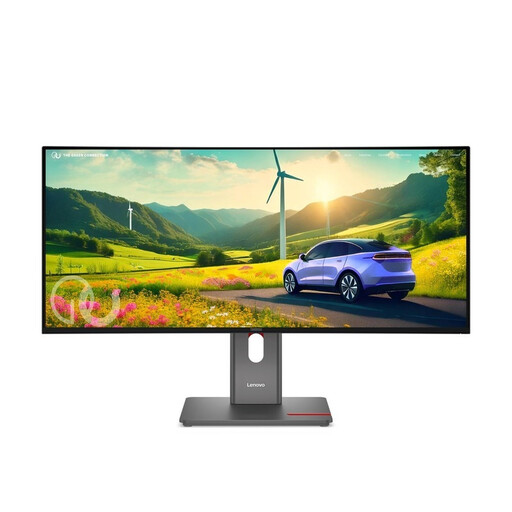
Lenovo ThinkVision P34WD-40, 34-inch, WQHD
For anyone who wants to arrange a scan and planting plan side by side on a wide screen.
Product specifications: IPS, 21:9 and 120 Hz. Check that the screen and stand will fit on your drawing desk.
View at Joybuy
Frequently asked questions
Will a 4K monitor add detail to a blurry scanned plan?
No. A monitor displays the image information that is already there. If lines are hard to read, check the scan and how it was digitised first. The Library of Congress considers scan resolution a decision to make when capturing the original.
How can I check whether USB-C will provide enough power for my laptop?
Compare your laptop’s video output and power requirements with the connections and USB-C power delivery of the exact monitor model. For example, ASUS lists 96 W for the PA279CRV; this does not guarantee compatibility with every laptop.
How should I clean the screen?
Always check the instructions for your specific model first. EIZO recommends using a soft cloth for the CS2740; for stubborn marks, you can dampen it with a little water.
What rights do I have when buying online as a private customer in Germany?
According to information from the Verbraucherzentrale, online contracts generally come with a 14-day right to cancel, starting from when you receive the goods. Exceptions and the circumstances of the specific contract should be taken into account. Your statutory rights regarding faulty goods are separate from a voluntary manufacturer’s warranty.
Do workplace screen rules also apply to my personal drawing desk?
ASR A6 from the Federal Institute for Occupational Safety and Health (Bundesanstalt für Arbeitsschutz und Arbeitsmedizin) sets out requirements for display screen workstations within the scope of the Workplace Ordinance. This does not establish a general statutory minimum size for monitors bought for personal use; the applicable scope should be considered separately for a workplace provided by an employer.


