Designers working with lots of references
If you need to keep your cover design, photos, cast details and notes in view at the same time, screen width matters just as much as the space the monitor takes up on your desk.


If you need to see your cover design, image references and notes at the same time, start by comparing screen width, resolution and the window layout you actually use. For judging print colours, a suitable colour workflow, a monitor profile and soft proofing matter more than a large screen or wide colour gamut on its own. A wide format makes it easier to place windows side by side; a graphics monitor with calibration features may be a better fit for regular colour-critical work.
If you need to keep your cover design, photos, cast details and notes in view at the same time, screen width matters just as much as the space the monitor takes up on your desk.
If you judge colours for printed programmes, plan to use a profiled monitor and a soft-proofing workflow based on your printer’s output requirements, rather than relying on vivid on-screen colours alone.
If you switch between working on the go and a fixed desk, check that your laptop’s video output and charging requirements match the ports on the specific monitor.
A good fit if: you want to place your cover layout, image references and notes side by side. Dell Germany lists the P3425WE as having a 34.1-inch screen and 3440 × 1440 pixels.
The trade-off: Check the actual dimensions of the monitor and the scaling you prefer; a wide screen does not guarantee that it will work for print soft proofing.
A good fit if: crisp text and image details matter, but desk space is limited. ASUS lists the PA279CRV as having a resolution of 3840 × 2160 pixels, along with sRGB and Adobe RGB modes.
The trade-off: Higher scaling can reduce the usable space for reference windows; colour modes do not replace profiling.
A good fit if: you regularly assess colour-critical print designs as part of a defined print workflow. EIZO lists the CG2700S as having a built-in calibration sensor.
The trade-off: The 27-inch CG2700S has a resolution of 2560 × 1440 pixels rather than 4K; the manufacturer’s specifications do not guarantee a match with every printing process.
| Buying priority | What to look for | Who is it most important to? |
|---|---|---|
| Reference windows side by side | Compare the aspect ratio, resolution, dimensions including the stand, and the window layout you plan to use. | If I want to see my design, photos and notes at the same time, the available working width matters to me. Around 29% of consumers put arranging multiple references first. |
| Judging colours for print | Check the colour gamut and colour modes, profiling options, and the printer’s output profiles. | If I need to judge colours for a printed programme, I need a suitable profile and soft-proofing workflow. Around 29% of consumers prioritise checking print colours. |
| Typography and cover details | Check the native resolution and preferred scaling with your cover and references in the view you intend to work in. | If I’m checking small text and image crops, I want to assess the details without relying solely on the widest possible screen. Around 24% of consumers prioritise layout details. |
| Connecting a laptop at your desk | Check the video output from your laptop’s port, its charging requirements and, if relevant, KVM functionality against the specific monitor. | If I want my laptop to display video and charge at my desk, the connection and power requirements need to match. Around 18% of consumers see laptop connectivity as their top priority. |
At 27 inches and 4K, higher scaling can limit the usable workspace, even though text and edges appear sharper.
Compare your cover design and references at the scaling you plan to use, rather than looking only at the native pixel count.
Without an accurate monitor profile, colour corrections may be based on a misleading image. Adobe describes calibration and soft proofing as part of colour-critical work.
Check the printer’s output requirements and plan for profiling and soft proofing.
Colour-critical work may also require a measuring device and a well-maintained profiling and proofing workflow.
A monitor’s Power Delivery specifications do not prove that your laptop’s USB-C port supports video output or that the charging power will be sufficient.
Check your laptop’s port and charging requirements against the specifications for the exact monitor model.
If the video output or charging power is not compatible, you may need a different connection or a separate power supply.
The ProArt range includes the PA279CRV, a 27-inch 4K option for layout work with selectable colour modes.
The PD2732U combines a 27-inch 4K display with Thunderbolt connectivity for designers who switch between computers.
The Pro P3425WE is a wide 21:9 option if you want room to place several reference windows side by side while designing a cover.
The ColorEdge CG2700S is an option for regular colour-critical design and print workflows.
This selection of products from Joybuy includes wide monitors for working with several open references, as well as 4K models for focusing on layout details.
 No image available
A 32-inch screen with 4K resolution is worth considering for layout work involving fine details.
3840 × 2160 pixels, 3000R curvature, VA display and 100% sRGB.
The listed HDR10 mode and Adaptive Sync are also included in the product specifications.
 No image available
The 21:9 format and PIP/PBP are useful if you want to arrange several windows or sources on screen at the same time.
5120 × 2160 pixels, IPS panel and 100 Hz.
The specifications also include USB-C with 65 W Power Delivery and a height-adjustable stand.
 No image available
The listed 4K resolution makes this a model to consider for layouts where fine details matter.
27 inches, MiniLED and dual mode with 4K at 160 Hz or FHD at 320 Hz.
Listed features include KVM and Type-C with 65 W; the stand offers tilt, swivel and height adjustment.
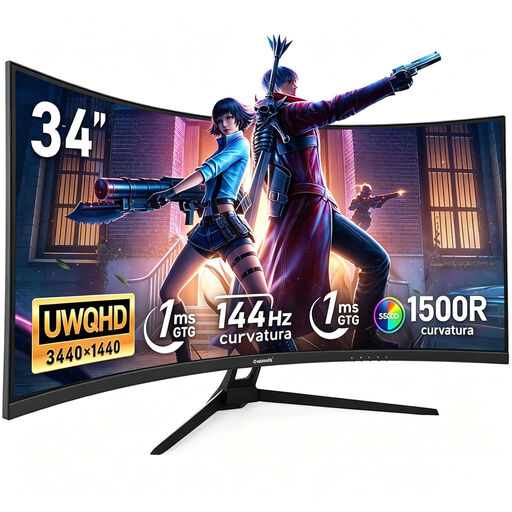 No image available
The 21:9 format is worth considering if you want to arrange your cover design and several references side by side.
3440 × 1440 pixels, 144 Hz, 1500R curvature and 100% sRGB.
The listed resolution has fewer pixels than 4K, which is worth bearing in mind when checking very fine layout details. This model is listed as having no speakers.
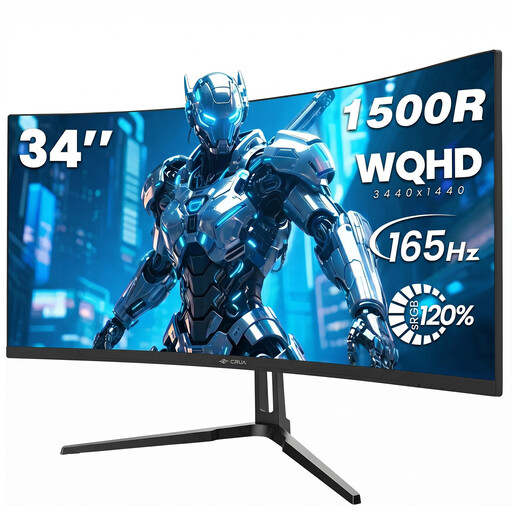 No image available
The 21:9 format offers plenty of width for arranging a cover design and references.
3440 × 1440 pixels, 165 Hz and 1500R curvature.
It has fewer pixels than 4K, making it a compromise if you need to assess very fine layout details.
No. Adobe explains that colour-critical work requires a calibrated monitor with an accurate profile, as well as soft proofing using the intended output profiles. Colour gamut coverage alone cannot predict how the printed cover will look.
Adobe recommends letting the monitor warm up for at least 30 minutes before calibration and working in stable lighting. Adobe recommends measuring hardware for colour-critical work; you should also set up soft proofing for the intended output process.
No, that also depends on the laptop. ASUS lists 96 W for the PA279CRV, while Dell lists up to 90 W Power Delivery for the P3425WE. Also check that the laptop can output video through the intended port and that the charging power is sufficient.
The Verbraucherzentrale explains that consumers can exercise their statutory rights against the seller if a product is faulty within two years of delivery. The first step is generally to request a remedy, such as repair or replacement; a voluntary guarantee is separate from these rights.
EU consumer information states that monitors use the rescaled A to G energy label and refers consumers to EPREL for model details. Check the label for the specific device; its rating does not tell you whether the monitor is suitable for design or print work.