Who these monitors are for

Web designers working on designs and live previews

If you want to see your layout or code on one screen and your portfolio homepage on the other, look for easy-to-read screen space and a two-display setup supported by your computer. Apple notes that the number of supported displays depends on the specific Mac model and display settings.

Portfolio designers focused on images

If you edit photos or graphics, look for a colour mode that suits your output. A stated colour gamut coverage figure alone doesn’t guarantee colour accuracy on your device or a consistent picture across two monitors.

Designers who move between laptop workstations

If you regularly connect a laptop, check the video signal, the ports you need and, where applicable, USB-C power delivery. Specifications for individual monitors, such as those from ASUS or EIZO, don’t replace checking whether your laptop supports the setup you want.

What to look for when buying

Two matching 27-inch 4K monitors

A good fit if: You want to view a detailed design and a large preview side by side, and have enough desk space. ASUS and BenQ each offer a 27-inch 4K model as an example.

Consider: Allow enough room and check that both displays and text scaling are supported by your computer.

4K main monitor plus QHD second monitor

A good fit if: A detailed design workspace is your priority, with room for tools, references or a preview on the second screen. The Dell U2724DE is an example of a 27-inch QHD monitor.

Consider: Differences in pixel density and display size can be noticeable when moving windows between screens.

Calibratable main monitor plus a work monitor

A good fit if: Alongside web design, you regularly edit photos or need to assess colour accurately for other types of output. EIZO specifies hardware calibration for the CS2400S.

Consider: The CS2400S offers 1920 × 1200 pixels across 24.1 inches, so it has fewer native pixels than the 4K models mentioned here.

Buying criterion What to check Who it matters most to
Usable screen space and readability Compare screen size, native resolution, window layout and readable scaling on the computer you plan to use. ASUS lists the PA279CRV as 27 inches with 3840 × 2160 pixels; Dell lists the U2724DE as 27 inches with 2560 × 1440 pixels. If I want to see my design, browser preview and references clearly at the same time, the screen space I can actually use matters. Around 36% of consumers prioritise workspace and readability.
Colours for web graphics and photos Check for a suitable sRGB mode and, if your workflow requires it, profiling or hardware calibration. BenQ lists the PD2705U as 99% sRGB; the W3C describes sRGB as a colour model for display screens and CSS. If I want to assess portfolio images and web colours accurately, I’d rather use a suitable colour workflow than rely on a large colour gamut figure alone. Around 29% of consumers prioritise colour assessment.
Connecting two laptop displays Find out the exact laptop model and which display configurations it supports before comparing ports, docks and power delivery. Apple says a hub doesn’t increase the computer’s maximum number of displays. If I want to connect two external screens and perhaps charge my laptop through the same connection, the setup needs to work with my device. Around 21% of consumers prioritise laptop connectivity.
Setup and running costs Check stand adjustment, desk space and how you plan to position both monitors. For each model, compare the details on the EU energy label or in EPREL. If I want to set up two displays on my desk, the layout and running information for both devices matter. Around 14% of consumers prioritise setup and operation.

Common buying mistakes

  • Buying a second monitor before checking display support

    According to Apple, a hub doesn’t increase the maximum number of supported displays. The specific computer model and the intended display configuration are what matter.

    First check your computer model, supported resolutions and ports. Then choose your monitors and dock.

  • Assuming wide colour gamut coverage means both screens will show the same colours

    Manufacturers’ colour gamut and calibration figures describe the model; they don’t confirm that two individual units will match.

    Choose a colour workflow that suits your output and decide which calibrated display you’ll use as your reference for colour.

  • Assuming QHD and 4K are the same just because the screen size matches

    The ASUS and Dell models reviewed are both 27 inches, but have different native resolutions: 3840 × 2160 and 2560 × 1440 pixels respectively.

    Compare pixel count and readable scaling with how you plan to arrange your design, tools and preview.

  • Considering only one display when comparing energy use

    For a dual-monitor setup, you need to compare the model-specific information for both devices.

    Check the EU energy label or EPREL details for each specific model, rather than using an energy rating alone to estimate a cost.

Brands to consider

ASUS

The ProArt PA279CRV is a documented example of a 27-inch 4K monitor for detailed design work and USB-C laptops.

  • ASUS lists 3840 × 2160 pixels, an ergonomically adjustable stand and USB-C with 96 W power delivery.
  • Colour gamut coverage and factory calibration are manufacturer claims. Check the signal path for both displays and how your specific devices render images.

BenQ

The Creative Pro PD2705U is an example of a 27-inch 4K monitor with a stated focus on sRGB.

  • BenQ lists 99% sRGB and 99% Rec.709 for the PD2705U, as well as factory calibration.
  • These model specifications don’t prove that two individual units will match, or that the monitor offers every feature of a graphics monitor chosen for colour-critical print work.

Dell

The UltraSharp U2724DE is an example of a 27-inch QHD monitor for use as a second screen or at a workstation where connectivity matters.

  • Dell specifies 2560 × 1440 pixels at 120 Hz and Thunderbolt 4 hub features.
  • QHD has fewer native pixels than the 4K models mentioned here; hub features don’t change the computer’s display limit.

EIZO

The ColorEdge CS2400S is a 24.1-inch option for use as the main display in a controlled photo or colour workflow.

  • EIZO specifies hardware calibration, an sRGB mode and USB-C with up to 70 W power delivery.
  • Its native resolution is 1920 × 1200 pixels. The benefits of calibration depend on whether your workflow calls for it.

Joybuy monitors for design and previews

These Joybuy monitors are worth considering for detailed portfolio designs and an additional screen. Compare their resolution, ports and adjustment options with your computer and planned setup.
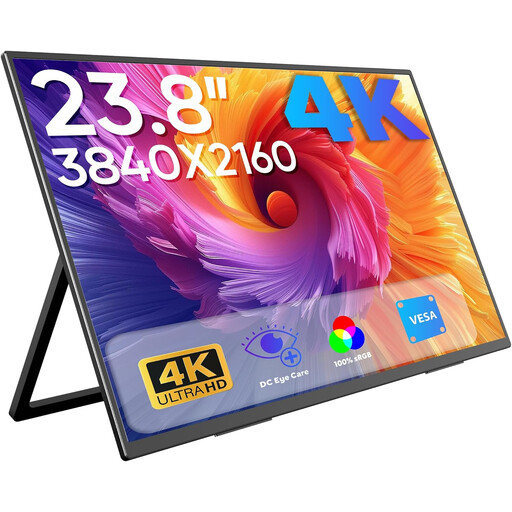
Portable 23.8-inch 4K monitor with integrated stand

Portable 23.8-inch 4K monitor, 3840 × 2160

Could work as an additional laptop workspace; the title mentions an integrated stand.

The title lists 60 Hz, 100% sRGB, USB-C and Mini-HDMI.

View at Joybuy

MSI PRO MP273UPDE E6, 27-inch 4K UHD monitor

MSI PRO MP273UPDE E6, 27-inch, 4K UHD

Could suit a detailed design workspace; the description mentions creative work and an adjustable stand.

The title lists IPS, 60 Hz and HDR Ready. The description lists 3.840 × 2.160 pixels, 10-bit colour depth, height adjustment, swivel, tilt and pivot.

View at Joybuy

CRUA CR320QB, 32-inch curved 4K monitor

CRUA CR320QB, 32-inch, curved 4K

Could provide a larger workspace if you have enough desk space and a 32-inch display suits your planned setup.

The title lists 3840 × 2160 pixels, 3000R curvature, a VA display, HDR10 and 100% sRGB.

View at Joybuy

INNOCN CB27U1, 27-inch 4K UHD monitor

INNOCN CB27U1, 27-inch, 4K UHD

Could suit a detailed design workspace and laptop setup; check that the ports and power specifications work with your device.

The product details list 3840 × 2160 pixels, IPS, 120 Hz, 100% sRGB and USB-C with 90 W power delivery. HDMI, DisplayPort, height adjustment and PIP/PBP are also listed.

View at Joybuy

KTC M27P6, 27-inch 4K MiniLED monitor

KTC M27P6, 27-inch, 4K MiniLED

Could suit design work and a workstation with several connected devices; compare the ports and adjustment options with what you need.

The product details list 3840 × 2160 pixels, Fast IPS, USB-C with 65 W, KVM, HDMI 2.1 and DisplayPort 1.4a. Dual mode is listed as 4K at 160 Hz and FHD at 320 Hz.

View at Joybuy

Frequently asked questions

Do both monitors need to have the same resolution?

No, the two monitors don’t need to have the same resolution. One possible setup is a 4K main monitor and a QHD second monitor; check that window sizes and scaling work for you when moving between them. ASUS lists the PA279CRV as 4K, while Dell lists the U2724DE as QHD.

Is a USB-C dock enough to run two external displays from my MacBook Air?

It depends on the exact MacBook Air model; according to Apple, a supported hub doesn’t increase the maximum number of displays. For MacBook Air with M4 or M5, Apple lists support for up to two external displays in addition to the built-in display, depending on resolution and refresh rate. For MacBook Air with M3, Apple describes support for two external displays with the lid closed. Check the specifications for your exact model before buying.

How should I set up my screens for assessing colour?

Choose which screen you’ll use as your reference for colour, then set it to the colour mode that suits your output. If your workflow requires it, look into profiling or calibration. EIZO specifies hardware calibration for the CS2400S; BenQ lists an sRGB focus for the PD2705U. These model specifications don’t prove that two individual units will match.

How can I check a monitor’s energy consumption before buying?

For electronic displays covered by the rules, the European Commission describes an energy label with an A to G efficiency scale and other model-specific information. Compare the details for both monitors you actually plan to buy; an energy rating alone doesn’t tell you a specific annual cost in euros.

Is there a required monitor size for a home design workspace?

The health and safety guidance discussed here doesn’t set a blanket screen size requirement for a home design workspace. ASR A6 sets out requirements for screen-based workstations and teleworking within its scope, and excludes use in private homes outside such workstations. Whether a work setup falls within its scope depends on how it is arranged and used.