Detail-focused simulation players
If you want to see terrain and displays clearly, weigh up QHD or 4K, screen size and the demands on your gaming device.


For a Moon landing simulation played with headphones, QHD IPS is a sensible starting point if you’re weighing up image detail and moving scenes. OLED or 4K may be worth considering if contrast or extra detail matters more to you, provided you also account for the requirements of your hardware and the care involved. First, check which resolution and refresh rate your PC or console can output through the input you’ll be using. Also check the headphone and microphone connections separately: a headphone output does not automatically provide a microphone input.
If you want to see terrain and displays clearly, weigh up QHD or 4K, screen size and the demands on your gaming device.
If smooth motion matters to you, check the refresh rate and variable refresh rate support against the connection your PC or console actually uses.
If you want to keep using your current headphones, check the connection before you buy. For voice chat, also find out separately how the microphone connects.
First, find out what your gaming device can output. Then compare picture quality, motion handling and audio connections on the specific monitor model.
| Consideration | What to check | Most important for |
|---|---|---|
| Image detail and contrast | Match the native resolution and panel type to your gaming device’s output. With OLED, also check the care guidance for displays that remain on screen for long periods. | If I want to see terrain and instruments clearly, I check whether my gaming device supports the resolution I want. Around 40% of consumers prioritise image detail and contrast. |
| Smooth motion | Check the maximum refresh rate for the HDMI or DisplayPort input you’ll be using. If you want a variable refresh rate, also check that your source and monitor are compatible. | For dynamic landing manoeuvres, I want to know what refresh rate my source can actually deliver. Around 30% of consumers say motion handling matters most to them. |
| Headphones and microphone | Check the connection type on your existing headphones and where you want to connect them. For voice chat, check the microphone connection separately. | If I want to use my existing headset, the audio needs to reach the right device and the microphone needs to work independently. Around 20% of consumers prioritise the headphone connection. |
| Setup and energy use | Check the dimensions, including the stand, and whether it can be adjusted. When comparing specific models, refer to the EU energy label. | If desk space is limited, I check the dimensions before choosing a large or wide format. Around 10% of consumers put setup and energy information first. |
The refresh rate you can use also depends on the resolution, input and gaming device. Dell specifies up to 180 Hz at QHD over DisplayPort and up to 144 Hz over HDMI for the G2725D.
Check the figures for the input you’ll actually use, then compare them with the output options available on your game and device.
A headphone socket carries audio output, but it doesn’t provide a microphone input. The specifications for the Dell G2725D and ASUS VG27AQ3A both list a headphone socket.
Plan your audio and microphone connections separately, and check that your headset is compatible with the connection you choose.
LG warns that static images displayed for long periods can leave marks, and that the risk of burn-in cannot be ruled out completely.
Compare OLED with IPS LCD based on how you actually use your monitor. Read the care guidance and warranty terms for the specific model, too.
The G2725D is an example of a 27-inch QHD Fast IPS monitor with a headphone output.
The TUF Gaming VG27AQ3A combines QHD Fast IPS with a headphone socket.
The Odyssey OLED G81SF is a 27-inch 4K QD-OLED option.
The MPG 271QRXDE QD-OLED is a QHD QD-OLED model.
The 39GX900A-B is a 39-inch ultrawide OLED option with a 21:9 aspect ratio.
The Joybuy models below include QHD IPS, QD-OLED and an ultrawide option. What matters most is still your gaming device’s video output and how your headphones connect.
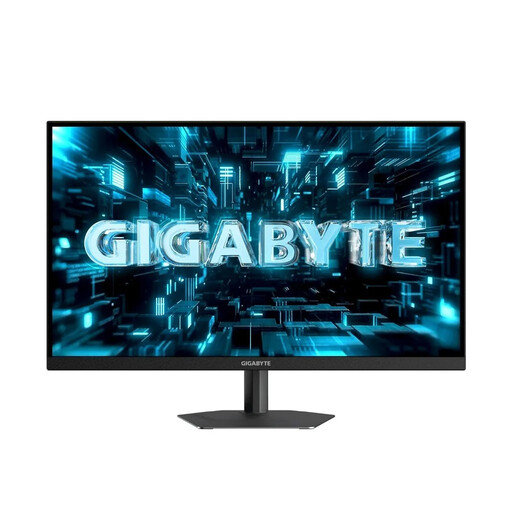 No image available
For QHD simulations with fast-moving scenes; the product title also mentions a 3.5 mm headphone socket.
27 inches, 2,560 × 1,440 pixels, SuperSpeed IPS, 260 Hz and up to 275 Hz in OC mode, 1 ms GTG.
 No image available
A QHD option for players comparing Mini LED with fast motion handling; check that the audio connection will work with your setup.
27 inches, QHD, Mini LED with 1,152 zones, Fast IPS and up to 275 Hz.
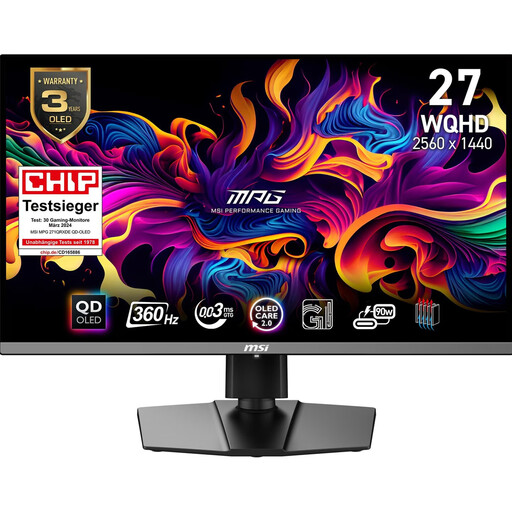 No image available
For players weighing up QHD and OLED picture quality; if you display static images for long periods, follow the care guidance and bear in mind the remaining risk of burn-in.
The Joybuy description lists 2,560 × 1,440 pixels and 360 Hz. MSI also lists 360 Hz on one product page, while an MSI shop description gives 240 Hz as well. Check the refresh rate for the exact version.
The product description lists HDMI 2.1 and DisplayPort 1.4.
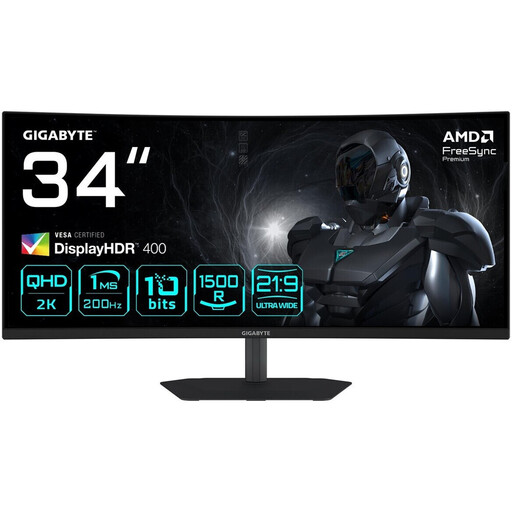 No image available
For a wider PC setup, provided your chosen game supports the format and you have enough space. The format alone doesn’t guarantee a wider in-game field of view.
34 inches, 3,440 × 1,440 pixels, 1500R, VA panel and 200 Hz. The description lists a headphone output.
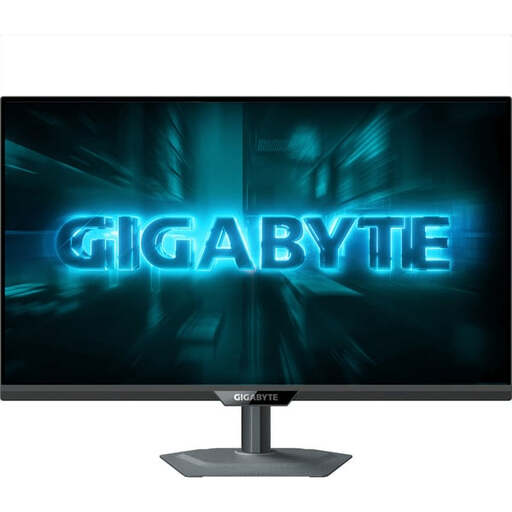 No image available
A QHD option for dynamic scenes; the description lists a headphone output but doesn’t confirm a microphone connection.
27 inches, 2,560 × 1,440 pixels, SS-IPS, 200 Hz and up to 210 Hz in OC mode.
Not necessarily. For the Dell G2725D, Dell specifies up to 180 Hz at QHD over DisplayPort and up to 144 Hz over HDMI. Compare the specifications for the input you’ll use with the output from your gaming device.
Sony describes a test for 1440p output, including 60 Hz, 120 Hz and VRR. For 120 Hz output, both the game and the screen also need to support it.
You can’t tell from a headphone socket alone. Dell confirms that the G2725D has a headphone output, while ASUS lists a headphone socket on the VG27AQ3A. Check your headset and gaming device’s microphone connection separately.
LG warns that static images displayed for long periods can leave marks and that the risk cannot be ruled out completely. Follow the care guidance and check the warranty terms for the specific model.
According to the European Commission, electronic displays are rated from A to G for energy efficiency. Compare the energy labels for the specific models on a like-for-like basis; the label doesn’t require buyers to choose a particular efficiency class.