Choose a mouse based on how you select and move calendar elements. Controllable pointer movement and a suitable scroll wheel are key, while quiet clicks may matter more in a shared room. Also check that it fits your hand and connects to your computer; compact, vertical and wired models each involve different trade-offs in grip, adjustment and connectivity.
Who is this mouse guide for?
Calendar designers working with lots of detail
If you regularly arrange dates, text boxes and other elements on your computer, consider how easy it is to control the pointer and scroll. The right buttons, sensor and scroll wheel depend on how you work.
Students sharing a room
If you work on your calendar while others in the room are studying or sleeping, quiet clicks and a mouse that fits on your desk may be important.
Students with longer design sessions
For longer sessions, check that the shape, handedness and workspace suit you. A different mouse shape alone is no substitute for a comfortable working posture.
What should you look for when buying?
First, check how easily you can select and move calendar elements with the mouse. Then consider noise, how it fits your hand, how much space it needs and how it connects to your computer.
| What matters |
What to look for |
Who might find this important? |
| Pointer and scroll control |
Check whether you can adjust the pointer speed and whether you need horizontal scrolling for your calendar view. |
If I want to place small calendar elements and work through longer views, I need movement I can control easily. Around 36% of consumers put pointer and scroll control first. |
| Click noise |
Check which buttons are described as quiet; this does not mean that all operating sounds are eliminated. |
If others in the room are studying or sleeping, I want to keep repeated clicks as quiet as possible. Around 29% of consumers prioritise quiet clicks. |
| Hand fit |
Check the handedness, whether the buttons are within easy reach, and the space available for your hand and forearm. A vertical shape may take some getting used to. |
For longer design sessions, I want to choose a shape that suits my hand and workspace. Around 21% of consumers prioritise how well a mouse fits their hand. |
| Space and connectivity |
Compare Bluetooth or the receiver required with your computer’s ports, and check whether a receiver is included. |
If my desk is short on space or I switch between devices, I want a suitable connection without unnecessary cables. Around 14% of consumers prioritise space and connectivity. |
Common misconceptions
-
Assuming a USB receiver is always included
According to Logitech, a compatible Logi Bolt receiver is not included with the Logitech Pebble Mouse 2 M350s, even though the model is compatible with it.
Check what’s included, and use Bluetooth Low Energy only if your computer supports it.
If you want to connect the M350s using Logi Bolt, you’ll need to budget for the compatible receiver separately.
-
Thinking ‘ergonomic’ means you’re guaranteed to avoid discomfort
A vertical mouse will not automatically suit every hand, and it does not prove that discomfort can be prevented. Germany’s Federal Institute for Occupational Safety and Health also considers posture across the entire computer workstation.
Check the handedness and button reach, and make sure your workstation is set up well, too.
-
Choosing wired or wireless based on looks alone
A wired mouse needs space for its cable and a suitable port. Wireless mice vary in their use of Bluetooth, receivers and power, depending on the model.
Before deciding, compare your computer’s connection options with the details for the specific model.
Key brands at a glance
Logitech
The Pebble Mouse 2 M350s is a compact Bluetooth option for a small workspace.
- Logitech describes it as having quiet clicks and the ability to switch between three devices.
- The M350s takes an AA battery; a compatible Logi Bolt receiver is not included.
CHERRY
The MW 4500 is a vertical mouse available in separate versions for left and right hands; the MC 2000 is a symmetrical wired mouse with horizontal scrolling.
- According to CHERRY, the MC 2000 has a tilt wheel for horizontal scrolling.
- The MW 4500 uses a nano receiver rather than Bluetooth. The MC 2000 needs USB-A and, according to CHERRY, is not suitable for glass or reflective surfaces.
Trust
The Bayo+ combines a vertical shape with Bluetooth and a 2.4 GHz USB receiver.
- Trust lists device switching, adjustable 800–2400 dpi and a rechargeable battery.
- The manufacturer’s claims about hand posture do not prove that discomfort will be prevented for everyone.
Rapoo
The M100 Silent is a compact wireless mouse for anyone who wants quiet clicks and a choice of Bluetooth or USB receiver.
- Rapoo lists a 1300-dpi sensor, Bluetooth and 2.4 GHz wireless connectivity for this model.
- According to Rapoo, the dpi cannot be switched; the mouse takes an AA battery.
Joybuy products for designing a calendar
Here are Joybuy mice for designing a calendar, including models described as quiet and mice with Bluetooth, 2.4 GHz wireless connectivity or extra buttons.
 No image available
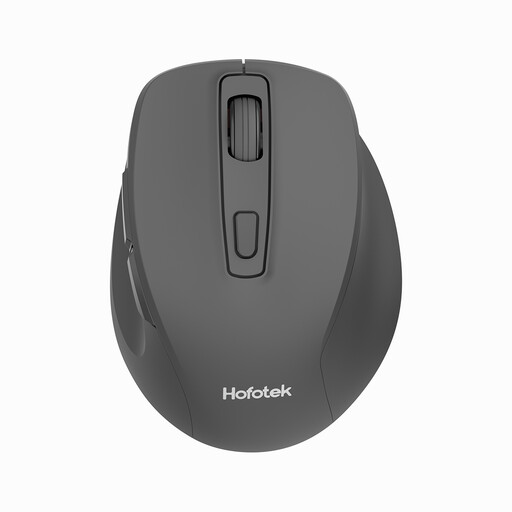
HOFOTEK M308 2.4G Silent Office Mouse
An option if you’re looking for a wireless mouse with adjustable DPI settings and clicks described as quiet for calendar work. The product details state that it uses 2.4 GHz wireless connectivity.
View at Joybuy
 No image available
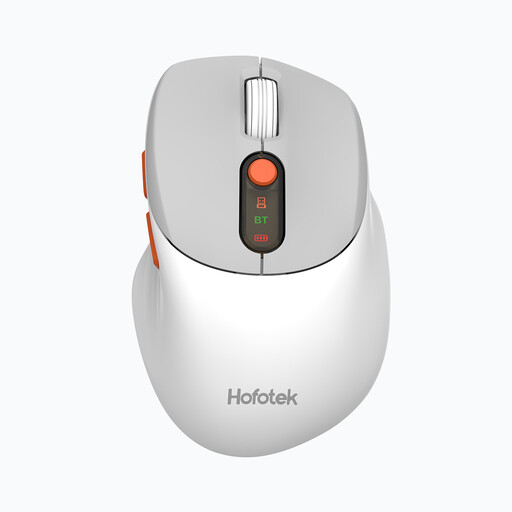
HOFOTEK M311 2.4G+BT Silent Office Mouse, White-Grey
A potential match if you’re looking for clicks described as quiet and a choice of Bluetooth or 2.4 GHz wireless connectivity. The product name lists an AA battery.
View at Joybuy
 No image available
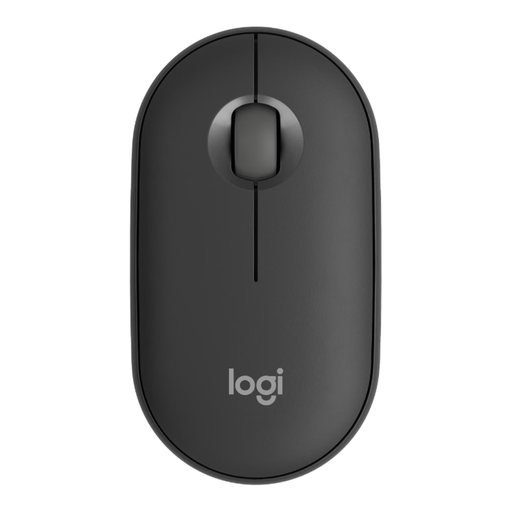
Logitech Pebble Mouse 2 M350s, Tonal Graphite
A compact option for a small workspace if you can use Bluetooth Low Energy. Logitech describes it as having quiet clicks and the ability to switch between three devices; the mouse takes an AA battery.
View at Joybuy
 No image available
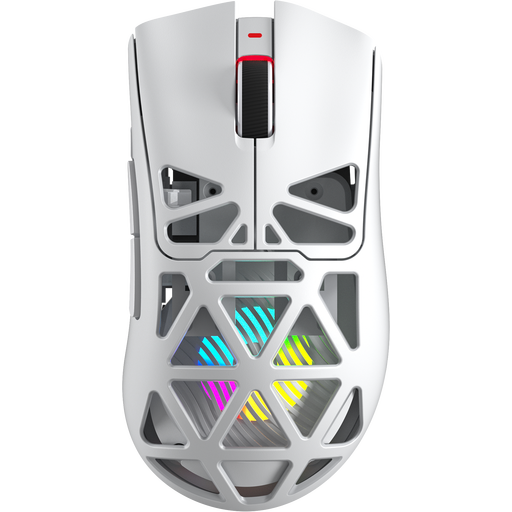
AULA SC620 Wireless Gaming Mouse, White
The product name lists Bluetooth, 2.4 GHz wireless connectivity, USB-C and seven programmable buttons. Check whether you can assign the programmable buttons in your calendar app.
View at Joybuy
 No image available
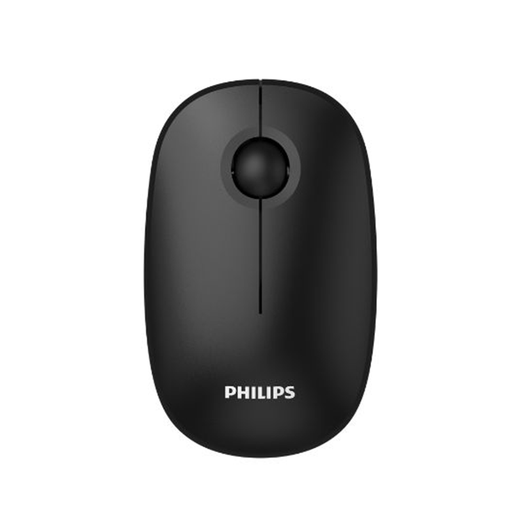
Philips 3000 Series Wireless Mouse SPK7378B/00, Black
An option if you’re looking for clicks described as quiet and a wireless connection using a USB receiver. Check that the receiver is compatible with your computer’s ports.
View at Joybuy
Frequently asked questions
Do I need the highest possible dpi for designing a calendar?
No. A high dpi figure alone doesn’t tell you how easily you’ll be able to place elements. Check whether you can adjust the pointer speed to suit you, and whether your calendar view requires horizontal scrolling. Trust lists switchable 800–2400 dpi for the Bayo+; the CHERRY MC 2000 has a tilt wheel but no dpi switch.
How do I connect a Bluetooth mouse to my laptop?
First, check the Bluetooth requirements for the specific mouse model and your computer. Logitech lists Bluetooth Low Energy for the Pebble Mouse 2 M350s; a compatible Logi Bolt receiver is not included. For the Rapoo M100 Silent, the instructions explain how to pair it using the Bluetooth button.
What ongoing costs and rights should I be aware of?
The Pebble Mouse 2 M350s takes an AA battery, while Trust lists a rechargeable battery for the Bayo+. In Germany, information from Verbraucherzentrale dated 28 September 2026 distinguishes statutory consumer rights from a voluntary guarantee. Its information dated 13 August 2026 also notes that many online purchases come with a general 14-day right to cancel; conditions and exceptions depend on the circumstances.
Can I put an old computer mouse in household rubbish?
No. Waste electrical equipment must be collected separately. Germany’s Federal Environment Agency lists municipal recycling centres as free drop-off points. Remove the battery before handing it in, where possible, and take it to a separate battery collection point.


