For precise work, look for controllable pointer movement and a scroll wheel that supports both careful and fast navigation. At a shared desk, the feel of the clicks, the size of your hand and a connection that works with your computers also matter. A vertical mouse or trackball could be an alternative, but each changes the way you normally use a mouse, so try one out for your calendar tasks first.
Who is this selection for?
People who manage calendars
If you regularly add or move appointments, a mouse that lets you adjust pointer movement and scrolling to suit the way you work can be useful. Logitech describes these settings for the MX Master 3S, and different scroll modes for the Signature M650.
People working quietly at a shared desk
If you’re clicking away alongside other people, look for clearly stated quiet-click technology and make sure you like the feel of the clicks. Logitech lists this feature for certain MX Master 3S and Signature M650 models.
People working for long periods with limited space to move
Hand fit can be important when you work for long periods; the DGUV recommends choosing a mouse that suits your hand size. If there’s little room on your desk to move a mouse, you could also consider a stationary trackball. With this type of device, you move the ball rather than the whole unit, as Kensington describes for the Orbit Wireless.
What should you consider when buying?
First check pointer movement and scrolling, then click noise and hand fit. The right connection and the space available to move the mouse will depend on your workplace.
| What matters |
What to look for |
Who will find this most important? |
| Precise selection and navigation |
Check the adjustable pointer speed and scroll modes in your calendar application. |
If I want to select small calendar items precisely while also scrolling through longer views, controllable pointer movement and scrolling matter to me. Around 28% of consumers put this precise way of managing a calendar first. |
| Quiet clicks |
Look for clearly stated quiet-click technology and a click feel you like. |
When I’m working at a shared desk, I want to keep the clicking noise down for the people beside me. Around 22% of consumers prioritise quiet clicks. |
| Comfortable fit for longer use |
Check your hand size and whether you’re left- or right-handed; try the grip and how easily you can reach the buttons. |
If I’m at my computer for a long time, I need a mouse that suits my hand and dominant hand, or offers a different hand position. Around 22% of consumers prioritise fit. |
| Connecting to multiple computers |
Check Bluetooth, USB-A, the operating system and any requirements for installing software. |
If I switch between computers at a shared workstation, the connection needs to work with the devices I actually use. Around 17% of consumers prioritise switching between devices. |
| Limited space to move |
If you’re considering a trackball, try the ball and scroll ring to see whether they suit the way you move small calendar items. |
If papers or devices limit the space available to move a mouse, I want to move the cursor without moving the whole device across the desk. Around 11% of consumers put this space-saving feature first. |
Avoid common buying mistakes
-
Assuming the highest DPI automatically means better precision
A manufacturer’s maximum DPI figure doesn’t tell you which pointer setting will suit your screen or help you select items precisely in your calendar application.
Try selecting small calendar items and adjust the pointer speed if needed, rather than choosing a mouse based solely on its highest DPI figure. Logitech describes adjustable tracking for the MX Master 3S.
-
Choosing the wrong size or handedness option
For the Signature M650 and Lift, Logitech offers options based on hand size or handedness. So just because a product family looks suitable, it doesn’t mean every version will fit your hand.
Check the full model name and try the fit. A left-handed version isn’t the same as a right-handed one.
-
Assuming Bluetooth, a USB receiver and software are interchangeable
For the CHERRY MW 9100, CHERRY lists Windows and Bluetooth 4.0 or later, or USB-A, as requirements. Basic operation and additional software features may have different requirements.
Check that the operating systems, connections and software installation rules are compatible with the computers you actually use.
-
Assuming a compact mouse will automatically be ergonomic
A small design doesn’t, by itself, tell you whether a mouse will suit your hand. The DGUV recommends choosing a mouse that matches your hand size. A trackball saves space, but works differently.
Consider hand fit and the space available separately, and try alternative designs for your calendar tasks.
Key brands to consider
Logitech
The MX Master 3S, Signature M650 and Lift are relevant to this selection. Their features and fit apply to the specific model ranges mentioned, not to the brand as a whole.
- Logitech describes adjustable tracking and scrolling features on certain models, as well as different sizes and handedness options for the Signature M650 and Lift.
- Check the exact version and how it fits your hand. Quiet clicks or a different hand position don’t guarantee that you’ll like the feel of the clicks or the shape.
CHERRY
According to German product information, the MW 9100 is a compact mouse that connects via Bluetooth or a USB receiver.
- For this model, CHERRY lists three DPI settings and the ability to charge while in use.
- CHERRY lists Windows and Bluetooth 4.0 or later, or USB-A, as requirements. This doesn’t mean the mouse is suitable for every operating system or tell you how loud its clicks are.
Kensington
The Orbit Wireless Trackball with scroll ring is a stationary alternative to try if you want to control the cursor without moving the whole device.
- Kensington lists four DPI settings and Bluetooth and receiver connectivity for the trackball.
- Using the ball and scroll ring is different from moving a conventional mouse. Manufacturer claims about comfort or discomfort aren’t independent evidence of effectiveness.
Mice for calendar work at Joybuy
This selection includes conventional mice with scrolling or DPI features, as well as a vertical mouse for calendar work at a shared desk.
 No image available
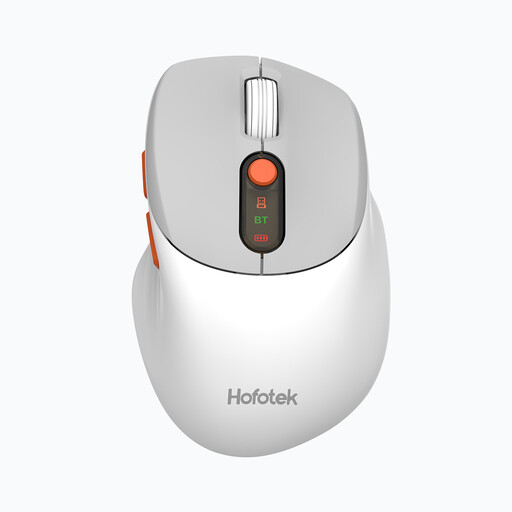
HOFOTEK M311 Silent Office Mouse (2.4G+BT, White-Grey)
An option if you’re looking for a mouse with several connection types and adjustable DPI settings.
The product name lists 2.4G+BT, several DPI settings and an AA battery.
View at Joybuy
 No image available
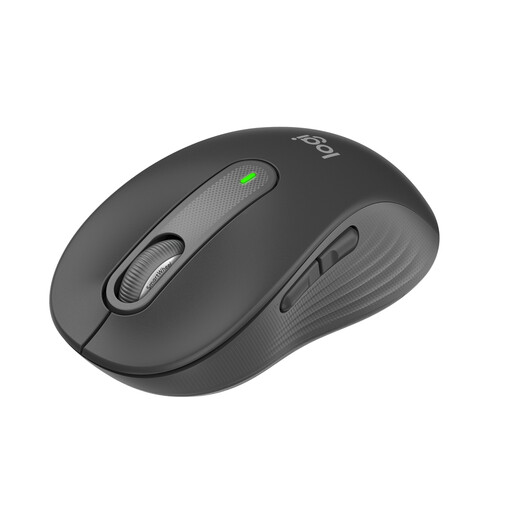
Logitech Signature M650 for small and medium-sized hands, Graphite
For calendar views that call for both precise and fast scrolling; Logitech describes the SmartWheel as offering both modes.
The product name lists quiet clicks, SmartWheel, Bluetooth, Logi Bolt and a 24-month battery life. Logitech recommends the M650 for small to medium-sized hands.
View at Joybuy
 No image available
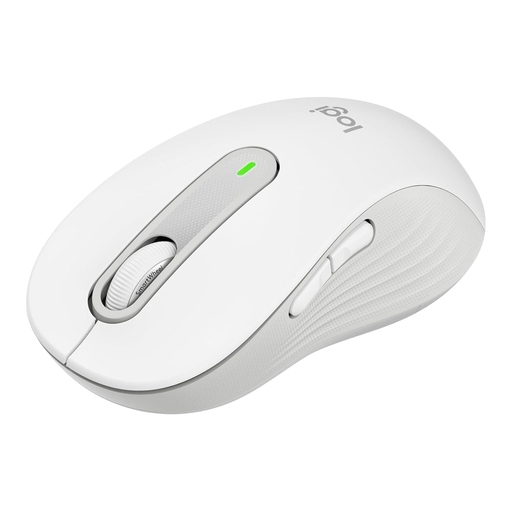
Logitech Signature M650 L, Off-White
An L-size option for anyone looking for different scroll modes and clearly stated quiet clicks; Logitech recommends the M650 L for large hands.
The product name lists SmartWheel, SilentTouch, Bluetooth, Logi Bolt USB Receiver, five buttons and a 24-month battery life.
View at Joybuy
 No image available
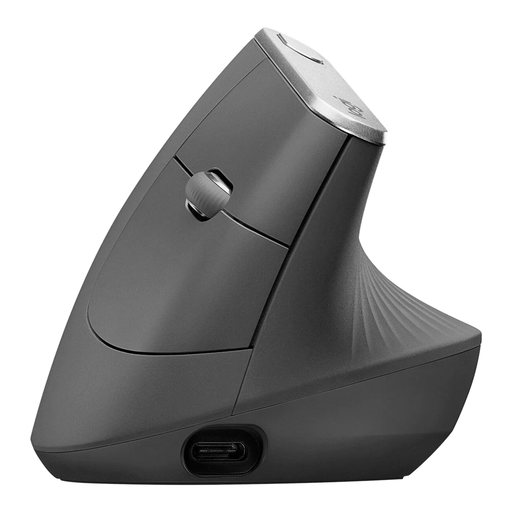
Logitech MX Vertical Ergonomic Mouse, Graphite
A vertical design to try if you’d like to test a different hand position during longer working sessions. It’s used differently from a conventional mouse.
The product name lists Bluetooth, a USB receiver and a 4000-DPI sensor, and names Windows, macOS and iPadOS as compatible systems.
View at Joybuy
 No image available
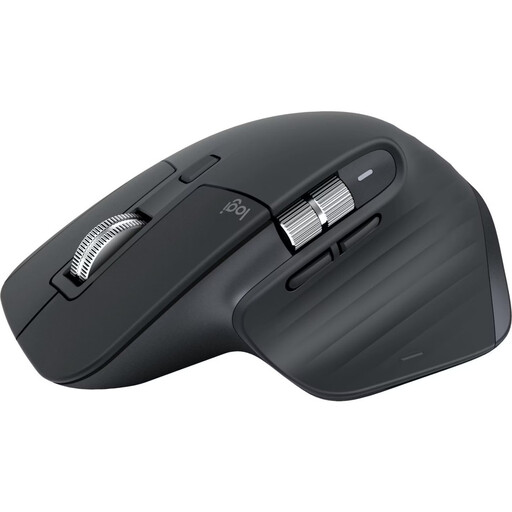
Logitech MX Master 3S Bluetooth Edition, Graphite
For frequent selections and navigating longer calendar views; Logitech lists adjustable tracking and MagSpeed scrolling, with fast and precise modes.
The product name lists an 8K-DPI sensor, Quiet Clicks and multi-device connectivity.
View at Joybuy
Frequently asked questions
Is a high maximum DPI essential for managing a calendar?
No, not on its own. What matters is whether you can set the pointer speed to suit your screen and select items precisely; Logitech lists this adjustability for the MX Master 3S.
How do I set up a Kensington Orbit Wireless and keep the ball clean?
Kensington describes the basic operation as plug and play. KensingtonWorks software is recommended for customisation, but isn’t listed as a requirement for basic use. To remove dirt gently, support recommends using a finger or a dry cloth.
Who should I contact if there’s a fault: the retailer or the manufacturer?
For a consumer purchase from a business seller in the EU, your statutory rights are with the seller. A manufacturer’s guarantee is separate and voluntary. EU consumer information states that covered faults are subject to a minimum two-year guarantee from the date you receive the goods, with free repair or replacement. Check the terms of any manufacturer’s guarantee separately.
Does German workplace law require a particular type of mouse?
ASR A6 doesn’t create a general requirement to buy a vertical mouse or a particular model for this task. The Federal Institute for Occupational Safety and Health describes the regulation as setting out requirements for display screen workstations within its scope. Whether a shared desk falls within that scope depends on the specific workplace situation.


