For browsing a photo archive regularly, a scroll wheel and easy-to-reach controls are useful, provided they work with the photo software you use. At a shared desk, the noise, size, handedness and connection should also suit everyone who uses the mouse regularly. A vertical mouse or trackball offers a different way of working, but it won’t necessarily be more comfortable for everyone.
Who should consider these options?
Anyone who browses lots of photos
If you browse, compare or sort image collections, a scroll wheel and easy-to-reach controls may come in handy. Adobe describes these tasks in Lightroom Classic’s Library module; the mouse features that work for you depend on the software you use.
Anyone using a quiet shared workspace
If you often click away alongside other people, look for switches specifically described as quiet. Logitech describes the MX Master 3S as having quiet clicks, but that feature doesn’t automatically apply to other models or mean it will suit everyone at the desk.
Anyone with different preferred mouse hands
If several people use the same pointing device, a mouse described as ambidextrous or a trackball could be an alternative to a specifically left- or right-handed design. Kensington describes the Orbit Wireless as ambidextrous; HP also says the HP 430 is suitable for left- and right-handed users.
What should you look for when choosing?
Traditional mouse
A good fit if: You prefer familiar pointer control and a scroll wheel for browsing image collections.
Consider: Size, handedness and extra buttons vary by model; custom button assignments may require software.
Vertical mouse
A good fit if: Someone who uses the mouse wants to try a more upright hand position and finds the shape comfortable.
Consider: Regular users should try the different grip; the design alone can’t tell you whether it will suit an individual.
Ambidextrous trackball
A good fit if: Right- and left-handed users share the same device, or there’s little room to move a traditional mouse around.
Consider: You control the pointer with a ball rather than moving the device; check that everyone can comfortably reach the ball, scroll ring and buttons.
The percentages below relate to consumers choosing a mouse for a photo archive at a shared desk.
| What matters |
What should you check before buying? |
Who is it important to? |
| Browsing images |
Check the scroll behaviour and whether you can easily reach assignable buttons in your photo software. |
When browsing long image collections, I want to scroll quickly and have frequently used commands to hand in my photo software. Around 36% of consumers prioritise image navigation and easy-to-reach commands. |
| Quiet clicks |
Check whether the specific model has quiet switches, and consider how easy it is for everyone sharing the mouse to use. |
If I often click alongside other people, I want the noise to be as unobtrusive as possible without making the mouse a poor fit for other users. Around 29% of consumers prioritise quiet clicks. |
| Fit and space |
Consider preferred hand, hand size and available room to move the mouse together. |
If left- and right-handed users share the mouse, or there’s little room to move it around, a design that works for everyone matters. Around 21% of consumers prioritise a shared fit or a small movement area. |
| Connection and setup |
Check the operating systems, Bluetooth, USB ports and whether you can install any required software at your desk. |
At a shared workstation, I want to be able to connect the mouse to the computers available and make any necessary settings. Around 14% of consumers focus mainly on connection and setup. |
Which assumptions should you avoid?
-
Quiet clicks don’t mean the mouse will suit everyone
A model with quiet switches may still be unsuitable for other people sharing the desk because of its size or handedness.
Check the noise, size and handedness of the specific model separately.
-
Assignable buttons aren’t automatically photo shortcuts
Extra buttons are only useful if you can set them up to perform the actions you want in your photo software. You may need customisation software to do this.
Check that the commands you need are compatible with your software and operating system, and that you can install the necessary software on the shared computer.
-
A vertical mouse or trackball isn’t a guaranteed ergonomic solution
Both designs change your grip or the way you control the pointer. A review describing a particular design as a good fit for certain hands doesn’t mean it will be comfortable for everyone.
If possible, let regular users try the design and judge it for themselves rather than relying on a product claim alone.
Which brands and product ranges can help you choose?
Logitech
According to Logitech, the Signature M650 is available in different sizes and handedness options. The MX Master and Lift offer different ways of working and feature sets.
- Logitech describes the MX Master 3S as having quiet clicks. A review of the Lift by F.A.Z. Kaufkompass on 2 June 2025 described it as suitable for small to medium-sized hands; a left-handed version is available.
- These features apply to specific models and don’t prove that every Logitech mouse will suit everyone at a shared desk.
Kensington
The Orbit Wireless, with its scroll ring, is a trackball alternative for ambidextrous use or when there’s little room to move the mouse around.
- Kensington lists Bluetooth and 2.4 GHz wireless as connection options and describes the model as suitable for both right- and left-handed users.
- Controlling the pointer with a ball is different from moving a mouse around. This doesn’t prove that it will have a particular ergonomic benefit for you.
CHERRY
The MW 9100 is a traditional wireless mouse for anyone who wants to choose between Bluetooth and 2.4 GHz wireless.
- CHERRY lists six buttons, three DPI settings and USB-C charging while the mouse is in use.
- The product page lists Windows as the operating system; it doesn’t make any claims about quiet switches or ambidextrous use.
HP
The HP 430 is a traditional mouse that HP describes as suitable for left- and right-handed users and for use with multiple devices.
- HP lists Bluetooth, a USB-A receiver, programmable buttons and one AA battery. The stated battery life of up to 24 months is a manufacturer’s claim.
- These product details don’t confirm that the clicks are quiet, so check the noise level separately if that matters at a shared desk.
Joybuy products to consider
This product selection includes vertical models and wireless office mice. Pay particular attention to choosing a design that suits you and a connection that works with the computers you share.
 No image available
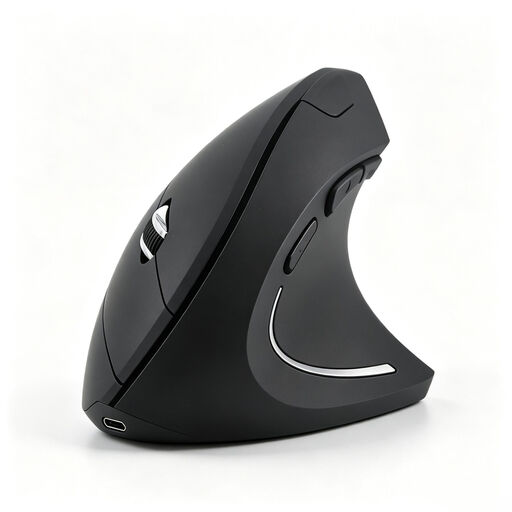
Vertical wireless mouse with USB-C charging
The vertical design may be worth considering if you’d like to try this way of using a mouse.
Bluetooth and 2.4 GHz connectivity; three DPI settings: 800, 1200 and 1600.
View at Joybuy
 No image available
KINSI ergonomic vertical wireless mouse
The vertical design is an option if regular users find it comfortable and easy to use.
Five buttons; five DPI settings from 800 to 4800; rechargeable battery with USB-C and 2.4 GHz connectivity.
View at Joybuy
 No image available
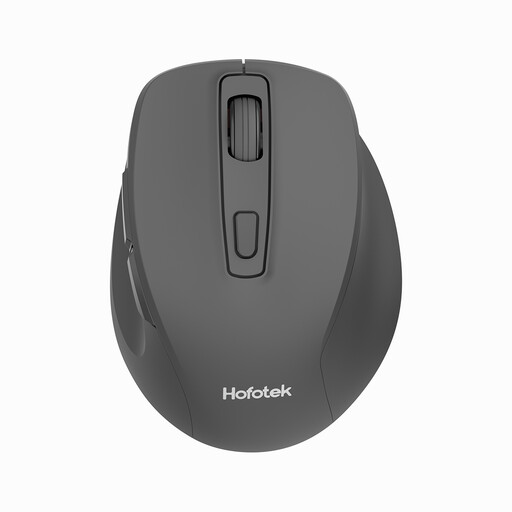
HOFOTEK M308 Silent Office Mouse
The product name describes the clicks as quiet, which may be worth considering if you’ll use the mouse at a shared desk.
2.4 GHz connection via USB receiver; adjustable DPI from 800 to 1600; AA battery included. Compatible systems listed are Windows, macOS and Android.
View at Joybuy
 No image available
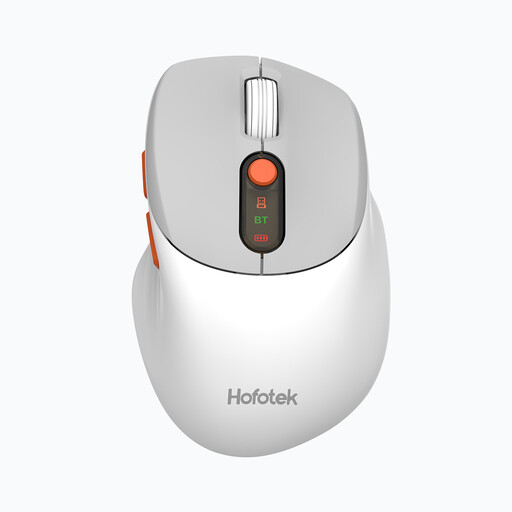
HOFOTEK M311 Silent Office Mouse
The product name describes the clicks as quiet; check that the connection options suit the devices you share before buying.
Bluetooth or 2.4 GHz connection; switch between up to three devices; adjustable DPI from 800 to 4000; one AA battery.
View at Joybuy
 No image available
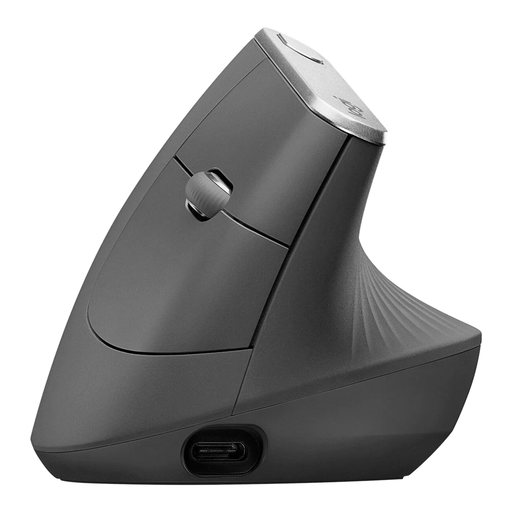
Logitech MX Vertical
The vertical design is an alternative if regular users would like to try this way of using a mouse.
4000 DPI sensor; Bluetooth or USB receiver; connects to up to three devices; rechargeable battery with USB-C charging.
View at Joybuy
Frequently asked questions
Are extra mouse buttons useful for every photo archive?
Not necessarily. Adobe describes sorting, comparing and rating photos in Lightroom Classic’s Library module. Whether you can assign frequently used actions to mouse buttons depends on the model, the customisation software available and your photo software.
How do I set up a wireless mouse on a shared computer?
First check whether Bluetooth is available or if there’s a free USB port for the receiver. If you want to customise button assignments, also check whether you’re allowed to install the required software on the computer. Connecting the mouse and customising it are separate considerations.
What power options should I check when choosing a mouse?
It depends on the model: according to the manufacturer, the HP 430 uses an AA battery, while the CHERRY MW 9100 has a rechargeable battery that charges via USB-C. Consider whether you’d prefer spare batteries or a way to charge the mouse at your desk.
Are there any specific workplace rules for using a mouse?
For a workplace computer workstation, check the relevant requirements of the German Workplace Ordinance and ASR A6 for your specific situation. The Federal Institute for Occupational Safety and Health describes ASR A6 as providing detailed guidance on requirements for computer work; this doesn’t mean there’s a general requirement to buy a particular mouse model.
How should I dispose of an old mouse in Germany?
Don’t put electrical waste in your household rubbish. The German Environment Agency lists return options including recycling centres and retailers; removable batteries should be taken separately to a battery collection point.


