If you regularly work with long spreadsheets and wide views, first check whether the scroll wheel, horizontal navigation and extra buttons genuinely help with your dashboard software. If you work for long periods or hand position is a priority, choose a mouse to suit your hand size, handedness and preferred shape. A vertical mouse or trackball is an alternative way to control the cursor, but it is not a proven way to prevent discomfort. Then check that the connection and any required software are compatible with your computer.
Which mouse is right for you?
Dashboard creators working with large spreadsheets
If you often navigate through data ranges, check whether the scroll wheel, horizontal controls and shortcuts suit the way you work. Microsoft Support lists the arrow keys, scroll bars and mouse among the ways to navigate Excel worksheets. Logitech describes extra scrolling and customisation features for the MX Master 4.
Heavy users who prioritise fit
If you use a mouse for long stretches, compare hand size, handedness and grip before prioritising extra features. Logitech offers the Signature M650 in versions for different hand sizes and for left-handed users. The Federal Institute for Occupational Safety and Health notes that maintaining a static posture for long periods can be ergonomically unfavourable.
Users who switch between devices
If you work across several computers or have few spare USB ports, check the connection options and the software your setup requires. Kensington lists Bluetooth LE and a USB-A receiver for the Pro Fit Ergo TB550. HP describes the 430 as a mouse for left- and right-handed users, with several connection options.
What should you look for when buying?
Start with the task you do most often and your preferred hand position. Then check that the connection, software and power supply are compatible with your computer.
| What matters when buying |
What to look for |
Who will value this? |
| Fit and hand position |
Check the hand size, handedness, button reach and comfort of your hand position with your usual grip. |
If I spend long hours at my computer, I want a mouse that suits my hand and grip rather than relying on an ‘ergonomic’ label alone. Around 36% of consumers put fit and hand position first. |
| Navigating wide data views |
Try vertical and horizontal scrolling, as well as the button actions you use most often in your application. |
If I often switch between long lists and wide spreadsheets, I want to carry out common navigation tasks comfortably. Around 29% of consumers prioritise navigating data views. |
| Connection and software |
Check Bluetooth, available ports, your operating system and, if necessary, whether you can install configuration software. |
If I want to use the mouse with different computers, the connection and any required features need to suit my setup. Around 21% of consumers prioritise device compatibility. |
| Power and maintenance |
Compare the battery or rechargeable battery type, what’s included and how easy the specific model is to clean. |
If I want to spend as little time as possible charging, replacing batteries or cleaning my mouse, the right power supply and maintenance requirements matter. Around 14% of consumers prioritise hassle-free use and potential ongoing costs. |
Which misconceptions should you avoid?
-
Assuming a high DPI figure or a time-saving claim proves you can build dashboards faster
Logitech’s time-saving claim for the MX Master 4 is based on its own study of 37 users and eight desktop tasks. It does not prove that you can build a sales dashboard faster with the mouse.
Check whether scrolling and customisable actions really help with the tasks you repeat regularly.
-
Assuming similarly named mouse versions are identical
Size and handedness can vary. Features of a business version do not necessarily apply to a similarly named standard model.
Check the full model name, handedness, what’s included and the connection options on the specific product listing.
An adapter you need to buy separately or a mouse that doesn’t fit can make it harder to use. Check the connections and fit before you buy.
-
Buying a vertical mouse or trackball as a guaranteed fix for discomfort
A different shape changes your hand position or the way you control the cursor, but it cannot guarantee relief for everyone. It may also take a while to get used to.
If possible, check the grip, fit and button reach beforehand, and consider your posture at your workstation as a whole.
Brands to consider
Logitech
The MX range is designed for users looking for extra controls and scrolling features. Signature M650 models vary by hand size and handedness, among other things.
- Logitech says the MX Master 4 offers customisable haptic feedback; Logi Options+ is required.
- The thumb wheel is specifically listed for the MX Master 4 for Business, so don’t assume it’s included on another version.
- With the M650, the specific size and handedness version matters.
CHERRY
The MW 4500 and the separate MW 4500 LEFT are options for buyers looking for an angled mouse designed for their preferred hand.
- CHERRY describes the MW 4500 as having a 45° shape, and offers a separate LEFT version for left-handed users.
- A different grip may take some getting used to. The manufacturer’s description does not guarantee individual relief.
Kensington
The Pro Fit Ergo TB550 is a trackball alternative for a fixed workspace with limited room to move a mouse around.
- Kensington lists a 4D scroll wheel for vertical and horizontal scrolling, plus Bluetooth LE or a USB-A receiver.
- Controlling the cursor with a ball feels different from moving a conventional mouse. The manufacturer says this model is designed for medium to large hands.
HP
The HP 430 is a conventional wireless mouse that HP describes as suitable for both left- and right-handed users.
- HP lists customisable buttons and an AA battery.
- The manufacturer’s stated battery life of up to 24 months is not a guarantee of how long it will last in your setup.
Joybuy mice for different workflows
The Joybuy options below include wireless mice with advanced scrolling and customisation features, simpler wireless mice and a vertical design.
 No image available
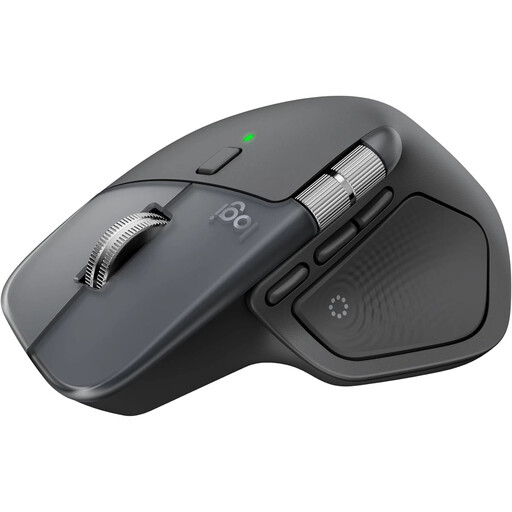
Logitech MX Master 4, Graphite
For long documents or wide views, if you want to tailor scrolling and extra controls to your workflow.
The description lists MagSpeed scrolling, Bluetooth, a Logi Bolt USB-C receiver and switching between up to three devices.
Logi Options+ is required to customise haptic feedback and other features.
Joybuy
 No image available
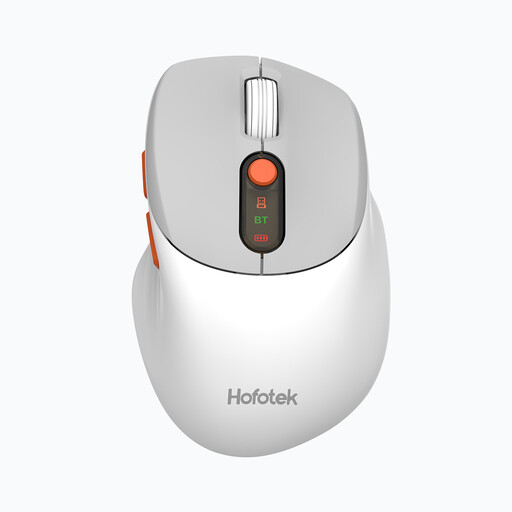
HOFOTEK M311 2.4G+BT Silent Office Mouse
For a straightforward office workflow, if you want to switch between several devices.
The description lists 2.4 GHz wireless, Bluetooth 5.1 and switching between up to three devices.
The product title lists adjustable DPI settings and an AA battery.
Joybuy
 No image available
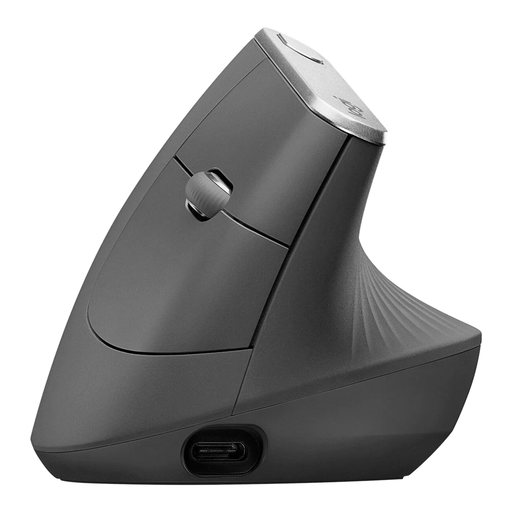
Logitech MX Vertical, Graphite
For you if you’d like to try an angled hand position instead of the shape of a conventional mouse.
The description lists a 57° design, Bluetooth or a USB receiver, and a rechargeable battery.
The product title lists a 4000 DPI sensor and compatibility with Windows, macOS and iPadOS.
Joybuy
 No image available
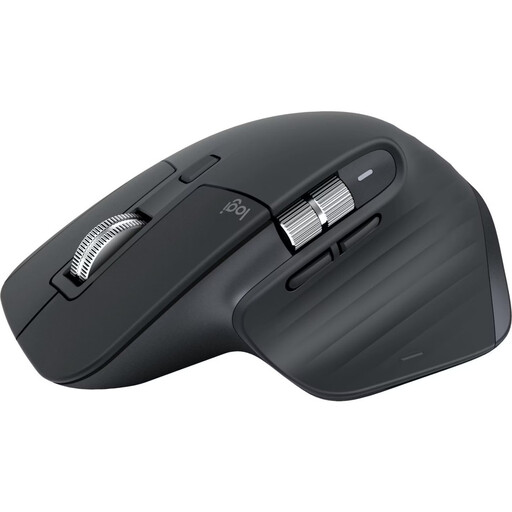
Logitech MX Master 3S Bluetooth Edition, Graphite
For long documents and spreadsheets, if you prefer a Bluetooth connection without a USB receiver.
The description lists MagSpeed scrolling, USB-C charging and Bluetooth for up to three devices.
The product title lists an 8K DPI sensor and quiet clicks. Logi Options+ is specified for customising buttons and gestures.
Joybuy
 No image available
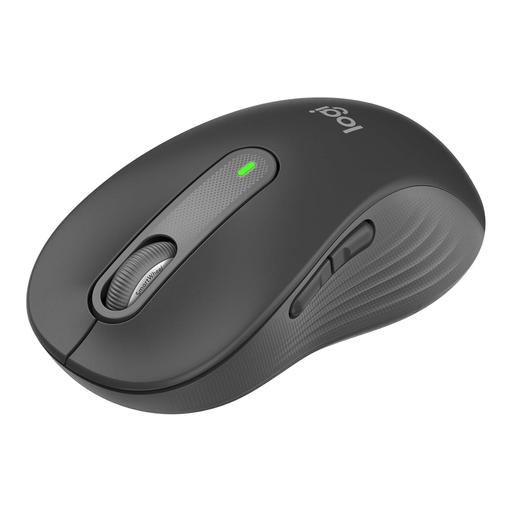
Logitech Signature M650 L
For larger hands, if you’re looking for a contoured wireless mouse with a scroll wheel rather than extra specialist controls.
The product title describes the M650 L as the version for large hands. The description lists Bluetooth LE or a Logi Bolt USB receiver, as well as SmartWheel scrolling.
Logitech Options+ is listed for customising the side buttons.
Joybuy
Frequently asked questions
Do I need a horizontal mouse wheel for wide Excel spreadsheets?
No. Microsoft Support also lists arrow keys and scroll bars as ways to navigate a worksheet. A horizontal wheel is another control option; whether it suits your workflow depends on the application and the tasks you do.
What should I check before connecting and setting up a mouse?
Check the connection options against your computer. The Kensington TB550 offers Bluetooth LE or a USB-A receiver in the box. If you want to use the customisable haptic feedback on the MX Master 4, Logitech lists Logi Options+ for Windows and macOS. Then check that the button assignments work in your application.
What should I know about care, power and faults?
According to HP, the HP 430 uses an AA battery. The Kensington TB550 has a rechargeable battery and a removable ball for cleaning. For a faulty consumer purchase, the seller is generally responsible for the statutory rights you have under the Consumer Rights Act; the Consumer Advice Centre distinguishes these from a manufacturer’s guarantee. If you’re buying for a business, check whether the rules for consumer purchases apply.
Is a particular mouse required for a home office in Germany, and where should you take an old one?
The ASR A6 from the Federal Institute for Occupational Safety and Health does not establish a general requirement to buy a particular mouse for private use. The rules apply to screen-based workstations in workplaces and teleworking workstations; screen use at home outside such teleworking arrangements is excluded. Whether a specific workstation is covered must be assessed on a case-by-case basis. According to the German Environment Agency, an old mouse should not go in household waste; you can take it to a recycling centre free of charge.


