For long borrowing lists, a mouse with fast, precise scrolling is useful. For wide spreadsheets, check whether it has a dedicated horizontal scrolling function. For longer sessions, hand size, handedness and grip also matter – a vertical mouse won’t automatically suit every hand, nor is there evidence that it prevents discomfort for everyone. Before buying, check that its connection, operating system and any software requirements are compatible with your computer.
Who should consider their choice of mouse?
People analysing borrowing lists
If you work with long data sets or wide spreadsheets, your mouse should support both precise row selection and quick navigation. If you regularly work with wide spreadsheets, check specifically for horizontal scrolling.
People who spend long hours at a desk
For longer sessions, hand size, grip and how easily you can reach the buttons are important factors. Make sure there’s also enough room on your desk for your mouse, keyboard and a comfortable place to rest your hand and arm.
People who switch between laptops and desktops
If you switch between computers or have few spare ports, compare the connection types of the specific model with your devices. Extra buttons may also require compatible software and an operating system that supports it.
What should you look for?
First, think about how you navigate your spreadsheets, then check that the mouse fits your hand and works with your set-up. This will help you judge whether its features suit the way you actually use it.
| What matters |
What to check before buying |
Who is this especially important for? |
| Navigating long and wide spreadsheets |
Check for fast, precise vertical scrolling and a separate horizontal scrolling function in your spreadsheet application. |
If you regularly work through long borrowing lists and scroll across wide spreadsheets, you’ll want to navigate quickly while still selecting individual rows accurately. Around 31% of consumers put spreadsheet navigation first. |
| Hand comfort during longer sessions |
Check the size of the mouse and whether it’s designed for left- or right-handed use. Also make sure its angled shape suits you. |
For longer sessions, you’ll want a shape that’s easy to reach and comfortable to hold, rather than choosing based only on its design or sensor specifications. Hand comfort is the top priority for around 25% of consumers. |
| Connection and computer compatibility |
Check whether the specific model uses Bluetooth, a wireless receiver or a cable, as well as which operating system and software it requires. |
If you switch between a laptop and desktop or have very few spare ports, the connection needs to work with both computers and suit your set-up. Around 19% of consumers prioritise connection and computer compatibility. |
| Quiet operation |
Check whether claims about quiet clicks also apply to the scroll wheel, and whether noise levels matter in your workspace. |
Quiet operation may be important in a peaceful or shared workspace. Around 13% of consumers mainly look for a quiet mouse. |
| Purchase and running costs |
Compare models with the features you need, and check whether the mouse requires batteries, a rechargeable battery or a spare port. |
If you want to keep an eye on purchase and ongoing costs, consider battery replacement, recharging and which features you’ll actually use. Around 12% of consumers put cost first. |
Avoid common buying mistakes
-
Assuming fast vertical scrolling means horizontal scrolling
A scroll wheel designed to move quickly through pages won’t necessarily let you scroll from side to side. This can make it harder to navigate wide borrowing spreadsheets.
Check specifically for horizontal scrolling and, if possible, test it in the spreadsheet application you actually use.
-
Buying an ergonomic shape without checking its size or handedness
Mouse size and left- or right-handed designs vary by model. Logitech says the Lift is designed for small to medium-sized hands, but the right shape is still a matter of personal fit.
Check the exact version against your hand and, before ordering online, review the applicable returns policy.
If the shape doesn’t suit you, returning it may involve extra hassle.
-
Taking wireless connections and extra buttons for granted
Bluetooth, wireless receivers and cables each have different requirements for your computer and its ports. Some extra buttons may also require configuration software.
Check the exact model, what’s included, the operating system and whether you have the necessary installation permissions. A wireless receiver needs a compatible port; a wired mouse needs a spare USB-A port.
Brands to consider
Logitech
The models mentioned come in different designs and offer different scrolling features, from conventional office mice to the vertical Lift.
- Logitech lists SmartWheel for the Signature M650 and a MagSpeed wheel for the MX Master 3S Bluetooth Edition. The manufacturer says the Lift is designed for small to medium-sized hands, and a left-handed version is available.
- Size, shape and connection vary by model. An independent review described the Lift as unsuitable for large hands, so its suitability shouldn’t be assumed to apply to all Logitech mice.
CHERRY
The MC 2000 is a wired mouse with horizontal scrolling, while the MW 4500 is a separate wireless mouse with an angled design.
- CHERRY describes the MC 2000’s Tilt-Wheel as a way to scroll from side to side. According to the manufacturer, the MW 4500 is also available in a separate left-handed version.
- The MC 2000 requires USB-A; CHERRY lists Windows for this model and notes that it isn’t suitable for glass or reflective surfaces. The MW 4500 uses a wireless receiver.
Trust
The Bayo+ is a vertical option for people who switch between several devices and prefer a rechargeable battery.
- Trust lists connections to up to three devices and two thumb buttons for the Bayo+.
- The vertical design should suit your hand. A manufacturer’s claim about comfort doesn’t prove that it will have a particular health benefit for you.
Joybuy products for analysing borrowing data
The Joybuy products below include vertical, wireless, classic office and gaming mice. Compare their listed connections and features with your workspace and spreadsheet navigation needs.
 No image available
Vertical wireless mouse with USB-C, Bluetooth and 2.4 GHz
A vertical design could be worth considering if you’d like to try an angled mouse. Check that the shape suits your hand before buying.
Listed in the product name: USB-C charging, Bluetooth and 2.4 GHz connection, plus three DPI settings: 800, 1200 and 1600 DPI.
View at Joybuy
 No image available
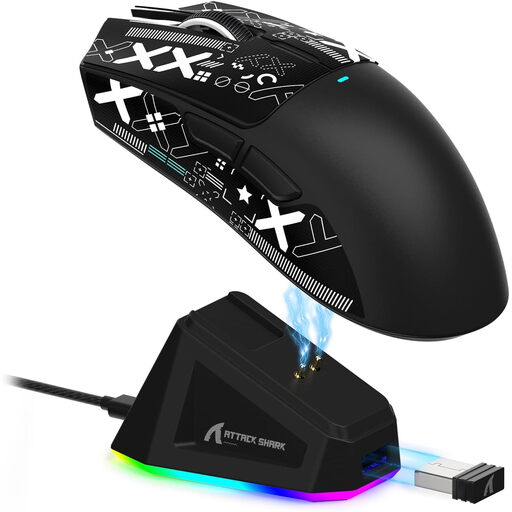
ATTACK SHARK X11 Wireless Gaming Mouse, Black
This wireless gaming mouse could be an option if you need the connection types and buttons listed in the product name; horizontal scrolling isn’t mentioned.
Listed in the product name: Bluetooth, 2.4 GHz and USB-C, five programmable buttons, 22,000 DPI and 62 g.
View at Joybuy
 No image available
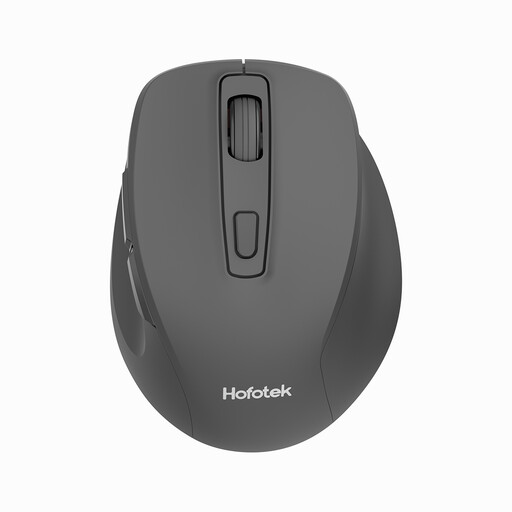
HOFOTEK M308 2.4G Office Mouse
An office mouse with a 2.4 GHz wireless connection could suit you if it works with your computer and fits your workspace.
Listed in the product name: adjustable DPI settings and compatibility with several systems.
View at Joybuy
 No image available
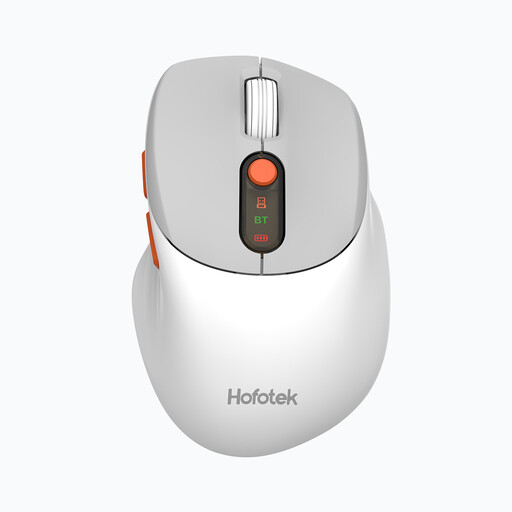
HOFOTEK M311 2.4G+BT Office Mouse, White-Grey
The listed combination of wireless and Bluetooth connections could be useful if you want to use the mouse with different computers.
Listed in the product name: adjustable DPI settings and one AA battery. Check that the connections are compatible with your devices.
View at Joybuy
 No image available
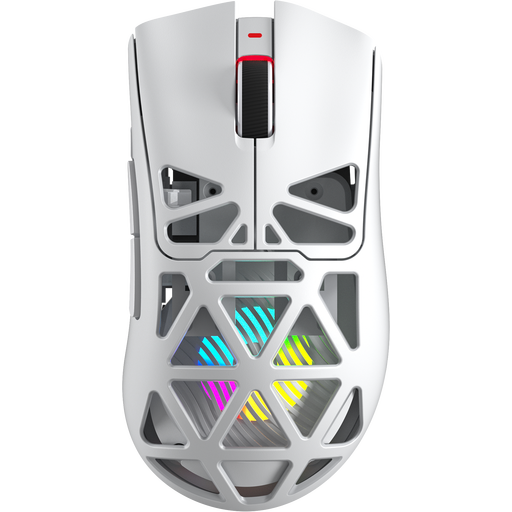
AULA SC620 Wireless Gaming Mouse, White
This mouse could be an option if you need one of the listed connection types and the buttons specified. Horizontal scrolling isn’t mentioned in the product name.
Listed in the product name: Bluetooth 5.0, 2.4 GHz and USB-C, seven programmable buttons, 12,000 DPI, 8 KHz, 67 g and a 400 mAh battery. The product name lists PC and Mac as compatible devices.
View at Joybuy
Frequently asked questions
How can I check whether I can scroll sideways in a wide borrowing spreadsheet?
Look specifically for horizontal scrolling, a Tilt-Wheel or a button that can be assigned to this function, then test it in your application. CHERRY lists horizontal scrolling for the MC 2000 and provides a Windows driver for its Tilt-Wheel function.
How should I set up my mouse for longer sessions?
Leave enough space on your desk for your mouse, keyboard and a place to rest your hand and arm. Check that you can reach the mouse without holding your arm or hand in an awkward position for long periods. These are ergonomic recommendations from the Federal Institute for Occupational Safety and Health; they don’t guarantee that a particular mouse will prevent discomfort.
Do I need to install software to use extra buttons?
It depends on the model and the function you want. Logitech lists Logi Options+ for customising buttons; CHERRY provides a Windows driver for the MC 2000’s Tilt-Wheel. Before buying, check the operating system and whether you’re allowed to install software.
What if the mouse is faulty or doesn’t suit my hand?
If there’s a fault, your statutory rights are against the seller; any additional guarantee is voluntary and has its own terms. For an ordinary online consumer purchase, you generally have a 14-day right to cancel. Exceptions and the terms of the specific contract should be taken into account.
Does the ASR A6 workplace rule automatically apply to every home office?
No. ASR A6 covers, among other things, display screen workstations in workplaces and telework workstations; screen use in a private setting outside a telework workstation is expressly excluded. Whether your particular workstation counts as a telework workstation can’t be determined from the term ‘home office’ alone.


