If both screens are connected to one computer, you don’t need a multi-device mouse just for that: according to Microsoft Support, you can move the pointer between monitors by arranging the displays in your operating system. For repeated filter testing, what matters most is a comfortable fit and easy-to-use scrolling and navigation controls. If you’re using two separate computers, check which device-switching features are supported; automatic pointer movement between screens may require additional compatible software, such as Logitech Flow.
Which mouse is right for you?
Testing on two monitors
If you’re checking search results and filters across two displays connected to the same computer, choose a mouse that’s comfortable to use. As Microsoft Support points out, the way your displays are arranged in Windows affects which screen edge the pointer moves across.
Testing on two computers
If the screens are connected to separate computers, check that the mouse supports both devices and find out how switching works. Logitech describes Flow as a software feature that needs to be set up separately on supported computers.
Frequent clickers looking for the right fit
For longer testing sessions, size, handedness and how easily you can reach the buttons all matter. The German Federal Institute for Occupational Safety and Health highlights the importance of choosing a mouse that fits your hand; manufacturers offer different sizes and shapes to suit different users.
What should you look for when buying?
First, work out whether you’ll be controlling one computer or two. If it’s one computer, check the monitor arrangement in your operating system. For separate computers, device switching becomes the deciding feature.
| Buying priority |
What to check |
Who will find this most useful? |
| Navigation between monitors |
Check whether both displays are connected to one computer, then arrange them appropriately in your operating system. |
When I compare filters across two displays connected to the same computer, I want the pointer to move across the expected edge. Around 42% of consumers prioritise this kind of navigation on one computer. |
| Switching between computers |
Check how many devices the mouse supports and which connection types it uses. If you want the pointer to move across the edge of the screen, check the software and system requirements separately. |
When I test the interface on two separate computers, I want to switch between them without mixing up the controls. Around 25% of consumers prioritise switching between computers. |
| Hand comfort during long sessions |
Compare the mouse size, handedness and how easy it is to reach the buttons you use most. |
When I’m clicking and moving the pointer a lot, I want a shape that suits my hand and the way I work. Around 17% of consumers prioritise a comfortable fit. |
| Simple set-up |
Check that the connection and cable arrangement suit your set-up; extra device or software features are only needed if your set-up requires them. |
When I’m mainly clicking filters and scrolling through results on one computer, I want a straightforward mouse. Around 16% of consumers prioritise a simple set-up. |
Common misconceptions
-
Two screens mean two computers
One computer can control several displays. Arranging monitors and switching between separate computers are two different things.
Before comparing mice, check whether the screens are connected to one computer or two.
-
A switch button automatically lets the pointer move between screens
A button can switch the connection to another device. Moving the pointer across the edge of a screen is a separate feature; Logitech’s Flow feature is designed for supported computers that have been set up accordingly.
Check which switching features the specific model offers and whether your preferred way of moving the pointer requires extra software and set-up.
-
An ergonomic label guarantees the right shape
Mice can differ in size, handedness and button layout. A particular design doesn’t mean it will suit every hand.
Compare the model’s stated design with your hand and the position of the controls you use most often.
Key brands at a glance
Logitech
The product ranges mentioned offer different sizes, shapes and features for working with one or more computers.
- For the Signature M650, Logitech offers versions for small to medium and larger hands, as well as a left-handed L version.
- Logitech describes Flow as a feature that needs to be set up separately for supported devices and computers.
- A multi-device feature alone doesn’t mean the pointer will move between computers across a screen edge without additional set-up.
CHERRY
The wired MC 2000 is an option for basic mouse use with one computer.
- CHERRY specifies an optical sensor with 1600 dpi for the MC 2000.
- CHERRY excludes glass and reflective surfaces; its wired connection is not a multi-device connection.
HP
The HP 430 Wireless Mouse is a multi-device option if you want to use two separate computers.
- HP says this model can connect to up to two devices and has programmable buttons.
- According to HP, moving content between devices requires HP Accessory Center software; this doesn’t mean the pointer will move automatically without set-up.
Trust
The Seron offers device switching and horizontal scrolling, while the Basi is a wired option for basic use.
- Trust lists two Bluetooth connections, a receiver and a switch button for the Seron.
- The Seron’s switch button isn’t the same as software-enabled pointer movement between screens. The Basi is wired and, according to Trust, suitable for both left- and right-handed users.
Mouse models at Joybuy
This selection includes wired and wireless mice for using search filters on one computer, as well as models with multi-device connections for use with separate computers.
 No image available
Vertical wireless mouse with USB-C, Bluetooth and 2.4 GHz wireless
The vertical shape may be worth considering as a personal fit option if you’re planning longer testing sessions.
The product title lists USB-C charging, Bluetooth, 2.4 GHz wireless and three DPI settings: 800, 1200 and 1600.
Joybuy
 No image available
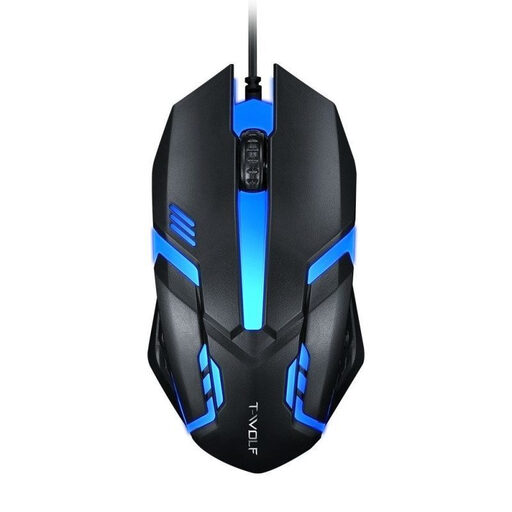
Wired optical USB mouse for desktop computers and laptops
A wired mouse is an option for basic clicking and scrolling on one computer, as long as the connection and cable arrangement suit your workspace.
The product title lists an optical USB connection and compatibility with desktop computers and laptops.
Joybuy
 No image available
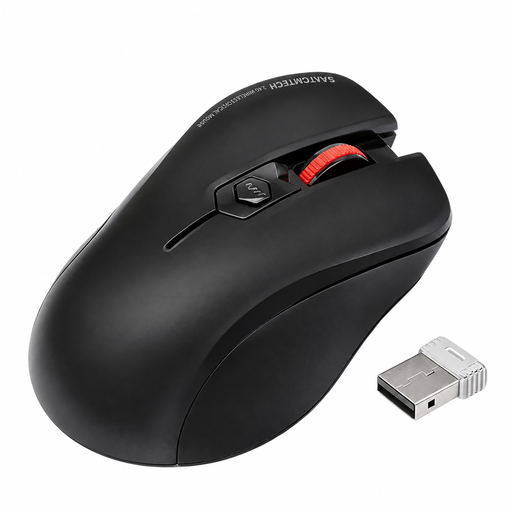
Wireless ergonomic mouse with quiet clicks
If you want to work wirelessly, check that the supplied receiver is compatible with the ports available on your computer.
The product title lists a USB receiver and quiet clicks; the colour is listed as black.
Joybuy
 No image available
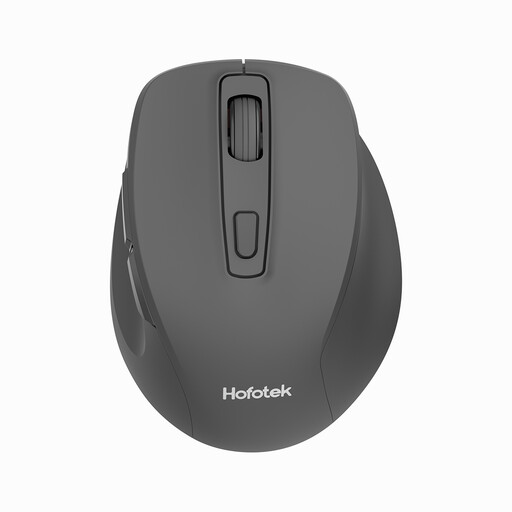
HOFOTEK M308 2.4G Silent Office Mouse
This model may be worth considering for repeated clicking at your desk if you’re looking for a wireless mouse with quiet clicks.
The product title lists 2.4 GHz wireless and adjustable DPI settings.
Joybuy
 No image available
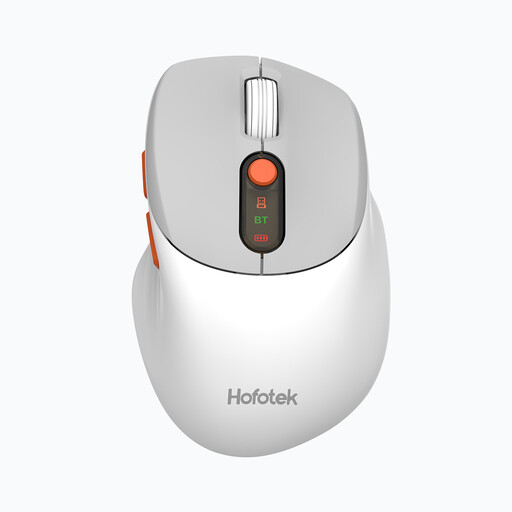
HOFOTEK M311 2.4G+BT Silent Office Mouse
If you’re considering a mouse for several devices, check before buying that the listed connections work with your computers.
The product title lists 2.4 GHz wireless, Bluetooth, adjustable DPI settings and an AA battery.
Joybuy
Frequently asked questions
Do I need a special mouse to use two monitors with one Windows computer?
No, not just because you have two monitors. If the pointer moves across at the wrong point, arrange the displays in Windows Display settings to match their actual positions, as Microsoft Support explains.
Will a multi-device mouse switch automatically between two computers?
Not simply because it’s described as ‘multi-device’. A switch button changes the connection; to move the pointer across the edge of a screen, Logitech describes Flow as a separate feature that needs to be set up for supported devices and computers.
What should I look for in a mouse for long testing sessions?
Choose a size, shape and button layout that suit your hand and the way you work. A vertical design is a personal fit option, but it doesn’t guarantee a particular effect.
What should I check before buying a wireless mouse?
Check the supported connection type, whether you need a compatible receiver or Bluetooth, and how the mouse is powered. If you’re buying a mouse for several computers, also check how many devices it supports and whether you switch between them using a button or additional software.


