
Lieferung heute & morgen

Qualitätsgarantie

Willkommens-Angebote freischalten: KOSTENLOSE Lieferung | Bis zu 80 % RABATT | Kostenlose 30-Tage-JoyPlus-Testphase
App herunterladen
Working across multiple devices—from a desktop PC in the office to a laptop at home and a tablet for presentations—has become the norm for many professionals. However, constantly switching between different mice or the cumbersome process of unplugging and replugging cables and receivers disrupts workflow and reduces efficiency. A multi-device mouse promises a solution, but not every model delivers on its promise.
As your Joybuy Product Recommendation Officer, I'm here to help you navigate the common pitfalls of purchasing and make an informed decision. We will focus on the objective features that make a mouse a truly productive tool.
Common Pitfalls When Buying a Multi-Device Mouse:
To avoid these issues, you should check three core parameters before buying. These define whether a mouse will genuinely simplify your workday or just create new frustration.
A reliable wireless mouse for multiple devices typically offers two connection types: Bluetooth and 2.4 GHz wireless via a USB dongle.
Pay attention not only to the number of supported devices but also to the switching method. Models with an easily accessible, dedicated button for changing devices are practical. Even more advanced are technologies like Rapoo M+ Cross-Computer, which enable a seamless cursor transition between the screens of different computers connected to the same network. This is a crucial advantage for power users who work on a Mac and Windows PC simultaneously.
An ergonomic Bluetooth mouse is essential for long workdays. The shape should match your hand size and grip style (Palm, Claw, or Fingertip Grip). Models with a thumb rest and a textured surface offer additional comfort and control. The weight of the mouse is also a factor: lighter mice reduce strain on the wrist during fast, repetitive movements.
The ability to assign macros or specific functions to buttons can significantly boost productivity. Check whether the manufacturer's configuration software is available for both Windows and macOS. Another useful feature is on-board memory, which saves your settings directly on the mouse. This ensures your configurations are retained when you switch devices, without needing the software installed on every computer.
Based on the objective criteria above, we have identified several models suitable for specific user profiles.
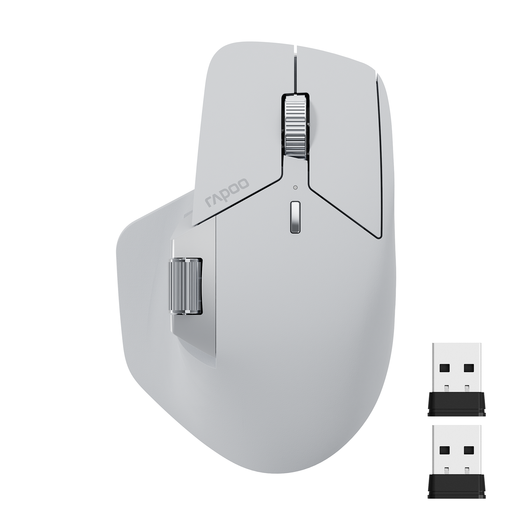
Why This Fits Their Persona: Ideal for users who need to switch seamlessly between up to four devices. The combination of ergonomic design, programmable buttons, and advanced connectivity is engineered for maximum productivity.
The M+ Cross-Computer technology enables a fluid transition between screens, directly addressing the pitfall of cumbersome switching. The battery life of up to 90 days is, according to the manufacturer, based on real-world usage scenarios.
Supports connection with up to 4 devices (Bluetooth 5.0, 2.4G). Features 11 programmable buttons and a side scroll wheel for horizontal navigation.
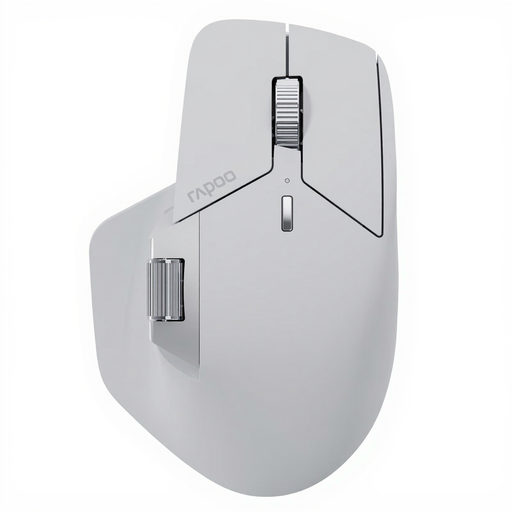
Why This Fits Their Persona: Designed for creative and technical users who require the utmost precision, minimal latency, and maximum connectivity. The mouse supports up to seven devices and operating systems.
The next-generation NearLink technology offers, according to the manufacturer, 6x higher speed and 60% lower power consumption, bypassing both the unstable connection and short battery life pitfalls. The on-board memory ensures cross-platform functionality.
Connects up to 7 devices via NearLink, Bluetooth, and cable. Offers a high-precision sensor with 12,000 DPI and a 2,000 Hz polling rate for demanding tasks.
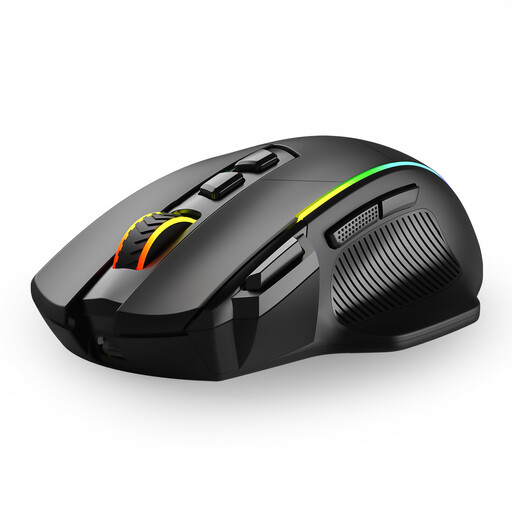
Why This Fits Their Persona: A solid choice for users seeking a flexible and functional multi-device solution without a large budget. It is suitable for switching between a work PC, a personal laptop, and another device.
It offers three connection modes (2.4G, Bluetooth, Cable), allowing the user to choose the most stable option for their environment. The buttons are programmable via software, although the manufacturer states it is only fully functional in wired mode on Windows.
Connects up to 3 devices simultaneously. Offers 8 programmable buttons and adjustable DPI levels up to 10,000 for flexible use.
We have compiled a complete, real-time updated list of products that fully meet these strict selection criteria and rigorous safety standards.
How do I connect a multi-device mouse to multiple devices? The process varies by model. Typically, you put the mouse into pairing mode, often by long-pressing a Bluetooth button. Then, select the mouse in the Bluetooth settings of your computer, tablet, or smartphone. For the second and third devices, repeat the process after selecting a different channel (e.g., Channel 2) on the mouse's switch button. For a 2.4 GHz connection, simply plug the USB dongle into the desired device.
Does a multi-device mouse work with Mac and Windows simultaneously? Yes, most multi-device mice are designed to be compatible with different operating systems. For example, you can connect the mouse to a MacBook via Bluetooth and to a Windows PC via the 2.4 GHz dongle. Switching between systems is then done at the press of a button. However, for advanced features like copying and pasting between devices, special manufacturer software is often required, which must be installed on both computers.
What is the difference between a Bluetooth and a 2.4 GHz connection on a mouse? The 2.4 GHz connection uses a dedicated USB receiver (dongle) and typically provides a very stable, low-latency connection, making it suitable for demanding tasks or environments with a lot of interference. Bluetooth connects directly to the device's built-in Bluetooth module, which frees up a USB port. This is particularly convenient for ultra-portable laptops and tablets. Modern Bluetooth versions are very reliable but can be more susceptible to interference in radio-intensive environments than a dedicated 2.4 GHz connection.