Which setup is right for you?

Cockpit builders who want side views

If you want to combine your main view and side screens to create a cockpit, first check whether the game supports the multi-screen display you have in mind. Then check that your graphics outputs and monitor layout are compatible. AMD Eyefinity and NVIDIA Surround offer ways to configure a group of displays as one continuous screen, but this isn’t supported in every game.

Learners who want separate instrument windows

If you want to arrange controls or additional views separately, the key question is whether your specific game provides independent windows. Microsoft Flight Simulator 2020 offers additional render windows as an experimental feature; that doesn’t mean other simulators support it.

Space-conscious gamers who want a panoramic view

If you’d prefer one continuous screen to several monitors, check that the game’s aspect ratio and interface work well with it, and make sure you have enough desk width. An ultrawide can eliminate the bezel in the middle, but it won’t automatically replace separate instrument windows.

What should you consider when buying?

One continuous panoramic view

A good fit if: your game makes good use of a wide, grouped display, and your PC and connections can support the setup you want.

Bear in mind: a multi-monitor group has visible bezels and may output at a higher combined resolution.

Separate views and instruments

A good fit if: your specific game provides independent windows for instruments or additional views.

Bear in mind: the available window features vary by game. Multiple rendered views may have different requirements from additional displays.

A 32:9 ultrawide

A good fit if: you want one continuous panoramic screen without a central bezel, and your game displays correctly in this format.

Bear in mind: a single panel won’t automatically provide separate instrument windows, and it needs enough desk space.

Consideration What to check before buying Who is it important to?
Compatible multi-screen display Check the game’s options for additional views, the driver features and the available graphics outputs. If I want to build a cockpit with a main view and side views, the game needs to support that exact setup. Around 36% of consumers put multi-screen compatibility first.
Easy-to-read instruments Check the resolution, screen size, in-game scaling and separate window options. If I want displays and labels to remain clear while learning, I check how they’ll look across the chosen screen area. Around 29% of consumers prioritise instrument readability.
Smooth visuals Consider the combined resolution, graphics outputs and available refresh rate alongside performance in the game you play. If I want a wide view with smooth motion, the resolution and refresh rate need to suit my PC. Around 21% of consumers base their choice primarily on this.
Space and display care Allow for the space the monitor and stand will take up; if you’re choosing OLED, read the care guidance and warranty terms for the specific model. If I’m planning to use several devices or leave cockpit displays unchanged for long periods, I consider how everything will fit and how to manage static content. Around 14% of consumers prioritise this.

Common buying mistakes

  • Assuming more monitors mean more in-game views

    A graphics driver can group displays, but independent render windows depend on the software.

    First decide whether you need a panoramic view or separate windows. Check the game’s options and your graphics card’s capabilities independently.

  • Choosing a 32:9 panel as a replacement for two cockpit monitors without checking first

    One continuous screen doesn’t automatically provide independently usable instrument windows.

    Check the game’s window layout and measure your available desk width before choosing an extra-wide panel.

    A large panel may take up more desk space than your planned setup allows.

  • Comparing refresh rates without considering the resolution they apply to

    LG lists 720 Hz at HD and 540 Hz at QHD for the 27GX790B-B; these figures apply to different operating modes.

    Compare refresh rate and resolution together, and consider the output your PC can actually manage.

  • Assuming OLED protection features eliminate the risk of burn-in

    MSI describes OLED Care 2.0 on the MPG 271QRXDE as a way to reduce risk, not as a guarantee against burn-in.

    If cockpit displays stay unchanged for long periods, read the care guidance and warranty terms for the specific model.

Key brands at a glance

LG

The LG 27GS75QN-B is a 27-inch QHD IPS option for a cockpit or additional display.

  • LG lists a resolution of 2560 × 1440 pixels and a 180 Hz refresh rate, with 200 Hz available in Overclocking mode.
  • The manufacturer’s refresh rate figures don’t guarantee a particular in-game frame rate or readability in the game you play.

MSI

The G274QPF E2 is a QHD IPS option, while the MPG 271QRXDE is a QD-OLED model.

  • MSI highlights the slim bezels of the G274QPF E2 and lists OLED Care 2.0 for the MPG 271QRXDE.
  • Slim bezels don’t mean a monitor will suit every game. MSI describes OLED Care 2.0 as a way to reduce risk, not eliminate burn-in.

LC-Power

The LC-M49QCO is a 49-inch 32:9 option for one continuous screen instead of several monitors side by side.

  • LC-Power lists a resolution of 5120 × 1440 pixels and a refresh rate of 144 Hz for this model.
  • One continuous screen won’t automatically provide separate instrument views; the game needs to support the feature you want.

Samsung

The Odyssey OLED G81SF LS27FG814SUXEN is a 27-inch 4K OLED option for a single-screen setup.

  • Samsung lists a 240 Hz refresh rate and features designed to reduce the risk of burn-in from static logos and taskbars.
  • The manufacturer’s protection features aren’t a guarantee against burn-in, and they don’t predict the in-game frame rate you’ll achieve at 4K.

AOC

The Q27G4XF is a 27-inch QHD IPS model with an adjustable-height stand, offering a useful comparison for a customisable setup.

  • AOC lists a resolution of 2560 × 1440 pixels and a refresh rate of 180 Hz.
  • Check that the specific model variant and included accessories suit your planned setup when looking at a particular offer.

Gaming monitors at Joybuy

This selection includes gaming monitors for detailed QHD cockpit displays and wide single-screen setups. An ultrawide won’t automatically provide separate instrument windows supported by the game.
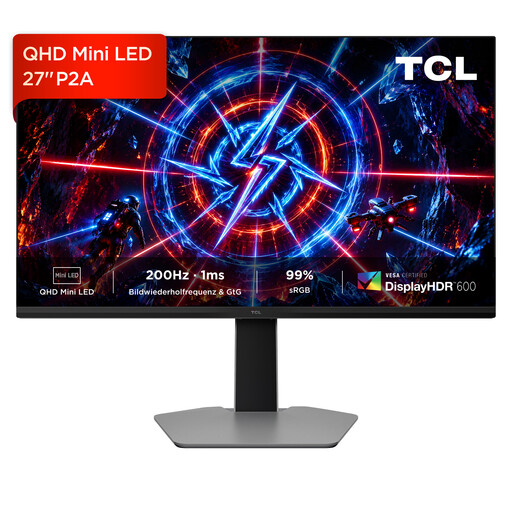
TCL 27P2A 27-inch Mini LED monitor

TCL 27P2A, 27-inch QHD Mini LED

The 27-inch format may suit you if you’re planning a single cockpit or instrument display.

QHD at 2560 × 1440 pixels, 200 Hz and an HFS-IPS panel, according to the product name.

View at Joybuy

INNOCN E34A1R 34-inch curved gaming monitor

INNOCN E34A1R, 34-inch UWQHD

The wide format is worth considering if you want one continuous gaming view instead of several separate monitors.

3440 × 1440 pixels, 21:9, 200 Hz, VA panel, 1500R, plus PIP and PBP, according to the product name.

View at Joybuy

INNOCN 2751S PLUS 27-inch Mini LED gaming monitor

INNOCN 2751S PLUS, 27-inch QHD

The 27-inch QHD format is worth considering if you’re planning a single screen for cockpit details.

IPS display, QHD and 275 Hz, according to the product name.

View at Joybuy
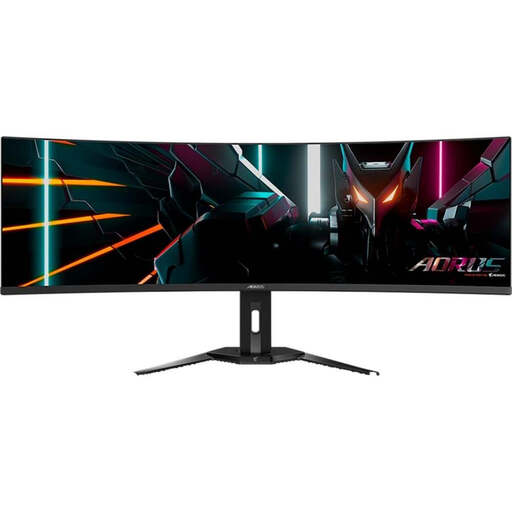
Gigabyte Aorus CO49DQ 49-inch curved OLED monitor

Gigabyte Aorus CO49DQ, 49-inch DQHD OLED

This single 32:9 panel is an alternative if you want a wide screen instead of two monitors side by side; it won’t automatically provide separate instrument windows.

5120 × 1440 pixels, 1800R and 144 Hz, according to the product details.

View at Joybuy
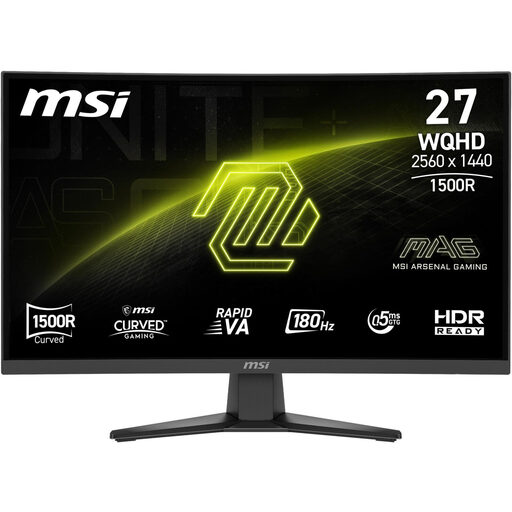
MSI MAG 275CQFDE E18 27-inch gaming monitor

MSI MAG 275CQFDE E18, 27-inch QHD

The 27-inch format is an option if you want a single screen for cockpit details.

2560 × 1440 pixels, 16:9 and Rapid VA, according to the product name.

View at Joybuy

Frequently asked questions

Do multiple screens have to form one large gaming surface?

No. Windows can arrange multiple detected displays according to their position. Creating one shared surface requires a separate, supported driver configuration, such as AMD Eyefinity or NVIDIA Surround. Check whether a game offers its own additional views for that specific title.

How do I set up multiple monitors for a cockpit?

First, arrange the detected screens in Windows display settings to match their actual positions. Then, if needed, set up a supported display group or additional in-game windows. The right option depends on the game’s features and your graphics card.

Can an ultrawide replace two monitors with instrument windows?

Not automatically. A 32:9 panel gives you one continuous screen, but separate instrument windows depend on the software. Also check that the game displays correctly at this aspect ratio and that you have enough desk width.

Are OLED protection features enough for cockpit displays that stay on screen for a long time?

They aren’t a guarantee against burn-in. MSI describes OLED Care 2.0 on the MPG 271QRXDE as a way to reduce risk, so read the care guidance and warranty terms for the specific model.

How should I compare gaming monitor refresh rates?

Always compare the refresh rate with its corresponding resolution and the signal path your PC supports. A panel’s stated refresh rate doesn’t guarantee the same frame rate in a game.