Panoramic simulation users
If you want to spread the game view across several monitors, first check that your simulation and graphics outputs support it. AMD and NVIDIA explain how to configure a single display group.


First, decide whether the simulation should span a single game view across several monitors or whether you want extra displays for separate instruments and windows. For a panoramic view, the game, graphics card and combined resolution all need to be compatible. With separate windows, you can choose each screen’s size, resolution and ergonomics to suit its purpose. Then check the ports and display limits of the specific models.
If you want to spread the game view across several monitors, first check that your simulation and graphics outputs support it. AMD and NVIDIA explain how to configure a single display group.
If you want additional windows visible alongside your main screen, arranging the displays effectively is key. Microsoft Support explains how to adjust the settings for individual connected screens in Windows; whether your simulation supports separate instrument windows depends on the software.
If a sharp main image is your priority and you’ll use additional monitors to complement it, compare QHD and UHD in terms of image detail and the total number of pixels to be displayed. Dell lists QHD for the G2725D, while LG specifies UHD for the 27GR93U-B.
First decide whether you want one continuous game view or separate instrument windows. This will determine the most suitable resolution, the ports you need and how to arrange your monitors.
| Criteria | What to check before buying | Who is this most important to? |
|---|---|---|
| Combined resolution and graphics performance | Decide how many monitors you need and their native resolutions, calculate the combined resolution, and check that your graphics card and simulation support it. AMD documents a combined resolution of 5760 × 1080 pixels for three Full HD displays in a 3×1 arrangement. | If I’m planning one continuous game view, I want to know in advance whether the simulation and graphics card can handle the full resolution. Around 36% of consumers say graphics performance and combined resolution are their top priorities. |
| Layout, ports and mounting | Count the graphics outputs and cables needed for each monitor; check that the screen width, stand and VESA dimensions suit your available space and mount. | With several displays on my desk, the ports, cables and mounts need to work with the space I have. Around 29% of consumers say layout and ports are their top priorities. |
| Readability and motion handling | Compare native resolution and screen size, and check the refresh rate supported by the specific model on the input you’ll be using. | If I want to keep an eye on instruments alongside the game, details should be easy to see, but not every extra monitor needs to match the same refresh rate. Around 21% of consumers say readability and motion handling are their top priorities. |
| Power consumption and ongoing costs | Compare the power consumption figures for each model and check whether the setup includes the cables and suitable stands or mounts you need. | With a group of monitors, I want to take power consumption and the accessories I’ll need into account, rather than looking at just one display. Around 14% of consumers prioritise running and ongoing costs. |
According to ASUS, the maximum supported refresh rates for DisplayPort and HDMI differ on the ASUS TUF Gaming VG27AQ3A.
Check the resolution and refresh rate for each input you plan to use before matching up cables and graphics outputs.
For a single game view, the number of monitors, their arrangement and their resolution determine the total number of pixels displayed. UHD has more pixels per screen than QHD, but on its own it tells you nothing about the frame rate a particular PC can achieve.
Calculate your planned combined resolution, then check your graphics card and the features supported by your simulation.
ASUS lists a 100 × 100 mm VESA mount for the VG27AQ3A, but the stand does not have height adjustment.
Decide how high you want your screen, then check that the stand or mount you plan to use can position it there.
The Q27G4XF is a model-specific point of comparison for a group of 27-inch QHD monitors.
The G2725D is a model-specific point of comparison for a 27-inch QHD monitor with a Fast IPS panel.
The TUF Gaming VG27AQ3A is a point of comparison for 27-inch QHD with Fast IPS.
The UltraGear 27GR93U-B is a model-specific point of comparison if you’re considering UHD for each display.
These Joybuy monitors are possible starting points for a multi-screen setup. Compare the resolution, ports and stand or mounting features of each model with your specific setup.
 No image available
A potential choice if you’re looking for a QHD display with a height-adjustable stand for your monitor group.
Fast IPS panel, 144 Hz, FreeSync, plus DisplayPort and HDMI ports.
 No image available
An option if you want to combine QHD with a height-adjustable stand in a multi-screen arrangement.
Mini LED, 1152 zones, 275 Hz, IPS, FreeSync, plus DisplayPort and HDMI ports.
 No image available
A possible point of comparison if you’re looking for QHD and VESA mounting for your setup.
2560 × 1440 pixels, 120 Hz, IPS, Adaptive Sync, plus HDMI and DisplayPort ports.
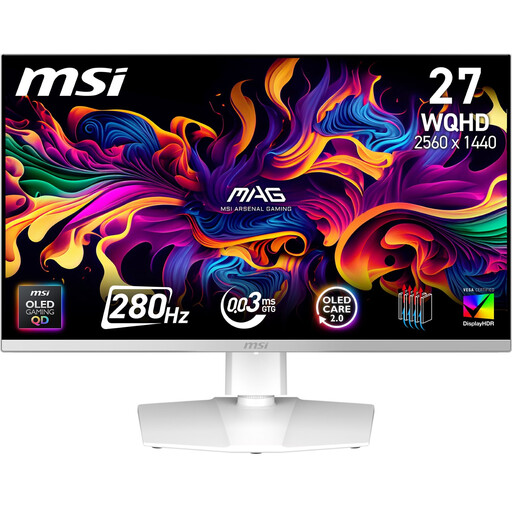 No image available
A potential choice if you’re specifically considering a QD-OLED model for one screen in your setup.
27-inch gaming monitor with a QD-OLED panel.
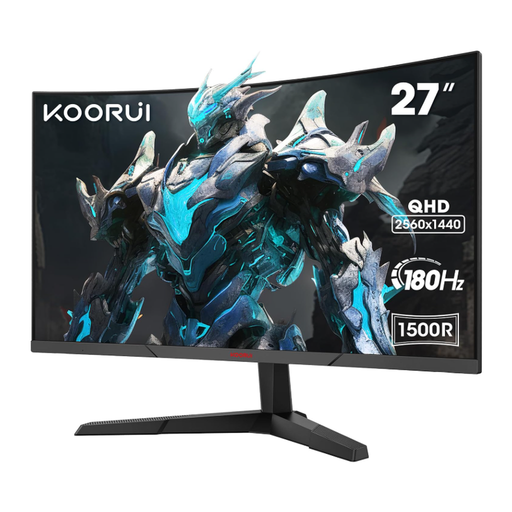 No image available
A possible point of comparison if you’re planning to include a curved QHD monitor with VESA mounting in your setup.
2560 × 1440 pixels, VA panel, 180 Hz, 1500R curvature, plus HDMI and DisplayPort ports. For full 180 Hz playback at 1440p, the product description recommends using the supplied DisplayPort cable; the refresh rate may be limited over HDMI, depending on the source device.
Connect your monitors and arrange them in the display settings. If you want the game view to span several displays, also check that your graphics card has a suitable group display feature and look at the simulation’s display options. AMD Eyefinity and NVIDIA Surround explain how to configure a single display surface.
Not necessarily. For the ASUS TUF Gaming VG27AQ3A, ASUS lists up to 180 Hz via DisplayPort and up to 144 Hz via HDMI. Check the specifications for the particular model and the port you plan to use.
Compare the power consumption figures for each model and check that your setup includes the cables and suitable stands or mounts you need. You can only assess electricity costs if you have the relevant power consumption figures and a consistent period of use.
For online purchases made as a consumer, you generally have a 14-day right to cancel from the date you receive the goods. Exceptions may apply, as explained by the Verbraucherzentrale (German consumer advice centre). The Federal Ministry for the Environment describes take-back obligations for certain retailers if their sales, dispatch and storage areas for electrical goods meet the specified conditions.