Multi-camera editors
You combine several shots of the same cooking process and want to choose a laptop that suits your footage and preferred editing workflow.


Choose your laptop based on your editing software, recording format and the number of tracks you use at once. Then check the RAM, graphics memory, SSD and card-reader connections on the specific configuration. For Premiere on Windows, Adobe recommends 32 GB or more of RAM and 8 GB of graphics memory for 4K or higher — these aren’t general minimum requirements for every cooking video. Proxies can make large source files easier to edit, but they need extra storage space.
You combine several shots of the same cooking process and want to choose a laptop that suits your footage and preferred editing workflow.
You import lots of camera footage and need space not only for your current project, but also for originals, working files and, where needed, proxies.
You review or edit footage in different locations and pay particular attention to card transfers, ports, the screen and portable equipment.
Start by comparing your editing software, resolution and number of tracks. Then check the specific RAM, graphics and SSD configuration, as well as the ports and display, against your workflow.
| Buying priority | What to check before buying | Who is it important to? |
|---|---|---|
| Multi-track preview | Editing software, codec and resolution; RAM and graphics memory on the specific configuration. | If I’m editing several camera angles at once, a responsive preview is particularly important to me. Around 36% of consumers put multi-track preview first. |
| Working files and storage | SSD capacity and free space for originals, cache and proxies; a port for an additional drive. | Anyone who wants to manage lots of footage and project files locally will pay particular attention to space and access. Around 29% of consumers say working files are their top priority. |
| Assessing the image | The display on the chosen variant and SDR or HDR output; consider an external monitor if needed. | If I want to assess the colours and details in my cooking footage at my editing desk, the display is my main concern. Around 21% of consumers rank image assessment as their biggest concern. |
| Portable setup | Card type and ports for drives; weight and how you’ll work on location. | Anyone who edits in different locations will want to connect camera footage and accessories without any fuss. Around 14% of consumers prioritise a portable setup. |
For Premiere on Windows, Adobe recommends 32 GB or more of RAM and 8 GB of graphics memory for 4K or higher. These are software-specific recommendations, not a general requirement for every editing programme or video. Adobe also describes proxies as lower-resolution copies that can make large source files easier to work with.
A single graphics card specification or a large display doesn’t guarantee smooth playback of a particular multi-track timeline. Your software, footage and specific configuration also play a part.
Compare your editing software, source files and device configuration, and consider a proxy workflow if needed.
RAM, graphics, SSD and display can vary across a range. Specifications described as ‘up to’ don’t automatically apply to every device on offer.
Check the full model number and specifications of the exact variant you’ve selected.
Premiere uses cache, and proxies can create extra files on your chosen drive.
Allow for the space needed by your originals, cache, proxies and projects, and check whether an additional fast drive will fit into your setup.
The ProArt P16 range includes Windows configurations for creative workflows. The key is to match the specifications of each variant to your editing software and footage.
The 14-inch MacBook Pro with M5 Pro is a macOS option if it’s compatible with your editing software and peripherals.
The ThinkPad P1 Gen 8 is a mobile Windows workstation for buyers looking for a particular configuration or upgradeable memory.
The ZBook X G1i is a Windows workstation option; check the specifications against the model number of the variant you’re considering.
The following Joybuy models are Windows laptops with different strengths in memory, display, card imports and portability. Before buying, pay particular attention to the graphics specifications and whether the laptop is suitable for your editing software.
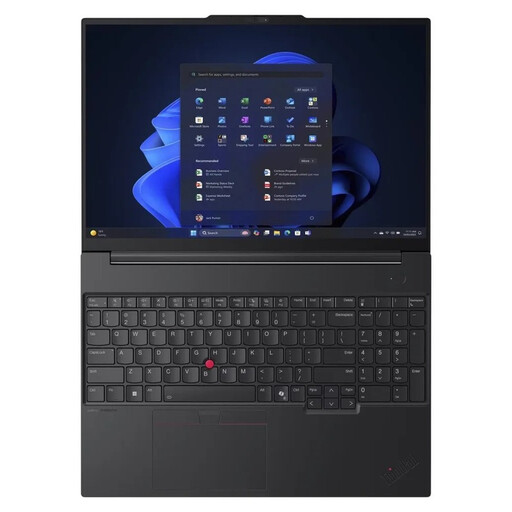 No image available
A suitable option if you’re looking for a 16-inch Windows laptop with 32 GB of RAM and upgradeable storage.
Specifications include a 16-inch WUXGA display, a 1 TB SSD, upgradeable memory and a weight of 1.71 kg. For Premiere on Windows, Adobe recommends 32 GB or more of RAM for 4K or higher; this isn’t a general minimum requirement for every editing project.
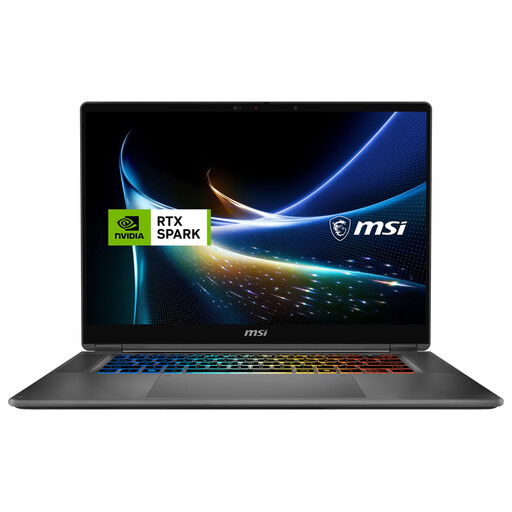 No image available
This 16-inch 2-in-1 model is worth considering if you’re looking for a high-resolution built-in display and 32 GB of RAM.
Specifications include a 2.8K OLED display, 32 GB DDR5 and a 1 TB SSD. For Premiere on Windows, Adobe recommends 32 GB or more of RAM for 4K or higher; this recommendation alone doesn’t confirm how well a specific timeline will perform.
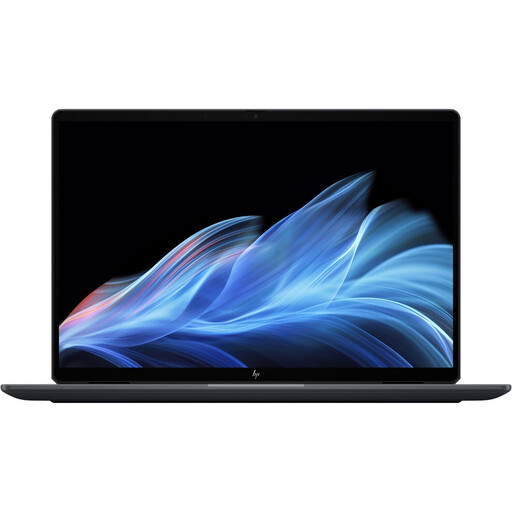 No image available
This 14-inch convertible is an option if you’re looking for a lighter device to review and edit footage on the go.
Specifications include a 2.8K OLED touchscreen, 32 GB of RAM, a 1 TB SSD and a weight of 1.34 kg. For Premiere on Windows, Adobe recommends 32 GB or more of RAM for 4K or higher; actual suitability also depends on your footage and workflow.
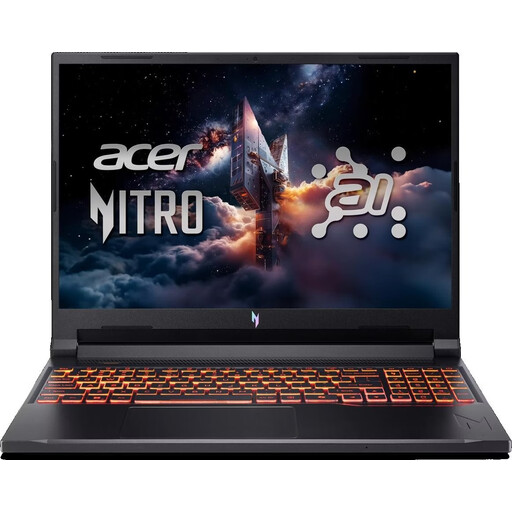 No image available
This 16-inch Windows laptop could be a good fit if a dedicated graphics card with 8 GB of graphics memory is important for your workflow.
Specifications include an RTX 5050 with 8 GB of graphics memory, 16 GB of RAM, a 512 GB SSD and a microSD card reader; the device weighs 2.44 kg. For Premiere on Windows, Adobe recommends 32 GB or more of RAM for 4K or higher, so the stated 16 GB is below this recommendation. A US keyboard is also listed.
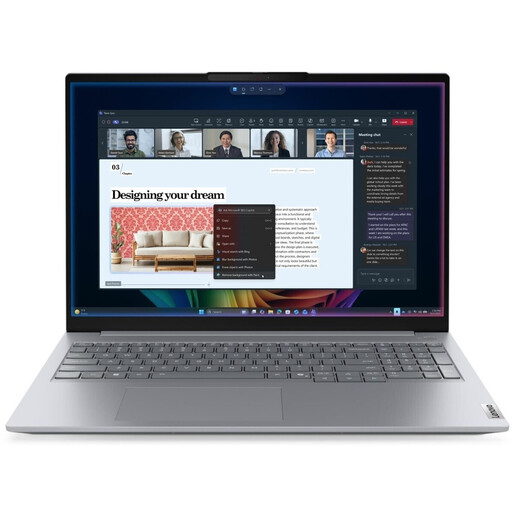 No image available
A possible choice if you want to read SD cards directly and are looking for a 16-inch laptop with 32 GB of RAM.
The description lists a WUXGA display, a 512 GB SSD, a built-in SD card reader and a weight of 1.7 kg. Intel Arc graphics use shared memory; for Premiere on Windows, Adobe recommends 8 GB of graphics memory for 4K or higher.
No, they don’t tell you whether the laptop is suitable for several 4K tracks. Adobe describes the minimum requirements as applying to HD, and recommends 32 GB or more of RAM and 8 GB of graphics memory for 4K or higher on Windows. Preview and editing performance also depend on your footage and workflow.
In Premiere, you can create low-resolution proxies for suitable video clips and choose where to store them. Adobe describes proxies as a way to help edit large or resource-intensive files; make sure you allow for extra storage space as well as your original files.
For a consumer purchase, the seller is responsible for your statutory warranty rights; these are separate from a voluntary manufacturer’s or retailer’s guarantee. The Verbraucherzentrale generally gives a period of two years from delivery for warranty rights. The rights that apply depend on the circumstances of each case.
For electrical and radio products covered by the rules, CE marking is one of the points that retailers must check, according to the Bundesnetzagentur. CE marking is the manufacturer’s declaration of conformity, not an independent performance test for video editing.