Preserving individual original certificates
You want to make important individual documents available digitally while keeping their condition and the possibility of presenting the original in future in mind.


For individual certificates, a suitable flatbed scanner is usually the more sensible starting point; an automatic document feeder is also useful for processing lots of loose, sturdy sheets. Choose the printing technology to suit your actual printing needs, and check OCR, file storage and backups separately. A standard scan does not automatically replace the paper original, as the Federal Archives explains in its guidance on supplementary scanning.
You want to make important individual documents available digitally while keeping their condition and the possibility of presenting the original in future in mind.
Alongside certificates, you’re scanning lots of loose, sturdy documents and want to switch between the flatbed and document feeder depending on the item.
You archive documents and print regularly, so the printing technology, consumables and scanning process all need to work well together.
Start by checking which scanning method suits your documents, then consider storage and how easy files will be to find. Finally, factor in your additional printing needs when choosing a device.
| What you need | What to check before buying | Who is this important to? |
|---|---|---|
| Scan individual certificates with care | Check the flatbed and supported document size; inspect the condition and both sides before scanning. | When I scan individual originals, I want to check each one and make sure it’s fully captured. Consumers with this priority account for around 29 %. |
| Scan larger batches | Check for an ADF, suitable documents and explicitly stated double-sided scanning; duplex printing does not prove that a device can scan both sides. | When I have lots of loose, sturdy sheets, I want to spend less time placing them one by one while still checking page order and completeness. Consumers focused on batch processing account for around 23 %. |
| Find scans again easily | Check how PDF creation, OCR and file storage work for the exact model; PDF support does not automatically mean PDF/A or text recognition. | If I want to find specific documents later, I need a suitable filing system and, where necessary, searchable files. Consumers whose main priority is findability account for around 18 %. |
| Estimate ongoing printing costs | Compare your own print volume with the ink or toner and replacement supplies for the exact model variant. | If I also print regularly, I want to choose consumables that suit how much I actually print. Consumers who prioritise ongoing printing costs account for around 18 %. |
| Protect and back up scans | Check the scan destination, access permissions and backups separately from the device. | When I scan personal documents, I want to know where the files are stored and how to restore them if there’s a problem with my device or account. Consumers with this priority account for around 12 %. |
A device can print on both sides without automatically scanning documents on both sides. The Brother DCP-L3560CDW is listed as offering duplex printing; HP explicitly lists double-sided scanning as a separate feature on the OfficeJet Pro 9120e.
If you want to scan double-sided documents in batches, check that double-sided scanning is specified for the exact model. Otherwise, allow time to turn over and check the documents yourself.
The presence of a document feeder doesn’t mean it’s suitable for fragile or unusual documents. Professional digitisation guidance emphasises that the right approach depends on the original’s condition and format.
Inspect the document first, and don’t assume delicate items are suitable for the feeder. Choose a scanning method that lets you check their condition and make sure every page is captured.
A PDF isn’t automatically searchable or securely backed up. Text recognition, quality checks and data backups are additional steps.
Open the file after scanning, check its contents and page order, then create a restorable backup that’s independent of the printer.
Remember to allow extra time for text recognition, quality checks and backups.
The DCP-L3560CDW is a colour LED option with a flatbed, document feeder, LAN/Wi-Fi and duplex printing.
The MAXIFY GX4050 combines refillable ink with a flatbed and ADF, making it an option for individual documents and suitable stacks of paperwork.
The EcoTank ET-4950 is an ink tank option with a double-sided document feeder; the Expression Premium XP-7100 is a separate cartridge-based option.
The OfficeJet Pro 9120e is listed with an ADF and double-sided scanning; the Smart Tank 7005 is a refillable option with a flatbed scanner and PDF scanning.
This Joybuy selection features multifunction printers for the home office, with options for individual documents and, depending on the model, suitable batches of paperwork, as well as additional printing needs.
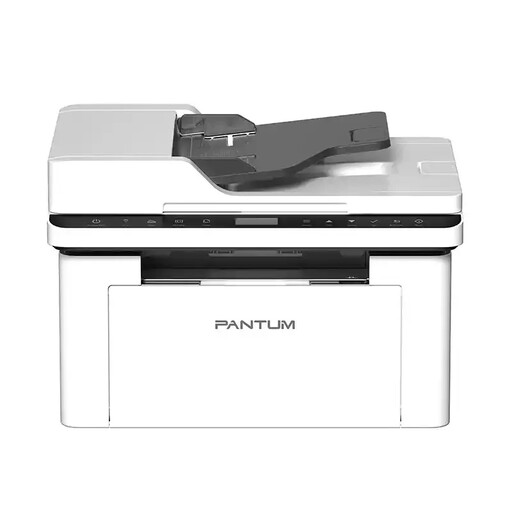 No image available
The flatbed is a scanning option for individual suitable documents; the ADF provides an additional option for suitable loose sheets.
A4; monochrome laser printing; 22 ppm; Wi-Fi; ADF; flatbed scanner.
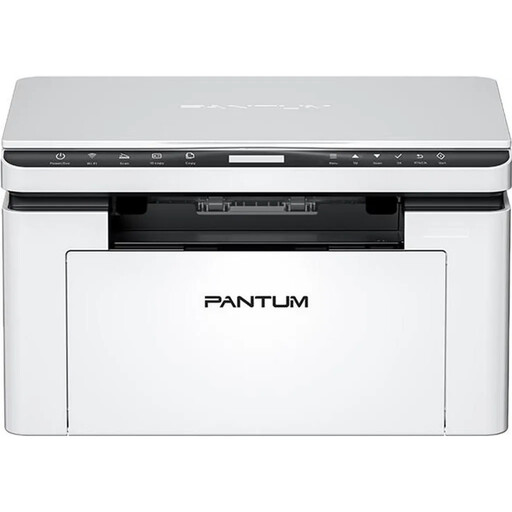 No image available
The flatbed scanner lets you scan suitable documents one at a time; printing is monochrome.
A4; 22 ppm; dual-band Wi-Fi; Ethernet; flatbed scanner.
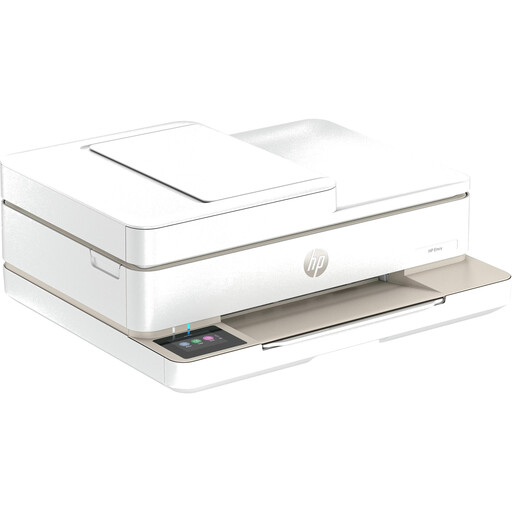 No image available
This multifunction printer offers scanning, copying and printing, making it an option if you want to combine these tasks in your home office.
Inkjet printing; automatic duplex printing; Wi-Fi.
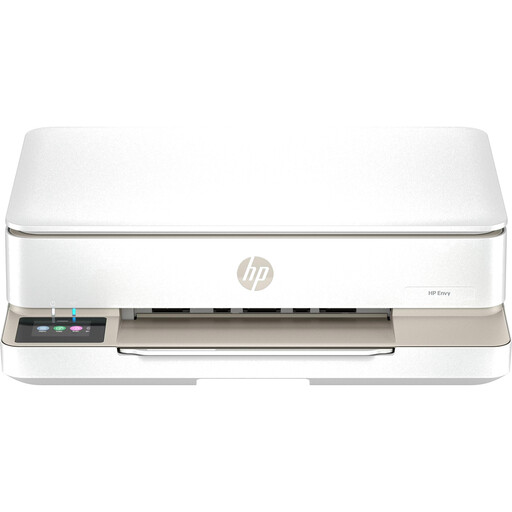 No image available
The ADF is designed for multi-page scanning and copying, and can streamline the process when you’re working with suitable documents.
Inkjet printing; ADF; automatic duplex printing; Wi-Fi; Bluetooth.
 No image available
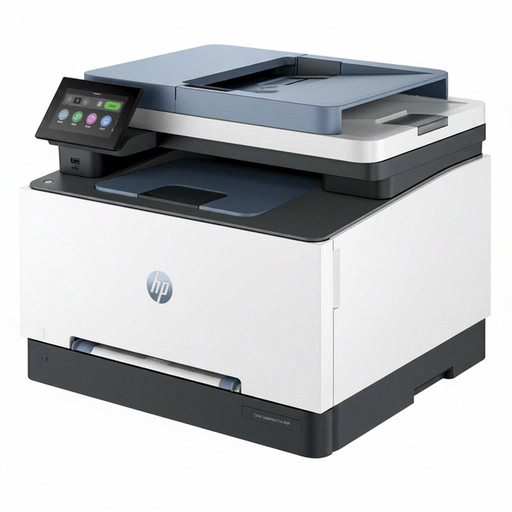
The built-in flatbed scanner is a scanning option for individual suitable documents; this model combines scanning with colour printing.
Colour laser printing; automatic duplex printing; flatbed scanner; Wi-Fi; Ethernet; USB.
A standard home scan doesn’t automatically make the original redundant. For official record-keeping, the Federal Archives distinguishes between supplementary and replacement scanning; this doesn’t amount to blanket permission for private households. Keep the certificate and check with the organisation receiving it to find out which format it requires.
First, check the condition of the document and use the flatbed for suitable individual items. Then check the saved front and, if there is one, the back for legibility and completeness. An ADF may be suitable for loose, sturdy batches, provided the documents are compatible with the specific device.
No. Check OCR and PDF/A separately. Epson describes searchable PDFs for ScanSmart, but lists the ES scanner range as compatible devices; this doesn’t prove the feature is available on every Epson multifunction printer. The Federal Archives’ PDF/A recommendation relates to its professional long-term preservation work and isn’t a general requirement for private buyers.
Not simply by scanning and printing it. Under the procedure described on the Bremen federal portal, the original must be presented for certification; registry office certificates cannot be certified by the citizens’ office there. Check the requirements for your specific purpose and location with the relevant authority.
Create restorable backups independently of your printer and secure your home network. The Federal Office for Information Security recommends backing up data and provides guidance on securing Wi-Fi networks.