Collectors of loose maps up to A3
You want to capture maps in as few sections as possible. What matters is a stated flatbed size that fits the original, not just the advertised print size.


First, measure your largest map. Then check the usable flatbed scanning area for the specific model, separately from its print size and document feeder. A multifunction printer may suit loose, manageable maps if its flatbed is explicitly stated to be large enough: Brother lists an A3 flatbed for the MFC-J6945DW. For larger, bound or delicate originals, consider specialist digitisation that handles them carefully before placing them on the glass or feeding them through the machine.
You want to capture maps in as few sections as possible. What matters is a stated flatbed size that fits the original, not just the advertised print size.
If your maps are fragile, bound or oversized, check how best to capture them without causing damage before buying a multifunction printer.
If you scan smaller maps and print working copies, compare the scanning area, paper-handling features and consumables separately.
For maps scanned at home, the key factors are a suitable flatbed size, the condition of the original, the level of detail you need to capture and any additional printing requirements.
A good fit if: Your loose, reasonably sturdy map fits on the explicitly stated flatbed, and you also want to print or copy.
Consider: Check the print, scan and document-feeding functions separately. A larger machine also needs more space and consumables.
A good fit if: You also work with A3 documents and confirm the flatbed size for the exact model before buying.
Consider: A stated A3 scanning or document-feeding function alone does not confirm a suitably sized A3 flatbed. A feeder is no substitute for a suitable flatbed.
A good fit if: The map is too large for the confirmed scanning area, or its condition calls for particularly careful handling.
Consider: A digitisation service will not replace your own printer for everyday tasks. Acceptance criteria and terms depend on the collection or service.
| Buying priority | What to check before buying | Who is it most relevant to? |
|---|---|---|
| Capture the whole map | Compare the width and height of your largest map with the explicitly stated usable flatbed area of the specific model. | If you want to capture a loose map as fully as possible in one pass, check that the flatbed is large enough. Around 36% of consumers have this as their main priority. |
| Protect the original | Check its condition and whether it is bound. Don’t assume an unsuitable feeder will be safe to use with delicate maps. | If an original is fragile, bound or particularly large, first check how to capture it without causing damage. Around 29% of consumers prioritise protecting the original. |
| Capture fine detail | Compare the optical scanning resolution with your intended output; don’t confuse print dpi with image ppi. | A scan resolution suited to later enlargement is important for small place names and fine lines. Around 21% of consumers prioritise this. |
| Printing and ongoing costs | Consider the print size you need, compatible consumables and how much you expect to print. | If you regularly print working copies as well as scanning, compare consumables and the features you need. Around 14% of consumers prioritise print functionality and ongoing costs. |
Print size, document feeding and the flatbed are separate functions. The print specification alone doesn’t tell you whether your map will fit on the glass.
Check the usable flatbed area for the exact model and compare it with the measurements of your largest map. If it doesn’t fit, scanning in sections or using another method may involve extra work.
Whether a map can be placed on the glass or passed through a feeder also depends on its condition.
Check its condition and whether it is bound before scanning. If the machine can’t handle it gently, ask about suitable specialist digitisation.
The German Federal Archives distinguish dots per inch for printing from image pixels per inch; these figures measure different things.
Compare the optical scanning resolution and plan your scan based on the original’s size and how you’ll use it.
The MFC-J range offers different A3 features for scanning, copying and printing.
According to Epson, the WorkForce WF-7840DTWF is an A3 multifunction printer for printing, scanning and copying.
The PIXMA TS9550a series combines scanning and copying with A3 printing.
The OfficeJet Pro 7740 is a wide-format multifunction printer and another option to consider for scanning and printing.
These multifunction printers are worth considering for loose originals on a flatbed scanner. Before buying, compare the scanning area of the specific model with your map measurements: both products listed are specified as A4 in format or model variant, with no confirmed A3 flatbed.
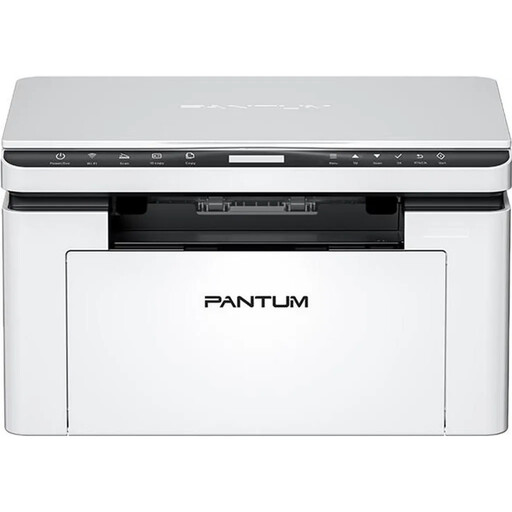 No image available
The flatbed scanner is suitable for loose originals placed on the glass. Check the stated scanning area against the measurements of your maps.
A4; mono laser; 22 ppm; dual-band Wi-Fi; Ethernet.
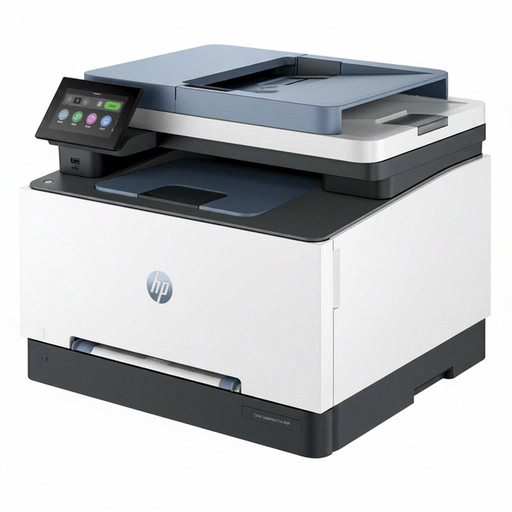 No image available
The built-in flatbed scanner is designed for loose originals. Before buying, compare its usable scanning area with the measurements of your map.
Colour laser printing; automatic double-sided printing.
Not necessarily. The print specification doesn’t confirm that the flatbed is large enough for scanning. Measure your map and check the usable flatbed area for the specific model; Brother explicitly lists an A3 flatbed for the MFC-J6945DW.
First check its condition, and don’t use a feeder or place it on the glass if that could damage the original. Professional guidance prioritises careful handling; specialist digitisation may be a good option for vulnerable items. The map department at the Staatsbibliothek zu Berlin assesses items in its collection based on factors including their condition and copyright status.
Choose a resolution that suits the detail you want to capture and how you’ll use the scan. The German Federal Archives generally digitise their own originals at 400 ppi based on the original size, and distinguish image ppi from print dpi. This isn’t a universal minimum for every home project.
Check which consumables are compatible with the exact model and estimate how much you’re likely to print. Epson Germany provides model-specific drivers, manuals and warranty information in its support section; check the details against the exact variant before ordering.
A map’s age alone doesn’t mean you can publish it freely. Under the conditions set out in § 53 Abs. 1 UrhG, natural persons may make individual copies for private use, provided they are not made for direct or indirect commercial purposes. The DPMA explains that copyright protection in Germany generally expires 70 years after the author’s death. For a specific map, also check the rights and, where applicable, the collection’s terms of use.