Who this guide is for

Teams recording audio separately

If you record conversations or commentary separately from the camera audio, make sure you can follow a synchronisation and audio-track checking workflow using your own files. Adobe and Blackmagic Design describe features for syncing separately recorded audio and video files.

Teams working with high-resolution footage

For large or high-resolution projects, choose your hardware based on your actual footage and editing software. Adobe recommends 32 GB or more of RAM for 4K media in Premiere.

Teams working on museum projects regularly

If several volunteers will work on projects over time, keep original recordings, project files and finished edits organised and backed up separately. The Federal Office for Information Security recommends regular data backups.

What to consider when buying

Compact Mac mini

A good fit if: Your team wants to edit on macOS and has limited desk space.

Bear in mind: The display, connections, project storage and backup storage all need to suit your workspace.

Configurable Windows tower

A good fit if: You rely on existing Windows workflows or want the option to upgrade the hardware later.

Bear in mind: RAM and SSD specifications vary by configuration, so check the exact model you’re ordering.

What you need What to check before buying Who it matters to
Synchronise audio Sync features in your editing software; test the audio with your own files. If you want to combine recorder audio with camera footage, test the workflow before choosing your setup. Around 28% of consumers say audio synchronisation is their main concern.
Edit your footage Recording resolution and codec; requirements for the specific software version. If previewing and editing your high-resolution files is a priority, check the configuration against your own footage. Around 22% of consumers say performance with their footage is their main concern. For Adobe Premiere 26.0 to 26.5.2, Adobe recommends 32 GB or more of RAM for 4K media.
Projects and backups Space for current media and working files; test separate storage and file recovery. If you need original footage, audio and editing projects to be easy for other volunteers to find, plan your storage and backups together. Around 22% of consumers say project storage is their top priority.
Software and team workflow Operating system and software version; test how existing projects transfer in advance. If your team wants to keep using its existing editing software, check its requirements and project compatibility. Around 17% of consumers say continuity with their existing software is their main concern.
Space and upgrade options Case size and connections at your workspace; upgrade options for the specific configuration. If the computer needs to fit on a small museum desk or be upgraded later, compare the complete setup. Around 11% of consumers say desk space or upgrade options are the deciding factor.

Common buying mistakes to avoid

  • Focusing only on the processor

    When audio is recorded separately, it also matters whether your chosen editing software can combine and check camera footage and recorder audio. CPU specifications alone don’t guarantee this feature.

    Before choosing your hardware, test the intended workflow in your editing software with your own video and audio files.

    You may need to allow extra time for choosing the right software and learning how to use it.

  • Judging the product range instead of the configuration you’re ordering

    Workstation models can differ in their RAM and SSD specifications. Adobe’s recommendation for 4K editing applies to Premiere; it doesn’t automatically apply to every editing programme.

    Compare the full configuration with your software version and the requirements of your film files.

    Check whether you’ll need extra working or project storage for active projects.

  • Confusing a project SSD with a backup

    A copy on the same working drive won’t protect you if that drive is lost.

    Plan separate storage for originals and backups, and test that you can restore the files.

    A separate backup needs its own storage space and regular recovery tests.

Brands and product ranges to consider

Apple

The Mac mini is a compact macOS option if it suits your editing software and workflow.

  • Apple lists a Media Engine for H.264, HEVC and ProRes for this generation.
  • RAM and SSD specifications vary by configuration. The manufacturer’s specifications don’t guarantee a particular editing speed for museum films.

Lenovo

The ThinkStation P3 Tower Gen 2 is a configurable Windows workstation.

  • One configuration we checked lists 32 GB of RAM.
  • The same configuration lists a 256-GB SSD. Check that it has enough space for your planned projects.

Dell

The Precision 5860 Tower is a Windows workstation with selectable components.

  • One base configuration we checked lists a 512-GB SSD and a graphics card with 4 GB of memory.
  • The base configuration lists 16 GB of RAM, below Adobe’s recommendation of 32 GB or more for Premiere with 4K media. Additional options will change the configuration.

HP

The Z2 Tower range is another Windows workstation option for teams looking for specific specifications and upgrade options.

  • One Z2 Tower G9 configuration we checked was listed with 32 GB of RAM and a 2-TB SSD.
  • These specifications apply to that specific configuration and shouldn’t be assumed to apply to other Z2 models.

Desktop PCs at Joybuy

The Joybuy models below include compact Mac mini and Windows desktop options. Check each configuration against your editing software, recording format and planned storage needs.
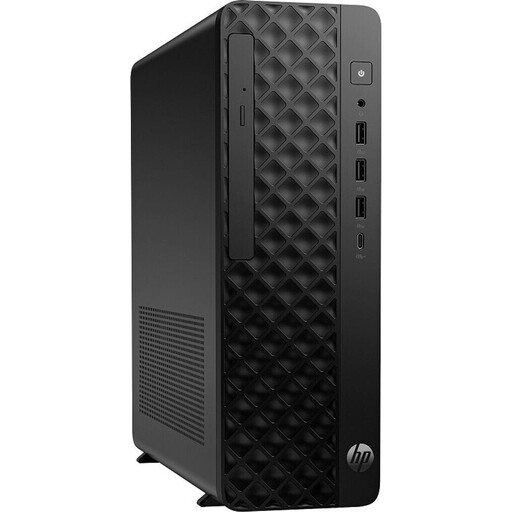
HP Z2 SFF G1i A40M2ET#ABD, Ultra 7 265K, 32 GB RAM, 1 TB SSD

HP Z2 SFF G1i A40M2ET#ABD, Ultra 7 265K, 32 GB RAM, 1 TB SSD

A small form factor option for a space-saving Windows editing setup, if it suits your software and recording format.

The configuration lists 32 GB DDR5 RAM at 5,600 MHz, a 1-TB M.2 SSD, an RTX A400 with 4 GB GDDR6 and Windows 11 Pro.

View at Joybuy
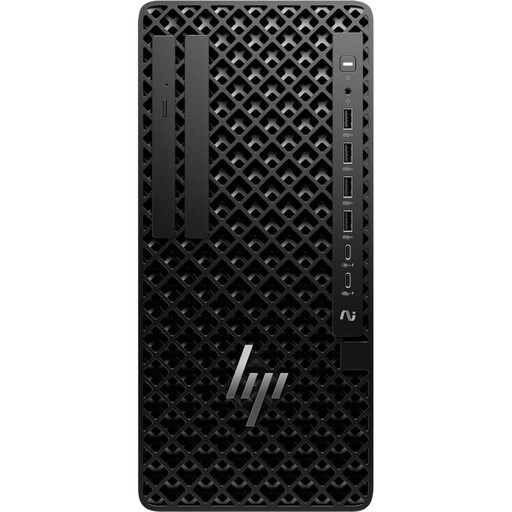
HP Z1 Tower G1i A40T1ET#ABD, Ultra 9 285, 64 GB RAM, 1 TB SSD

HP Z1 Tower G1i A40T1ET#ABD, Ultra 9 285, 64 GB RAM, 1 TB SSD

A Windows tower option if you want to compare the listed specifications with your editing software’s requirements.

The configuration lists 64 GB DDR5 RAM at 5,600 MHz, a 1-TB M.2 SSD, Intel Graphics and Windows 11 Pro.

View at Joybuy
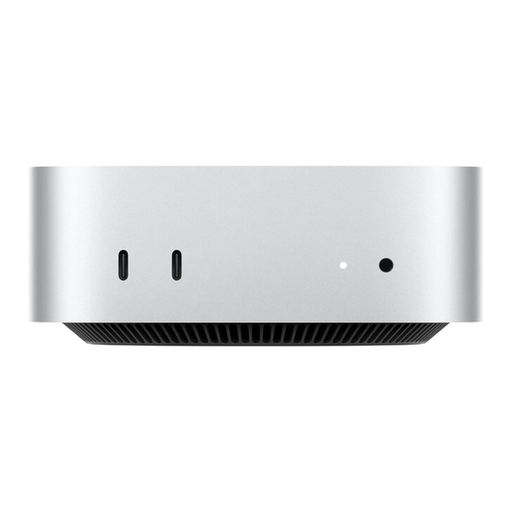
Apple Mac mini M6 with 24 GB Unified Memory and 1 TB SSD

Apple Mac mini M6, 24 GB Unified Memory, 1 TB SSD

A compact Mac mini for teams using macOS who want to save desk space.

This configuration lists a 12-core CPU, a 12-core GPU, 24 GB Unified Memory and a 1-TB SSD. Plan for a display and project storage that suit your workspace.

View at Joybuy
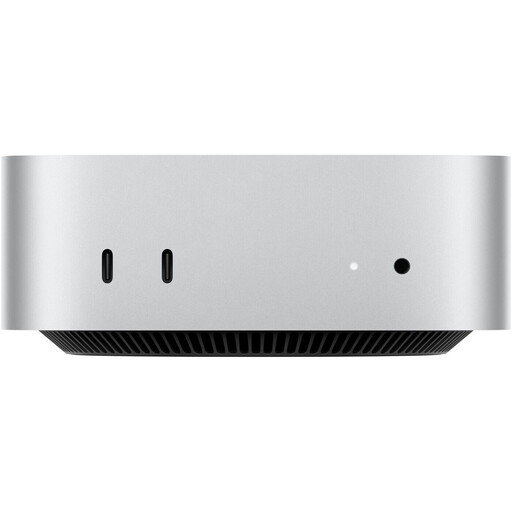
Apple Mac mini M6 with 32 GB Unified Memory and 512 GB SSD

Apple Mac mini M6, 32 GB Unified Memory, 512 GB SSD

A compact macOS option if your chosen editing software suits your team’s workflow and desk space is limited.

This configuration lists a 12-core CPU, a 12-core GPU, 32 GB Unified Memory and a 512-GB SSD. Allow for the storage space you’ll need for ongoing projects.

View at Joybuy
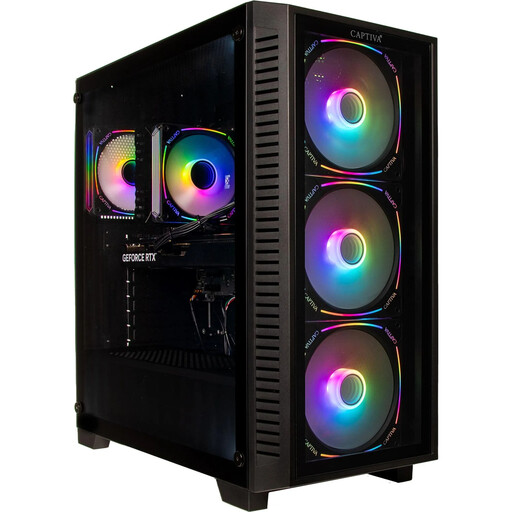
Captiva Highend Gaming PC R89-503 with Ryzen 7 7800X3D, 32 GB RAM and 2 TB SSD

Captiva Highend Gaming PC R89-503, Ryzen 7 7800X3D, 32 GB RAM, 2 TB SSD

A Windows desktop with listed audio and graphics specifications. Check that it’s compatible with your editing software and files.

The product details list an RTX 5070 Ti with 16 GB GDDR7, 32 GB DDR5, a 2-TB NVMe SSD and Windows 11 Home.

View at Joybuy

Frequently asked questions

Do I need a special computer for separately recorded audio?

The first thing to look for is editing software with a suitable synchronisation workflow. Adobe describes combining video with separately recorded audio; for DaVinci Resolve, Blackmagic Design lists syncing by timecode, audio waveform or manually. Test the feature with your recording format before choosing hardware based solely on audio.

How should we set up our editing workstation and back up project files?

Test your editing software with a video and audio recording of your own, and check that you can connect a display as well as recording and backup drives. Keep original files and project files organised, make separate backups and test that you can restore them. The Federal Office for Information Security provides data backup recommendations, but doesn’t specify a one-size-fits-all storage capacity for this workstation.

What additional purchases and service terms should we check?

Before ordering, check whether you already have a display, additional drives and the editing software you want to use. A warranty and statutory consumer rights are not the same thing. Before buying, the museum should check who the seller is and which terms apply to that specific purchase.

What should we consider when choosing equipment and publishing museum films?

Check the manufacturer’s specifications and the documentation for the specific device. If people in your recordings can be identified, you’ll need an appropriate legal basis to process their personal data. The Federal Commissioner for Data Protection and Freedom of Information lists consent as one possible basis. Which basis is appropriate will depend on the recordings and how you plan to publish them.