Volunteers at the editing workstation
If several people use the same computer, test the editing software and playback with a representative film project. Adobe publishes separate requirements for Premiere and different media formats.


For a team editing museum films, your desktop should suit the editing software, operating system and recording format you use. For Premiere on Windows, Adobe recommends 16 GB RAM for HD and at least 32 GB for 4K or higher; these figures are not a blanket recommendation for other programmes. You should also plan for separate user accounts and an independent backup destination. A compact PC saves desk space, while a tower may offer more scope for upgrades, depending on its exact configuration.
If several people use the same computer, test the editing software and playback with a representative film project. Adobe publishes separate requirements for Premiere and different media formats.
If you manage access for different volunteers, plan for personal, password-protected accounts with appropriate permissions. The Federal Office for Information Security recommends giving each user their own account.
If you manage original recordings and projects, plan for working files, cache and a separate backup together. Adobe recommends storing the media cache locally for Premiere; the Federal Office for Information Security explains why regular backups matter.
First decide on your editing software, operating system, resolution and recording format. Then compare the exact PC configuration and plan for user access and backups.
| Criterion | What to check before buying | Who is this particularly important for? |
|---|---|---|
| Editing software and film format | Check the programme version, operating system, resolution and recording format against the processor, memory and graphics in the exact configuration. For Premiere on Windows, Adobe recommends 16 GB RAM for HD and at least 32 GB for 4K or higher. | If I want to work smoothly with my actual film files, I check the requirements of the programme I use rather than focusing on just one processor specification. Around 31% of consumers put suitable editing performance and format compatibility first. |
| Separate user access | Plan for personal user accounts with appropriate permissions, as well as a storage location for projects being edited collaboratively. | If different volunteers hand projects over to one another, I want to set clear access and responsibilities without giving everyone the same administrator account. Around 25% of consumers prioritise secure collaboration. |
| Working files and backups | Work out how much space you need for original recordings, projects and cache, then plan a separate backup destination and a way to restore files. | If film recordings and project files need to be kept for the long term, I don't want to mistake the working drive for a backup. Around 25% of consumers prioritise storage and data backup. |
| Desk space and upgrades | Check the case, available ports and the drive bays or expansion slots actually available in the exact model. | If desk space is limited or you may want to add internal components later, I need to weigh up the space it takes against the upgrade options of the specific model. Around 19% of consumers prioritise footprint or future upgrades. |
Adobe's memory and graphics recommendations are for Premiere and vary depending on how you use it. A computer may therefore be unsuitable for the software you actually use, even if some of its individual specifications look impressive.
Before comparing computers, check the software version, operating system and representative film footage against the requirements of the programme you use.
A fault or accidental deletion could affect active projects and original files. An internal SSD in the same computer is not the same as a separate backup.
Plan for separate working and backup storage, and decide how often you will make copies and how you will restore them.
A separate backup drive and regular copies require additional storage space and a consistent workflow.
Components and connectivity can vary between configurations. A review of a particular desktop does not automatically apply to every computer from the same brand or product family.
Check the full model number, specifications and what’s included with the exact configuration. If you plan to upgrade later, confirm which slots are actually free.
With a shared account, it is harder to keep individual responsibilities and access permissions separate. The Federal Office for Information Security also warns that malware can have more serious consequences when it has administrator privileges.
Set up individual accounts with appropriate permissions, appoint someone to manage administrator settings and agree on a shared project folder.
Separate accounts need clear ownership for setup and ongoing management.
The ThinkStation P3 Tower Gen 2 is a configurable Windows tower family to consider if you may want to add internal components.
The Z2 Tower G1i is a workstation family with components that vary by configuration.
The Pro Max Tower T2 is a configurable desktop for a permanent Windows workstation.
The Mac mini is a compact macOS option, provided it works with the museum's editing software, peripherals and file workflow.
The ProArt Station PD5 PD500TE is a documented Windows tower with ports for media and peripherals.
This selection includes compact PCs for limited desk space and a Windows tower as an alternative with a tower form factor.
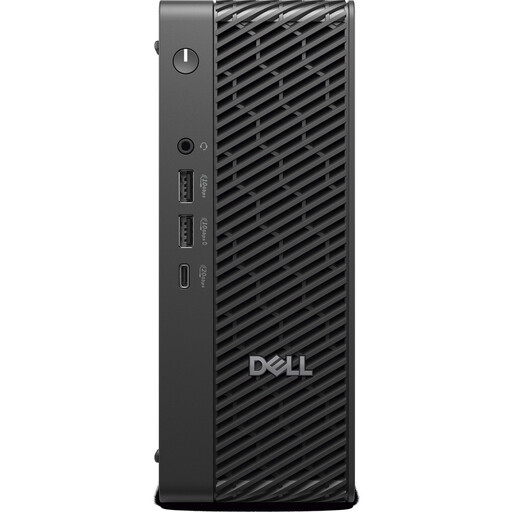 No image available
The Micro form factor is an option if desk space is limited at your editing workstation.
Specifications include an Intel Core Ultra 7 with 14-Core NPU, 16 GB DDR5 at 6400 MHz, a 512-GB M.2 PCIe SSD, Intel Graphics and Windows 11 Pro.
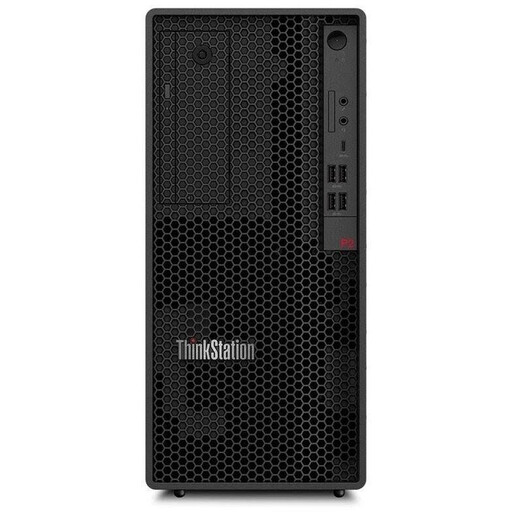 No image available
This Windows tower is worth considering if its exact specifications suit your editing software and footage.
Specifications include 32 GB DDR5, a 512-GB NVMe SSD, an NVIDIA RTX A400 with 4 GB and Windows 11 Pro. A keyboard and mouse are listed as included in the described package.
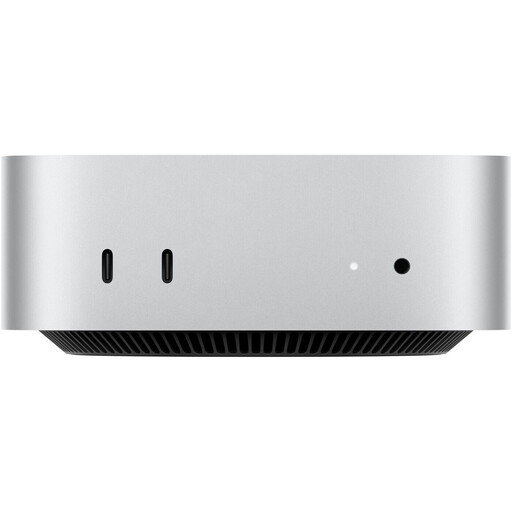 No image available
This compact Mac mini is a good fit if your editing software runs on macOS and you can connect your existing peripherals.
Specifications include an Apple M6 with 12-Core CPU and 12-Core GPU, 16 GB Unified Memory, a 256-GB SSD, Thunderbolt 4 and HDMI.
No image available
This compact macOS option is worth considering if it suits the editing software and connectivity needs of your museum workstation.
Specifications include an Apple M6 with 12-Core CPU and 12-Core GPU, 24 GB Unified Memory, a 512-GB SSD, Thunderbolt 4, HDMI and 2.5GbE.
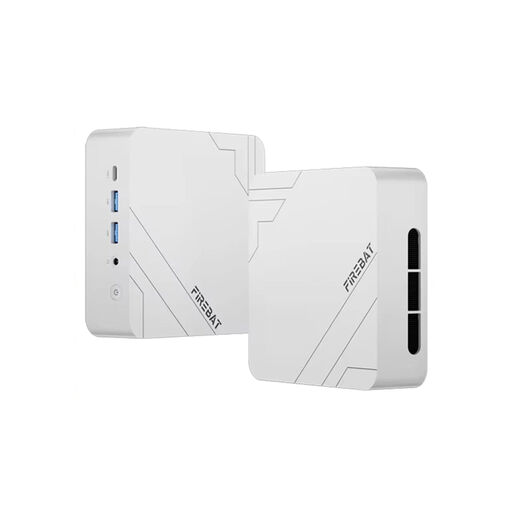 No image available
The mini PC form factor is an option if you want to keep your editing workstation compact and the software you use is compatible with this exact configuration.
Specifications include 16 GB DDR5 RAM, a 512-GB SSD, Windows 11 Pro, Wi-Fi 6 and USB4.0.
No. For Premiere on Windows, Adobe recommends 16 GB RAM for HD and at least 32 GB for 4K or higher resolutions. First check the software and footage you actually use; these Premiere recommendations don't automatically apply to other programmes.
The Federal Office for Information Security recommends individual, password-protected user accounts with appropriate permissions. Also decide where authorised users should save shared projects and who will manage administrator settings.
No. An internal SSD is storage in the same computer and doesn't replace a separate backup. The Federal Office for Information Security explains why regular backups matter. For important film files, plan a separate backup destination and a way to restore them.
Not automatically. Your Europe explains that consumer purchases from a seller come with a statutory guarantee of at least two years. Whether a particular purchase by a museum qualifies depends on who enters into the contract. Check the warranty and service terms separately.
No. The PC being suitable does not, by itself, make processing or publishing the footage lawful. The Federal Commissioner for Data Protection and Freedom of Information explains that processing personal data requires a legal basis. Consent is one possible basis, but not the only one. For the specific footage, also clarify access permissions, purpose and the separate question of publication.