What should you look for when choosing one?
First, work out how much storage you’ll actually use and how your collection might grow. Then make sure the network and access permissions suit your workstations, and plan how you’ll restore important files as a separate part of the solution.
| Priority |
What to check before buying |
Who this matters most to |
| Recovery |
A separate backup destination, protection from access via the studio network, and a tested recovery process |
If important originals are difficult to replace, I want to be able to restore an independent copy if something goes wrong; around 31% of consumers put recovery first. |
| Usable capacity and growth |
Estimate your project archive and future growth; choose drives and a storage configuration to suit your needs |
If my large project archive keeps growing, I need enough usable storage and want to plan for expansion; around 25% of consumers prioritise capacity and growth. |
| Transferring large files |
Check the ports on the NAS, switch and workstations together; don’t assume advertised figures guarantee a particular speed at each workstation |
If several workstations share large project folders, the whole network setup matters to me; around 25% of consumers put fast transfers first. |
| Controlling access |
Set up user accounts and folder permissions; check file sharing on the computers you use |
If the team shares access to projects, I want to set appropriate permissions for active and archived folders; around 19% of consumers prioritise access management. |
The percentages refer to consumers choosing a NAS for large design files in a shared studio, and indicate the priority each person considers most important. Your choice should still be based on your storage needs, network infrastructure and planned backup process.
Related products from Joybuy
This selection includes Synology NAS enclosures with four or eight bays, as well as internal Synology hard drives to use as components in a compatible enclosure. Before buying, check that the specific drive is compatible with your NAS.
 No image available
Synology DiskStation DS925+ 4-Bay NAS
For growing project archives, when four bays and shared file access suit your planned setup.
Four drive bays, two 2.5-GbE ports and two M.2 NVMe slots. Synology lists support for up to nine drives with a separate DX525 expansion unit. Check the drive compatibility list; important projects also need a separate backup and a tested recovery process.
View at Joybuy
 No image available
Synology DiskStation DS1825+ 8-Bay NAS
For large shared project archives, when eight bays suit your planned storage expansion.
Eight drive bays and two 2.5-GbE ports, with optional 10-GbE expansion. Make sure the network setup works with your workstations, and plan a separate backup with a tested recovery process for important files.
View at Joybuy
 No image available
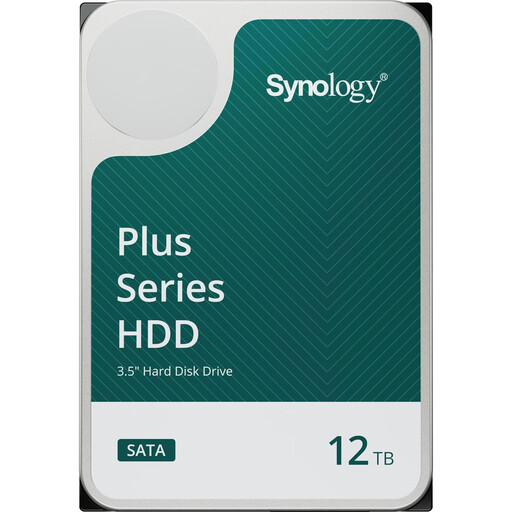
Synology HAT3310-12T 12 TB NAS hard drive
An internal component for expanding a compatible Synology NAS with a 3.5-inch drive.
12 TB, SATA III, 3.5 inches and CMR. The hard drive alone isn’t a NAS for shared network access; check that it’s compatible with your specific enclosure.
View at Joybuy
 No image available
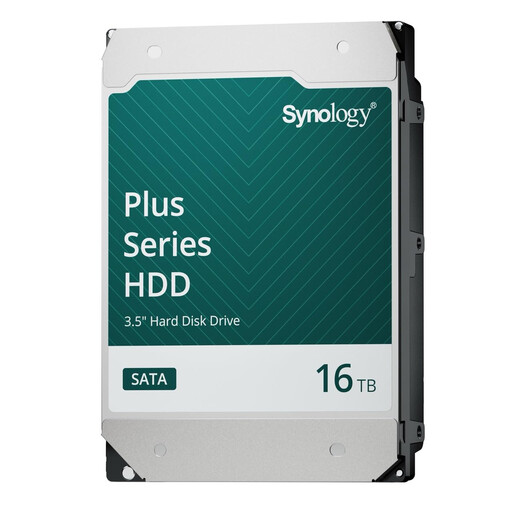
Synology HAT3310-16T 16 TB NAS hard drive
An internal component for a compatible Synology NAS with a 3.5-inch bay.
16 TB, SATA 6 Gb/s, 3.5 inches and CMR. This drive doesn’t provide shared network access on its own; check its compatibility with your NAS model.
View at Joybuy
 No image available
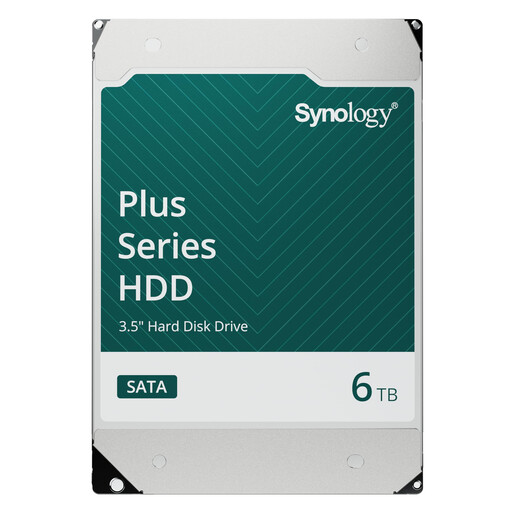
Synology HAT3300-6T 6 TB NAS hard drive
An internal addition for a compatible Synology NAS with an available 3.5-inch bay.
6 TB, SATA 6 Gb/s, 3.5 inches and CMR. This hard drive alone isn’t a solution for shared network access; check the specific model against your NAS.
View at Joybuy
Frequently asked questions
Does RAID in a NAS replace a separate backup?
No. For important project files, plan a separate backup and a prepared, tested recovery process. To protect against ransomware, the Federal Office for Information Security recommends an offline backup that’s disconnected from the rest of the network once the backup is complete.
What should I check before giving several workstations access?
Decide who can read or edit project folders, and check file sharing on the computers you use. The Federal Office for Information Security recommends setting access permissions for network drives according to users’ needs. For example, the ASUSTOR AS5404T lists SMB 2.0/3.0 and support for Windows and macOS; you’ll still need to set up sharing appropriately.
Are hard drives included with a NAS enclosure?
Not necessarily. QNAP explicitly specifies that the TS-464 is supplied without HDDs. Check what’s included with the specific offer, and make sure any additional drives you plan to buy are compatible.
What will I need to do after buying?
Assign responsibility for user permissions, backups and recovery tests. Allow separately for any drives and additional network equipment you may need; the actual setup will depend on the configuration you choose.
Does the GDPR require every studio NAS to use a particular brand or RAID level?
No. The guidance from the Federal Commissioner for Data Protection and Freedom of Information doesn’t specify a particular product. If personal data is processed on the NAS, controllers and processors must take appropriate technical and organisational measures based on the risks involved. This doesn’t determine in general terms which measures are suitable in every individual case.


