NAS devices and external hard drives at Joybuy
The Joybuy products below include NAS enclosures for centralised network backups, as well as external USB hard drives as an alternative for backing up a single computer.
 No image available
Synology DiskStation DS925+ 4-Bay NAS
For centralised network backups when multiple drive bays and the option to expand are important.
Four drive bays; two 2.5 GbE ports; the product description says it can be expanded to up to nine bays with the DX525.
The product description states that this model is only compatible with Synology drives. Check your drive options and the recovery process you need before buying.
Joybuy
 No image available
Synology DiskStation DS1825+ 8-Bay NAS
For centralised storage when you need backups for multiple devices and a NAS with several drive bays.
Eight drive bays; two built-in 2.5 GbE ports; optional 10GbE is listed in the product name. The product description mentions backups for multiple devices.
Joybuy
 No image available
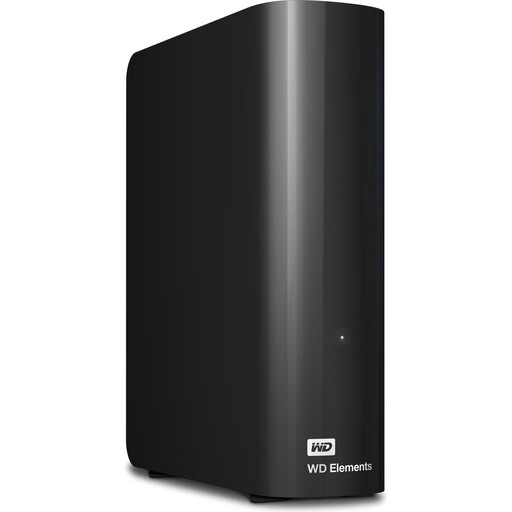
WD Elements 6TB Desktop External Hard Drive
An external backup option for a single computer if you don’t need network storage.
6 TB; USB 3.0; 3.5 inches; NTFS; external power supply.
This is an external USB hard drive, not a NAS. Don’t store important data on it alone; plan for a second backup.
Joybuy
 No image available
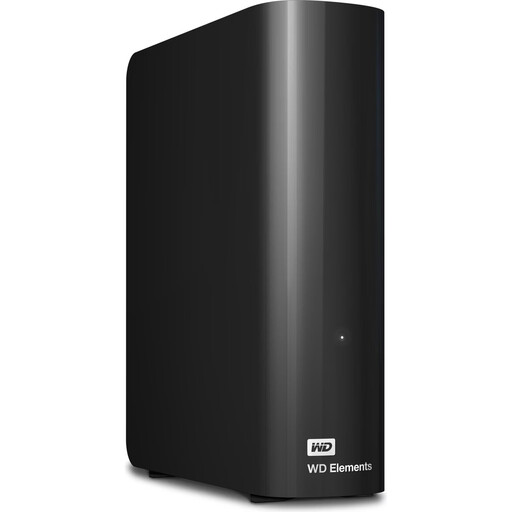
WD Elements 10TB Desktop External Hard Drive
For a fixed USB backup as an alternative to a NAS when you need to back up a single computer.
10 TB; USB 3.2 Gen 1; 3.5 inches; NTFS; external power supply. The product description says it can be used with Windows PCs.
This is an external hard drive, not network storage. An additional backup is a good idea for important data.
Joybuy
 No image available
WD Elements 8TB Desktop External Hard Drive
A fixed external backup for one computer if you don’t need network storage.
8 TB; USB 3.0; 3.5 inches; NTFS; external power supply.
This hard drive isn’t a NAS. Don’t store important data on it alone, and remember to plan for a second backup.
Joybuy
Frequently asked questions
Does RAID 1 replace an additional backup?
No. Mirroring can help if a drive fails, but it also copies unwanted changes. For important family data, plan for an additional copy stored separately and test that you can recover it.
How do I set up a NAS in a shared studio?
First, find out who manages the router and who uses the main network. Set up individual accounts for authorised family members. If the router supports a separate guest network, studio visitors can use that instead of the NAS network. Test the separation with a guest device.
What running costs should I budget for?
As well as the NAS enclosure, factor in the drives you actually need, another backup medium and electricity. The equipment required will depend on the amount of data and your backup plan. When buying as a consumer, remember that your statutory rights against the seller are different from a voluntary warranty.
Are there any special data protection rules for a NAS in a shared studio?
Sharing a physical space doesn’t, by itself, determine this. The household exemption may apply to activities carried out purely for personal or family purposes. If personal data relating to people outside this setting is processed or made available for other purposes, you’ll need to check whether the GDPR applies to the specific activity. This doesn’t mean other studio users should be given access to family folders.
Can I use an idle noise rating to tell how loud the device will be during a backup?
No. An idle rating doesn’t reliably indicate how loud the device will be during a backup or with different drives. Check the measurement conditions and plan for a well-ventilated location away from your workspace.


