Who is this buying guide for?

Podcasters who transfer files frequently

If you regularly move recordings and editing files between your computer and NAS, check both the drive’s recording technology and any potential network bottlenecks. The Synology Knowledge Center identifies the network route as one area to investigate when transfers are slow.

Podcasters with a growing archive

If you’re keeping original recordings and finished episodes for the long term, compare your current collection and expected growth with the storage that will actually be usable.

Podcasters with irreplaceable recordings

If you want to be able to restore files that have been accidentally deleted or changed, you’ll need a separate backup as well as your NAS. The BSI expressly distinguishes data backup from RAID mirroring.

What should you look for when buying?

Priority What to check before buying Who is it important to?
Frequent file transfers Check the exact model number and CMR specification. Also check the connection between your computer and NAS; the Synology Knowledge Center lists Wi-Fi, cables and port speed among the areas to investigate. If I regularly move raw recordings and projects back and forth, I want to avoid unnecessary transfer bottlenecks. Around 31% of consumers put frequent transfers first.
Usable archive storage Add up your current collection and expected growth, and allow for the storage space you’ll actually have after choosing your storage configuration. If I want to keep original recordings and finished episodes for a long time, I need enough usable space for my growing archive. Around 25% of consumers prioritise storage capacity.
Recoverability Set up a backup separate from your NAS and check that you can restore files from it. The BSI points out that RAID mirroring can also copy across changes such as accidental deletion. If my original recordings can’t simply be recreated, I want to be able to restore them even after accidentally deleting them. Around 25% of consumers put recoverability first.
NAS compatibility Check the exact hard drive model number against the requirements for your NAS model and its software version. Also check the bay size, connection and supported capacity. If I want to keep using my existing NAS, the drive needs to meet its requirements and suit the way I plan to use it. Around 19% of consumers prioritise compatibility.

Common buying and planning mistakes

  • Confusing RAID with a standalone backup

    Mirroring can copy changes to multiple drives at the same time, so it won’t reliably protect you from accidental overwriting.

    Set up a separate backup as well, and test that you can restore files from it.

    A separate backup needs additional storage space and regular maintenance.

  • Overlooking the exact model number in “WD Red”

    Western Digital distinguishes between SMR models and WD Red Plus models with CMR. According to the manufacturer, SMR models need idle time for certain operations.

    Check the full model number and its recording technology specification rather than relying on the product family name alone.

  • Planning around the advertised TB figure alone

    The space available for files may differ from the drive’s stated capacity. Your storage configuration and backup will also use some of that space.

    Work out your current storage needs, expected growth and the space needed for a separate backup as three separate figures.

    Depending on your plan, you may need additional storage for redundancy and backups.

  • Assuming the hard drive is the only cause of slow transfers

    Wi-Fi, cables, networking equipment and the negotiated port speed can also limit file transfers.

    Check the entire network route before choosing a different drive to improve transfer speeds.

Key brands at a glance

Western Digital

According to Western Digital, WD Red Plus is a CMR NAS HDD range for RAID-optimised NAS systems with up to eight bays.

  • Western Digital gives the range an annual workload rating of 180 TB and offers it in various capacities.
  • Not every drive labelled “WD Red” uses the same recording technology. Check the specific model number; manufacturer specifications aren’t a test of how it will perform in your workflow.

Seagate

Seagate describes IronWolf as a CMR HDD range for continuous NAS operation and multi-bay systems.

  • The datasheet for the range described gives it an annual workload rating of 180 TB.
  • The datasheet gives the range described a three-year limited warranty. Check the terms and details for the specific model number on offer; these don’t indicate a speed advantage on your own network.

Toshiba

Toshiba lists the N300 as a 3.5-inch NAS HDD range for archiving and multi-bay setups.

  • For the 22 TB N300 model MN11ACA22TS, Toshiba specifies CMR, 7,200 RPM and an annual workload rating of 180 TB.
  • These specifications apply to the 22 TB model and don’t automatically apply to smaller N300 drives. Also check that your NAS supports the capacity you choose.

Suitable hard drives at Joybuy

The models below are CMR NAS hard drives for archives you work with regularly; according to their product descriptions, the two HAT3310 models are only intended for compatible Synology NAS systems.
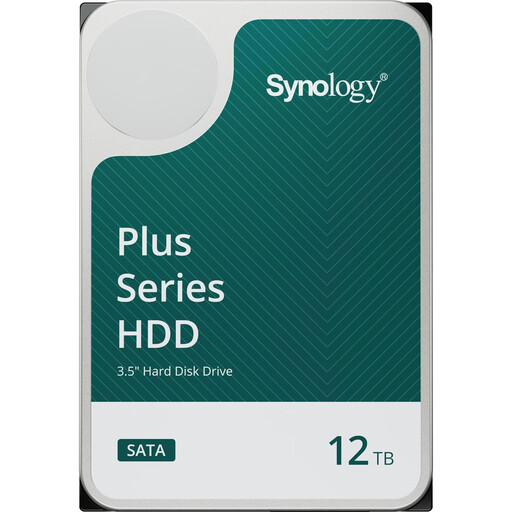
Synology HAT3310-12T, 12 TB NAS hard drive

Synology HAT3310-12T, 12 TB

Could suit a growing archive if your Synology NAS supports this model.

12 TB; SATA III; 3.5 inches; 7.200 RPM; 512MB cache; CMR; helium.

View at Joybuy
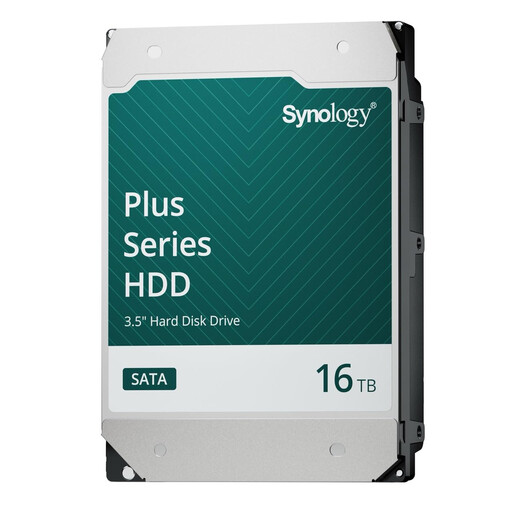
Synology HAT3310-16T, 16 TB NAS hard drive

Synology HAT3310-16T, 16 TB

Could suit a larger archive if your Synology NAS supports this model.

16 TB; SATA 6 Gb/s; 3.5 inches; 7.200 RPM; CMR.

View at Joybuy
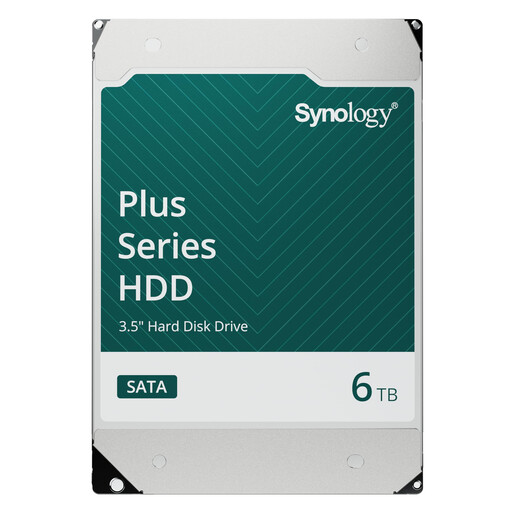
Synology HAT3300-6T, 6 TB NAS hard drive

Synology HAT3300-6T, 6 TB

Could suit a smaller archive if your Synology NAS supports this model.

6 TB; SATA 6 Gb/s; 3.5 inches; 5.400 RPM; CMR.

View at Joybuy

Frequently asked questions

Will a faster NAS hard drive automatically make my file transfers faster?

No, not automatically. Check the connection between your computer, networking equipment and NAS as well as the drive itself. The Synology Knowledge Center lists Wi-Fi, cables and port speed among the areas to investigate when transfers are slow; which ones matter will depend on your system.

How do I check whether a hard drive will work with my existing NAS?

Before buying, check the bay size, connection, supported capacity and requirements for your specific NAS model and software version. The guidance in the Synology Knowledge Center shows that compatibility should be checked for your particular combination of device and software.

Is RAID enough to back up my podcast episodes?

No. The BSI distinguishes RAID mirroring from data backup because changes such as accidental deletion can also be copied across to mirrored data. Set up a separate backup and test that you can restore files from it.

What applies in Germany if a hard drive breaks: statutory rights or a warranty?

For consumer purchases, your statutory rights apply against the seller; an additional manufacturer’s warranty is voluntary and subject to its own terms. The Verbraucherzentrale says the statutory warranty period is generally two years from delivery. If you’re buying for business use, check the contract terms separately.

Could stored podcast recordings have data protection implications?

Yes. If recordings contain the voices of identifiable people, they may count as personal data. The European Data Protection Board lists audio recordings as a possible example; organisations should check the relevant GDPR obligations when processing this type of data. This doesn’t amount to a blanket recommendation for any particular hard drive brand.