For a manageable archive, a two-bay NAS may be suitable if its usable storage is enough for your current files and expected growth. If you regularly add new recordings, four bays give you more flexibility with drive configurations. However, more bays do not automatically mean more usable storage or a backup. Alongside your NAS, plan a separate, tested backup and choose network connections that suit the entire transfer path.
Which NAS setup is right for you?
Lecturers building a video archive
If you’re storing finished lectures and large original camera files, plan around usable storage rather than the advertised raw capacity. What matters is whether the specific drive and RAID configuration can also accommodate your expected growth.
Anyone responsible for irreplaceable originals
If recordings need to be recoverable after a fault, plan for a separate backup in addition to your NAS and test that you can restore files from it. The German Federal Office for Information Security explicitly distinguishes RAID mirroring from data backup.
Teams that regularly transfer large files
If camera files are regularly moved between workstations and your NAS, the connections and settings across your entire network need to suit the transfer path. A fast NAS connection alone doesn’t tell you how quickly files will transfer in your setup.
What to consider when buying
Two-bay NAS
A good fit if: your archive is manageable and the planned usable capacity is enough for your current files and future growth.
The trade-off: There’s less flexibility for future drive configurations, and you’ll still need a separate backup.
Four-bay NAS
A good fit if: you regularly add new recordings or plan to use multiple drives.
The trade-off: More bays don’t guarantee more usable storage or a backup; drives must be compatible with your NAS model.
| What matters |
What to look for when buying |
Who it matters most to |
| Usable storage |
Calculate your current storage needs and expected growth; check usable capacity based on the specific drives and RAID settings. |
If your archive is growing with new lectures and original camera files, the space actually available is what counts. Around 25% of consumers put capacity first. |
| Recoverability |
Plan for a separate backup destination and test that you can restore files from it. |
If you need to recover originals after accidental deletion or changes, RAID mirroring isn’t enough as your only backup. Around 25% of consumers prioritise recovery. |
| File transfers |
Check the connections on your NAS, computer and network equipment together; don’t assume manufacturer lab results reflect your own transfer speeds. |
For frequent transfers of large camera files, your entire network path needs to keep up. Around 20% of consumers prioritise transfer speeds. |
| Access controls |
Plan user permissions and shared folders; for recordings containing personal data, clarify the purpose, legal basis and retention period. |
If several people need access to recordings or participants are identifiable, you should have clear rules for access and file handling. Around 15% of consumers put access controls first. |
| The complete setup |
Check what’s included, compatible HDD model numbers and your backup destination, and factor in any additional network equipment you may need. |
If you’re planning to buy the enclosure, drives and a separate backup together, remember to include every component you’ll need. Around 15% of consumers pay particular attention to the cost and maintenance involved in the complete setup. |
Common planning mistakes
-
Treating RAID as a complete backup
Mirroring also replicates changes and deletions. That’s why the German Federal Office for Information Security does not consider RAID mirroring to be a data backup.
Plan a separate copy and test restoring a complete recording.
Allow for an additional backup drive or destination, as well as time to test restores.
-
Confusing raw capacity with usable archive space
The capacity actually available depends on the drives installed and the RAID configuration you choose.
Calculate capacity based on your specific drive setup, and consider how quickly you expect to add original files.
If your initial configuration isn’t enough, you may need additional drives or a future expansion.
-
Assuming similar HDD names mean the same thing
Western Digital distinguishes between WD Red drives with SMR or CMR variants and WD Red Plus drives with CMR models. NAS manufacturers also publish their own compatibility lists.
Before buying, check the full drive model number and make sure it’s approved for your specific NAS.
-
Assuming manufacturer throughput figures guarantee copy speeds
Results from specific test setups may not reflect transfers between your workstation, network and NAS. ASUSTOR notes that results from its lab tests may differ on everyday computers.
Check the entire transfer path before investing in additional network equipment.
Faster connections may require network equipment in addition to the NAS.
Brands to consider
Synology
The DS225+ is a two-bay option, while the DS925+ has four bays and can be expanded with a separately available DX525.
- Synology lists two integrated 2.5 GbE ports for the DS925+ and one integrated 2.5 GbE port for the DS225+.
- Check drive compatibility and distinguish raw capacity from usable storage. Published throughput figures come from manufacturer tests, not tests of a lecture archive.
QNAP
The TS-464 is a four-bay option with M.2 slots and optional network expansion.
- QNAP lists two M.2 slots and one PCIe slot for the TS-464.
- According to QNAP, the TS-464 is supplied without an HDD. Check drive compatibility and whether your planned expansion will require additional hardware.
TerraMaster
The F4-424 is a four-bay system with network and file system options listed in the manufacturer’s data sheet.
- TerraMaster lists Btrfs, EXT4 and several RAID types for the F4-424.
- The stated maximum raw capacity is not the same as usable capacity. Performance and power consumption figures apply to the specified test conditions.
ASUSTOR
The Lockerstor 4 Gen2+ AS6704T v2 is a four-bay option for compatible networks that support faster connections.
- ASUSTOR lists two 5 GbE ports and four M.2 slots for this specific v2 variant.
- Published transfer speeds come from optimised lab configurations and won’t necessarily be achievable on your own workstation. The v2 variant is not the same as the original AS6704T.
Western Digital
WD Red Plus is a range of NAS HDDs. Check the exact model number for your enclosure.
- Western Digital documents CMR and SATA for the model numbers listed in the relevant WD Red Plus data sheet.
- According to Western Digital, the general WD Red range may include SMR or CMR drives, depending on the model. Always check the exact model number.
Seagate
IronWolf is another range of NAS HDDs, designed for multi-bay systems and large collections of files.
- The Seagate data sheet lists CMR for the IronWolf model numbers covered.
- This information doesn’t confirm compatibility with every NAS and doesn’t replace a separate backup.
NAS products at Joybuy
This selection includes two-, four- and eight-bay NAS enclosures, as well as internal Synology NAS hard drives for your file archive.
 No image available
Synology DiskStation DS925+
For a growing archive, with four drive bays and room to expand.
Two integrated 2.5 GbE ports; M.2 NVMe SSD caching; expandable to nine bays. Expansion unit sold separately. Check for suitable Synology-compatible drives.
View at Joybuy
 No image available
Synology DiskStation DS1825+
For a large archive where eight drive bays offer extra flexibility in how you configure your storage.
Two integrated 2.5 GbE ports; optional 10 GbE upgrade.
View at Joybuy
 No image available
Synology DS225+
For a manageable archive, provided its usable capacity is enough for your current files and future growth. Two bays offer less flexibility than systems with more bays.
One 2.5 GbE port and one Gigabit Ethernet port; 2 GB DDR4 RAM, expandable to 6 GB; RAID 0, RAID 1 and JBOD. A separate backup is still essential.
View at Joybuy
 No image available
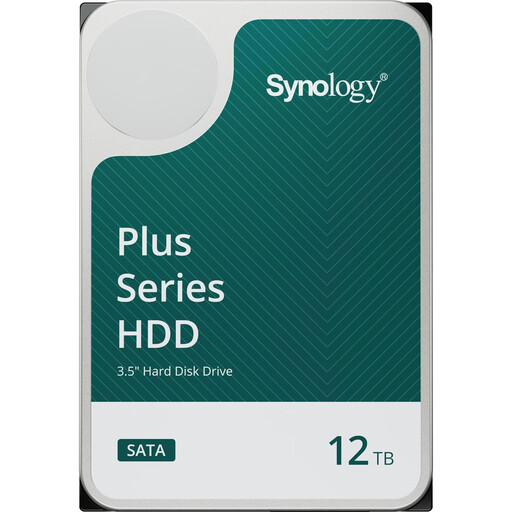
Synology HAT3310-12T
An internal hard drive for a compatible Synology NAS, not a standalone NAS enclosure.
12 TB; 3.5 inches; SATA III; 7200 RPM; 512 MB cache; CMR. Check compatibility with your specific NAS.
View at Joybuy
 No image available
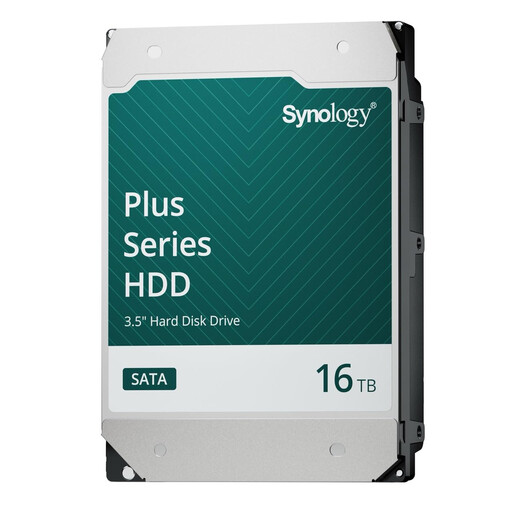
Synology HAT3310-16T
An internal hard drive for a compatible Synology NAS, not a standalone NAS enclosure.
16 TB; 3.5 inches; SATA 6 Gb/s; 7200 RPM; CMR. Check compatibility with your specific NAS.
View at Joybuy
Frequently asked questions
Is RAID enough to back up my original camera files?
No. RAID alone is not a data backup. The German Federal Office for Information Security points out that mirroring also replicates changes and deletions. Plan a separate backup destination and test that you can restore a recording from it.
How can I check that camera files haven’t changed after copying?
Compare checksums for the original files with values calculated again later. The Library of Congress describes checksums as a way to detect whether a file has changed; comparing checksums doesn’t replace keeping a second copy.
Are hard drives included with the NAS?
It depends on the specific model and offer. QNAP says the TS-464 is supplied without an HDD. Check what’s included, the exact drive model number and the NAS manufacturer’s compatibility list.
Can I permanently store lectures featuring identifiable participants on a NAS?
Not simply because the NAS is operated locally. For recordings containing personal data, those responsible must check the legal basis, purpose, access rights and retention period for the specific use. The German Data Protection Conference addresses the legal basis required for recordings separately; which basis applies depends on the recording in question.
Do I need particularly fast network connections for my archive?
Not necessarily. Faster connections matter most if you regularly transfer large files and your computer and other network equipment can keep up. ASUSTOR notes that speeds measured in optimised lab conditions may not be achievable on everyday computers.


