For a single Ethernet printer, a free, accessible LAN port on your router is enough. A switch is useful if you want to connect several wired devices at your desk using the same existing network cable. A small unmanaged Gigabit switch is a simple place to start: count the connection to your router as one occupied port, and only choose VLAN or PoE if you have a specific need. TP-Link Germany and NETGEAR describe suitable switch models, while Brother Germany notes that setup depends on the printer model.
Who might need which type of connection?
Connect a printer and computer at your desk
If you want to connect your printer and computer using an existing LAN cable, check whether the printer has an Ethernet port and whether there’s a free, accessible LAN port on your router. TP-Link Germany and Brother Germany offer guidance on Ethernet ports and printer setup.
Make space and noise levels a priority in a small workspace
If you’re planning to keep the switch on your desk, check the dimensions and whether the specific model has a fan. NETGEAR and D-Link Germany provide details on these features for certain models.
Plan for other wired devices
If you want to connect devices in addition to your printer, count their ports along with the connection to your router. Details of five- and eight-port models are available from TP-Link Germany and NETGEAR, among others.
What should you look for when choosing?
First, check whether a free port on your router is all you need for the printer. If you want to use an existing cable to connect several devices, choose the number of ports and extra features to suit your setup.
| Requirement |
What to check when buying |
Who should pay particular attention? |
| Connect a printer and computer |
Check that the printer has an Ethernet port and that there’s an accessible port on your router. Brother Germany notes that setup depends on the printer model. |
If I want to connect my printer and computer using the same existing LAN cable, I’ll check the ports first. Around 33% of consumers prioritise a printer connection. |
| Space and quiet operation |
Check the dimensions, fan details and mounting options for the exact model. NETGEAR gives the GS305v3 dimensions as 101 × 94 × 29 mm; the fan details for the D-Link DGS-105 apply to revision E1. |
If I want the switch right next to me, I’ll consider how much desk space it takes up and whether it has a fan. Around 27% of consumers prioritise space and quiet operation. |
| Enough ports |
Count all your devices and allow one port for the connection to your router. TP-Link Germany describes five-port models, while NETGEAR also offers eight-port models. |
If I might want to connect more devices at my desk later, I’ll plan for spare ports from the outset. Around 20% of consumers prioritise having spare ports. |
| VLAN configuration |
Check with your network administrator whether VLANs are used and how the printer and users should be assigned. NETGEAR lists VLAN features for the GS305E. |
If our existing network uses VLANs, I’ll check the required configuration with the network administrator. Around 13% of consumers consider VLAN configuration a deciding factor. |
| PoE for other devices |
Check that PoE is supported and confirm the power requirements of any additional devices. TP-Link Germany specifies up to 30 W per port and a total power budget of 40 W for the TL-SG1005LP. |
If I want to power compatible devices over the network cable as well as connect my printer, I’ll check their requirements and the total power budget. Around 7% of consumers prioritise PoE devices. |
Common mistakes when buying a switch
-
Assuming all five ports are free for devices
On a typical five-port switch, the connection to your router also uses one port.
Count your printer and other wired devices, and include the connection to your router before choosing a five- or eight-port model.
-
Assuming PoE is needed for a printer with its own power supply
PoE only powers compatible devices. A device that isn’t PoE-compatible can transfer data through a PoE port, but it won’t receive power through it.
Choose PoE only for specific compatible devices, and check their power requirements as well as the total power budget. TP-Link Germany specifies up to 30 W per port and 40 W in total for the TL-SG1005LP.
-
Assuming Gigabit ports mean the printer has a Gigabit interface
A Gigabit switch won’t make a printer’s connection faster than the printer’s own Ethernet interface allows.
Check the interface on your printer model, and bear in mind the connection speeds of your other devices too.
Brands and suitable model ranges to consider
TP-Link
The range includes basic switches for adding more ports, as well as a separate PoE+ model for compatible devices.
- TP-Link Germany describes the TL-SG105 and LS1005G as plug-and-play Gigabit switches.
- TP-Link Germany lists four PoE+ ports on the TL-SG1005LP.
- PoE+ isn’t a necessary reason to choose a switch if your printer doesn’t need power over Ethernet.
NETGEAR
The GS305v3 is an option for adding ports, while the GS305E is worth considering if your existing network needs VLAN features.
- NETGEAR lists five Gigabit ports and a fanless metal case for the GS305v3.
- NETGEAR lists VLAN management as a feature of the GS305E.
- The GS305E’s VLAN feature isn’t available on the GS305v3.
D-Link
The DGS-105 is a compact option for connecting several wired devices in your workspace.
- D-Link Germany describes revision E1 as having five Gigabit Ethernet ports, plug-and-play operation and a fanless design.
- If you’re considering a particular version, check its revision number and the product details for that revision.
Joybuy products for printers and other LAN devices
This selection includes basic switches for connecting several Ethernet devices, as well as models with VLAN or PoE features. Check which ports and extra features your workspace actually needs.
 No image available
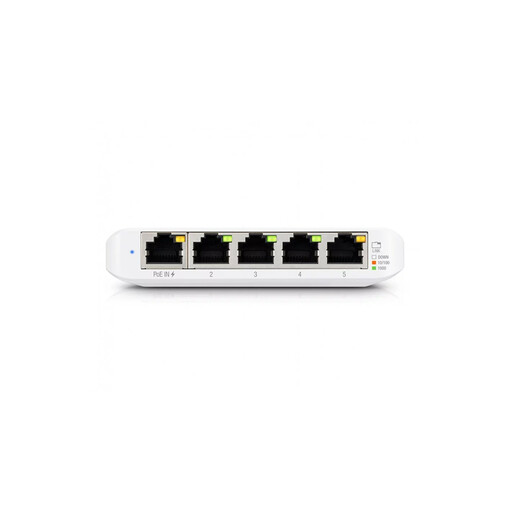
Ubiquiti UniFi Switch Flex Mini USW-FLEX-MINI-EU
For a workspace where a managed switch with VLAN functionality is required.
Five Gigabit Ethernet ports; powered via USB-C or 802.3af/at PoE; stated switching capacity: 10 Gbit/s. Managed via the UniFi Network application.
View at Joybuy
 No image available
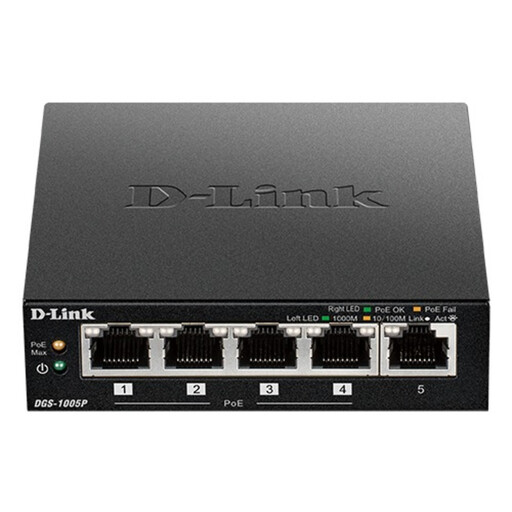
D-Link DGS-1005P/E
For a workspace where you want to connect compatible PoE devices as well as a printer.
Five Gigabit ports, four of which are PoE+; stated PoE budget: 60 W. Described as having a fanless metal case and plug-and-play operation.
View at Joybuy
 No image available
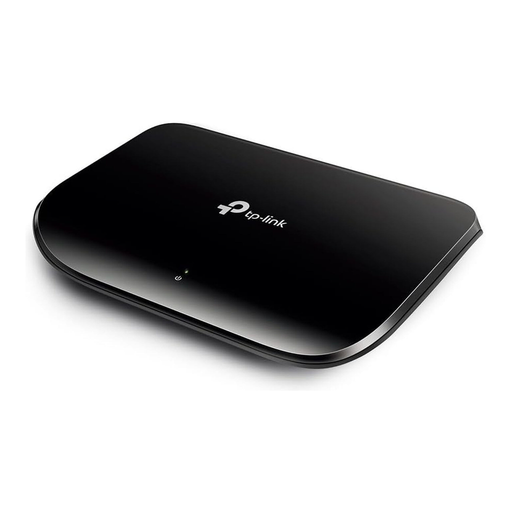
TP-Link TL-SG1005D
For adding ports when you want to connect a printer and other devices via Ethernet.
Five RJ45 ports with 10/100/1000 Mbit/s, auto-negotiation and Auto-MDI/MDIX. Described as a plug-and-play model.
View at Joybuy
 No image available
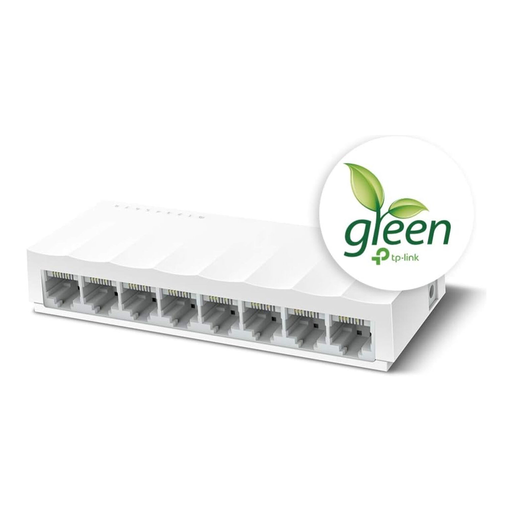
TP-Link LS1008
For a workspace where you want to connect more than five wired devices.
Eight Fast Ethernet ports with 10/100 Mbit/s; the connection to your router uses one port. Described as a fanless unmanaged switch.
View at Joybuy
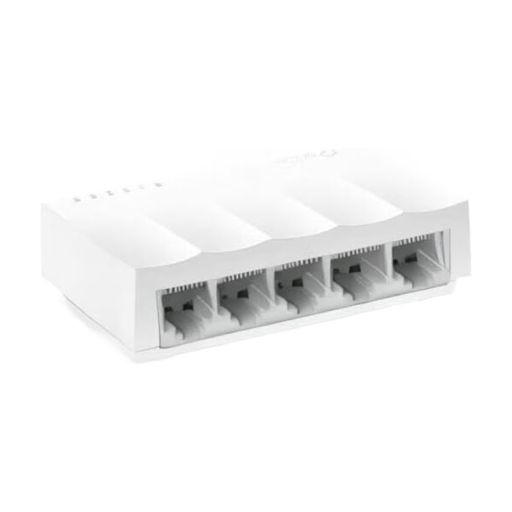 No image available
TP-Link LiteWave LS1005
For adding ports if Fast Ethernet is fast enough for the devices you want to connect.
The five ports are rated at 10/100 Mbit/s. Check that this connection speed is suitable for your printer and other devices.
View at Joybuy
Frequently asked questions
Will an Ethernet switch work with a printer that only has USB?
No, not simply by plugging it into the switch: the switch ports are Ethernet connections. Check whether your printer model supports Ethernet or another network connection recommended by the manufacturer.
How do I connect a printer and computer to a switch?
Connect one switch port to your router’s LAN port, then plug your printer and computer into other ports. Connect the switch to a power supply and set up the printer on your existing network using its instructions. This setup requires a printer with an Ethernet port.
How many ports do I need for a printer and other devices?
Count all the devices you want to connect by cable at the same time, then allow one extra port for the connection to your router. That leaves a maximum of four ports for devices on a five-port switch.
Do I need VLAN features for a network printer?
Only if your existing network uses VLANs and the printer needs to be assigned to the right one. Check the required configuration with your network administrator. For simply adding more ports, an unmanaged plug-and-play model is the more straightforward option.
When is a PoE switch useful on a desk?
When you want to power compatible devices over the network cable as well as connect your printer. Check each device’s PoE requirements, along with the power limit per port and the switch’s total power budget.


