For a small group seated mainly in front of a screen, a front-facing USB videobar may be a good fit. If people are sitting around the table, a 360° tabletop camera may offer a more suitable angle. If everyone is already clearly visible, check the audio pickup first and share the digital draft separately using your meeting software. Manufacturers’ claims about noise filters do not show how clearly people will be heard in your particular office.
Which solution is right for you?
Small hybrid group in a noisy office
If you’re reviewing a digital draft together on screen while other people join remotely, audio pickup, background noise and document sharing all need to work together. Logitech and HP describe USB videobars for this type of meeting environment, while Microsoft Support explains how to share content separately.
Team with a wide or round seating arrangement
If colleagues aren’t all facing the camera, the seating arrangement and camera position affect who appears on screen. Yealink highlights the importance of room size and seating layout, while Jabra and Owl Labs describe cameras with wide-angle and 360° views.
Team using different laptops
If different people start meetings on their own devices, check the USB connection, platform compatibility and how easily you can switch between a laptop and the room system. Logitech describes MeetUp 2 as supporting USB operation with a laptop or room PC; HP lists USB plug-and-play for Studio R30.
What to consider when choosing
When reviewing a draft together in a noisy office, your choice will mainly depend on whether clear speech, document sharing, the camera view or easy set-up matters most.
Front-facing USB videobar
Suitable if: The group is mainly seated in front of a screen and uses a laptop or room PC.
Consider: The front-facing view needs to suit the seating arrangement. Manufacturers’ claims about range and noise filters aren’t a test in your own office.
Wide front view with PanaCast 50
Suitable if: People are sitting at a wide table, or you also want to show a physical whiteboard.
Consider: According to Jabra’s data sheet, the Panoramic 4K output is 3840 × 1080 at 30 frames per second, so it isn’t the same image format as 3840 × 2160. A whiteboard view is no substitute for sharing a digital document.
360° tabletop camera
Suitable if: Several people are sitting around a table and remote colleagues need to see different speakers as they take turns.
Consider: The camera sits in the room rather than at the front by the display, so think about its position and nearby background conversations.
Check your existing camera and audio first
Suitable if: Everyone is already clearly visible and the main issue is speech in the office.
Consider: A separate audio solution won’t fix an unsuitable camera view. You’ll need to test whether it works better in the room than a videobar.
| Buying priority |
What to look for |
Who is it important for? |
| Clear speech |
Check microphone position and the distance between seats; test noise filters in the actual room. |
If I want to understand objections and changes despite office noise, audio pickup is essential. Around 33% of consumers prioritise clear speech. |
| Reviewing a draft together |
Check your meeting software’s content-sharing features; don’t mistake a whiteboard camera for file sharing. |
If I want to review digital text together, I need suitable sharing features in my meeting software. Around 27% of consumers prioritise showing the draft. |
| Everyone in shot |
Map out seating and camera position; don’t assume horizontal and diagonal viewing angles are the same. |
If colleagues are sitting to the side or around the table, the camera view needs to suit their layout. Around 20% of consumers prioritise capturing the whole group. |
| Easy set-up |
Check the USB connection and required cables, and confirm whether it works with a laptop or room PC. |
If meeting hosts take turns using their own laptops, I want to connect the existing equipment without unnecessary extra steps. Around 20% of consumers prioritise easy set-up. |
Avoiding common buying mistakes
-
Confusing camera resolution with how easy the draft is to read
A high-resolution image of the group doesn’t replace sharing the digital document with remote participants.
Plan for the camera view and document sharing as separate functions.
-
Assuming noise cancellation guarantees clear conversations
Manufacturers’ claims describe features and ranges, not how clearly people will be heard over the background noise in your office.
Test the proposed microphone position with typical voices and noises from the room.
-
Comparing viewing angles without considering the seating arrangement
A front-facing camera and a 360° tabletop camera capture the same group from different positions. Diagonal and horizontal angles also aren’t directly comparable.
Decide on seating, display and camera position before choosing a model.
-
Assuming a videobar is a complete room system
Depending on your set-up, you may also need a laptop or room PC. Check the specific offer for mounting accessories and service options.
Compare what’s included with the equipment you already have before weighing up offers.
Brands and product ranges to consider
Logitech
Logitech describes MeetUp 2 as an all-in-one USB conference camera for small meeting rooms, for use with a laptop or room PC.
- Logitech specifies six beamforming microphones, AI-based noise cancellation and a 120° diagonal field of view.
- These details describe features, not how well they work in a particular noisy office. Check that the front-facing view suits your seating arrangement.
HP Poly
HP describes Studio R30 as a USB videobar for small rooms with 3–5 people.
- HP lists three beamforming microphones, NoiseBlockAI, Acoustic Fence and USB plug-and-play.
- The stated microphone range of up to 4.57 m is a manufacturer’s figure, not the result of a comparison test in office noise.
Jabra
Jabra describes PanaCast 50 as a videobar for a wide front view, and lists an integrated whiteboard camera.
- The EMEA data sheet specifies a 180° horizontal field of view, eight beamforming microphones and Panoramic 4K at 3840 × 1080 and 30 frames per second.
- The wide view needs to suit your seating arrangement. It doesn’t guarantee that digital text will be readable without separate sharing.
Owl Labs
Owl Labs describes Meeting Owl 4+ as a camera, microphone and speaker unit that provides a 360° view from the table.
- The manufacturer lists a panoramic view and automatic focus on active speakers.
- That doesn’t independently confirm whether placing it on the table will pick up the voices you want rather than nearby background conversations.
Joybuy products for meetings
The selection below includes PC webcams and front-facing conference cameras for laptop meetings or small groups. Check that the camera view, microphone pickup and connections suit your room and existing equipment.
 No image available
AOC 4K webcam with microphone, 99° field of view
An option for PC meetings if you’re looking for a webcam with a built-in microphone.
Specifications include 4K, a 99° field of view, plug-and-play and compatibility with Zoom and Teams. The product description mentions noise cancellation for the microphone.
View at Joybuy
 No image available
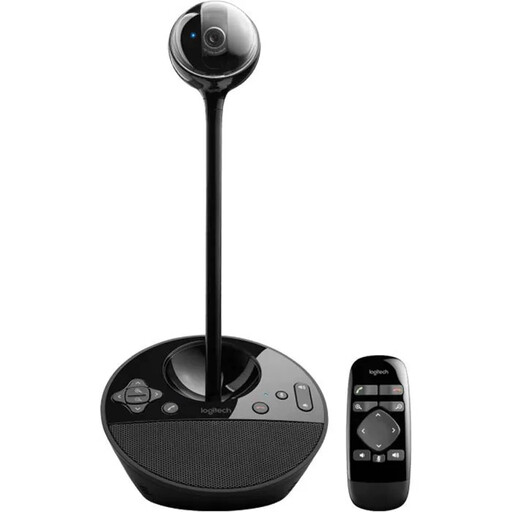
Logitech ConferenceCam, 10.4 × 15 × 15.4 cm
This ConferenceCam is an option for small groups if you’re looking for a USB solution that combines a camera and speakerphone.
The product description lists USB, pan, tilt and zoom functions, a full-duplex speakerphone and a microphone range of 2,40 m.
View at Joybuy
 No image available
Insta360 Link 2C Standard Bundle Graphite Black
This webcam may suit you if you’re looking for a PC or Mac camera with group framing and a built-in microphone.
Specifications include 4K, HDR, a 1/2" sensor, auto-framing and a microphone with AI noise cancellation. According to the product description, it isn’t compatible with ARM-based Windows systems.
View at Joybuy
 No image available
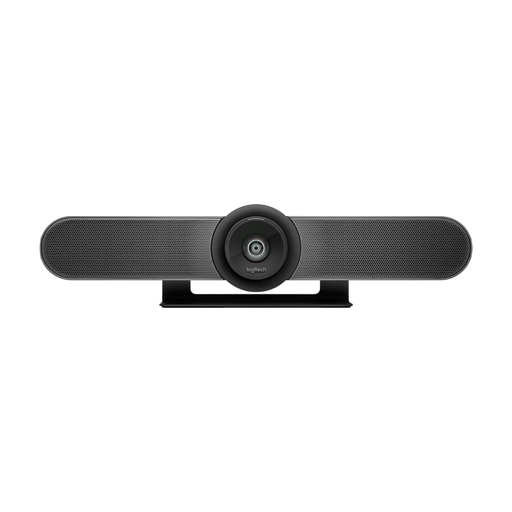
Logitech MeetUp All-in-One 4K Conference Camera
Designed for small meeting rooms; the front-facing view should suit the seating in front of the screen.
The product description lists a 120° field of view, motorised pan and tilt, automatic framing, built-in microphones and speakers, and RightSound audio optimisation.
View at Joybuy
 No image available
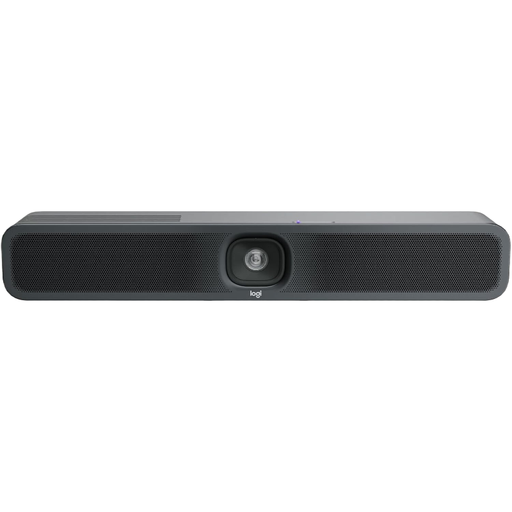
Logitech MeetUp 2 4K all-in-one conference camera
This videobar is designed for small meeting rooms and may suit you if you want to choose between a BYOD laptop and a room system.
The product description lists USB, a built-in camera, microphone and speaker, and AI noise cancellation. Compatible applications include Zoom, Microsoft Teams and Google Meet.
View at Joybuy
Frequently asked questions
Will a 4K conference camera make the text in our digital draft readable to everyone?
No. The camera alone can’t ensure that the digital draft is readable. If you use Microsoft Teams, you can share the draft as a window or content; check the sharing features in the software you actually use.
How do we set up a USB videobar for meetings led by different people?
Decide whether you’ll connect a dedicated room PC or use the meeting host’s laptop each time. Logitech describes both USB operating modes for MeetUp 2, while HP lists USB plug-and-play for Studio R30. Check that the connections and required cables are compatible with your existing set-up.
What ongoing costs and after-sales services should we check?
Check what’s included, any mounting or expansion parts you’ll need, and the specific service terms on offer. Logitech lists a two-year limited hardware warranty for MeetUp 2, with extended services available separately; HP lists a standard one-year limited manufacturer’s warranty for Studio R30. This doesn’t mean every sales offer includes the same level of service.
Can we simply record our draft review meeting in our German office?
No. Buying a camera doesn’t give you permission to record. The German Data Protection Conference points out that images, audio and displayed documents may contain personal data; its checklist requires you to separately check the legal basis for recording. Whether a particular meeting may be recorded depends on how it is actually used.


