
Lieferung heute & morgen

Qualitätsgarantie

Willkommens-Angebote freischalten: KOSTENLOSE Lieferung | Bis zu 80 % RABATT | Kostenlose 30-Tage-JoyPlus-Testphase
App herunterladen
An NVMe SSD can significantly speed up boot times, file transfers and game installations. However, a high figure on the packaging doesn’t automatically mean it’s the right choice for you. The key factors are the interface, cooling, capacity and compatibility with your device.
If you’re looking for an internal SSD for a PC, laptop or PS5, you’ll need different features from someone looking for an external SSD to record videos on a smartphone. The following points can help you avoid common buying mistakes.
Figures such as 7,000, 10,000 or 14,000 MB/s usually refer to sequential transfers under specific test conditions. An older computer with PCIe 3.0 or PCIe 4.0 may limit the performance of a PCIe 5.0 SSD. With external drives, the cable, port and device can also restrict speeds.
For example, a USB 3.2 Gen 2x2 SSD can reach speeds of up to 2,000 MB/s. However, you’ll only get that performance if your computer, cable and operating system support the standard. The SSD will run more slowly when connected to a slower USB port.
M.2 primarily describes the form factor. An M.2 SSD can use a SATA or PCIe connection. Before buying, check your computer’s manual for support for M.2 2280, the slot type and the NVMe protocol.
An M.2 SATA drive won’t necessarily fit in a slot designed exclusively for PCIe NVMe. Equally, you can’t use a fast NVMe SSD in an incompatible slot.
The usable storage capacity is lower than the advertised capacity because formatting and system files take up space. A 1TB SSD is suitable for an operating system, applications and a modest games library. A 2TB SSD gives you more room for games and media projects. A 4TB SSD is worth considering if you need to store large video files, extensive games libraries or professional work files.
An NVMe SSD can get warm during long write sessions. An existing motherboard heatsink or a suitable heat spreader can help keep the operating temperature within the recommended range. This is particularly important with a PCIe 5.0 SSD and for sustained tasks such as rendering or video editing.
A PS5 SSD must meet additional requirements for form factor, capacity and cooling. The console needs a compatible M.2 NVMe SSD, and many models require a heat spreader. Check the latest PlayStation documentation before installation.
The TBW rating indicates how much data the manufacturer states can be written to the drive under defined conditions. It isn’t an exact end-of-life point, but a useful comparison when considering how you plan to use the drive. For everyday office tasks, different features matter than for a video editing SSD that will regularly be used to write large project files.
HMB, DRAM or a dynamic SLC cache can affect responsiveness. However, an SLC cache isn’t unlimited. During long, continuous write sessions, speeds may drop once the cache has been used. If you regularly work with large files, don’t focus solely on the maximum write speed.
A portable SSD should suit where and how you plan to use it. For smartphone filming, magnetic attachment, the right cable and support for the relevant recording format are all important. An IP65 rating means protection against dust and low-pressure water jets; it doesn’t mean the drive can be submerged for extended periods.
With a MagSafe SSD, you should also check that magnetic attachment is actually supported. It doesn’t automatically mean the drive supports wireless charging. For example, the Lexar ES5 explicitly states that wireless MagSafe charging isn’t supported.
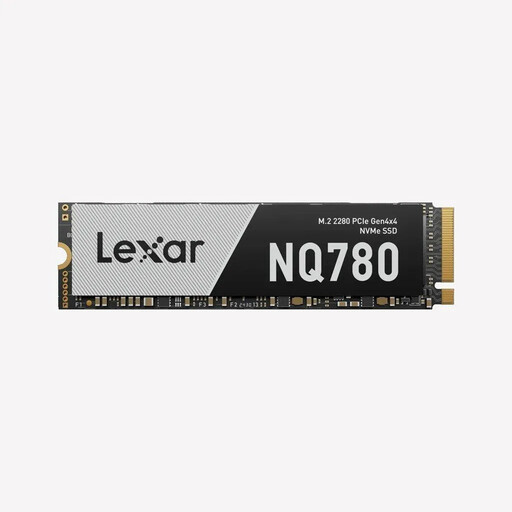
Why it suits this type of user: The 1TB capacity is suitable for an operating system, applications and a limited selection of games. Its PCIe 4.0 x4 interface is designed for compatible desktop PCs, laptops and gaming systems.
The advertised performance is clearly linked to PCIe 4.0 x4 and M.2 2280. You should still check that your computer supports NVMe before installing it.
Read speeds of up to 6,000 MB/s, write speeds of up to 2,500 MB/s and a stated TBW rating of 600 TB.
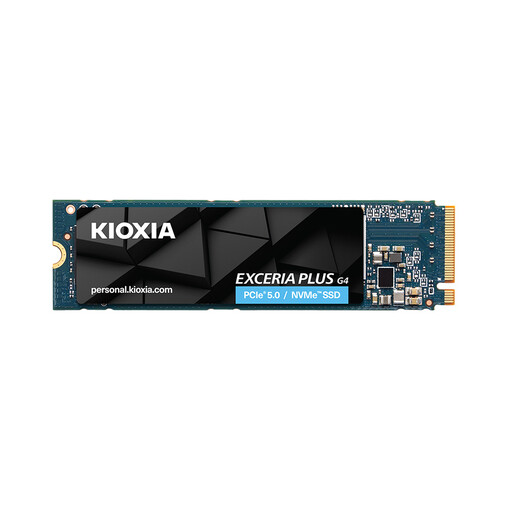
Why it suits this type of user: The 2TB capacity gives you room for games, programmes and larger media projects. Its specifications are designed for PCIe 5.0 x4 and current NVMe systems.
The interface, protocol and TBW rating are all clearly specified. To get the full performance, your motherboard must support PCIe 5.0.
Read speeds of up to 10,000 MB/s, write speeds of up to 8,200 MB/s and a stated rating of 1,200 TBW.
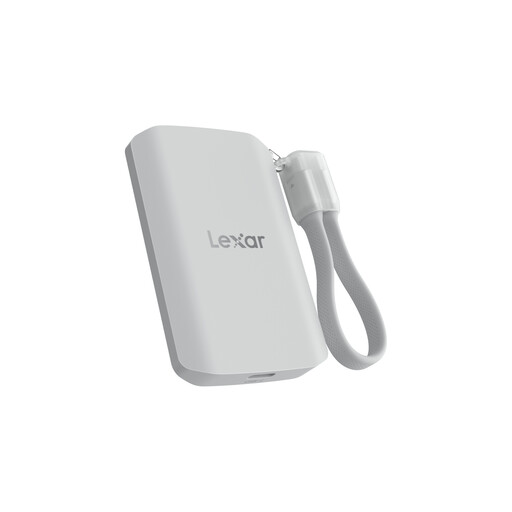
Why it suits this type of user: This external SSD is aimed at smartphone videographers, mobile content creators and anyone who needs 2TB of storage on the go. Its MagSafe attachment is designed for compatible devices.
It clearly states that speeds may be limited on devices without USB 3.2 Gen 2x2. IP65 protection does not make it suitable for prolonged submersion.
Read and write speeds of up to 2,000 MB/s, IP65 protection and a stated drop resistance of up to 3 metres.
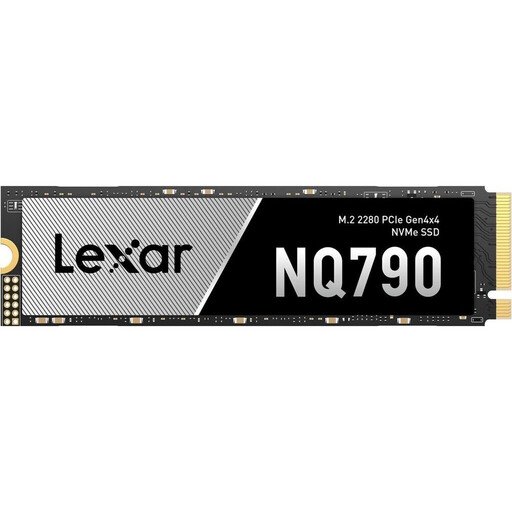
Why it suits this type of user: The 4TB capacity is ideal for extensive games libraries, large project files and demanding applications on a compatible PC or PS5.
The required interface, form factor and PS5 compatibility are clearly specified. For use in the console, you’ll also need to allow for a suitable heatsink.
Read speeds of up to 7,000 MB/s, write speeds of up to 6,000 MB/s and 4TB of storage.
We’ve put together a complete, regularly updated list of products that meet these strict selection criteria and fully comply with the safety regulations in force in the EU.
Before installing an internal SSD, shut down your computer completely and disconnect it from the mains. An M.2 module is usually inserted at an angle and secured with a screw. Avoid touching the contacts and take care to prevent electrostatic discharge.
After starting up, you may need to initialise and format a new drive in Windows, macOS or Linux. You should also keep a separate backup of important photos, work files and project data. An SSD is no substitute for a backup strategy.
Its lifespan depends on write volume, NAND technology, temperature and how you use it. TBW ratings are a technical comparison measure. Regular backups and adequate cooling are sensible whatever the model.
That depends on your motherboard, processor and the applications you use. A PCIe 5.0 SSD needs a compatible slot, but in many cases it can also be used backwards compatibly. For gaming alone, a PCIe 4.0 SSD may already be fast enough for your system; PCIe 5.0 can make a more practical difference with large transfers and professional workloads.
An external SSD usually draws power over USB. Its power consumption depends on the interface, controller and level of activity. Long video recordings or large transfers can put more strain on the battery of a mobile device. That’s why it’s important to use a compatible cable and a port with sufficient power.