Which controls suit your priorities?
Compact keypad
A good fit if: you mainly control pre-set OBS scenes, recording and microphone mute, and have limited desk space.
Trade-off: There are no physical dials for frequent level adjustments; check that all the actions you need at once will fit on the buttons.
Keypad with dials
A good fit if: you regularly want to adjust your microphone or playback levels while commentating.
Trade-off: The dials need suitable software assignments and take up extra desk space.
Audio interface with HDMI capture
A good fit if: the tournament footage comes from an external HDMI source and needs to be fed into OBS.
Trade-off: You’ll need to set up HDMI cabling and a suitable USB connection. If your sources are already available on your PC, you don’t need capture just to control them.
OBS hotkeys without an extra device
A good fit if: you only trigger a few commands occasionally and can reliably access them from your keyboard.
Trade-off: You’ll need to set up the hotkeys in OBS, and you won’t have dedicated, labelled hardware buttons.
Choose based on what matters most: which commands need to be within easy reach, how you want to control the audio, and whether the footage comes from an external source. The percentages show the share of consumers for whom each concern is the main priority during this kind of tournament briefing.
| Priority |
What to check before buying |
Who is this important to? |
| Control scenes and sources |
Count the commands you need at the same time and check that they’re supported by your OBS and controller software. |
If I need to switch between views and access recording or microphone controls during the briefing, I want to use the key commands without navigating menus. Around 40% of consumers put scene and source control first. |
| Control your microphone and playback audio |
Check which audio sources are separate in OBS and whether you can assign the action you want to a button or dial. |
While commentating, I want to mute my microphone and playback audio independently or adjust their levels. Audio control is the main priority for around 30% of consumers. |
| Desk space and what’s included |
Measure the available space, including cable routing, and compare it with the dimensions of the specific model. If you only need a few commands, try OBS hotkeys first. |
If my desk is short on space, I only want to make room for controls I’ll actually use during the briefing. Around 20% of consumers prioritise desk space and what’s included. |
| Feed in external tournament footage |
Check whether the footage is already available as a PC source. If you’re using HDMI, check the signal path and how to add it as a video source in OBS. |
If the tournament footage comes from an external HDMI source, I need to feed it into OBS first; a keypad alone won’t do that. Around 10% of consumers put HDMI capture first. |
Suitable products on Joybuy
This selection covers button-based OBS control for a tournament briefing, if you want to trigger commands with a button.
 No image available
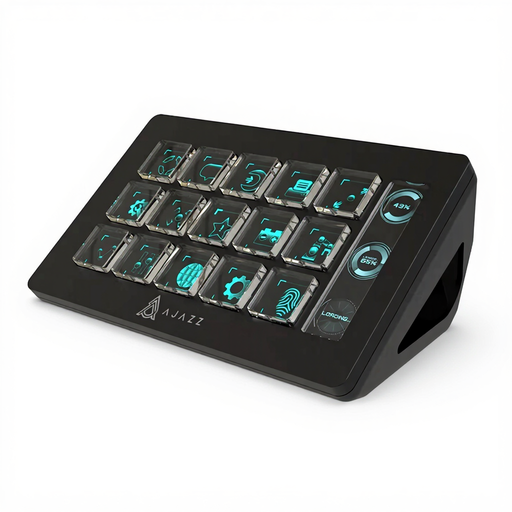
AJAZZ AKP153 Studio Controller, 15 macro keys, black
A suitable button-based option for OBS actions if you want to trigger the commands you need with a button.
The product listing specifies 15 macro keys and PC/Mac compatibility.
Joybuy
Frequently asked questions
How do I set up scene switching and microphone mute?
First, set up your scenes and audio sources in OBS. If you’re using Elgato, install the OBS plugin and assign the “Scene” and “Mute” actions to buttons for the right sources. Test your settings before going live.
Can a keypad capture footage from an external games console?
Not with mappable buttons alone. You’ll need a suitable capture setup for an external HDMI source; RØDE explains how to connect the Streamer X via HDMI and add it as a video capture device in OBS.
How can I reduce noise in a student room?
A mapped mute button lets you quickly mute a specific OBS audio source. OBS also offers Noise Gate and Noise Suppression filters that you can set up; a controller won’t remove room noise by itself.
What are my rights if I need to return a faulty item bought online in Germany?
According to the Verbraucherzentrale, consumers who buy online generally have a 14-day right to cancel, which they must exercise. Your statutory rights against the seller if an item is faulty are separate from any voluntary manufacturer’s guarantee.
Can I stream other people’s tournament footage for my analysis in Germany?
Not in every case. Under § 51 UrhG, quotations from published works are only permitted to the extent justified by the specific purpose of the quotation. This does not amount to general permission to stream an entire tournament. Before publishing, check the rights to the specific video and audio and the streaming platform’s terms.


