For oval racing on a small desk, a compact 16:9 monitor is an obvious starting point if desk space is your priority. A larger 16:9 screen needs more room, while an ultrawide is only an option if your desk is wide enough and your PC can handle it. Before choosing, measure the available space, including the stand, and the distance from your eyes to the screen. Then set the field of view in your racing simulator to match those measurements. Don’t assume a wider screen will replace additional information about cars alongside you.
Who this guide is for
Drivers short on desk space
If you need to fit a screen, stand or mount, and steering wheel on a small desk, measure the available space before you choose. iRacing Support recommends measuring the distance from your eyes in your usual seated position.
Drivers who want a better view to the sides
If you want to see more of the area to either side when oval racing on a single screen, bear in mind that a wider display won’t automatically show you every car alongside. iRacing Support also describes the spotter as an additional, but limited, source of information.
Drivers with a less powerful PC
If you want to match the resolution and refresh rate to your PC, check the frame rate you can actually achieve in the simulator and which connection you’re using. iRacing Support notes that a consistent frame rate can make a difference to how the game feels.
What to consider when buying
Start with desk space and viewing distance, then consider how much of the area to the sides you want to see. Finally, choose a resolution and frame rate your PC can handle in-game.
| Buying priority |
What to check |
Who it matters most to |
| Space and screen position |
Measure the available width and depth, the dimensions including the stand, and the distance from your eyes. |
If I need to fit a screen, steering wheel and seating position together on my small desk, I’ll check the space required, including the stand, in advance. Around 36% of consumers put space requirements first. |
| View to the sides |
Factor in the actual screen width and viewing distance when setting the simulator’s FOV. |
If you want to see as much as possible to either side when oval racing on a single display, consider the screen width and viewing distance together. An ultrawide won’t replace additional information from the spotter. Around 29% of consumers prioritise this wider side view. |
| Frame rate and connection |
Check the frame rate in your game and make sure the resolution and refresh rate are compatible with the HDMI or DisplayPort connection you use. |
If I want a smooth racing experience, what my PC and connection can actually output in the simulator matters. Around 21% of consumers prioritise a frame rate that suits their PC’s performance. |
| Setup and use |
Check the adjustment range and mounting options, as well as the labelling and energy information for the specific model. |
If I’m using the screen for long periods, I want to position it comfortably and check the information for the exact model before buying. Around 14% of consumers pay particular attention to setup and conditions of use. |
Common buying mistakes
-
Choosing by screen size alone
The diagonal measurement doesn’t tell you whether the screen and stand will fit on your desk. According to the manufacturer, the Gigabyte G34WQC A measures 808,89 mm wide and 234,81 mm deep with the stand.
Measure the available width and depth, then compare them with the dimensions of the specific model, including its stand. Also check whether a suitable mount will work with your setup.
-
Assuming the maximum refresh rate is the same as your in-game frame rate
A monitor’s refresh rate doesn’t guarantee that your PC will achieve the same frame rate in the simulator. Dell lists different maximum refresh rates for DisplayPort and HDMI on the Dell G2724D.
Check the connection, resolution and refresh rate setting, and see how many frames per second you actually achieve in your game.
-
Assuming a wider screen gives you a complete view to the sides
Your field of view also depends on your viewing distance and the settings in the simulator. iRacing Support notes that even its computer-generated spotter has limitations.
Set the field of view to match your actual setup and include any situational information available in the simulator as part of your training.
-
Confusing reduced risk with no risk
MSI describes OLED Care 2.0 on the MPG 271QRXDE as a way to reduce the risk of burn-in, not eliminate it.
Check the care guidance and warranty terms for the exact model before choosing an OLED display.
-
Assuming a limited-time warranty offer is permanent
LG specified that its additional warranty offer for the 27GX790B-B was valid until 31 October. It isn’t a permanent feature of the model.
Only take an offer into account if its validity has been confirmed for the specific deal and purchase date.
Brands and model examples to help you choose
AOC
The 24G4X is an example of a compact 23,8-inch FHD gaming monitor.
- AOC lists Fast IPS, Adaptive Sync and 180 Hz for this model.
- The screen’s diagonal measurement alone won’t tell you whether the monitor and stand will fit on your desk.
Dell
The G2724D is an example of an adjustable 27-inch QHD monitor with a 16:9 aspect ratio.
- Dell lists a width of 61,19 cm and a depth of 20,02 cm with the stand. It also specifies 165 Hz via DisplayPort and 144 Hz via HDMI.
- Check that the dimensions, including the stand, will fit on your desk, and that the connection is suitable for your setup.
MSI
The MSI models mentioned here illustrate different 27-inch QHD options with IPS and QD-OLED panels.
- MSI lists an adjustable 180 Hz IPS display for the G274QPF E2. The manufacturer specifies 360 Hz for the MPG 271QRXDE QD-OLED.
- MSI describes OLED Care 2.0 on the MPG 271QRXDE as reducing the risk of burn-in. You’ll still need to check the care guidance and warranty terms for the exact model.
Gigabyte
The G34WQC A is a 34-inch ultrawide example with a resolution of 3440 × 1440 pixels.
- Gigabyte lists a maximum refresh rate of 144 Hz and dimensions of 808,89 mm wide and 234,81 mm deep with the stand.
- Measure the available space carefully; a wider display won’t automatically show you every car alongside.
LG
The examples include a 27-inch QHD IPS monitor and a separate 27-inch QHD OLED model.
- LG lists 180 Hz and 200 Hz in overclocking mode for the 27GS75QX-B. For the 27GX790B-B, the advertised 720 Hz refresh rate applies to HD, not QHD.
- Always check the resolution associated with a refresh rate and, for the OLED model, review the care guidance and warranty terms.
Joybuy products for compact setups
These Joybuy listings feature gaming monitors for compact single-screen setups, ranging from 18,5 to 25 inches. Compare the dimensions of the specific model, including the stand, with the space you have available.
 No image available
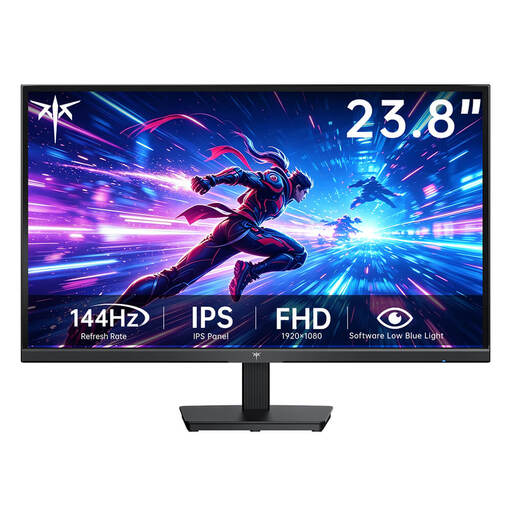
KTC H24B9S-2 23,8-inch FHD monitor
The 23,8-inch format is a compact starting point for a single screen; check the space required, including the stand, before buying.
Fast IPS, FHD at 1920 × 1080 pixels and 144 Hz.
View at Joybuy
 No image available
KOORUI MB24V29FS4 24-inch FHD monitor
The 24-inch format works well as a compact single screen, provided it fits the space on your desk.
IPS, FHD and 120 Hz; listed connections include HDMI and VGA, with a tilting stand and VESA 100 × 100 mm mounting.
View at Joybuy
 No image available
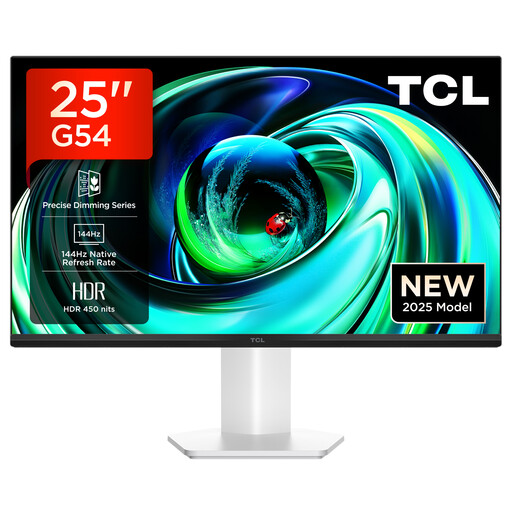
TCL 25G54 25-inch FHD monitor
At 25 inches, this model is larger than the compact 23,8- and 24-inch examples. Check its dimensions against the space you have available.
FHD, 144 Hz, Mini-LED and FreeSync. The product description lists dimensions of 18,2 × 55,6 × 43,9 cm (depth × width × height).
View at Joybuy
 No image available
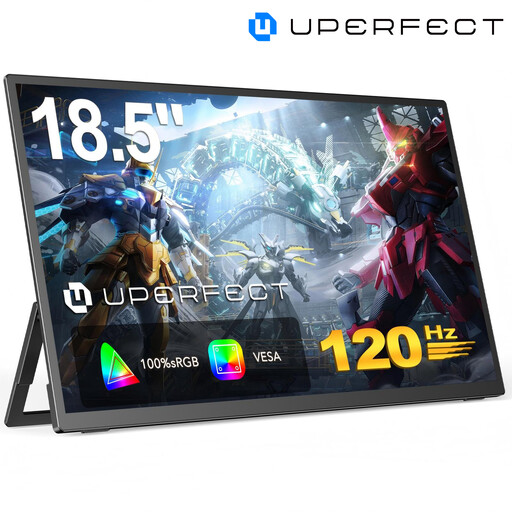
UPERFECT 18,5-inch portable FHD monitor
The portable 18,5-inch format could be a good fit if you need an especially compact setup. Consider how you’ll position the screen in your gaming space.
FHD at 1920 × 1080 pixels and 120 Hz; listed connections are USB-C and Mini-HDMI.
View at Joybuy
 No image available
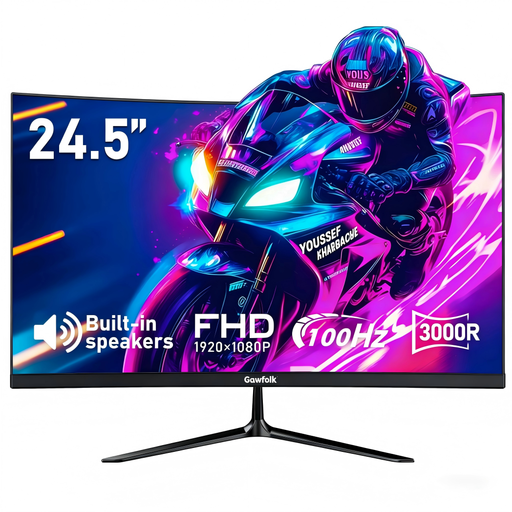
Gawfolk 24,5-inch FHD curved monitor
The 24,5-inch format is a compact alternative to larger screens. With a curved model, also take its actual footprint into account.
16:9, FHD and 100 Hz; listed features include AMD FreeSync, HDMI, DisplayPort and VESA 75 × 75 mm mounting.
View at Joybuy
Frequently asked questions
How do you set the field of view once your screen is in place?
For a single screen in iRacing, measure the distance from your eyes and the screen width, select the appropriate screen type, then choose “Compute”. These instructions are for iRacing; other racing simulators may use different settings.
Does an ultrawide replace the spotter when oval racing?
No, not completely. iRacing describes the spotter as an additional source of information about cars alongside you, while also noting the limitations of its computer-generated spotter.
Is a high refresh rate enough to get the right frame rate in-game?
No. A monitor’s maximum refresh rate doesn’t guarantee that your PC will achieve the same frame rate in the simulator. Check performance at your chosen resolution and with the connection you’re using. iRacing Support also notes that a consistent frame rate can be beneficial.
Which labels are relevant for a monitor sold in Germany?
For monitors covered by the relevant EU rules, the required CE marking and energy information are important; exceptions apply to certain types of display. The European Commission and Your Europe explain these requirements. Check the information for the specific model and offer.


