For a mainly fixed overhead view of paper, a document camera is a natural starting point. IPEVO and ELMO offer document camera models, while Sony’s ZV-E10 II with an interchangeable lens and Panasonic’s HC-VX3 are alternative ways to film. A mirrorless camera gives you flexibility to change the framing, while a camcorder is another option for longer sessions. The key is to test your setup with your own lights, enough room for your hands and scissors, and your planned audio, power and recording arrangements. A high resolution figure alone doesn’t guarantee that every step will be clearly visible.
Which camera may suit you
Teachers with a permanent cutting table
If you want to show the paper and both hands from above throughout, you’ll need the right framing and even lighting. TU Dresden highlights clear picture and sound quality, as well as sufficient, even lighting, for teaching videos.
Creative makers who change the framing
If you want to switch between the whole template, close-ups of small cuts and a shot of the person explaining, you should choose your lens and camera position to suit these changes. Sony Germany lists an interchangeable E-mount lens system for the ZV-E10 II.
Course leaders filming long takes
If you want to record a cutting process with commentary in one uninterrupted take, check that your recording method, audio and power supply will cover the planned duration. ELMO lists SD recording and a built-in microphone for the MX-P3; Panasonic Germany lists a microphone input for the HC-VX3.
What to consider when choosing
Start by checking the framing, then see how the camera performs under your lights, and finally check the recording method and audio for the lesson you have planned.
| What matters |
What to check before buying |
Who should pay particular attention |
| Cutting details and clear workspace |
Film the sheet, cutting line, hands and tools from the planned camera position. Check that the capture area or lens and angle of view give you the framing you want. |
If I need to show the cutting line and both hands at the same time, the frame mustn’t crop the sheet too tightly. Around 36% of consumers put visible detail and a clear workspace first. |
| Picture and paper colours under artificial light |
Test your own lights for flicker and colour casts, and check the white balance. Sony Germany suggests 1/50 s or 1/100 s as possible starting points to reduce flicker with a 50 Hz power supply, provided the camera allows these shutter speeds when filming. |
If I’m filming under the lights I already have, I want a steady picture and natural-looking paper colours, not just extra camera features. Around 29% of consumers put artificial lighting and colour reproduction first. |
| Continuous recording and commentary |
Make sure the recording method, storage media, power supply and microphone are suitable for the planned duration. Beforehand, record a complete test take and check that the file has been saved. |
If I want to record a whole lesson in one go with clear speech, the setup needs to work with my recording equipment. Around 21% of consumers prioritise continuous recording and commentary. |
| Setting up in different locations |
Check that the camera can be securely mounted for an overhead table view, and that the angle of view and focusing distance suit the sheet and your hands. |
If I often change where I film, being able to move the setup easily matters more than having a permanent position at a table. Around 14% of consumers put mobile recording first. |
Common buying misconceptions
-
4K alone won’t automatically show cutting details clearly
Resolution can’t make up for the wrong framing or too little room for your hands and scissors. Document cameras and cameras with interchangeable lenses need to be positioned differently.
Before focusing on the resolution figure, film the sheet and both hands from the camera position you plan to use.
Depending on your setup, you may need a different mount or a suitable lens.
-
An anti-flicker claim isn’t enough for artificial lighting
The effect of a shutter speed depends on both the camera and the light source. White balance affects colour reproduction, but it can’t replace a flicker test.
Record a test clip under your own lights and check separately for banding and paper colour.
If the results aren’t right, you may need to change the lighting or record the footage again.
-
Don’t leave recording and accessories until after you’ve chosen a camera
Recording over USB via a computer, recording to an SD card and video recording with additional camera equipment all involve different processes and connection requirements.
Plan the complete route from picture and sound to the saved file, and test it before your lesson.
Depending on your setup, you may need compatible storage media, a computer, a microphone or a mount.
Camera brands to consider
The information below relates to the product lines mentioned and doesn’t replace testing them with your own setup.
IPEVO
Document cameras for a fixed view of a table and paper; the V4K PRO 120 is a USB document camera.
- IPEVO lists a 440 × 330 mm capture area, autofocus and USB-A/UVC for the V4K PRO 120.
- The USB recording method needs to work with a compatible computer. The stated capture area doesn’t guarantee sufficient lighting or clear commentary in your particular setup.
ELMO
Document cameras with several output options; the MX-P3 is designed for presenting paper and objects.
- ELMO lists HDMI and USB output, an SD card slot for recordings and a built-in microphone for the MX-P3.
- The 16x zoom is digital. Check the recording mode, framing and audio you want with your own setup.
Sony
Interchangeable-lens cameras for flexible overhead, detail and presenter shots; this section looks at the E-mount ZV-E10 II.
- Sony Germany lists a 16–50 mm lens and 4K 60p for the kit in question.
- The lens and mount need to suit your table setup. Sony’s general advice on dealing with flicker doesn’t confirm that the ZV-E10 II has a particular anti-flicker feature.
Panasonic
Camcorders are a possible alternative for longer video sessions, with an integrated zoom.
- Panasonic Germany lists a 24x optical zoom, a grip for longer recording sessions and a microphone input for the HC-VX3.
- This information doesn’t tell you whether small cutting details will appear large enough from your planned table position.
DJI
A compact gimbal camera for extra mobile angles; this section looks at the Osmo Pocket 3.
- DJI lists mechanical stabilisation, 4K video modes and a focusing range from 0.2 m for this model.
- These details don’t guarantee a suitable fixed overhead view or the framing you need for every paper size. Check the mounting options separately for use at a table.
Joybuy products for video recording
The Joybuy products below are compact digital cameras and vlogging cameras. Before buying, check whether each model can be securely mounted for the table view you want, and whether the framing, audio and lighting will work with your setup.
 No image available
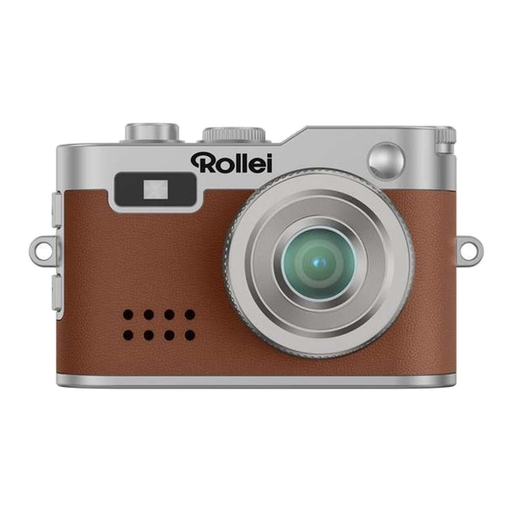
Rollei Mini Digital Camera, Brown
The product listing describes this camera as an option with additional lighting, and lists Full HD video, an LED light and a built-in microphone. Check the framing, paper colours and audio with your own setup.
View at Joybuy
 No image available
Rollei Mini Digital Camera, Black
The listed specifications include 1080p video at 30 fps, a continuous LED light and an integrated microphone. The stated battery life is around 75 minutes; a microSD card isn’t included.
View at Joybuy
 No image available
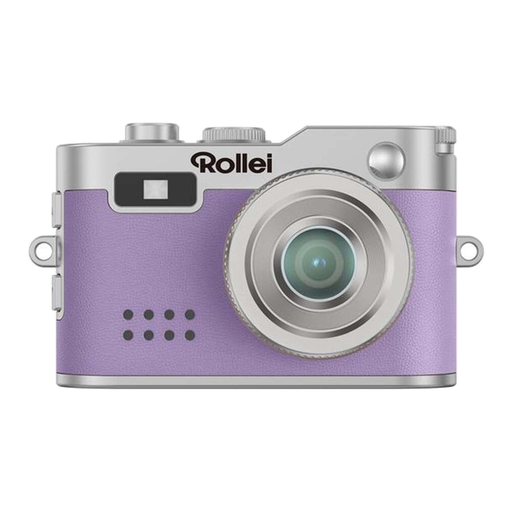
Rollei Mini Digital Camera, Purple
For video recording with additional lighting, the product listing specifies Full HD video, an LED light and autofocus. Test how clearly the cutting line and your hands appear under your lights.
View at Joybuy
 No image available
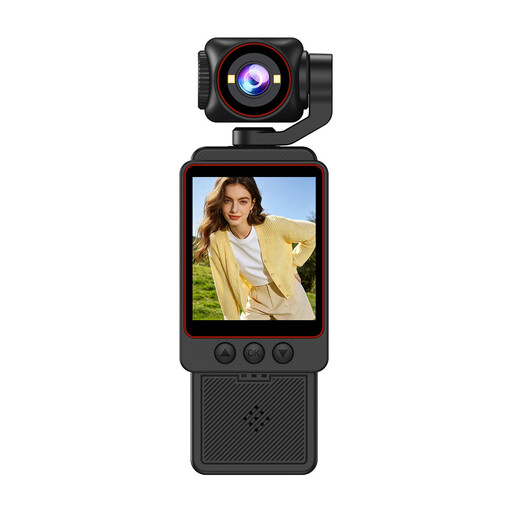
2K Pocket Vlogging Camera
The title describes a 2K pocket vlogging camera with a lens that rotates through 360 degrees for POV shots. If you want to use it for a fixed table view, check the mount, angle of view and how much room there is for your hands.
View at Joybuy
 No image available
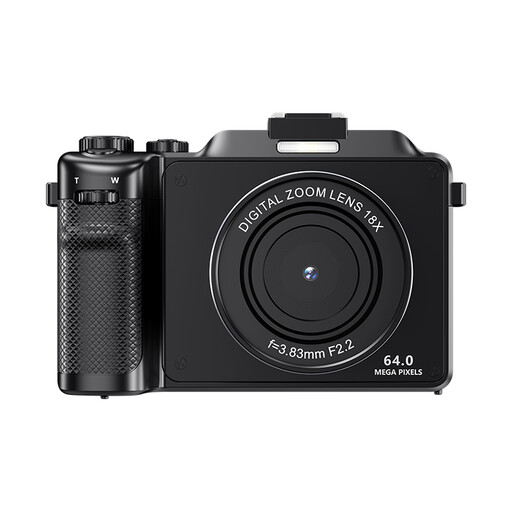
KOMERY X9 4K Digital Camera, Black
The listing specifies 4K video; the title also mentions autofocus and 18x zoom. Record a test clip to check whether the framing captures the sheet, cutting line and hands from the position you plan to use.
View at Joybuy
Frequently asked questions
How can I check for flicker and colour issues before recording a whole lesson?
Record a short clip using the exact lights you plan to use, with white paper in shot, then check the saved video for banding and colour casts. For a 50 Hz power supply, Sony Germany suggests 1/50 s or 1/100 s as possible shutter speeds to reduce flicker, provided the camera can be set accordingly while filming. Adjusting the white balance can affect colour reproduction in difficult lighting. No setting guarantees flicker-free results with every LED light.
Do I need a computer to use a USB document camera?
For the documented USB-A/UVC recording method of the IPEVO V4K PRO 120, you’ll need a compatible device and suitable recording software. If you want to record without a computer, ELMO lists an SD recording option for the MX-P3; check the recording mode you want and the compatible storage media beforehand.


