Folding tutorials filmed from above
If you mainly show paper and hands, you’ll need a well-positioned view of your work surface. Microsoft Support recommends a USB document camera for this set-up.


If you’re demonstrating how to fold paper and need the sheet, crease and your hands to stay in view throughout, a document camera that can be positioned above your work surface is a sensible place to start. Check that its coverage suits your paper and that both hands fit in the frame. If you often switch between showing your face and the paper during a video call, a tilting webcam may be enough. Logitech does point out, however, that the Brio 500’s Show Mode isn’t designed for very small text. Check the live view in your meeting software rather than relying on the resolution alone.
If you mainly show paper and hands, you’ll need a well-positioned view of your work surface. Microsoft Support recommends a USB document camera for this set-up.
If you’re hosting a video call and occasionally show individual steps on the table, a camera with a switchable view could be a good fit. IPEVO says the DO-CAM can be flipped between document and webcam views.
For narrow creases and small templates, check the framing, focus and lighting in your actual set-up. Logitech says the Brio 500’s Show Mode isn’t designed for very small text.
First decide whether the camera will mainly stay above the table or switch between your face and the sheet. Then consider your work area, how clearly it shows details and how it connects.
A good fit if: You want the sheet, your hands and the folding movements to stay in view from above throughout.
Bear in mind: An adjustable arm needs space, and the work area and connections vary by model.
A good fit if: You mainly speak to camera and only occasionally show simple folding steps on the table.
Bear in mind: Your monitor and table position determine the framing. Logitech says the Brio 500’s Show Mode isn’t suitable for very small text.
A good fit if: You want to switch between speaking to camera and showing the table with one camera.
Bear in mind: Check that the sheet and both hands fit fully in the frame with your table arrangement.
| Criteria | What to check before buying | Who will find this most important? |
|---|---|---|
| Work area and overhead view | Compare your paper size with the stated work area, then check the framing with both hands on the sheet. INSWAN lists a work area of 374 × 280 mm for the INS-1. | If I need to show the whole sheet and both hands, I want to get the framing right in advance; around 36 % of consumers put a complete overhead view first. |
| Focus and crease details | Check the focus, lighting and frame rate in the mode you’ll actually use. CZUR lists a maximum of 60 fps at Full HD and a maximum of 15 fps at 4K for the Fancy S Pro – these are different operating modes. | If small creases and moving hands need to stay clear, I pay particular attention to the live view; around 29 % of consumers prioritise clearly visible folds. |
| Switching views | Check that the camera gives you a useful view from your monitor or table and that switching views works with your meeting software. | If I mostly speak to camera and occasionally show paper, I don’t want to need a second view all the time; around 21 % of consumers prioritise switching between face and paper. |
| Connection and software | Check the computer’s USB connection, allow for any adapters you might need, and test the camera in your meeting software before the demonstration. | If I want to connect the camera easily to my existing video call, I check the connection and camera permissions first; around 14 % of consumers prioritise a simple connection. |
Resolution figures alone don’t tell you whether hand movements will be clear in the mode you’ve chosen. For the CZUR Fancy S Pro, the stated maximums for 4K and Full HD apply at different frame rates.
Compare the resolution and frame rate for the same operating mode, then test a complete folding sequence in the software you plan to use.
Your monitor position and table arrangement affect the framing. Logitech says the Brio 500’s Show Mode isn’t designed for reading very small text or scanning documents.
If you’ll be giving longer demonstrations from above, compare document cameras too. For shorter demonstrations, first check what view you can get from a webcam.
The INSWAN INS-1 uses USB-A. INSWAN says you’ll need an adapter if your computer has USB-C only. Before ordering, also check the returns terms that apply to your purchase.
Check the computer’s connections against the camera and read the seller’s returns information before buying.
Depending on your computer, you may need a USB-C-to-USB-A adapter. If you cancel your purchase, return costs may apply under the relevant terms.
Document cameras for presenting at a table. According to IPEVO, the DO-CAM’s camera head flips between document and webcam views.
The INS-1 is a USB document camera with an articulated arm, designed to give you a fixed view of your folding area.
The Brio 500 is a monitor-mounted webcam with Show Mode for occasional desk views during video calls.
The Fancy S range combines webcam and document camera features. The Fancy S Pro has an arm that can be adjusted in several ways.
According to AVer, the U50+ is a USB document camera with a flexible arm that can also be used as a webcam.
These Joybuy products are webcams to consider for video calls and, depending on their positioning and features, for showing your desk. Check the framing for your paper and hands in your own set-up.
 No image available
A rotating lens and flexible built-in tripod can make it easier to position the camera towards your desk.
Full HD 1080P; USB Plug & Play; built-in microphone.
 No image available
The tilting and rotating mount gives you flexibility when positioning the camera for a desk view.
4K; 99° field of view; mount tilts by 180° and rotates by 360°; USB-A with included USB-A-to-USB-C adapter.
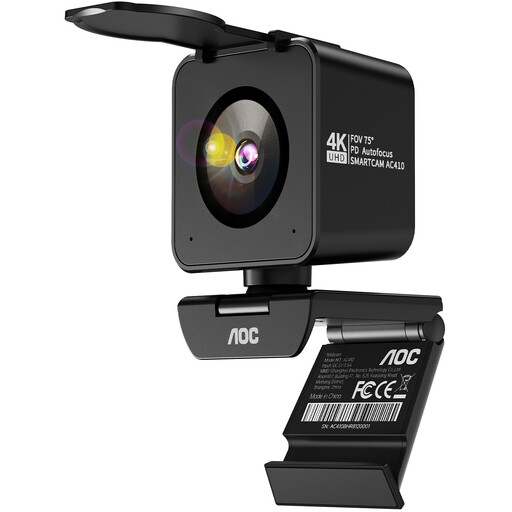 No image available
The listed PDAF autofocus is worth considering if you want to point the camera at your face or another subject.
4K; PDAF autofocus; 75° field of view; USB-A/USB-C.
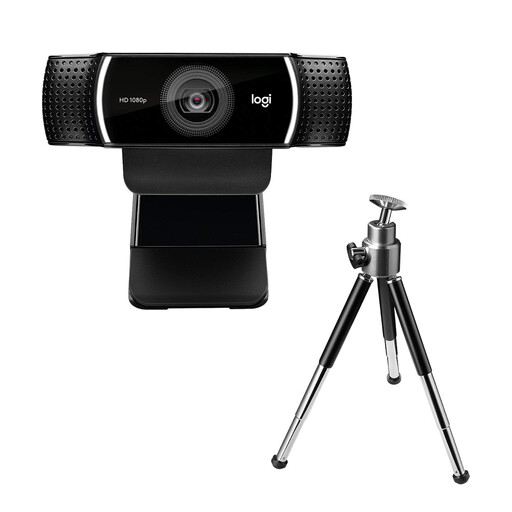 No image available
The adjustable stand and desktop tripod give you different ways to position the webcam on your desk.
USB webcam; HD autofocus and light correction; stand extends to 18.5 cm and includes a desktop tripod.
 No image available
The product description says DeskView mode is designed for overhead shots, so it may be useful for showing your desk.
4K; 1/2" sensor; PDAF autofocus; HDR; DeskView mode; compatible with Zoom and Microsoft Teams.
In the Teams desktop app, Microsoft describes selecting “Share” → “Content from camera” → “Document” when using a USB document camera positioned above your template. Check the preview to make sure the whole sheet and both hands are visible.
Zoom lists content from a second camera as an option you can share. Whether you can use it in a particular meeting depends, among other things, on whether screen sharing is enabled for you.
First check the full frame with both hands on the paper, then check the focus and lighting in the meeting view you’ll actually use. Logitech recommends good lighting for Show Mode and turning off distracting virtual backgrounds or blur effects.
For eligible online distance purchases, the EU consumer portal generally gives you 14 days from delivery to cancel, subject to the exceptions listed there. If you buy from a trader, you’re also entitled to a legal guarantee of at least two years from receipt; a voluntary manufacturer’s warranty does not replace it.
For electrical and electronic equipment offered for sale, the Bundesnetzagentur lists requirements including correct CE marking, identifiable manufacturer details and German-language instructions for non-commercial users. Check the information on the specific listing rather than assuming from the model name alone that all requirements have been met.