If you already have a suitable monitor, a mini PC is a space-saving option. PC-WELT also points out that some mini PCs can be harder to upgrade, depending on the model. If you need a computer and screen together, an all-in-one could be a good fit. A larger desktop is worth considering if specific ports or upgrade options matter more to you than the space it takes up. You should also check your marking software’s requirements, the exact screen configuration and what’s included in the box.
Who are these form factors best suited to?
People who mark work for long periods
If you spend a long time reading and commenting on work, make sure you can position your screen and input devices comfortably. The DGUV recommends using a separate screen and arranging your work equipment ergonomically when working at a computer from home.
People marking work at a small desk
If space is limited, first decide whether you can keep using a suitable monitor you already own, or whether you’d rather choose a screen and computer together.
People planning future upgrades
If you may want to change the ports, storage or screen later, compare the documented options for the exact configuration rather than relying on the form factor alone.
What should you look for when buying?
For a compact marking workspace, start by considering the screen you need and the space available. Then check that the software, ports, items included and potential future changes all meet your needs.
Mini PC with a separate monitor
A good fit if: You already have a suitable monitor or want to choose the screen size and position separately from the computer.
Things to consider: You’ll need to factor in a monitor and, if necessary, input devices to get a complete setup. Upgrade options depend on the specific model.
All-in-one PC
A good fit if: You also need a screen and want to choose the computer and display together.
Things to consider: The screen and computer are tied together. Adjustability and servicing options vary by model.
Larger desktop with a separate monitor
A good fit if: You have the space and need specific ports or upgrade options.
Things to consider: The computer and monitor need separate space. A larger case alone doesn’t guarantee any particular upgrade options.
The DGUV recommends using a separate screen and arranging your work equipment ergonomically when working at a computer from home. So, as well as checking the computer, make sure the specific screen can be positioned to suit you.
| Buying priority |
What to look for |
Who it matters most to |
| Screen and positioning |
Adjustability of the screen and stand; space for a keyboard and mouse. |
When marking work for long periods, I want to be able to position the screen so it’s comfortable to read and add comments at my desk. Around 36% of consumers put screen positioning first. |
| Space and monitor |
Measure the space available; check whether you can keep using a monitor you already own. |
If my room is short on space, I want to know whether I can use a monitor I already have or need to buy a screen and computer together. Around 29% of consumers prioritise space and the question of which monitor to use. |
| Software, ports and what’s included |
Check software requirements against the operating system; check the ports and any included input devices. |
If my marking software has specific requirements, I want to check the operating system, screen connections and any input devices I need in advance. Around 21% of consumers put software and port compatibility first. |
| Upgrade options and future changes |
Check the servicing options for the exact configuration; be specific about any upgrades you need. |
If I want to change the storage or ports later, I check the documented options for the specific model. Around 14% of consumers prioritise upgrade options and future costs. |
Common pitfalls
-
Choosing a computer without checking whether you still need a monitor
A mini PC and a separately chosen screen are two distinct parts of your workspace. So, even if the computer seems suitable, you may still need a screen and input devices.
Make a note of the devices you already own, and check exactly what’s included with the configuration you’re considering.
Depending on what you already have, you may also need a suitable monitor, keyboard, mouse or connecting cables.
-
Assuming test results apply to similarly named versions
Configurations within the same product range can differ in their screen, storage and upgrade options. A test result for one model doesn’t automatically confirm the same features for a similarly named version.
Compare the full model and part numbers, as well as the screen, storage and what’s included.
-
Planning to use an older Windows 10 PC without an update plan
According to Microsoft, regular support for Windows 10 ended on 14 October 2025. A computer that still starts up won’t automatically receive regular security updates.
Before buying, check whether a suitable upgrade is possible or what conditions apply to Extended Security Updates.
Brands to consider
Lenovo
The ThinkCentre M75q Gen 5 Tiny is a compact computer option for use with a separately chosen monitor.
- Lenovo says this model offers tool-free access to its SSD and memory modules.
- Specifications and what’s included depend on the configuration. The manufacturer’s information is not an independent assessment.
ASUS
The ExpertCenter E5402 and P600 PM640KA are all-in-one models, so you choose the screen and computer together.
- In COMPUTER BILD’s test, the screen on the ExpertCenter E5402 they tested was adjustable, and its memory could be upgraded.
- The RAM in the P600 PM640KA they tested was soldered in place. These findings apply to the models tested, not to all ASUS all-in-ones.
HP
The Pro Mini 400 G9 is a compact Windows option for use with a separately chosen screen.
- For the German configuration CP9G3EA#ABD, HP lists Windows 11 Pro, 16 GB RAM and a 512-GB SSD.
- These manufacturer specifications apply to the configuration listed and don’t confirm the features of other versions or provide an independent performance assessment.
Acer
The Aspire C27 range includes all-in-one PCs, where you choose the screen and computer together.
- For the C27-195ES, part number DQ.BMGEG.001, Acer lists a 27-inch Full HD display, plus a wireless keyboard and mouse in the box.
- This version has not been shown to be identical to the Aspire C27-A tested by COMPUTER BILD, so that test result can’t be applied to it.
Apple
The Mac mini is a compact option with a separately chosen screen, provided the marking software you need supports macOS.
- Apple provides details of the Mac mini’s display connections and memory configurations.
- These technical specifications don’t confirm compatibility with any particular school marking platform.
Mini PCs for a separate monitor
This selection features compact computers for use with a separately chosen monitor. Check that the screen, input devices and operating system suit the way you mark work.
 No image available
SOYO Y5Pro Mini PC, Intel Core i5 8250U/8350U, Windows 11, 8 GB DDR4, 256 GB SATA SSD
A compact computer option for use with a separate monitor you already own. Check the specific configuration against your marking software’s requirements.
Listed connections include two HDMI and one Type-C video output, plus four USB ports.
View at Joybuy
 No image available
Dell Pro Max Micro FCM2250 TPM, Core Ultra 7 14-Core NPU, 16 GB DDR5 6400 MHz, 512 GB M.2 PCIe SSD, Windows 11 Pro
The Micro form factor is worth considering if you have limited desk space for a computer case. Check that the ports on your specific configuration are compatible with your monitor.
View at Joybuy
 No image available
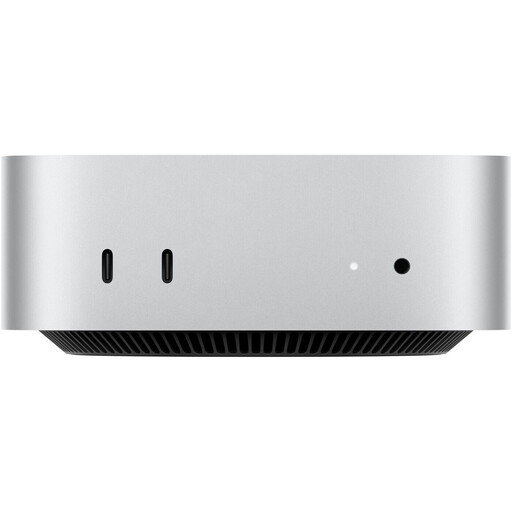
Apple Mac mini, M6 12-Core CPU, 12-Core GPU, 24 GB Unified Memory, 512 GB SSD
This model is a compact option for use with a separate screen, provided your marking software supports macOS.
According to the set-up information, a keyboard and mouse need to be connected separately and are sold separately.
View at Joybuy
 No image available
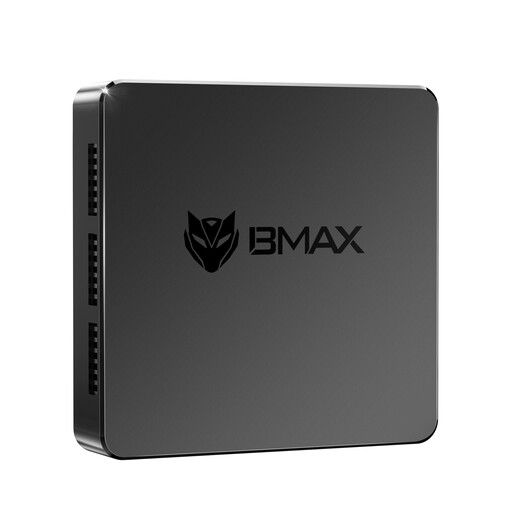
MaxMini B3 Mini PC, Intel N4100 up to 2.4 GHz, 8 GB LPDDR4, 256 GB SSD, Dual HDMI
This mini PC is designed for a compact workspace with a separate monitor. Check which operating system comes with the specific configuration and whether it supports your software.
View at Joybuy
 No image available
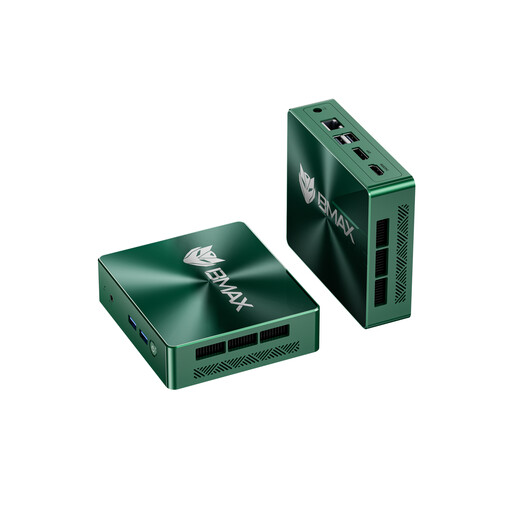
BMAX B6 Mini PC, Intel Core i3-8109U up to 3.6 GHz, 12 GB RAM, 256 GB SSD, HDMI and DP
A compact computer for a separate screen. Check that the available ports match your monitor’s inputs.
View at Joybuy
Frequently asked questions
Do I need a particularly powerful PC for marking work digitally?
Not simply because you’re marking work digitally. First check the requirements of the marking software you actually use, how the screen displays content and which ports you need. There’s no one-size-fits-all performance threshold based on form factor alone.
How should I set up a workspace for longer marking sessions?
Allow for a screen you can position comfortably, with space for an external keyboard and mouse. The DGUV recommends this equipment and an ergonomic arrangement for working at a computer from home. This doesn’t mean you must choose a particular type of PC.
Can I keep using a PC with Windows 10?
Windows 10 may still start up, but according to Microsoft, regular support and security updates ended on 14 October 2025. Microsoft lists a suitable upgrade or, in certain circumstances, Extended Security Updates as possible options. Check which support route applies before using the computer to handle school data.
Can I mark pupils’ work containing personal data on my personal PC?
Check with your school or the relevant authority for your federal state and working arrangements first. The State Commissioner for Data Protection and Freedom of Information in Baden-Württemberg points out that schools process personal data such as grades. The Data Protection Conference’s guidance on online learning platforms in schools does not give blanket approval for using a personal device.
What are my rights if the PC is faulty?
For an ordinary purchase, the statutory limitation period for relevant claims relating to defects is generally two years from delivery, under § 438 BGB. This is separate from any additional manufacturer’s warranty. Different conditions may apply in special cases.


