For long village history recordings, an expandable Windows tower is a better fit if you edit on Windows and may want to add drives or other components later. A Mac mini is more suited to a compact macOS editing setup with external storage planned to match. Start by checking your editing software, the resolution and codec of your original footage, then allow space for working files and a separate backup. Adobe’s recommendations for Premiere at 4K or above do not automatically apply to other software or every film project.
Which editing setup is right for you?
Reviewing long-form footage
You review and edit many hours of historical footage and want to organise your originals, working files and backups separately. The German Federal Office for Information Security recommends backing up data regularly and checking that files can be restored from those backups.
Editing 4K footage
You work with high-resolution footage or multiple tracks, so you need to match your hardware to your editing software. For Premiere on Windows at 4K or above, Adobe recommends 32 GB of RAM or more and 8 GB of GPU memory.
Editing in a compact space
You want a small, dedicated editing setup and plan your working and backup storage around the ports available. Apple lists the Mac mini M5 Pro’s base configuration as having 24 GB of unified memory and a 512 GB SSD.
What should you look for when buying?
Expandable Windows tower
A better fit if: You use Premiere on Windows or plan to add internal drives and other components later.
Consider: Specifications vary by model, so check the components and ports actually included.
Compact Mac mini
A better fit if: Your editing software runs on macOS, desk space is limited and you can connect suitable storage for both working files and backups.
Consider: With the documented M5 Pro base configuration, check carefully whether a 512 GB SSD will suit your project and storage plans.
Choose your hardware based on your editing software, resolution and codec. Then plan separately for storage for your current work and backups of your original footage.
| Buying priority |
What to check |
Who is this important to? |
| Smooth playback |
Check your editing software, resolution and codec; then review the RAM, GPU memory and space for proxy files against the software’s requirements. For Premiere on Windows at 4K or above, Adobe recommends 32 GB of RAM or more and 8 GB of GPU memory. |
If I want to review long recordings without stuttering playback slowing me down, smooth playback is my priority. Around 36% of consumers prioritise smooth viewing and editing. |
| Project and backup storage |
Check how much data you already have, allow free space for your current project and make sure you have a separate backup that you can restore from. Adobe recommends an additional fast media drive for Premiere; the German Federal Office for Information Security advises regular backups. |
For a long-term archive that would be difficult to replace, I want to keep originals, active projects and backups separate. Around 29% of consumers put storage space and a separate backup first. |
| Software and format compatibility |
Check that your operating system and software version work with the codec and resolution of your original footage. Apple says the Mac mini M5 Pro’s Media Engine supports H.264, HEVC and ProRes; this does not mean it supports every source format. |
If I already use particular editing software and source formats, I want to make sure they’ll work with the specific computer configuration I’m considering. Around 21% of consumers share this priority. |
| Expandability and editing setup |
Check drive expansion, ports and the actual specifications of the model; also factor in your monitor, storage drives and backup device. |
For growing projects, I want to weigh up whether future upgrades or a compact workspace matter more. Around 14% of consumers prioritise expandability and their editing setup as a whole. |
Common pitfalls
-
Mistaking a large internal SSD for a backup
If your only drive fails, you could lose original footage that may be difficult to replace. The German Federal Office for Information Security recommends backing up data regularly.
Plan for a separate backup device and check that you can restore files from it.
Large archives may need an additional backup device as well as a working drive.
-
Assuming a workstation range’s maximum specifications apply to the model you’re buying
Supported RAM, GPU or drive options don’t tell you which components are actually fitted to the configuration on offer.
Check the full model number and the specifications of the specific device against your requirements.
-
Choosing on compact size or a powerful GPU alone
Software compatibility, codec, RAM and media storage also affect how well a configuration suits your workflow. Proxy files can take up additional storage.
First, check your original files and editing software, then make sure the whole configuration is a good match.
You may need extra storage space for media and proxy files.
Key brands at a glance
Apple
Mac mini models for a compact macOS editing setup. The documented M5 Pro base configuration has 24 GB of unified memory and a 512 GB SSD.
- Apple lists a Media Engine for H.264, HEVC and ProRes in the M5 Pro.
- Whether 512 GB is enough for long recordings and active projects depends on your files and plans for additional storage.
HP
The Z2 Tower G1i range includes configurable Windows workstations. HP lists 32 GB of RAM and a 2 TB SSD for the C9MU1ET#ABD model.
- HP specifies an RTX 2000 Ada with 16 GB for this exact model.
- The manufacturer’s specifications describe the hardware, but aren’t an independent editing test; other configurations may differ.
Lenovo
The ThinkStation P3 Tower Gen 2 is a tower range with different storage, RAM and GPU options.
- Lenovo lists a range of internal storage options for the series.
- The maximum supported specifications in the datasheet don’t necessarily match those of an individual device.
ASUS
The ProArt Station PD500TE is a tower range for creative work on Windows, with different CPU and GPU options.
- ASUS lists video editing as one of the series’ intended uses.
- Performance and stability claims on the product page come from the manufacturer; the actual specifications depend on the model.
Compact mini PCs at Joybuy
These product suggestions are compact mini PCs for a space-saving desktop editing setup. Before choosing, check that each model’s specifications suit your editing software, source formats and storage plans.
 No image available
FIREBAT F1 Mini PC, AMD Ryzen 5 7640HS
Its compact design could suit a space-saving editing setup. Check whether the 512 GB SSD will be enough for your project files and how you’ll back up your originals separately.
AMD Ryzen 5 7640HS, 24 GB LPDDR5 RAM, 512 GB PCIe 4.0 SSD and Radeon 760M. The product title lists 4K output for up to three displays.
View at Joybuy
 No image available
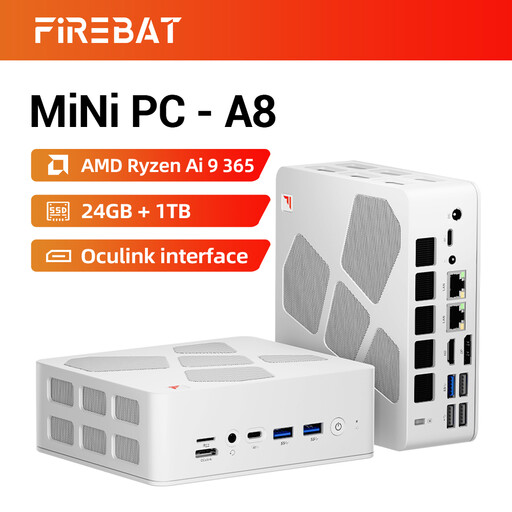
FIREBAT A8 Mini PC, AMD Ryzen AI 9 365
Its compact design could suit a space-saving editing setup. Check that the 1 TB SSD is big enough for your projects and plan for a separate backup.
AMD Ryzen AI 9 365, 24 GB DDR5 RAM, 1 TB PCIe 4.0 SSD and Radeon 880M. The product title lists 4K output for up to four displays.
View at Joybuy
Frequently asked questions
Do I always need to choose the most expensive computer for long 4K recordings?
No. First, check your editing software, codec and playback workflow. For Premiere on Windows at 4K or above, Adobe recommends 32 GB of RAM or more and 8 GB of GPU memory; supported video clips may also be edited using proxies. These recommendations don’t mean that other software or every HD project has the same requirements.
How should I plan for working files and backups?
Allow storage for current media and proxy files separately from backups of your original footage. The German Federal Office for Information Security recommends regular backups and points out that backed-up data must also be recoverable.
Are a manufacturer’s guarantee and statutory consumer rights the same thing?
No. Your statutory rights apply to the seller, while a guarantee is an additional voluntary promise with its own terms. The German Consumer Advice Centre says statutory rights generally last for two years and explains a conditional extension if you choose a repair for purchase contracts from 31.07.2026 onwards.
Can I simply publish historical footage showing identifiable people?
Buying a computer doesn’t give you the rights to publish footage. Under section 22 of the German Art Copyright Act (KunstUrhG), consent is generally required to distribute or publicly display images of people; section 23 sets out exceptions and protects legitimate interests. The German Federal Ministry of Justice and the Federal Office of Justice list these provisions in the KunstUrhG. Whether you can publish a particular recording depends on the material and how you plan to use it.


