Handwritten PDF annotators
If you want to write notes in the margins directly on your reading material, look for a device, pen and PDF app that work well together.


For handwritten margin notes, a convertible or Surface Pro is a good choice, provided the pen and device are compatible with your chosen PDF app. For highlighting and typed comments, a traditional notebook may be enough. Compare battery life only when the devices have been tested under the same conditions: Apple and Microsoft quote figures for wireless web browsing or active web use, not for your specific PDF workflow. Also check what accessories are included, and try opening, annotating and saving your files in the app you plan to use.
If you want to write notes in the margins directly on your reading material, look for a device, pen and PDF app that work well together.
If you highlight passages and type comments while you’re out and about, the keyboard, battery life in your own workflow and a reliable PDF setup are all important.
If you read longer texts in different places, weigh up screen space, potential glare and how easy the device is to carry around.
A good fit if: you regularly make handwritten notes directly in PDFs and then want to switch to using a keyboard.
Things to consider: A touchscreen doesn’t automatically mean a compatible pen is included. Lenovo lists the Yoga Pen as optional; the documented Yoga variant 83JR000PGE has a glossy OLED display.
A good fit if: you prefer to read and write on a tablet-laptop screen and have found a keyboard and pen combination that works with your specific model.
Things to consider: Microsoft lists a compatible Flex Keyboard, but check separately what’s included in the specific offer. If you’re considering a Snapdragon model, check that the apps and drivers you need are ARM-compatible.
A good fit if: you highlight passages and type comments rather than writing by hand on the screen.
Things to consider: Apple lists a keyboard and trackpad for the MacBook Air (13″, M5); its quoted battery life for wireless web browsing isn’t a measure of battery life when annotating PDFs.
First decide whether you want to write by hand on the screen or annotate with a keyboard and trackpad. Then compare battery test results, the display and the app against the way you’ll actually use the device.
| What matters | What to check before buying | Who should consider this? |
|---|---|---|
| Battery life on the go | Check the test conditions behind the quoted battery life, and factor in your PDF app, screen brightness and Wi-Fi use. Apple and Microsoft quote figures based on different web-browsing tests, not PDF use. | If I work away from a plug socket, battery life for my own PDF workflow matters; around 33% of consumers say battery life is their main concern. |
| Handwritten or typed comments | For the exact configuration, check touchscreen support, pen compatibility, what’s included, and whether you can write and save in your PDF app. Lenovo lists the Yoga Pen as optional; Microsoft lists a compatible Surface Pro keyboard. | For direct margin notes, I need a compatible pen and a setup that works in my app; around 27% of consumers put handwritten annotation first. |
| Reading comfort and portability | Open a typical PDF page at your preferred text size and check for reflections in your usual reading spot. Lenovo lists a glossy finish for configuration 83JR000PGE. | If I read longer texts in different places, I want to see the text and notes clearly without losing sight of portability; around 20% of consumers prioritise reading comfort on the go. |
| PDF and software workflow | Open one of your own files, annotate it, save it locally and open it again. If you need specific Windows programmes or drivers on a Snapdragon device, also check ARM compatibility. | If I need to keep using my existing PDF or specialist software workflow, I want to check compatibility before buying; around 20% of consumers see this as their main concern. |
Manufacturers’ figures are based on specific tests. Web use or wireless browsing won’t necessarily reflect the time you spend annotating your files.
Compare the test conditions and try your own workflow with the app, screen brightness and connection you intend to use.
Lenovo lists the Yoga Pen as optional, while Microsoft lists a compatible keyboard as an accessory for Surface Pro. The device range alone doesn’t tell you what’s included in an offer.
Check the exact model number, pen compatibility and what’s included with the offer.
Depending on the configuration, you may need to buy a pen or keyboard separately.
For Snapdragon models, support for the specialist software or drivers you need could be a deciding factor.
Before buying, check that the specific programmes and peripherals you plan to use work with the model.
The Yoga 7 2-in-1 Gen 10 (14″ AMD) combines a laptop keyboard with a fold-back touchscreen.
The Surface Pro 11 is a tablet-laptop option for annotating on screen, with a compatible keyboard and pen.
The MacBook Air (13″, M5) is suited to highlighting and typing PDF comments, without relying on handwriting on the screen.
The OmniBook Ultra Flip 14-fh0797ng is a convertible model with a touchscreen.
The following Joybuy models offer a Surface Pro-style touchscreen experience. For each configuration, check whether a compatible pen and keyboard are included.
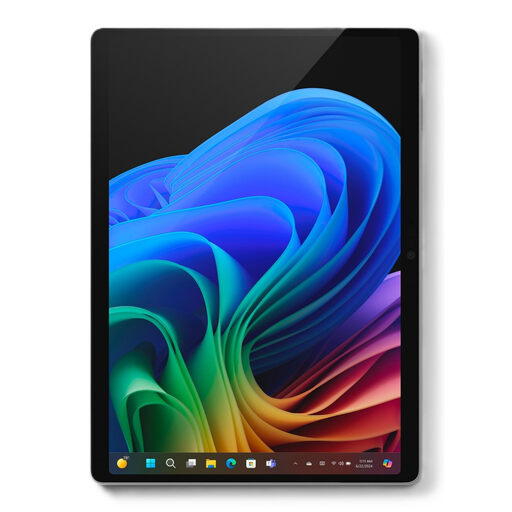 No image available
For using the touchscreen directly while reading and annotating; check whether the pen and keyboard combination you want is included with the offer.
As listed in the product name: 13-inch, Snapdragon X Plus, 16 GB/512 GB.
If you need specialist programmes or drivers, check compatibility with Windows on ARM.
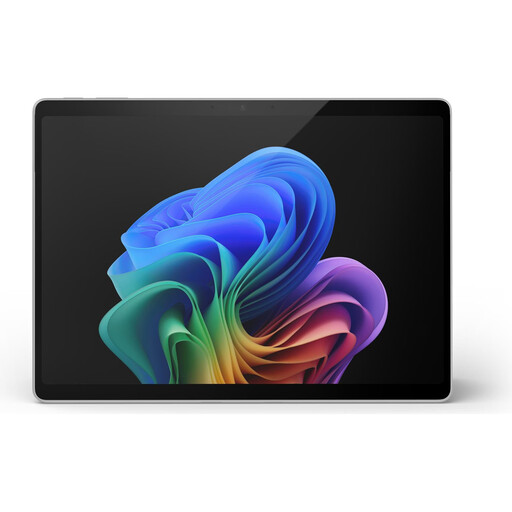 No image available
For reading on the go with direct touchscreen control; if you want to write by hand, check pen compatibility and which accessories are included.
As listed in the product name: 13-inch, Snapdragon X Plus, 16 GB/512 GB. This is described as a colour variant.
The quoted battery life isn’t a measure of battery life when annotating PDFs; check that any apps and drivers you need will work with Snapdragon models.
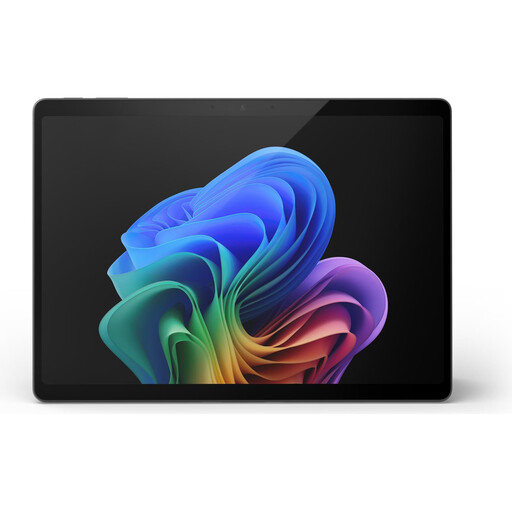 No image available
For reading and using the touchscreen on the go; check in advance whether the offer includes a compatible keyboard and pen.
As listed in the product name: 13-inch, Snapdragon X Elite, 16 GB/512 GB.
If you need specialist programmes or drivers, check compatibility with Windows on ARM.
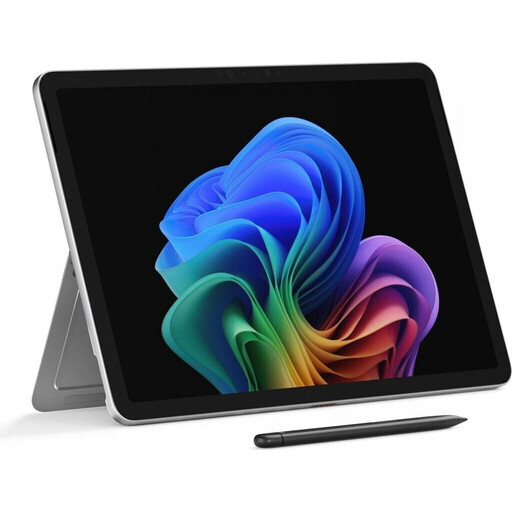 No image available
For reading on the go and using the touchscreen directly; check whether the accessories you need for your PDF work are included.
As listed in the product name: Snapdragon Plus, 24 GB/1 TB, Platinum.
If you need specialist programmes or drivers, check compatibility with Windows on ARM.
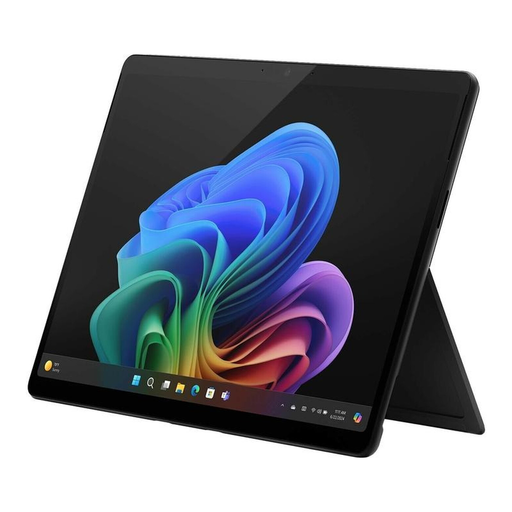 No image available
For switching between reading and working positions with a touchscreen; check what’s included for the input options and keyboard setup you want.
As listed in the product name: 13-inch OLED, 2-in-1, Core Ultra 7 266V, 16 GB/512 GB SSD and Win11 Pro.
No, not if highlighting and typed notes are enough for you: Apple lists PDF annotation support in Preview, and Adobe explains how to add comments with Acrobat Reader for Windows and macOS. To write by hand directly on the screen, you’ll need a compatible pen and device.
Save a sample file locally and use the app you plan to work with to check that you can open, annotate and save it, then open it again. General support for PDF annotation doesn’t automatically mean your own file or syncing workflow will work.
No, you can’t tell from the device range alone. Lenovo lists the Yoga Pen as optional, while Microsoft lists a compatible Surface Pro Flex Keyboard. What matters is the exact configuration and what’s included with the specific offer.