If you often retouch individual specks of dust and want to work directly on the image, a compact pen display may be more practical for a shared desk. If you have a permanent space available, a larger display gives you more room to work. However, it’s your image-editing software, not the display, that removes the spots, so check the software, computer connections, power requirements and drivers too.
Who is a pen display suitable for?
People who retouch scans
If you regularly correct individual specks of dust, you’ll want to adjust the brush size and zoom, and apply corrections directly to the image. Adobe describes the Spot Healing Brush as a tool for small blemishes; the right software feature is still essential.
People who work at different desks
If you share a desk, the space it takes up, how easy it is to put away, and whether it connects to different computers all matter. A compact device may be easier to store, but check the stand, cables and driver requirements too.
People who assess scan details
If you need to check fine image details or colours as well as spots, you’ll need to balance screen size and display characteristics against the space available. Manufacturers’ colour specifications don’t replace checking the entire image-editing and output workflow.
What should you look for when buying?
Compact pen display
A good fit if: you want to put the device away after work or move between workstations. Huion lists the Kamvas 13 (Gen 3) as measuring 13.3 inches and weighing 865 g.
The trade-off: The smaller display area may mean zooming in more often. It won’t necessarily take up less space once you factor in the stand and cables.
Larger display for a permanent workspace
A good fit if: you have permanent space for a display of around 16 inches and want to see the image and tool panels at the same time. The XPPen Artist Pro 16 (Gen 2) and Wacom Cintiq 16 DTK168K0B are examples of this size.
The trade-off: You’ll need more desk space. Depending on the model and computer, you may also need extra cables or a separate power supply. Wacom also notes that the Cintiq 16 does not support multi-touch input.
Keep using your existing screen
A good fit if: you only retouch occasional spots or don’t want another display on a shared desk. Adobe describes the Spot Healing Brush as a tool for small blemishes; GIMP documents a filter for dust or scratches in scans.
The trade-off: You won’t be working directly on a pen display. According to GIMP’s documentation, you should restrict the filter to the affected areas of the image.
| Factor |
What to look for |
Who should prioritise it? |
| Correcting individual specks of dust |
Check that your software supports the pen and driver, and that you can adjust the zoom and brush size. Adobe describes the Spot Healing Brush as a tool for small blemishes. |
If I’m retouching individual spots, I want to adjust the brush size and zoom directly. Around 28% of consumers prioritise spot correction. |
| Setting up and putting away |
Measure the available desk and storage space. Check whether the stand you need is included with your chosen version. |
If I share a desk, I need to be able to put the device away after work or quickly clear the space. Around 22% of consumers prioritise a small or shared workspace. |
| Connecting to multiple computers |
Check the video outputs, USB functions, power requirements, operating system and driver permissions for every computer you plan to use. USB-C alone doesn’t guarantee that the video signal will work. |
If I switch between shared computers, I want to know in advance whether the connection will work at each desk. Around 22% of consumers prioritise computer connectivity. |
| Assessing details and colours |
Compare the native resolution and screen size for the exact model version. Check important results in the intended output format too. |
If I need to assess fine scan details or colours, the display matters more than keeping the footprint as small as possible. Around 17% of consumers prioritise image assessment. |
| What’s included and accessories |
Check which stands and cables come with the specific version, and what accessories you’ll need for your workspace. |
If I only want to choose the equipment I’ll actually need, I compare what’s included with the accessories I’ll have to buy. Around 11% of consumers prioritise this. |
Common misconceptions
-
More pressure levels automatically remove dust more effectively
Correcting individual spots depends on the tools in your image-editing software. A pen display doesn’t make the corrections itself.
Try the brush you plan to use on typical small spots, and check that you can comfortably adjust its size and zoom.
-
A USB-C connection works at every desk
A USB-C port on your computer doesn’t guarantee that it supports the video signal you need. For the Wacom Cintiq 16, Wacom specifies USB-C with DisplayPort Alternate Mode, or HDMI plus USB. The XPPen set-up may also require an additional power supply.
Check the connections, power requirements and driver permissions for every computer you plan to use.
Depending on the model and connection, you may need suitable cables or an additional power supply.
-
The stand shown in the picture is always included
Huion lists the Kamvas 13 (Gen 3) with and without a stand. With the Wacom Cintiq 16, distinguish between the built-in fold-out feet and the optional adjustable stand.
Check what’s included with the exact version and whether it will let you position the device comfortably at a shared desk.
You may need an additional stand, and you’ll also need to make room for it when clearing the desk.
Key brands at a glance
Huion
The Kamvas 13 (Gen 3) is a compact pen display option for changing workspaces.
- Huion lists the model as measuring 13.3 inches, weighing 865 g and offering a resolution of 1920 × 1080 pixels.
- Huion’s German shop lists versions with and without a stand. Its colour gamut and calibration specifications come from the manufacturer and are not an independent assessment of this retouching workflow.
XPPen
The Artist Pro 16 (Gen 2) is a 16-inch option if having more visible workspace matters more than keeping the footprint as small as possible.
- The manufacturer’s guide explains how to connect the model and install its drivers.
- Depending on your set-up, you may need an additional power supply. Check the requirements for the specific computer.
Wacom
The Cintiq 16 DTK168K0B is a 16-inch model designed for a more permanent workspace.
- Wacom lists a 2.5K resolution and built-in fold-out feet.
- The model supports pen input but not multi-touch. Wacom specifies USB-C with DisplayPort Alternate Mode, or HDMI plus USB; check which connection is available on your computer.
Xencelabs
The Pen Display 16 is another option if you want to compare different configurations.
- The Xencelabs shop offers different packages, including Bundle and Essentials.
- Accessories and connections may vary by version. Check what’s included in the specific package.
Joybuy products
Here you’ll find a 2-in-1 alternative with pen input on the display; it isn’t a separate pen display.
 No image available
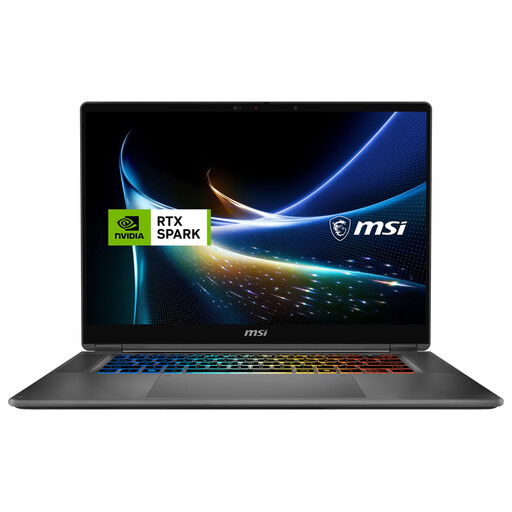
MSI Prestige N16 Flip AI+ C1XMT-028Y
As a 2-in-1 with pen input on a multi-touch display, it’s worth considering if you want to use the screen and pen in a single device.
16-inch display with 2.8K resolution and OLED technology, plus an integrated Nano Pen. The device supports 360° flip and laptop, tablet, tent and stand modes.
64 GB DDR5, 1 TB SSD and Windows 11 Pro.
View at Joybuy
Frequently asked questions
Does a pen display remove dust from scans automatically?
No. You’ll need an image-editing feature to make corrections: Adobe describes the Spot Healing Brush as a tool for small blemishes. GIMP documents a filter for dust or scratches in scans; according to its documentation, you should restrict it to the affected areas.
Is a USB-C port enough on every shared computer?
No, the connection must also support the video signal you need. For the Wacom Cintiq 16 DTK168K0B, Wacom specifies USB-C with DisplayPort Alternate Mode, or HDMI plus USB. The XPPen set-up also involves installing drivers and may require an additional power supply. Check the requirements for every computer you’ll use.
How can I avoid changing other parts of the image?
Restrict GIMP’s dust removal filter to the affected areas of the image. For individual small spots, Adobe recommends zooming in and adjusting the brush size to match the blemish; using a separate layer can also allow you to edit non-destructively.
Does every model come with a stand?
No, what’s included depends on the model and version. Huion lists the Kamvas 13 (Gen 3) with and without a stand; when checking the offer you want, also see whether it includes built-in feet or refers to an optional adjustable stand.
Who should I contact if a product is faulty?
For statutory consumer rights, you should generally contact the seller; this is separate from any voluntary manufacturer’s guarantee. The Verbraucherzentrale explains that the specific rights available depend on the purchase and the fault in question.


