With reflowable e-books, you can increase the font size in a suitable reading app; Apple Support explains how to do this in the Books app. With PDFs and scans, however, the file and viewing app determine whether the text, footnotes and page layout remain readable at the size you want. So try one of your own files before choosing between a portable colour tablet, a larger display or an e-paper device.
Which reading device is right for you?
Readers who need larger text
If you mainly read continuous text, an app with adjustable font sizes is important. Apple Support explains how to change the font size in books in the Books app; whether you can display your own files this way depends on the format and app.
Readers with essay PDFs and scans
For fixed-layout pages, check whether your app displays the text, footnotes and margins in a view that works for you. Samsung lists a 13.1-inch display for the Galaxy Tab S10 FE+; BOOX describes viewing and reflow options for PDFs on the Note Air6 C.
Readers who like to annotate as they go
For highlighting and handwritten comments, your file, app and stylus need to work together. Apple Support explains the PDF markup tools in Books; Samsung lists an S Pen for the Galaxy Tab S10 FE.
What should you look for when buying?
Colour tablet for e-books and apps
A good fit if: You want to read e-books with adjustable text and use different reading apps on one versatile device. Apple Support explains the font controls in Books; Apple lists an 11-inch nominal display for the iPad (A16).
Bear in mind: You may need to zoom in on fixed-layout or scanned PDFs, and a compatible stylus isn’t automatically included.
Larger colour tablet for desk use
A good fit if: You want more screen space for fixed-layout pages and margin notes, and usually read at a desk or table. Samsung lists a 13.1-inch display for the Tab S10 FE+; Lenovo describes a built-in kickstand for the Tab Plus.
Bear in mind: A larger display won’t replace a suitable PDF view or testing your own file.
E-paper note-taking device
A good fit if: You mainly read text and want PDF viewing and note-taking features. BOOX describes the Note Air6 C as a colour e-paper device with PDF features.
Bear in mind: Try one of your own scans to see whether the display, apps you need and colour reproduction suit the way you work.
| Priority |
What to check before buying |
Who is this most important to? |
| Enlarge text in continuous prose |
Open an e-book of your own in the app you plan to use, then test the font size, line spacing and navigation. |
If I want to read continuous text with a font I can adjust easily, I need a file and app that work well together. Around 36% of consumers say enlarging text is their main priority. |
| Make PDFs and scans easy to read |
Test a typical essay or scan, including its footnotes, in the app you plan to use. |
With fixed-layout pages, I want to know whether the text and smaller page details remain readable in the view I’ve chosen. Around 29% of consumers prioritise PDF readability. |
| Highlight passages and jot down ideas |
Check what’s included with the specific model and whether you can save annotations in the file format you need. |
If I want to comment on my own texts, the file, app and stylus need to work together for the way I use them. Around 21% of consumers put annotations first. |
| Hold the device or prop it up while reading |
Compare the dimensions and weight with how you plan to use it, and check whether the stand or case is practical for you. |
At my usual reading spot, I want to be able to hold or prop up the device comfortably, rather than choosing based on screen size alone. Around 14% of consumers prioritise ease of handling. |
Common misconceptions
-
You can enlarge the text in any PDF just as you would in a book
Font controls for e-books aren’t the same as reflowable text in every scan. When you enlarge a fixed-layout PDF page, some of it may move off-screen.
Test a reflowable e-book and one of your own scans separately, including the footnotes and page margins.
If you have to zoom and pan frequently, you may not be able to see the whole page at once.
-
Stylus support means the stylus is included and works with every PDF app
Compatibility, what’s in the box and the features available for particular files are separate things. Apple lists compatible Pencil models separately from what’s included with the iPad (A16).
Check the exact model, what’s included, the app you’ll use and how you’ll import your documents—all together.
Depending on the device and how you plan to use it, you may need to buy an additional input accessory.
-
One display technology is always better for your health
The display and note-taking features described here aren’t enough to conclude that one option is generally better for your health when reading.
Choose based on your files, the colour display you need, the apps you use and where you actually read.
Brands to consider
Apple
The iPad (A16) is a colour tablet for books, PDFs and other apps.
- Apple Support explains how to adjust the font size in books and use the PDF markup tools in Books.
- Font controls for books don’t mean every PDF will be reformatted automatically. Compatible Pencil models aren’t listed as part of the tablet’s stated contents.
Samsung
The Galaxy Tab S10 FE models are Android colour tablets in different screen sizes.
- Samsung lists a 10.9-inch display for the Tab S10 FE, 13.1 inches for the Tab S10 FE+ and an S Pen.
- Whether your own file displays as you want and can be saved with annotations depends on the app you use.
Lenovo
The Tab Plus is a kickstand-equipped Android tablet for readers who often use their device propped up.
- Lenovo lists a built-in kickstand. The Tab Plus bundle with 8 GB RAM and 128 GB storage is specified as having an 11.5-inch IPS display with 2000 × 1200 pixels.
- A stand won’t change whether a file can be reformatted. Check the stylus and bundle contents for the specific offer.
BOOX
The Note Air6 C is an e-paper note-taking device for reading text and working with PDFs.
- BOOX describes a colour e-paper display with PDF viewing and note-taking features.
- The features described don’t guarantee that a particular scan will be readable in the view you want.
Suitable devices at Joybuy
This selection includes large-screen tablets for reading and note-taking, as well as an E-Ink device. Before you buy, check how your specific PDF file appears on each device.
 No image available
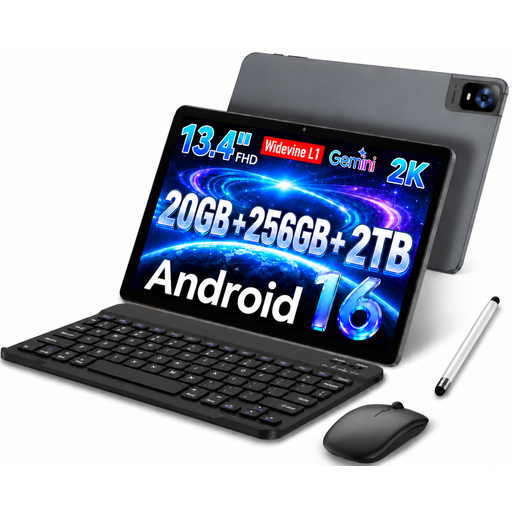
UXD 13.4-inch Android 16 tablet, 256 GB
The large display is useful for reading at your usual spot; the bundle also includes a keyboard, mouse and stylus.
13.4-inch IPS display with 1920 × 1200 pixels; 20 GB RAM (8 GB + 12 GB virtual); 256 GB storage.
View at Joybuy
 No image available
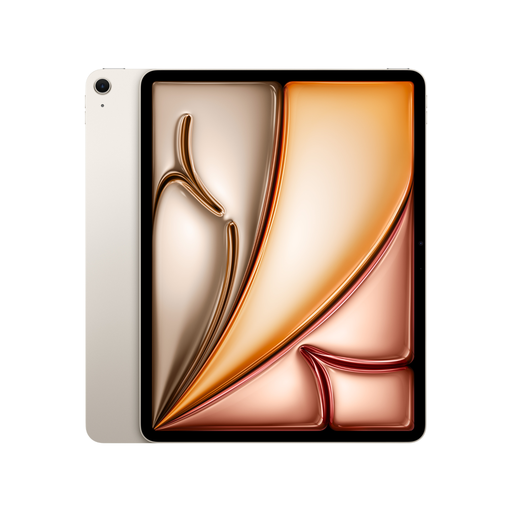
Apple 13-inch iPad Air (M4, 2026) Wi-Fi, 128GB – Starlight
Ideal for reading on a larger colour display; the stated Pencil compatibility is useful for handwritten notes.
13-inch Liquid Retina display; Wi-Fi; 128 GB storage. Apple Pencil Pro and Apple Pencil (USB-C) are listed as supported; the Pencil Pro is sold separately.
View at Joybuy
 No image available
Teclast ArtPad Pro 2025, 13.4-inch, 2K, T-Pen
The display and stylus features in the product name are useful for viewing content at a larger size and writing notes by hand.
13.4-inch 2K display; T-Pen with 4096 pressure sensitivity levels; Helio G99; 20 GB RAM (8 GB + 12 GB virtual); 256 GB storage; dual SIM 4G LTE; Android 15.
View at Joybuy
 No image available
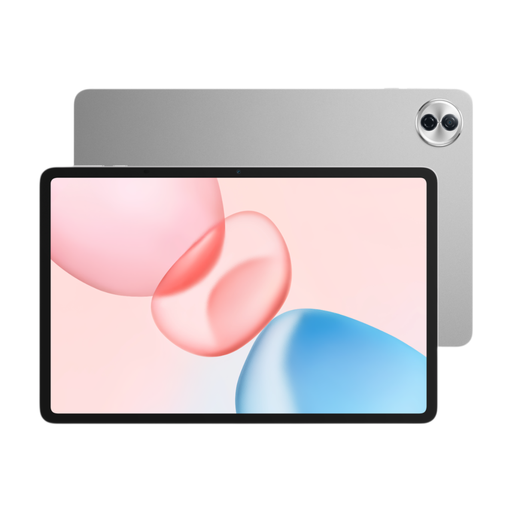
HONOR Pad 10, 12.1-Inch WiFi, 256GB, Grey
The 12.1-inch display gives you more screen space for reading; try a typical PDF file, including its footnotes, on the device.
12.1-inch IPS display with 2560 × 1600 pixels; Wi-Fi; 256 GB storage.
View at Joybuy
 No image available
iFLYTEK AINOTE 2, 10.65-inch E-Ink
The E-Ink display is worth considering for reading text; try your own documents to see whether the display and note-taking features suit the way you work.
10.65-inch E-Ink display.
View at Joybuy
Frequently asked questions
Can I simply enlarge the text in any scanned philosophy text?
No. Being able to change the font size in a book doesn’t mean every scan can be freely resized. PDF apps may offer zoom or other viewing modes; test a typical file of your own, including the footnotes.
How can I check that annotations will work before buying?
Open one of your own files in the app you plan to use, add a highlight and reopen the file to check that it’s still there in the format you need. Also check that the feature works with your import method and the specific file type.
Do I need to budget separately for a stylus or charging accessories?
It depends on the specific model and offer. Samsung lists an S Pen for the Galaxy Tab S10 FE; Apple lists compatible Pencil models for the iPad (A16) and says a USB-C charging cable is included with the tablet. Check the accessories and compatible version in the relevant offer.
What are my rights when buying a tablet online from a business seller?
For eligible distance purchases of goods, European Union consumer information generally provides a 14-day right to cancel from the date of delivery; exceptions and possible return costs may apply. If goods are faulty, you have a statutory right to a remedy from the seller for at least two years from receipt. These provisions don’t apply in the same way to purchases from private individuals.


