For recording your own phone greeting at a shared desk, a directional dynamic USB microphone is a sensible starting point if you can speak close to it and keep a consistent position. If your space is quiet or you want to speak from further away, a directional USB condenser microphone may be suitable. And if your phone system supports recording directly, you may not need an additional microphone at all. Check the connection, stand and monitoring options, make a test recording at your actual desk, and follow your phone system’s instructions for file format and length.
Which solution is right for you?
Recording on your own at a busy desk
If you work alongside other people, make sure the microphone is positioned securely and that you keep a consistent distance from it. A test recording with the usual background noise at your desk will show whether your voice is still clear.
Looking to record a greeting quickly
First, check whether your phone system requires an audio file or lets you record directly through the phone. That way, you can find out whether you need a computer microphone for your setup at all.
Updating your greeting regularly
A repeatable setup, along with checks on the recording level and finished file, makes it easier to review different scripts or speakers before using them.
What should you look for when choosing?
Directional dynamic USB microphone
A good fit if: you’re speaking on your own and can keep the microphone close and in a fixed position. Audio-Technica describes USB as a way to record on a computer without a separate audio interface.
Keep in mind: Speaking close to the microphone limits your freedom to move, and its directional design doesn’t guarantee a noise-free recording.
Directional USB condenser microphone
A good fit if: your recording space is quiet or you’d like to speak from further away. Models with a gain control and headphone socket can help you monitor levels and listen back.
Keep in mind: At a greater distance, room acoustics and noise at a shared desk can become more noticeable. Check how it sounds with a test recording.
Record your greeting directly on the phone
A good fit if: your phone system offers this feature and you want to record a short greeting of your own. FRITZ! describes how to record one through the voice menu on the FRITZ!Box 7590.
Keep in mind: This feature depends on your phone system, and doesn’t automatically offer the same editing and monitoring options as recording separately on a computer.
When choosing how to record your own greeting at a shared desk, compare your priorities against these four points:
| Priority |
What to look for |
Who it matters most to |
| Keeping your voice clear over background noise |
Check the polar pattern and how close you need to speak; keep the microphone pointed in the same direction throughout the greeting. |
If people are working nearby, I want to record my voice close to the microphone and keep it consistent; around 36% of consumers prioritise controlling ambient noise. |
| Transferring the recording to your phone system |
Check that the USB connection and cable work with your recording device; check what your phone system requires for recording or audio files. |
I want to record and transfer my greeting without unnecessary steps, or first check whether recording directly is enough; around 29% of consumers prioritise a simple recording and transfer process. |
| Checking levels and the finished recording |
Check whether the model has a headphone socket and level controls; test the loudest part of your script and listen back to the exported file. |
When recording repeatedly, I want to check the levels and finished greeting before it’s used; around 21% of consumers put recording and playback checks first. |
| Space and what’s included |
Check that the microphone will fit in your available space and see whether a cable and stand are included. |
At a shared desk, I want to check the space required and the included stand in advance; around 14% of consumers prioritise setup and what’s included. |
Common mistakes when recording and choosing a microphone
-
Assuming noise reduction is a substitute for a quiet recording space
Audacity describes its noise reduction as suitable for steady background noise, not isolated, irregular sounds. That means voices or sudden noises can’t be reliably removed from a greeting with a filter alone.
Try to record during a quieter part of the day, and test the microphone’s position and sound against the noise at your workplace.
If individual voices or noises are still audible, you may need to record the greeting again.
-
Confusing a high sample rate with a compatible greeting file
For file uploads to the FRITZ!Box 6690 Pro, FRITZ! specifies a maximum length of 60 seconds and particular WAV or MP3 requirements. These apply to this model and don’t replace the instructions for your own phone system.
Before recording, check the requirements for your specific phone system model, then export a test file in the right format.
An incompatible export may need to be converted or recreated.
-
Assuming a microphone mount is all you need for a desk setup
An integrated swivel mount isn’t necessarily a desktop stand. Manufacturers also differ in what they list as included with their microphones.
Check the exact model and plan your setup so the microphone stays securely positioned while you record your greeting.
If you need a stand or arm for your setup and one isn’t included, you may need to buy an extra accessory.
-
Choosing an omnidirectional recording mode for a single voice
CHERRY describes the UM 6.0 ADVANCED’s omnidirectional mode as picking up sound from every direction. That isn’t automatically an advantage at a shared desk.
For a single greeting, try the directional mode first and listen back to the recording at the desk where you plan to use it.
Microphone brands to consider
Audio-Technica
Audio-Technica describes the ATR2100x-USB as a dynamic USB/XLR microphone for close-miked solo voices. The manufacturer lists USB and XLR cables, a headphone socket and a desktop tripod among the included accessories.
- USB lets you record on a computer without a separate audio interface; XLR gives you an additional connection option.
- At a shared desk, you’ll need to keep your voice close to and in front of the microphone. A test recording will show how it performs in your specific office environment.
Shure
Shure describes the original MV6 as having USB-C, a headphone socket and a desktop stand. The MV7+ is part of a different model range and offers USB-C and XLR.
- The level and noise-control features described by the manufacturer may be useful when operating the microphone.
- Auto Level or a denoiser doesn’t guarantee a noise-free greeting. The original MV6 is also different from the MV6 Gen 2.
RØDE
RØDE describes the PodMic USB as a dynamic USB-C/XLR microphone for voice recording, with a headphone socket and an integrated swivel mount.
- USB and XLR give you connection options for different recording setups.
- The integrated mount won’t necessarily suit every desktop setup. Check what kind of attachment you’ll need for your workspace.
Sennheiser
Sennheiser describes the Profile USB Microphone as a directional USB condenser microphone with controls, a headphone output and a desktop stand.
- Easy-to-reach controls can make it easier to monitor recording levels and listen back at your desk.
- Make a test recording at your shared desk to check whether speaking from further away picks up too much room sound.
CHERRY
For the UM 6.0 ADVANCED, CHERRY lists USB, a gain control, a headphone socket and a desktop base. You can switch the recording mode between directional and omnidirectional.
- The directional mode is a sensible one to try when recording a single voice for your greeting.
- According to the manufacturer, the omnidirectional mode picks up sound from all sides, so it isn’t automatically the right choice at a shared desk.
Microphones for voice recordings at Joybuy
This selection includes dynamic USB and USB/XLR microphones, a USB condenser option and a headset with a microphone for computer-based voice recording.
 No image available
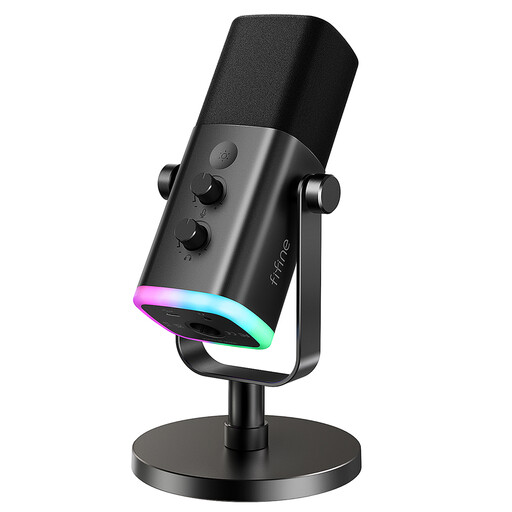
FIFINE AM8 USB/XLR microphone
This dynamic USB/XLR option is suitable for recording voice on a computer. Try to keep it close to you and in a consistent position when recording your greeting.
The product title lists a mute function, headphone socket and desktop stand. According to the product information, the microphone’s function buttons are inactive when using the XLR connection.
View at Joybuy
 No image available
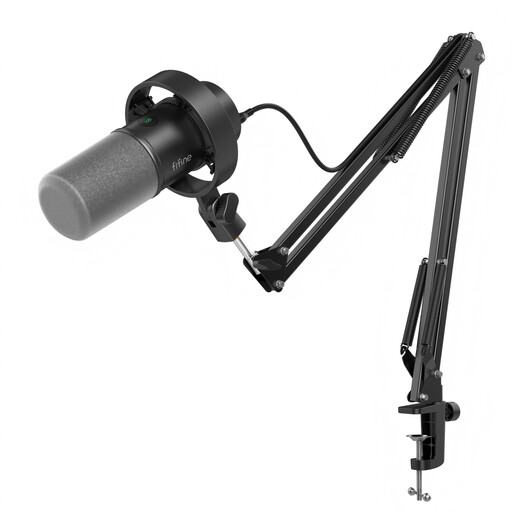
FIFINE K688CT USB/XLR microphone kit
The product title describes this dynamic USB/XLR microphone as suitable for voice-over recording too. Check that the boom arm setup works for your shared desk.
The title lists a mute function, headphone socket and gain control. According to the product information, you’ll need a separate XLR cable, which isn’t included, to use the XLR connection.
View at Joybuy
 No image available
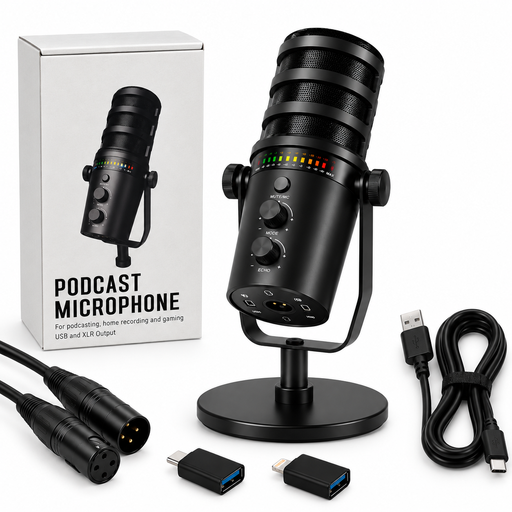
Dynamic USB/XLR microphone with desktop stand
This dynamic USB/XLR model with a desktop stand is an option for recording voice on a computer. Point it towards your speaking position for a test recording.
The product title lists gain control, a mute function, an echo function and RGB lighting.
View at Joybuy
 No image available
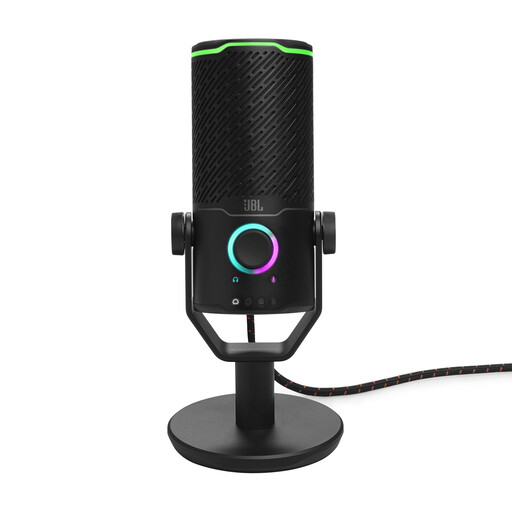
JBL Quantum Stream Studio USB-C
This USB condenser microphone could be an alternative if your space is quiet or you’d prefer to speak from a little further away. Check how it sounds with a test recording.
The product title lists a flexible tube design, a mute function, an LED indicator and a monitoring mode. According to the product information, the cardioid polar pattern is an option you can select, not a fixed setting.
View at Joybuy
 No image available
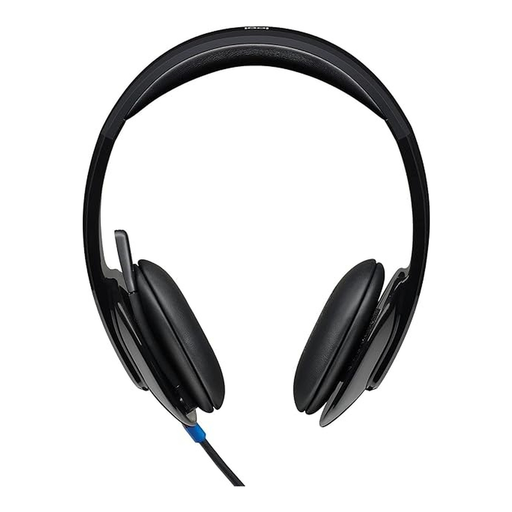
Logitech H540 USB headset with microphone
If a headset suits your recording setup better than a desktop microphone, this model is a USB option for recording on a computer.
The product title lists an adjustable microphone, a mute function, volume control and a mute indicator. It’s a headset with an integrated microphone, not a standalone desktop microphone.
View at Joybuy
Frequently asked questions about phone greetings
Do I need an additional microphone to record my own phone greeting?
Not necessarily. FRITZ! describes how to record your own greetings through the voice menu on the FRITZ!Box 7590. Check whether your specific phone system supports recording directly or uploading an audio file.
What file format and length does my phone system require?
It depends on the model. For the FRITZ!Box 6690 Pro, FRITZ! specifies a maximum length of 60 seconds, plus WAV at a recommended 8000 Hz, 16 bit and mono, or MP3 at a fixed bit rate of 128 kbit/s, 44.1 kHz and stereo. These requirements don’t apply across the board to other phone systems or hold music.
How can I check the recording before uploading it?
Use the loudest part of your script to test the recording level, and check that the sound isn’t clipping. Audacity notes that clipping can’t be undone afterwards. Also listen to the exported file before transferring it to your phone system.
What accessories should I check before buying?
Compare what’s included with the specific model against your workspace and connection. Audio-Technica lists cables and a desktop tripod with the ATR2100x-USB; RØDE describes the PodMic USB as having an integrated swivel mount. Check whether you’ll need an additional stand, arm or suitable cable for your setup.
Can I record other people’s conversations during a test?
Recording your own script is different from recording other people’s conversations. Under § 201 StGB, recording another person’s privately spoken words without authorisation is a criminal offence. So make sure your test recording is focused on your own greeting; this doesn’t determine the outcome in any individual case.


