Collectors with large photo archives
If you want to back up lots of original files at home without using the cloud, allow enough space for your entire collection as well as additional backup copies.


For a large photo archive that you mainly back up at home, an external HDD is probably the better fit. If you regularly transfer files or take the drive with you, an SSD may suit your routine better. The key things to consider are the space needed for all your image files and catalogue, and whether the connection and backup method are compatible. With Lightroom Classic, you’ll need to back up your photos and exports separately from the catalogue file. The Federal Office for Information Security also recommends testing that you can restore your files.
If you want to back up lots of original files at home without using the cloud, allow enough space for your entire collection as well as additional backup copies.
If you regularly add new photos or take the drive between work locations, consider the connection on your computer and the transfer speeds you can actually achieve.
If you manage your images in catalogue software, make sure you can restore both the catalogue information and the associated image files.
A better fit if: Your photo archive stays at home most of the time and you mainly need enough capacity for your original files and additional backup copies.
The trade-off: In its German comparison from July 2026, COMPUTER BILD described HDDs as a capacity-focused option, offering more storage for your money but lower speeds than SSDs. A single drive is no substitute for a backup stored separately and tested.
A better fit if: You regularly copy new photos or take your backup drive with you, and its capacity is right for your collection.
The trade-off: Manufacturers’ high speed ratings only apply when the required connection conditions are met. For the Samsung T9, Samsung specifies a compatible USB 3.2 Gen 2x2 port, a suitable cable and UASP.
For a local photo backup without the cloud, first decide which files you need to back up and how you’ll use the drive.
| What you need | What to check before buying | Who it matters most to |
|---|---|---|
| Space for your photo archive | Work out the size of your original files, edited images and planned backup copies, then compare it with the drive’s capacity. | If I want to store my collection alongside additional backup copies, I need space for all the files; around 36% of consumers prioritise capacity for their complete photo archive. |
| Completeness and recovery | Make a note of where your photos, exports and catalogue are stored, then test restoring a file. | If I want to recover both my images and catalogue after a fault, I check each separately; around 29% of consumers prioritise completeness and recovery. |
| Transfer speed and portability | Check how often and how much you transfer, as well as the USB port and cable. Don’t assume maximum speeds are guaranteed in practice. | If I often transfer new photos between work locations, I need a drive that suits my computer and how I’ll carry it; around 21% of consumers prioritise transfer speed and portability. |
| Local privacy | Depending on how you’ll use the drive, consider encryption and make sure you can access the recovery key securely. | If I take my drive with me or store it separately, I want to control access to my images and keep the key safe; around 14% of consumers prioritise privacy. |
According to Adobe, Lightroom Classic’s built-in backup only includes the catalogue file. You’ll need to save edited photos and exports separately.
In Lightroom Classic, photos and exports aren’t automatically included in the catalogue backup. So the catalogue file alone won’t be enough if you want to recover your images too.
Make a note of where your original files, edited images, exports and catalogue are stored, then check that your backup includes everything you need.
The Federal Office for Information Security points out that it’s impossible to predict exactly how long storage media will last, and recommends keeping backups in a separate location.
Set a practical backup schedule, keep your copy separately and regularly check that you can restore your files.
Advertised maximum speeds aren’t guaranteed on every computer. For the T9, Samsung specifies a compatible USB 3.2 Gen 2x2 host, a suitable cable and UASP as requirements for sequential read and write speeds of up to 2,000 MB/s.
Check the whole connection and decide whether capacity or transfer speed matters more for your backup.
Depending on the method, you’ll need a key or password to access an encrypted backup. Without these recovery details, you may not be able to get to your files.
Keep a record of the method you use and store your recovery details securely, where you can access them in an emergency.
Canvio Advance is a range of external, USB-powered HDDs for portable or home backups.
My Passport is a range of external HDDs. A black 6 TB model was included in the German HDD test.
The Portable SSD T9 is a range of external SSDs. Samsung specifies USB 3.2 Gen 2x2 for the 1 TB model.
XS2000 is a compact USB-C SSD range available in several capacities, including 2 TB and 4 TB.
The 4 TB Game Drive for Xbox is an HDD that you could also consider for storing photos locally.
This selection includes external HDDs for capacity-focused backups and SSDs for compact or portable photo backups. Check that each drive’s capacity and connection requirements suit your collection and computer.
 No image available
This external HDD is a good fit for a local photo backup if 2 TB is enough for your collection and you’re looking for a portable drive.
2 TB; 2.5-inch; USB-C; USB 3.2 Gen 1; exFAT. The product description lists Windows and macOS compatibility and a weight of 131 g.
The drive contains sensitive mechanical components, so avoid knocks and vibration.
 No image available
This desktop HDD is an option if you have a larger photo archive that you mainly back up in one place.
8 TB; 3.5-inch; USB 3.0; NTFS; power supply included.
The power supply is required to use the drive. According to the product description, you’ll need to reformat it to use it with macOS. Avoid knocks and vibration.
 No image available
This portable SSD could suit you if 256 GB is enough for the files you want to back up and you’re looking for a compact drive to take with you.
256 GB; M.2 SATA; USB 3.1; up to 500 MB/s according to the product name.
 No image available
This portable SSD could be a good choice for frequent transfers if its 512 GB capacity is enough for the photos and other files you’ve selected.
512 GB; USB 3.1 Type-C; up to 500 MB/s according to the product name. The description mentions a lightweight, portable casing.
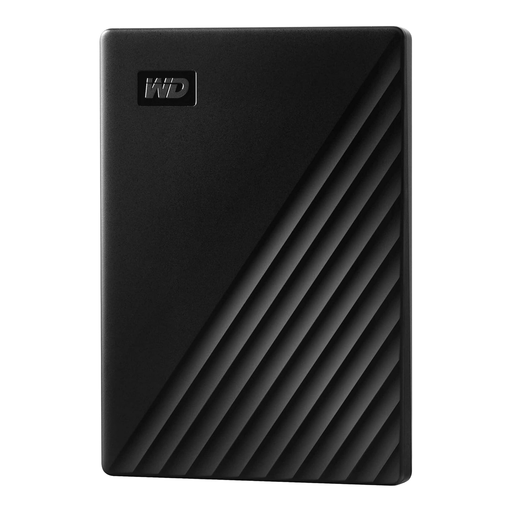 No image available
This portable HDD is an option if you want to back up 2 TB locally and take the drive with you.
2 TB; USB 3.0. The product description lists password protection, 256-bit AES encryption and automatic backup schedules.
No. According to Adobe, the backup created by Lightroom Classic contains the catalogue file. You’ll need to save edited photos and exports separately. Check where your images are stored.
On a Mac, you can use an external drive with Time Machine. In Windows, File History can also back up to an external drive. Check whether photo folders outside the libraries it covers are included, then test restoring a file.
No. The Federal Office for Information Security recommends keeping a backup in a separate location from your PC. Schedule regular backups so that your separately stored copy stays up to date.
You don’t need a cloud subscription for a local backup. Work out how much storage you need and, if necessary, allow for another drive to keep additional copies separately. The total cost depends on the solution you choose.
No. There’s no general requirement to use a particular drive. According to the Federal Commissioner for Data Protection and Freedom of Information, the GDPR doesn’t apply to personal data processed by individuals solely for personal or family activities. The legal position is different if you use the data professionally or outside this context. Either way, encryption can help protect a drive you take with you.