People managing a growing photo archive
If you regularly back up lots of photos, you’ll need enough space and a process that lets you restore files too. The German Federal Office for Information Security (BSI) recommends planning for recovery.


For a larger photo archive that stays mostly in one place, an external HDD is a suitable option if capacity matters more than short transfer times. For frequent transfers on the go, an SSD may be a better fit. CHIP describes 2.5-inch HDDs as suitable when the highest data transfer rates aren’t a priority. Before buying, check the capacity, connections and file systems used by the group’s computers, as well as how a separate backup will be stored and restored. If photos show identifiable people, those responsible should also decide how to protect them during access and transport.
If you regularly back up lots of photos, you’ll need enough space and a process that lets you restore files too. The German Federal Office for Information Security (BSI) recommends planning for recovery.
If you collect image files in different locations, consider the connection and the actual transfer performance on the device you’re using. CHIP notes that HDDs aren’t designed for the highest data transfer rates. SSD manufacturers’ figures also depend on the devices and connection used.
If different computers or several people need access to the backup, make sure the file system, backup process and responsibilities all work together. The BSI recommends checking compatibility, while the Federal Commissioner for Data Protection and Freedom of Information (BfDI) highlights the importance of protecting portable storage devices during transport.
A good fit if: Your archive is large, you usually back it up in one place and capacity matters more than short transfer times.
The trade-off: Less suited to frequent transfers on the go. A single drive is no substitute for a backup and recovery plan.
A good fit if: You often transfer photos between devices or take the drive to events, and shorter transfer times matter to you.
The trade-off: Actual speed also depends on the host device, cable and connection, so compare the specific model with your capacity needs.
| What you need | What to look for | Who is it most relevant to? |
|---|---|---|
| Space for your archive and backups | Check the size of your existing archive and how many backup versions you plan to keep; check the usable capacity of the specific model. | As our photo collection grows, I want room for more backup versions too. Around 33% of consumers put sufficient capacity first when choosing local group storage. |
| Protection and recovery | Plan access controls, key management and a separate storage location; test that files can be restored. | If photos identify people, I want to organise access protection and recovery together. Around 27% of consumers prioritise protecting their photos and ensuring they can be restored. |
| Access across several devices | Test connections and cables, supported devices, file systems and backup processes on the group’s computers. | If we use the drive with different computers, I want to know that the backup can be read and restored on each one. Around 20% of consumers put compatibility with several devices first. |
| Transfer speed on the go | Consider how often and how much you transfer, as well as the host connection and cable. | If we collect photos on the go, I don’t want to spend longer than necessary waiting for large transfers. Around 20% of consumers prioritise speed for mobile transfers. |
If your only accessible copy fails or is deleted, a larger drive won’t automatically protect your photos. The BSI also points out that simply mirroring data won’t protect you from every deletion or malware attack.
Keep originals and backup versions separate, store an additional copy elsewhere, and regularly check that you can restore your files.
A separate copy and regular recovery tests require extra storage space and time.
An SSD’s stated maximum speed depends on using compatible devices and connections. For example, Samsung’s top speeds for the T7 Shield require a suitable host device and cable.
Check the connections and cables you already have. If you transfer files infrequently and don’t need them to be ready quickly, an HDD could also be suitable.
Depending on your current setup, you may need a compatible cable or host connection.
A drive may connect successfully without all the group’s computers or backup software being able to read the files as needed. You’ll also need to consider the file system and backup process.
Before using the drive regularly, test a small backup and restore it using the devices you actually use. The BSI recommends checking for compatibility issues before backing up.
Allow time for formatting, checking software compatibility and testing recovery.
The Canvio Flex range may suit groups switching between compatible devices with USB-A and USB-C.
The T7 Shield is a portable SSD option for more frequent transfers, provided your connection meets the required specifications.
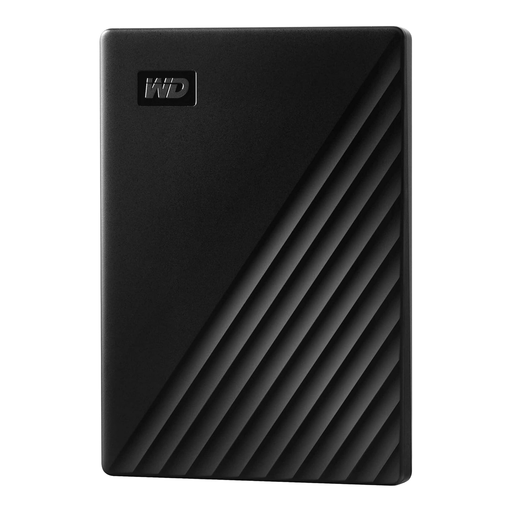
The My Passport is a portable HDD option. The specific manufacturer information cited here is for the black 4-TB model WDBPKJ0040BBK-WESN.
Expansion Portable is another USB HDD range for storing and backing up files locally.
The X9 is an SSD alternative for frequent transfers. The specific model described here has the model number CT2000X9SSD9.
The drives below include HDD options for larger photo archives and SSD options for more frequent transfers.
 No image available
A portable HDD option for a larger local photo archive and backups.
The product details list 5 TB, USB-C and USB 3.2 Gen 1. Check that the connection and file system work with the group’s devices.
 No image available
A desktop HDD option for a large photo archive that stays mostly in one place.
The product details list 8 TB, USB 3.0 and an included power adapter. Consider where the drive will be set up and check compatibility with the group’s computers.
 No image available
A portable HDD option for groups looking for a mobile drive to store and back up files.
The product details list 2 TB and USB 3.0. Before using it regularly, check that the backup process and recovery work on the devices involved.
 No image available
An SSD option for groups that transfer photos frequently and need a portable drive.
The product name lists 2 TB and USB Type-C 3.2 Gen 2. Actual transfer speeds also depend on the host device and connection.
 No image available
A portable SSD option for a larger archive when your group also transfers files frequently.
The product name lists 4 TB and USB Type-C 3.2 Gen 2. Check the host device and connection before expecting a particular transfer speed.
Also decide where you’ll keep a separate copy, and regularly check that you can restore your files. The BSI recommends planning for recovery; no particular drive brand can replace this process.
It depends on the drive, how it’s formatted and the backup software you use. Test both reading the photos and restoring them on the devices you actually use. Reformatting may erase the data already on the drive.
If people are identifiable in the photos and the group processes personal data, those responsible must put appropriate technical and organisational measures in place, based on the level of risk. The BfDI highlights encryption as an important measure, particularly when transporting portable storage devices. You should also decide who can access the files and how encryption keys will be managed.
Check whether the specific model includes the cables and backup software you need, and read the warranty terms. Allow time for regular backups and recovery tests too; a product description doesn’t guarantee that your data can be recovered.