Start by planning the usable capacity you need for your catalogue, original photos and project folders, as well as a separate backup that you can restore from. The German Federal Office for Information Security points out that RAID mirroring is not a backup. Two drive bays may be enough if they can accommodate your planned capacity and future growth. For growing archives or frequent large transfers, also consider expansion options and the entire network path.
Who is a photo-backup NAS for?
Photographers with irreplaceable archives
If you want to be able to recover your photos, catalogue information and project files after data loss, think of a NAS as one part of a backup plan. The German Federal Office for Information Security recommends planning for recovery, too.
Photographers with growing RAW archives
With large project folders, usable capacity, the number of drive bays and future expansion options all become important factors. QNAP and Synology point out that the actual usable capacity depends on the drives and configuration.
Teams that transfer files frequently
If you regularly share large folders over your local network, consider the entire transfer path. The ports on the NAS alone don’t tell you how fast your own workflow will be.
What should you look for when choosing one?
For a photo archive with large project folders, consider recoverability, usable storage, the transfer path and the additional components required for your complete setup separately.
Two drive bays
A good fit if: two compatible drives can provide enough usable capacity for your planned needs and future projects.
Consider: Usable capacity depends on the drives and configuration, and may be lower than their combined raw capacity.
A NAS with more drive bays
A good fit if: your archive is growing and a two-bay device can no longer provide the capacity you need.
Consider: Extra bays allow for more drive configurations, but don’t replace an independent backup.
| Priority |
What to check before you buy |
Who it matters most to |
| Recoverable backup |
Plan for a separate backup destination, file versions and a recovery test covering your catalogue, original photos and project folders. |
If I want to retrieve important files after accidentally deleting them or another kind of data loss, I need more than mirroring. Around 36% of consumers prioritise recovery. |
| Usable capacity and growth |
Work out the size of your current archive, its expected growth and the space needed for older file versions; then check the usable capacity of your planned configuration. |
If I’m adding large RAW files and new project folders, I want to plan for future storage needs, too. Around 29% of consumers prioritise capacity and growth. |
| Transferring large folders |
Consider the ports on your NAS, computer and switch, along with the rest of your network path and how often you transfer large files. |
If I regularly move large folders, I want the whole connection to suit my workflow. Around 21% of consumers prioritise fast file transfers. |
| A complete setup |
Plan for the contents of the box, the compatible drives you’ll need and a separate backup destination. |
If I’m choosing a NAS enclosure, I want to know which additional components I’ll need for my storage and backup plan. Around 14% of consumers prioritise a complete setup. |
Common NAS backup mistakes
-
Assuming mirrored drives are two independent backups
With mirroring, changes are applied to both drives at the same time. This means accidental overwriting or malware can affect the mirrored data, too.
Plan a separate backup and check that you can actually restore the files you need.
An additional backup destination needs its own storage space, and must be set up and checked regularly.
-
Backing up only the Lightroom Classic catalogue file
According to Adobe, the catalogue backup created by Lightroom Classic doesn’t automatically include the image files.
Back up your original photos, edited images, exports and any essential project folders separately from the catalogue.
Make sure your backup plan includes space for these additional files.
-
Planning only for raw capacity or an empty enclosure
Actual usable capacity depends on the drives and configuration. According to QNAP, the QNAP TS-264-8G is supplied without an HDD.
Check the usable capacity of your planned configuration and what’s included with the specific model.
Include compatible drives and independent backup media as additional parts of your setup.
-
Assuming the NAS port guarantees a particular copying speed
Transfer speeds depend on more than just the NAS port. Manufacturer figures may be based on optimised test conditions.
Check your NAS, computer, switch and the rest of your network path, and consider how often you actually transfer large folders.
Depending on your existing setup, you may need to make changes to your computer or network.
Key brands to consider
Synology
DiskStation models offer a useful reference point when choosing based on archive size and the number of drive bays.
- Synology lists file versioning and a 2.5GbE port for the DS225+.
- Usable capacity and drive compatibility depend on the drives and configuration; quoted transfer rates won’t apply to every setup.
QNAP
The TS-264-8G is a two-bay model; check its networking features and drive options.
- QNAP lists two SATA drive bays, two M.2 slots and two 2.5GbE ports for the TS-264-8G.
- According to QNAP, the TS-264-8G is supplied without an HDD; these specifications don’t automatically apply to other QNAP models.
TerraMaster
The F2-425 is a two-bay model, and its specific features should be checked against your intended workflow.
- TerraMaster lists 4 GB of memory and a 2.5GbE port for the F2-425.
- These specifications apply to the F2-425 and not automatically to the separate F2-425 Plus model.
ASUSTOR
The AS5402T is an option to consider if networking features matter for frequent file transfers.
- ASUSTOR lists two 2.5GbE ports and SMB Multichannel for the AS5402T.
- Published transfer figures come from optimised manufacturer tests and shouldn’t be taken as the speed you’ll get on your own network.
Seagate
IronWolf is a range of NAS hard drives that may be suitable for a compatible enclosure.
- The Seagate datasheet describes the IronWolf models listed as CMR drives for NAS environments.
- Check the capacity, model number, compatibility and specific service terms for the drive you’re considering.
Joybuy products for photo archives
This selection includes NAS enclosures with two, four or eight drive bays, as well as separate Synology HAT hard drives. Check that the drives are compatible with your specific NAS model.
 No image available
Synology DiskStation DS925+ 4-Bay NAS
An option to consider if you need a NAS with four drive bays and network ports for large file transfers.
Four drive bays, expandable to up to nine; two 2.5GbE ports and M.2 NVMe SSD cache, according to the product name.
Joybuy
 No image available
Synology DiskStation DS1825+ 8-Bay NAS
An option to consider if your growing archive calls for a NAS with eight drive bays and expansion options.
Eight drive bays, two 2.5GbE ports and an optional 10GbE upgrade, according to the product name.
Joybuy
 No image available
Synology DS225+ 2-Bay NAS
An option to consider if your planned archive fits a two-bay configuration and you’re choosing an NAS enclosure without drives.
Intel Celeron J4125, 2 GB DDR4 RAM (expandable to 6 GB), 2.5GbE and Gigabit LAN; RAID 0, RAID 1 and JBOD, according to the product name.
Joybuy
 No image available
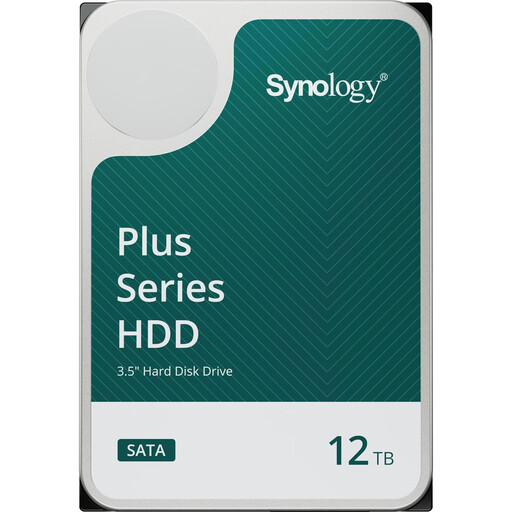
Synology HAT3310-12T 12 TB NAS hard drive
Designed as a separate storage drive for a compatible Synology NAS; check the model number and compatibility before you buy.
12 TB, 3.5-inch, SATA III, 7200 RPM and CMR, according to the product name.
Joybuy
 No image available
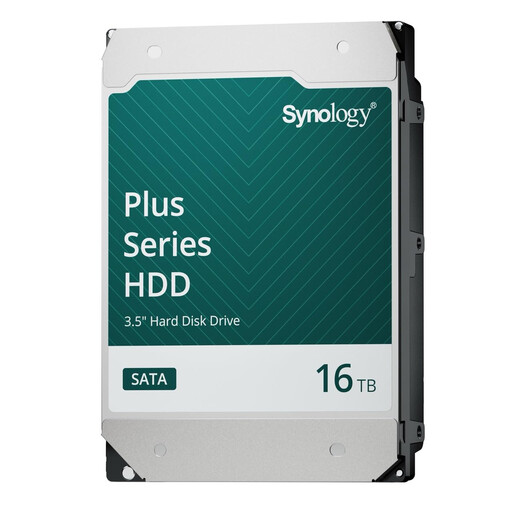
Synology HAT3310-16T 16 TB NAS hard drive
Designed as a separate storage drive for a compatible Synology NAS; check the model number and compatibility before you buy.
16 TB, 3.5-inch, SATA at 6 Gb/s, 7200 RPM and CMR, according to the product name.
Joybuy
Frequently asked questions
Is RAID 1 enough to back up my photo archive?
No. The German Federal Office for Information Security explicitly distinguishes data mirroring from a data backup, because changes are applied to the mirrored data at the same time. Plan a separate copy and check that you can restore the files you need.
Does Lightroom Classic back up my photos as well?
Not if you mean the Lightroom Classic catalogue backup: according to Adobe, it contains only the catalogue file. Edited photos and exports need to be backed up separately; include any relevant project folders in your backup plan, too.
What else do I need with an empty NAS enclosure?
According to QNAP, the TS-264-8G doesn’t include any HDDs. Before installing drives, check that the specific models are compatible and plan for a separate destination for an independent backup.
Does a 2.5GbE port guarantee fast transfers of large project folders?
No. The port specification alone doesn’t guarantee a particular transfer speed. ASUSTOR notes that its published figures are measured under optimised test conditions, so check your computer, switch and the rest of your network path as well.


