Which drive is right for you?

Back up your photos reliably

If you want to restore photos after a fault, accidental deletion or losing your work computer, check which folders and versions your backup method captures. Germany’s Federal Office for Information Security explains why an additional copy should be stored separately in case the storage location is damaged.

Manage a growing photo archive

As your photo and project folders grow, make sure the available capacity suits your collection and the backup versions you want to keep. Toshiba lists 1, 2 and 4 TB options in its Canvio Basics range.

Take your backups with you

If you often move your drive and work computer between locations, check that the ports and cables suit your devices and that any stated protective features are relevant to how you’ll transport it. CHIP describes portable HDDs as an option for mobile backups when especially fast access times are not a priority.

What should you look for when buying?

Portable HDD

A good fit if: You want to back up large photo folders and fast transfer times are not your top priority.

The trade-off: CHIP notes that portable HDDs are less focused on high data rates and fast access times.

Portable SSD

A good fit if: You often transfer large photo folders or regularly take the drive with you, and your computer and cable support the connection you need.

The trade-off: Stated maximum speeds depend on the host device and connection. An SSD on its own is not a complete backup plan.

Priority What to check before buying Who is this most relevant to?
Restorable backup Check that the backup captures your folders and versions, and test restoring files. If I need to recover my photo and project folders, my backup method must capture them and allow me to restore them. Around 31% of consumers put recoverability first.
Space for your archive and versions Check how much storage the relevant folders use, and allow for growth and backup versions. As my photo archive grows, I want to allow enough usable space for my collection and the versions I plan to keep. Around 25% of consumers put capacity first.
Protection in transit Check the protection claims and warranty exclusions for the specific model, as well as how you plan to transport it. If I take the drive with me often, I consider its design and the protection features specified for my intended use. Around 19% of consumers put protection in transit first.
Compatibility Check that the connection, cable, operating system, file system and backup method work with your devices. If I want to back up reliably using my existing computers, the chosen method must work with the device and file system. Around 13% of consumers put device compatibility first.
Transfer time Check the USB modes supported by the drive, computer and cable. Manufacturers’ maximum speeds apply under the conditions they specify. When I regularly transfer large files, I want to know whether the connection at my workstation supports the transfer speeds I need. Around 12% of consumers put transfer time first.

Common mistakes with photo backups

  • Confusing storage space with a tested backup

    A drive does not automatically decide which folders get backed up. Without testing a restore, you may not realise that a copy is incomplete or unreadable.

    Choose the folders you want to back up and how often, test restoring them, and keep an additional copy separately in a way that suits your risk of data loss.

    Setting up a routine, regularly testing restores and keeping separate copies all take time and may require additional storage.

  • Assuming your computer will reach an SSD’s advertised maximum speed

    Manufacturers’ figures depend on the host device, cable and test conditions. CHIP also notes that portable HDDs can work for mobile backups when high data rates are not essential.

    Check your devices’ ports and how often you transfer large photo folders before choosing the connection you need.

  • Setting up a Windows-preformatted HDD for Time Machine without checking first

    According to Apple, a volume formatted for Windows cannot be used directly as a Time Machine destination. If you need to reformat it, any existing data on that volume will be erased.

    Back up any existing files elsewhere and check Apple’s requirements for your chosen backup volume before formatting it.

    Without another copy, formatting could erase existing data on the drive.

  • Assuming an IP rating protects you against data loss

    Protection ratings apply under the conditions specified for the particular model. They do not mean that your only copy is safe from every kind of damage. Samsung excludes liquid and dust damage from the T7 Shield warranty.

    Check the terms for the exact model and keep another backup, regardless of the protection offered by its casing.

Key brands at a glance

Toshiba

The Canvio Basics range is a portable HDD option, with a choice of capacities and connections.

  • Toshiba lists 1, 2 and 4 TB options, USB-powered operation and a USB-C cable.
  • According to Toshiba, the range is designed for Windows. Reformatting is required for the macOS versions listed. Check that you have backed up any existing data first.

Samsung

The Portable SSD T7 Shield is one example of an SSD with a stated level of casing protection for transport.

  • For the 2 TB MU-PE2T0S/EU model, Samsung lists an IP65 rating and speeds of up to 1,050 MB/s for reading and 1,000 MB/s for writing under the specified connection conditions.
  • Samsung excludes liquid and dust damage from the warranty. The protection rating is not a guarantee against every kind of data loss.

Crucial

The X9 Pro is a portable SSD option for photo workflows.

  • Crucial lists an IP55 rating and speeds of up to 1,050 MB/s for the X9 Pro under its own test conditions.
  • Compatibility and achievable performance may depend on the format and host device. The model should not be submerged.

SanDisk

The Extreme Portable SSD is an SSD option for which the exact model number and version matter.

  • For the SDSSDE61-1T00-G25 variant, SanDisk lists 1 TB, USB 3.2 Gen 2 and sequential read speeds of up to 1,050 MB/s.
  • These specifications apply to the stated variant. They do not establish the features of other Extreme models or the reliability of a single backup copy.

Seagate

The Ultra Compact SSD 2TB is an SSD option. Check the connection and exact model number before buying.

  • CHIP includes this model in a German SSD selection.
  • An assessment of one model does not show that other Seagate products have the same features.

Joybuy products for local photo backups

The Joybuy models below include portable SSDs and an external HDD for local photo and file backups.

Samsung Portable SSD T7 1 TB, USB Type-C 3.2 Gen 2, Grey

Samsung Portable SSD T7 1 TB, USB Type-C 3.2 Gen 2, Grey

A portable SSD option for storing photos and files locally. Check that the connection suits your computer and backup routine.

View at Joybuy

KIOXIA Exceria Plus G2 Portable SSD 2 TB

KIOXIA Exceria Plus G2 Portable SSD 2 TB

This portable SSD is an option for a photo archive you want to store locally and take with you. Compatibility may depend on your host device’s capabilities.

View at Joybuy
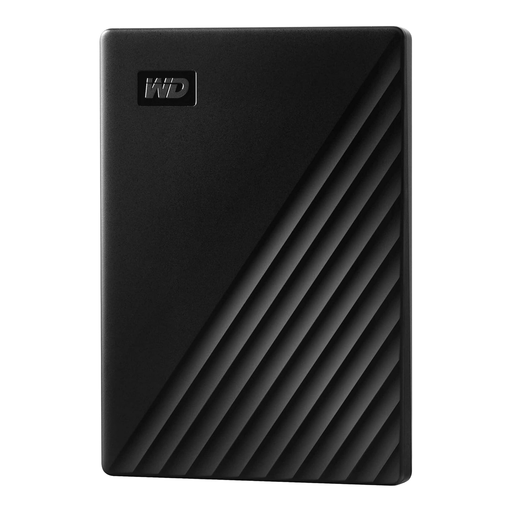
WD My Passport external HDD 2 TB

WD My Passport external HDD 2 TB

This portable HDD is the HDD option in this selection. Check that your backup method actually captures the photo folders you want to include.

View at Joybuy

MOVESPEED Portable SSD 1 TB, model YSPSRX20M-1TTG

MOVESPEED Portable SSD 1 TB, YSPSRX20M-1TTG

A portable SSD for storing photos and files locally. According to the product description, achieving the stated maximum speeds requires compatible interfaces and cables.

View at Joybuy

Samsung Portable SSD T7 2 TB, USB Type-C 3.2 Gen 2, Titanium Grey

Samsung Portable SSD T7 2 TB, USB Type-C 3.2 Gen 2, Titanium Grey

This portable SSD is an option for a larger photo archive you want to store locally. Check that the connection and cable work with your computer.

View at Joybuy

Frequently asked questions

Is it enough to copy your photos to an external drive once?

For a backup routine you can rely on, regularly include the folders you want to protect and test restoring files. If you also want to protect against damage to the storage location, keep a copy somewhere else. Germany’s Federal Office for Information Security specifically describes these risks.

Can I use a Windows-formatted hard drive directly with Time Machine?

No. According to Apple, a volume formatted for Windows cannot be used directly as a Time Machine destination. Apple recommends APFS or APFS (Encrypted); if you need to reformat the volume, any existing data on it will be erased. Check the format before setting up a drive you already use.

Does Windows File History back up photo folders outside your libraries?

According to Microsoft, folders in other locations must be added to an existing or new library if you want them backed up using File History. Then check that you can restore files from them.

Is a manufacturer’s warranty the same as your statutory consumer rights?

No. When you buy from a trader in the EU as a consumer, you have at least two years of statutory rights against the seller for faulty goods, starting from the date you receive them, as Your Europe explains. An additional manufacturer’s warranty does not replace or shorten these rights; check its separate terms and conditions.

Does the GDPR require a particular drive for every personal photo backup?

The official summary of the General Data Protection Regulation on EUR-Lex does not set a general requirement to use a particular drive. Data protection obligations may apply when personal data is processed for purposes beyond purely personal use. Whether they apply to a particular use of photos depends on the circumstances.