For a photo archive that’s mostly kept in one place, an external HDD is often a good choice if capacity matters more than speed. If you regularly carry your drive around or transfer large files, an SSD may suit your routine better. A backup you can restore from also needs another separate copy, and you should test that you can recover your files. Before setting everything up, check the connection, file system and backup method too, as reformatting can erase existing data.
Which option is right for you?
Collectors with large photo archives
If you keep lots of photos at home and want to allow for future backups, capacity and separate copies matter more than top speed. The German Federal Office for Information Security points out that keeping a backup away from home can help protect it from damage at the storage location.
Photographers on the go
If you regularly transfer large quantities of photos or videos and take your drive with you, portability and compatible device connections are important. SSD models may be worth considering for frequent transfers; actual speeds also depend on the connection and host device.
People using multiple devices
If you want to back up photos from a Windows PC, Mac or other devices, check that the connections, file system and backup method are compatible with them. Apple and Microsoft outline different local backup methods and requirements.
What should you consider when choosing?
First, decide how you’d want to restore your photos if something went wrong. This will help you work out how much storage you need, whether a drive is suitable for your devices, and whether an HDD or SSD fits your everyday needs.
| What matters |
What to check before buying |
Who is this important to? |
| Restoring your files |
Plan for separate copies and regularly check that you can open or restore your photos. The German Federal Office for Information Security recommends keeping backups separate from the originals. |
If I want to recover photos after a fault, accidental deletion or damage, I need more than a single drive. Around 33% of consumers put the ability to restore files first. |
| Space for your archive |
Work out the size of the folders you want to back up and allow room for them to grow. For a Time Machine backup of an entire Mac, Apple recommends at least twice the Mac’s storage capacity; this is not a general minimum size for individual photo folders. |
As my collection grows, I want enough space for my existing photos and additional backups. Around 27% of consumers put archive capacity first. |
| Device compatibility |
Check the connectors, file system and backup software. Apple notes that reformatting erases existing data; Microsoft describes File History with an external drive as the destination. |
If I want to back up photos from my devices without the cloud, the local process needs to work with them. Around 20% of consumers prioritise device compatibility. |
| On-the-go transfers |
Compare the specific SSD model and its connection with your devices. Manufacturers’ peak figures aren’t a guarantee for every transfer; for backups that stay mostly in one place, capacity and an additional copy may matter more. heise Medien describes HDDs as slower than SSDs for backups. |
If I often back up files on the go or transfer large files, portability and a speedy workflow matter more. Around 20% of consumers put on-the-go transfers first. |
Common photo backup mistakes
-
Moving photos to an external drive and treating that as a backup
After you move them, you still only have one copy. If the originals and the drive are in the same place, both could be affected by damage.
Keep another copy in a separate location and regularly test that you can restore your photos from it.
-
Focusing only on peak SSD speeds for an occasional home backup
For infrequent backups, having enough storage may matter more than a high transfer speed. Advertised maximum speeds also depend on the device and transfer conditions.
Start by comparing the amount of data, how often you back it up and how many copies you’ll keep. An SSD is worth considering if you regularly transfer large files or need to use it on the go.
-
Confusing Windows Backup with a local drive backup
Microsoft describes backing up folders in the Windows Backup app as syncing selected folders with OneDrive. This isn’t a strictly cloud-free setup.
Choose a method that uses an external drive, such as File History, and check which folders it includes after a test run.
-
Formatting an existing drive for Time Machine without backing up its files
Reformatting can erase files already stored on the affected volume.
Check the file system and the drive’s contents before setting it up. Copy any existing files to another location before changing the volume.
Brands to consider
Toshiba
Canvio Basics is a portable HDD range for local backups where storage space is the priority. Toshiba offers the range in a 4-TB version, among others.
- According to Toshiba, the range works with Windows without additional installation and is powered via USB.
- This doesn’t mean a backup is set up automatically. Check Time Machine compatibility and whether reformatting is needed beforehand.
Seagate
Expansion Portable is another portable HDD option. A Seagate data sheet lists the 4-TB version as STKM4000400.
- According to this data sheet, a USB cable is all the drive needs for power.
- The data sheet says reformatting is required for Time Machine. It refers to an older product generation, so check the details of other versions separately.
Samsung
The Portable SSD T7 Shield MU-PE2T0S/EU is a 2-TB SSD for frequent travel and larger transfers.
- For this specific version, Samsung lists IP65, USB-C-to-C and USB-C-to-A cables, and sequential peak speeds of up to 1,050 MB/s read and 1,000 MB/s write.
- These are manufacturer figures, not results guaranteed for every device or transfer. They don’t automatically apply to other T7 models.
Crucial
The X9 Portable SSD CT2000X9SSD9 is a 2-TB SSD for local files and transfers.
- For this version, Crucial lists sequential read speeds of up to 1,050 MB/s as the maximum under defined test conditions.
- According to Crucial, compatibility depends on formatting and host features. On Android, USB mass storage via OTG is required.
Joybuy products for local photo backups
This selection includes external HDDs for photo archives kept at home or taken on the go, as well as portable SSDs for more frequent transfers. A single drive doesn’t replace a separate additional backup.
 No image available
WD Elements Portable 5TB
A portable HDD for a larger photo archive, if you’re planning local backups with an additional copy.
5 TB; USB-C connection.
Important files shouldn’t be stored exclusively on this drive.
View at Joybuy
 No image available
WD Elements Portable 2TB
A portable HDD for storing photos locally, if you want to use the drive with Windows and macOS.
2 TB; USB-C; USB 3.2 Gen 1; pre-formatted exFAT.
Plan an additional backup for important files.
View at Joybuy
 No image available
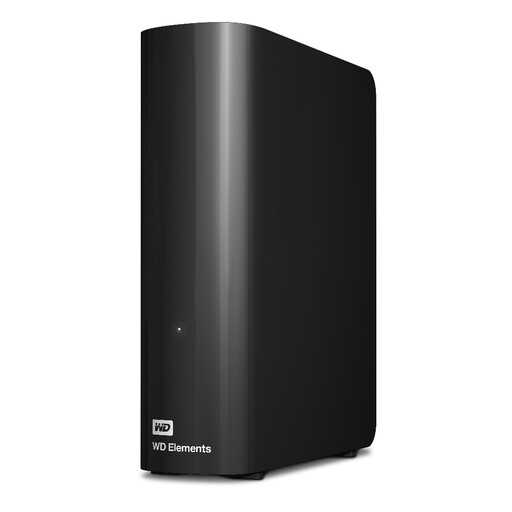
WD Elements Desktop 20TB
A desktop drive for a large photo archive and backups that are kept mostly in one place.
20 TB; USB 3.2 Gen 1.
This desktop model isn’t as convenient to take on the go as a portable drive.
View at Joybuy
 No image available
Samsung Portable SSD T7 2TB, Titanium Grey
A portable SSD for frequent file transfers, if it’s compatible with your specific device connection.
2 TB; USB Type-C 3.2 Gen 2.
Actual transfer speeds also depend on the host and connection you use.
View at Joybuy
 No image available
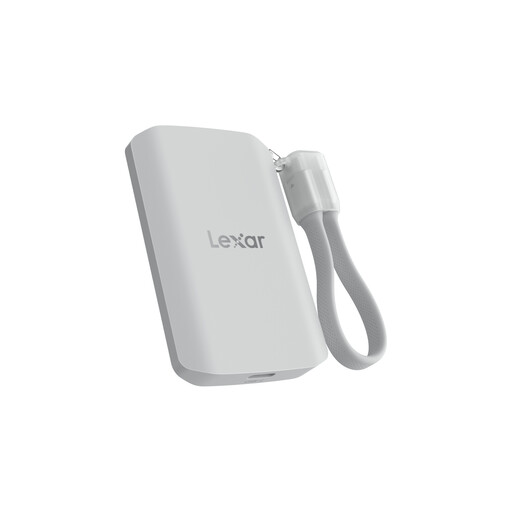
Lexar ES5 Portable SSD 1TB
A portable SSD for storing photos on the go and frequent transfers, provided your devices support the required connection.
1 TB; USB 3.2 Gen 2x2; the product title lists speeds of up to 2,000 MB/s for reading and writing, as well as IP65.
According to the product description, performance may be lower on systems without USB 3.2 Gen 2x2. IP65 doesn’t mean the drive can be submerged in water.
View at Joybuy
Frequently asked questions
How do I back up photos locally on Windows instead of using OneDrive?
Microsoft describes File History as using an external drive as the backup destination. By contrast, backing up folders in the Windows Backup app syncs selected folders with OneDrive. Also check that File History includes your photo folders.
Can I use a Windows-formatted drive as it is for Time Machine?
A volume formatted for Windows won’t necessarily work as a Time Machine destination without changes. Apple recommends APFS or APFS (Encrypted); reformatting erases existing data on the affected volume. So copy those files elsewhere before changing the drive.
Can I use the same external drive for a Mac photo library and a Time Machine backup?
Apple advises against backing up a photo library stored on an external drive to Time Machine on that same device. Also check whether the library refers to files stored outside it, as a copy of the library alone won’t include those files.
How much storage should I get for my photos?
Use the size of the folders you want to back up as a guide, and allow room for future photos. If you’re backing up your entire Mac with Time Machine, Apple recommends a backup device with at least twice the Mac’s storage capacity; this isn’t a general minimum size for individual photo folders.


