Who this guide is for

Studio team with a growing photo archive

If you regularly back up large photo collections, plan your storage needs, the backup versions you want to keep and how you will restore them together. The German Federal Office for Information Security and the German CHIP comparison guide offer useful advice and points to compare.

Team handling confidential client photos

If photos show identifiable people and backup media are kept or transported in a shared space, your team should restrict access in line with the specific risks. The Federal Commissioner for Data Protection and Freedom of Information and the European Commission explain key aspects of encryption and personal data.

Photo team working across several computers

If you switch between workstations or operating systems, make sure the connections, file system and intended backup method work together. Toshiba Storage and Apple Support explain the different requirements for copying files directly and using Time Machine.

What to look for when buying

External HDD

A good fit if: you need to back up lots of photos and copying speed is not a priority.

The trade-off: The German CHIP comparison guide rates HDDs as slower and more vulnerable to knocks than SSDs.

External SSD

A good fit if: you regularly transfer large files between workstations or want to spend less time copying files.

The trade-off: According to the German CHIP comparison guide, SSDs typically cost more than HDDs for the same amount of storage. Manufacturers’ speed figures also depend on the connection and test conditions.

What matters What to check before buying Who should pay particular attention
A restorable copy Decide on your backup process, which versions to keep and where to store a separate copy. If I want to be able to restore files after a loss, rather than just have a copy, I look at the whole backup process. Around 31% of consumers prioritise being able to restore their data.
Confidential photos Plan access permissions, encryption and how authorised people will access files if they need to be restored. If other people can access the studio or computer, I want to restrict access to identifiable client photos in line with the risks. Around 25% of consumers prioritise protection against unauthorised access.
Space for a growing collection Consider how much data you already have, how much it is likely to grow and how many backup versions you need. As new projects grow my photo archive, the drive needs room for the files I’m working on and the backup versions I plan to keep. Around 25% of consumers put having enough storage first.
Switching computers and copying speed Check the USB connection, included cables, file system and backup software on the computers you use. If I copy files across several workstations, the connections and format need to suit each computer and backup method. Around 19% of consumers focus on switching computers or reducing transfer times.

Common pitfalls

  • Relying on a single drive as your entire backup strategy

    The same incident could damage both your original files and your backup. A copy is only useful if you can actually restore the data from it.

    Plan to keep another copy separately and check the restore process regularly. The German Federal Office for Information Security recommends making sure that data can be restored.

    Keeping another copy separately may mean buying an extra storage device and spending more time on backups and restores.

  • Assuming exFAT is suitable for Time Machine

    A drive that lets you copy files directly between supported Mac and Windows computers does not automatically meet Time Machine’s formatting requirements. Reformatting it may erase files already stored on the drive.

    Choose your backup method before saving files to the drive. If you need to reformat it, copy any existing files elsewhere first. Apple recommends APFS or encrypted APFS for Time Machine volumes.

    If you need to reformat the drive, you could lose any files already saved on it.

  • Assuming an IP rating or SSD design prevents every kind of data loss

    A durability rating is no substitute for another backup. Samsung says the T7 Shield’s IP65 rating was tested under controlled conditions, and excludes liquid and dust damage from its warranty.

    Think of durability as a potential benefit when transporting the drive, and plan to keep another copy regardless.

  • Expecting the advertised top speed on every computer

    Crucial says the X9 Pro range’s highest stated speeds require a compatible USB host and cable. Actual performance may vary.

    Check that the connection standard and cable are compatible with the specific SSD version and the computers you use.

Brands and suitable product ranges

Toshiba

Canvio Basics is a straightforward USB-powered HDD range. Canvio Flex is designed for copying files directly between supported Mac and Windows devices.

  • Toshiba offers Canvio Basics models with capacities of up to 4 TB. The drives are formatted as NTFS for Windows; they need to be reformatted for macOS.
  • Toshiba specifies exFAT and includes USB-A and USB-C cables with Canvio Flex.
  • Copying files directly on a supported system does not mean the drive is suitable as a Time Machine volume.

Western Digital

The mobile My Passport model mentioned here offers 5 TB of storage for larger photo collections.

  • Western Digital lists a capacity of 5 TB and included backup software for model WDBPKJ0050BBK-WESN.
  • The manufacturer’s claim that the software offers ransomware protection does not mean that a single backup left permanently connected is safe from every attack. You still need to plan how to back up and restore your files.

Samsung

The Portable SSD T7 Shield is a portable SSD option for frequent plugging and unplugging and file transfers.

  • Samsung describes the 2 TB MU-PE2T0S/EU as a USB 3.2 Gen 2 SSD and gives it an IP65 rating tested under controlled conditions.
  • Samsung excludes liquid and dust damage from its warranty. The rating is no substitute for an additional backup.

Crucial

According to the manufacturer, the X9 Pro range is also designed for photo workflows involving frequent file transfers.

  • Crucial quotes sequential speeds of up to 1.050 MB/s, measured under test conditions. The highest speeds require a compatible USB 3.2 Gen 2 host.
  • Check the exact model and its features before choosing. Details for the X9 Pro and X9 Pro for Mac are not necessarily interchangeable.

Intenso

The SSD Premium is a portable SSD range for copying files. Intenso offers, among other options, a black 1 TB model.

  • Intenso gives the black 1 TB model the article number 3823461 and lists maximum speeds of 500 MB/s over USB 3.2 Gen 1×1 for the range.
  • The speed quoted is a manufacturer’s maximum, not proof of backup reliability. Check the details of the specific model.

Joybuy products for local photo backups

The external HDDs below are options for keeping local photo copies. Choose a capacity and form factor to suit your archive and where you plan to use the drive.

WD Elements Portable 5TB USB-C

WD Elements Portable 5TB USB-C

A portable HDD for teams looking to make local copies of larger photo collections.

5 TB; USB-C; USB 3.2 Gen 1.

The product description lists compatibility with Windows and Mac.

View at Joybuy
WD Elements Portable 4TB USB-C

WD Elements Portable 4TB USB-C

A portable HDD for local photo and file backups, if 4 TB is enough for your planned collection.

4 TB; USB-C; USB 3.2 Gen 1.

The product description lists compatibility with Windows and Mac computers.

View at Joybuy

WD Elements 2TB Portable External Hard Drive, USB-C, USB 3.2 Gen 1, 2.5 inches, exFAT, Black

WD Elements 2TB Portable External Hard Drive, USB-C, USB 3.2 Gen 1, 2.5", exFAT, Black

A portable HDD for copying files directly and backing up photos, if 2 TB is enough for your needs.

2 TB; USB-C; USB 3.2 Gen 1; exFAT; 2.5 inches.

The product description lists compatibility with Windows and macOS computers.

View at Joybuy

WD Elements 8TB Desktop External Hard Drive, USB 3.0, Black

WD Elements 8TB Desktop External Hard Drive, USB 3.0, Black

A desktop HDD for a large local archive, kept in a fixed spot in the studio.

8 TB; USB 3.0; external power supply included.

The drive needs to be connected to the power supply while in use.

View at Joybuy
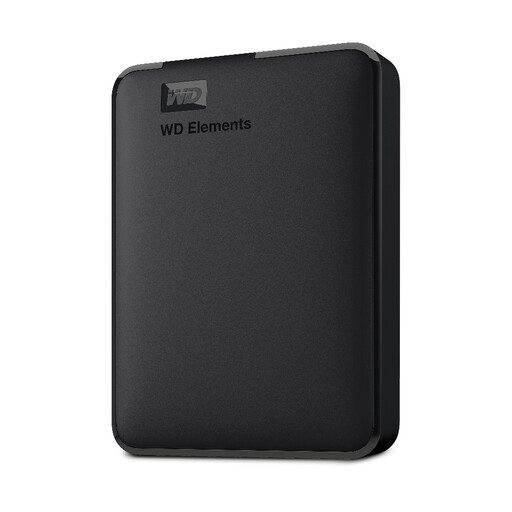
Western Digital Elements Portable External Hard Drive, 1TB

Western Digital Elements Portable External Hard Drive, 1TB

A compact HDD for local photo backups, provided 1 TB is enough for your collection.

1 TB; USB 3.0; USB-powered, so no separate power supply is needed.

The NTFS format listed in the description may need to be changed for the intended use with macOS.

View at Joybuy

Frequently asked questions

Is one external hard drive enough for a backup?

Use an external drive as an additional copy, not as your only storage location. The German Federal Office for Information Security recommends making regular backups and notes that you need to be able to restore your data. Keeping another copy separately can reduce the risk of losing everything in the same incident.

Can I use the same exFAT drive to copy files between Mac and Windows and for Time Machine?

Toshiba describes Canvio Flex as an exFAT drive for copying files directly between supported Mac and Windows devices, while Apple recommends APFS or encrypted APFS for Time Machine volumes. Check your specific backup method before setting up the drive, as reformatting it may erase existing files.

How do I set up my first backup on a Mac?

Apple explains that you should connect an external storage device and select it as the backup volume in Time Machine. You can encrypt the backup if needed. You’ll need the password you set when you come to restore your files. Apple’s guidance on volume size applies to Time Machine backups; it is not a general minimum size for every photo backup.

What additional costs or effort should I allow for?

Keeping another copy separately may require an additional storage device. Also check the warranty and included software for the specific model. A device warranty is no substitute for a backup or a tested restore process.

Does the GDPR require every photo studio to use a particular hard drive or hardware encryption at all times?

The guidance from the relevant authorities does not specify a single drive brand or capacity, or impose a blanket requirement for hardware encryption. If photos of identifiable people contain personal data and the GDPR applies to how you process them, data controllers must put in place appropriate technical and organisational measures that are proportionate to the risks. The Federal Commissioner for Data Protection and Freedom of Information particularly highlights encryption for mobile storage devices that could be lost or stolen. However, encryption does not prevent access to a drive that has already been unlocked, and it is no substitute for properly managed access permissions.