Designing photo books with limited space
If your desk is shared with a laptop and study materials, check the footprint of the monitor and stand, not just the screen size.


Start by checking how much desk space the monitor and stand will take up, then choose according to your main task: designing pages or assessing print colours. If you check colours regularly, calibration options and your photo book provider’s colour workflow matter more than a high colour gamut figure on its own. A larger screen can make layout work easier, but it needs more space and won’t guarantee a particular print result.
If your desk is shared with a laptop and study materials, check the footprint of the monitor and stand, not just the screen size.
If you regularly edit photos for printed books, look at the calibration options and how your photo book provider handles colour profiles.
If you often arrange images, captions and page previews, compare screen size and resolution, and check that your chosen scaling keeps everything readable.
First, check that the monitor and stand will fit on your desk. Then decide whether layout space, print colour checking or a suitable laptop connection matters most to you.
| Criterion | What to look for when buying | Who will find this particularly important? |
|---|---|---|
| Print colour checking | Check the model’s calibration options and your photo book provider’s requirements. For a colour-managed print workflow, Adobe recommends a suitable monitor profile and an ICC profile for the printer and paper. | If I want to assess print colours carefully, I don’t rely on a colour gamut figure alone; I also check the colour workflow. Around 25% of consumers prioritise print colour checking. |
| Desk footprint | Measure the available width and depth, then compare them with the dimensions including the stand. ASUS lists the PA279CRV as 61,22 cm wide and 21,50 cm deep with its stand. | If I share my desk with a laptop and study materials, the monitor and stand need to fit. Around 31% of consumers prioritise desk footprint. |
| Workspace for layouts | Compare screen size and native resolution together, and check that the book page, tools and text are easy to read at your chosen scaling. EIZO lists the CS2400S at 1920 × 1200 pixels; according to the manufacturer, the BenQ SW242Q has 2560 × 1600 pixels. | If I want to see the page preview, images and tools all at once, a usable layout area matters more than having the smallest possible screen. Around 25% of consumers prioritise workspace for layouts. |
| Laptop connection | Match your laptop’s video output to the monitor’s input and check that the charging power is sufficient for your device. BenQ lists 90 W Power Delivery via USB-C for the SW242Q, while ASUS lists 96 W for the PA279CRV. | If I connect my laptop and monitor in a small workspace, I want to know whether video and, if needed, charging will work together. Around 19% of consumers prioritise the laptop connection. |
A monitor specification on its own can’t predict how a photo book will look on your chosen paper. For a colour-managed print workflow, Adobe explains the importance of a suitable monitor profile and an ICC profile for the printer and paper.
Check the colour workflow of your chosen photo book provider before paying more for a single colour gamut figure.
Even a screen of the right size can take up too much desk space once you include its stand.
Measure the space available on your desk and compare it with the full product dimensions, including the stand.
CEWE’s photo book software checks the resolution of the image file being used independently of the monitor; a higher screen resolution won’t make up for a print file that’s too small.
Check your image files and your photo book provider’s guidance before ordering.
The SW242Q is a 24.1-inch model designed for a compact photo workflow.
The ColorEdge CS2400S is a 24.1-inch model with a 16:10 aspect ratio and colour calibration features.
The ProArt PA279CRV is a 27-inch 4K monitor for layout work and detailed image editing.
The UltraSharp U2724D is a 27-inch QHD model for general study work and occasional layout projects.
This selection includes monitors for photo book layouts and study work, including 24-inch and 27-inch models with different resolutions.
 No image available
The 27-inch screen and 4K UHD specification suit a workspace where you want to arrange photo book pages and image details across a larger area.
IPS; 3840 × 2160 pixels; 60 Hz.
 No image available
The 27-inch screen and 4K UHD resolution are worth considering if you want to design book pages and work on image details across a larger workspace.
3840 × 2160 pixels; IPS; 120 Hz; USB-C with 90 W Power Delivery; height-adjustable.
 No image available
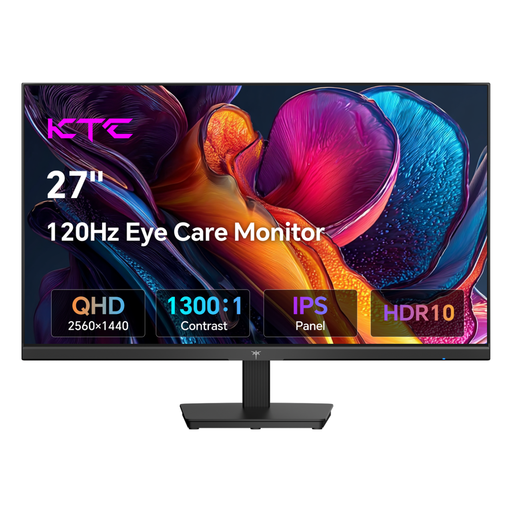
The 27-inch QHD format is an option if you want to edit photo book layouts on a larger screen.
IPS; 2560 × 1440 pixels; 120 Hz; VESA mounting option.
 No image available
The 27-inch QHD format suits a mixed workspace for study tasks and occasional photo book design.
2560 × 1440 pixels; IPS; USB-C with 65 W Power Delivery; height, tilt, swivel and pivot adjustment.
 No image available
The 24-inch screen is a more compact option if you need to make room for other work essentials on your desk.
IPS; 1920 × 1080 pixels; 120 Hz; tilt-adjustable.
No, not just because you’re making a photo book. If you want to assess print colours carefully, first check the colour workflow and requirements of your chosen provider. A wide colour gamut doesn’t replace these steps.
No. CEWE explains that its photo book software checks the resolution of the image file being used separately. This applies to CEWE and shouldn’t automatically be taken to apply to the warnings given by other providers.
Before buying, compare your laptop’s video output and charging requirements with the monitor’s exact inputs. BenQ lists DisplayPort Alt Mode and 90 W Power Delivery for the SW242Q, while ASUS lists 96 W Power Delivery for the PA279CRV; these specifications don’t guarantee compatibility with every laptop.
The European Commission’s energy label rates electronic displays from A to G; for a specific model, compare its label with the related product information. The Verbraucherzentrale distinguishes the statutory warranty against the seller from a voluntary guarantee. Online purchases generally come with a 14-day right to cancel; check the terms of your specific purchase.