First, measure the space available on your desk and compare it with the dimensions of the specific monitor, including its stand. Screen size alone won’t tell you whether it will fit. For layout work and the occasional photo book, a suitable 24-inch monitor with sRGB coverage may be enough. If you want to assess print colours regularly, calibration and a soft proof tailored to your photo product matter more than a wide colour gamut alone; manufacturer specifications can’t guarantee an identical print result.
Who these monitors are suited to
Photo-book creators with limited desk space
If your screen, stand and work materials all have to share a small desk, compare the dimensions of the specific model and its stand rather than looking at screen size alone. BenQ Germany and ASUS publish these measurements for their models; what matters is how they compare with the space you actually have available.
Creators who care about print colours
If you edit photos for photo books regularly, you can pair a calibrated monitor with a suitable soft proof. EIZO, BenQ and Saal Digital each describe parts of a possible colour-management workflow; their information relates to their respective models and photo products.
Laptop users designing photo-book layouts
For laptop-based layout work, aspect ratio and resolution matter. USB-C only helps tidy your workspace if both the monitor and laptop support video transmission and the required charging power. ASUS and Dell list different connection options for their respective models.
What to look for when buying
Decide whether desk space, print-colour control, layout visibility or connecting your laptop is the priority. Then compare the dimensions and specifications of the specific model with your space and workflow.
| Priority |
What to check when buying |
Who it matters most to |
| Desk space |
Measure the available width and depth, then compare them with the monitor’s dimensions, including the stand. Check that there’s room for your keyboard, mouse and work materials too. |
If I need to fit my monitor and work materials into a limited space, the stand’s actual footprint matters more than the screen-size figure. Around 36% of consumers put space requirements first. |
| Print-colour control |
Check the colour gamut and calibration options for the exact model. Also find out whether there’s a suitable profile for your photo-book product and a soft-proof option in the software you use. |
If I want to assess colours repeatedly before printing, I need a suitable colour-management workflow, not just a colour-gamut figure. Around 29% of consumers prioritise print-colour control. |
| Layout visibility |
Compare resolution and aspect ratio together, and take your preferred display scaling into account. The 16:10 models in the examples researched offer 1920 × 1200 or 2560 × 1600 pixels. |
If I want a clear view of photos, pages and controls while designing, the usable screen area at my preferred scaling is key. Around 21% of consumers prioritise layout visibility. |
| Laptop connection |
Check your laptop’s video output and USB-C compatibility, as well as its charging requirements, against the monitor’s connection and Power Delivery specifications. |
If I want to avoid separate cables on a small desk, my laptop’s USB-C connection must support video output and deliver enough power. Around 14% of consumers prioritise a single-cable connection. |
Common monitor-buying misconceptions
-
Screen size tells you how much desk space a monitor needs
Even models with a similar screen size can take up different amounts of room if their stands and housings have different dimensions.
Measure the available width and depth, then compare them with the manufacturer’s measurements, including the stand. If you’re considering an alternative mounting option, check the VESA dimensions, mount and desk separately.
You may also need a suitable mount if you want to replace the stand.
-
A wide colour gamut is the same as a print preview
A monitor and a printed photo book won’t automatically reproduce brightness and colours in the same way. Saal Digital points out that a print won’t match a monitor’s brightness and vibrancy.
Before paying more for a colour-gamut specification alone, check whether your photo-book provider supplies a profile for the specific product and whether your software supports a suitable soft proof.
A calibrated colour workflow may require extra equipment and time for set-up and checking.
-
Any USB-C port gives you a single-cable connection
A USB-C port on a monitor doesn’t, by itself, confirm that your laptop can output a picture through it or receive enough power to charge.
Check your laptop’s video output and charging requirements against the connections and Power Delivery specifications of the exact monitor.
Depending on the devices you’re using, you may need an extra power cable or a suitable adapter.
Key brands at a glance
BenQ
The PhotoVue SW242Q is a 24.1-inch option for colour control and higher-resolution photo-book layouts.
- BenQ lists 2560 × 1600 pixels, 99% Adobe RGB, hardware calibration and USB-C with 90 W.
- The listed depth with the stand is 262,6 mm. Check that it fits your desk; the manufacturer’s specifications don’t guarantee a match with the final print.
EIZO
The ColorEdge CS2400S combines a 24-inch 16:10 format with a documented calibration workflow.
- EIZO lists 99% Adobe RGB, hardware calibration, 1920 × 1200 pixels and USB-C with up to 70 W.
- These specifications describe this model and don’t provide a general basis for comparing its quality with other monitors.
ASUS
The ProArt PA248QV Gen2 (PA248QFV) is a 24.1-inch 16:10 option for sRGB-focused layout work.
- ASUS lists 100% sRGB, 1920 × 1200 pixels and VESA 100 × 100 mm. The estimated dimensions with the stand are 53,18 × 53,13 × 19,04 cm.
- ASUS notes that dimensions may vary by region. The documented connections include HDMI and DisplayPort.
Dell
The UltraSharp U2421E combines a 24.1-inch 16:10 format with USB-C hub features.
- Dell lists 99% sRGB, 1920 × 1200 pixels, a depth of 17,3 cm with the stand and USB-C power delivery of up to 90 W.
- The product specifications listed don’t confirm Adobe RGB coverage for this model. Also check that USB-C output and charging power suit your laptop.
LG
The 24BQ55WY-B is a 24-inch 16:10 option for sRGB-focused photo-book design.
- LG lists 1920 × 1200 pixels, typically 99% sRGB, as well as HDMI and DisplayPort.
- Compare the space it takes up with your available room and check that the model’s colour workflow meets your print-control needs.
Joybuy monitors for photo books
This selection features 24-inch monitors for layout work and choosing images, including sRGB-focused models and a USB-C model for compatible laptops. Before buying, compare the specific dimensions and connections with your workspace.
 No image available
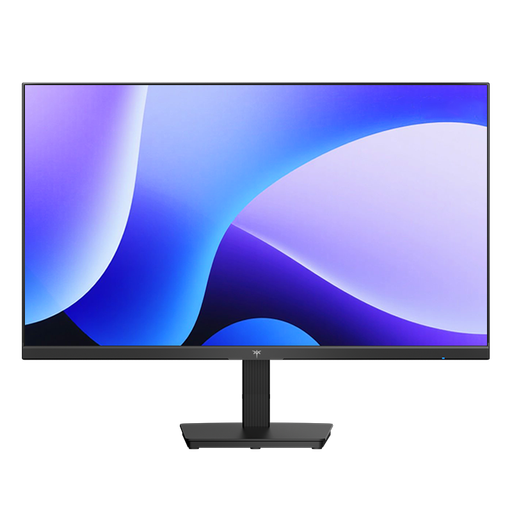
KOORUI MB24V29FS4 24-inch FHD IPS monitor
For choosing images and working on layouts in an sRGB-focused workflow.
24-inch, IPS, 1920 × 1080 pixels and 99% sRGB; HDMI and VGA; VESA 100 × 100 mm.
The resolution has fewer vertical pixels than 1920 × 1200, which may matter for more detailed page layouts.
View at Joybuy
 No image available
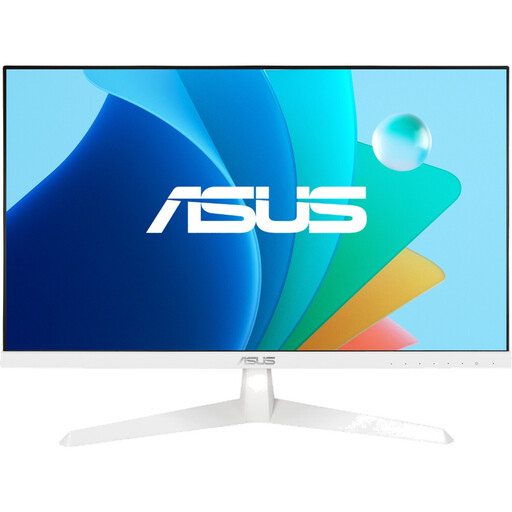
KTC H24B9S 24-inch FHD IPS monitor
An option for photo-book layouts if you’re looking for an IPS panel and the stated sRGB coverage.
24-inch, 1920 × 1080 pixels, IPS and 116% sRGB; HDMI and DisplayPort; tilt from −5° to 15°.
The resolution has fewer vertical pixels than 1920 × 1200, which may matter for more detailed page layouts.
View at Joybuy
 No image available
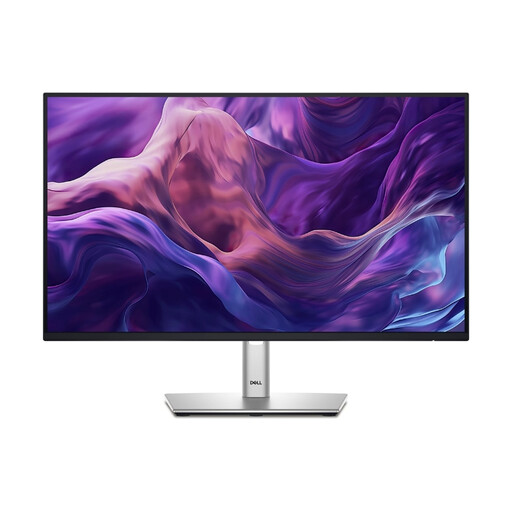
ASUS Eye Care VY249HF-W 24-inch Full HD monitor
For layouts and choosing images, if a 24-inch IPS monitor with an alternative mounting option suits your workspace.
IPS, 1920 × 1080 pixels, 16:9, HDMI and VESA 100 × 100 mm; tiltable.
The resolution has fewer vertical pixels than 1920 × 1200, which may matter for more detailed page layouts.
View at Joybuy
 No image available
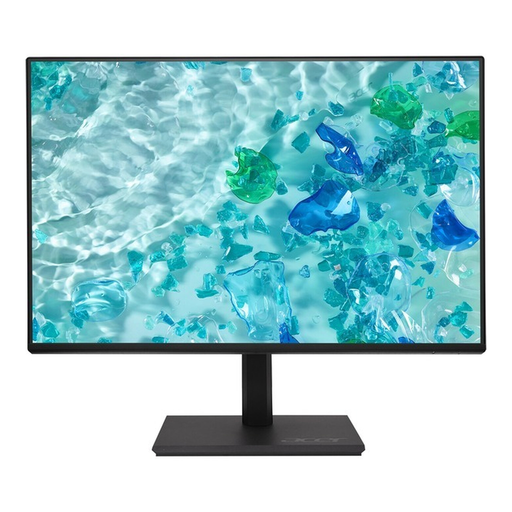
Dell P2425HE 24-inch FHD IPS monitor with USB-C
For a laptop workspace with fewer separate cables, provided your laptop and monitor support the video transmission and power supply you need.
24-inch, 1920 × 1080 pixels, IPS and USB-C with video transmission and up to 90 W Power Delivery; height-adjustable stand.
The resolution has fewer vertical pixels than 1920 × 1200. Check your laptop’s compatibility and charging requirements.
View at Joybuy
 No image available
Acer Vero B247YGbmiqprx 24-inch FHD IPS monitor
For layout work, if the stated dimensions and adjustable working position suit your desk.
24-inch, 1920 × 1080 pixels and IPS; HDMI and DisplayPort; height-adjustable stand with pivot function. Stated product dimensions: 540,30 × 186,1 × 350,90 mm.
The resolution has fewer vertical pixels than 1920 × 1200, which may matter for more detailed page layouts.
View at Joybuy
Frequently asked questions
Does a photo-book monitor need to cover Adobe RGB?
No, not necessarily. sRGB models can also work well for mainly layout-based tasks. For precise colour checks before printing, a calibrated workflow and a suitable product profile are important; Saal Digital describes a soft-proofing option for its photo products.
How do I set up a preview of my printed photo book?
Check whether your provider offers an ICC profile for the exact product or paper you’ve chosen, along with instructions for your software. Saal Digital explains how to install its profiles and use soft proofing in Lightroom and Photoshop, among other programmes; this workflow won’t automatically apply to other photo-book services.
Will a sharper monitor show whether my photo is large enough to print?
No. You need to check the image file’s print resolution separately. CEWE describes a quality warning in its Fotowelt software and notes that this indicator assesses print resolution only.
Which energy label matters when buying online?
Electronic displays are covered by EU energy-labelling rules, and the energy label should also be visible in online shops. The European Commission includes computer monitors within this regulatory framework. The label doesn’t make any particular efficiency class a requirement for designing photo books.


