Photo book spread designers
If you want to assess the image sequence and page layout as a continuous spread, with your tools alongside it, look at the usable screen area and how your software displays it.


If you want to view a photo book spread alongside your software tools without a bezel in the middle, an ultrawide monitor could be a good fit. Two separate screens make sense if you prefer independent views. To assess how colours will look in print, you’ll need a calibrated monitor, software with soft-proofing support and the right profile for your photo book supplier – a wide colour gamut alone isn’t enough.
If you want to assess the image sequence and page layout as a continuous spread, with your tools alongside it, look at the usable screen area and how your software displays it.
If you want to assess colours before ordering your photo book, you’ll need a well-matched soft-proofing workflow. A wider workspace alone won’t tell you how the print will look.
If you switch between two computers, check that the specific monitor’s inputs, KVM switching and USB-C power delivery work with both devices.
A good fit if: You want to see the spread without a bezel in the middle, with room for your tools alongside it.
The trade-off: A wider screen doesn’t give you extra height, so check the preview size you want in your software.
A good fit if: You want a second, independently positioned view alongside your photo book workspace.
The trade-off: A bezel interrupts a spread that spans both screens. Check which views your software supports on a second monitor.
First decide what matters most to you: an uninterrupted view of the spread, a print-colour workflow, switching between computers or the space available on your desk.
| What matters | What to check before buying | Who it matters most to |
|---|---|---|
| Spread and tools | Native resolution, aspect ratio and the size of the spread preview in your software. | If I want to see the whole spread as one continuous view while keeping my tools open, the layout in the software matters to me. Around 36% of consumers put workspace layout first. |
| Colours before printing | Soft-proofing support in your software and an ICC profile for the specific photo book material. | If I want to assess print colours as accurately as possible, I need a well-matched workflow, not just a large workspace. Around 29% of consumers prioritise colour previews. |
| Two computers | Check that video outputs, monitor inputs, KVM functionality and the USB-C charging power you need are compatible. | If I want to switch between two computers or use both sources on one display, the connections and switching need to suit my setup. Around 21% of consumers put switching between computers first. |
| Desk space | Compare the monitor’s width and depth, including its stand, with the space available on your desk. | If my desk is short on space, I want to know before buying whether the wide monitor and its stand will fit in my workspace. Around 14% of consumers prioritise the space available. |
The preview also depends on the software you use, your monitor settings and the profile for your chosen photo book material.
Check the complete colour workflow for your supplier rather than choosing based on colour gamut percentages alone.
Picture-by-Picture displays two input signals. If you want to see two software views from the same computer, start by checking the application’s window or second-monitor features.
Before choosing a device, work out whether you mean two windows, two physical monitors or two computers.
The stand and the monitor’s overall width also affect whether it will fit in your workspace.
Compare the full dimensions of the model, including the stand, with the space available.
The DesignVue PD3420Q is a slim 34-inch ultrawide for layout work, with documented colour modes.
The ProArt PA348CGV is a 34-inch ultrawide for creative work, with factory calibration.
The FlexScan range is designed for office use; the EV3450XC offers features for workspaces with two computers.
The UltraSharp U3425WE is a curved 34.1-inch ultrawide with a Thunderbolt hub.
These Joybuy products are wide monitors that provide a continuous workspace; some models also list features for multiple input sources.
 No image available
The wide screen could be a good choice if you want to view a spread as one continuous layout; check how it looks in your software.
UWQHD 3440 × 1440, 21:9, 165 Hz, VA panel and DisplayPort.
 No image available
If you want to use two input sources on one display, the product title lists PIP and PBP. This doesn’t automatically mean you can view two software windows from the same computer.
3440 × 1440, 21:9, VA panel, 200 Hz, HDMI and DisplayPort.
 No image available
The stated resolution and wide format could make this a good option for a large, continuous workspace. A well-matched soft-proofing workflow is still important for print previews.
5120 × 2160, 21:9, IPS panel, 100 Hz, 65 W USB-C power delivery, plus PIP and PBP.
 No image available
As a 34-inch ultrawide, this model could be worth considering for a continuous layout workspace. For a useful print preview, you’ll also need a calibrated monitor, software with soft-proofing support and the right photo book profile.
3440 × 1440, 21:9, 180 Hz, VA panel, DisplayPort and HDMI.
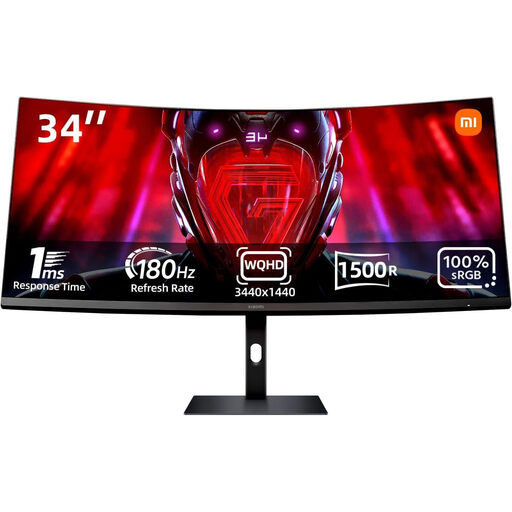 No image available
The product title lists 100% sRGB, but this alone doesn’t guarantee a suitable print preview. Check the soft-proofing workflow for your photo book.
WQHD, 21:9, 180 Hz and 100% sRGB.
No. An ultrawide gives you one continuous workspace, while two separate displays let you use independent views. Adobe documents a second Library window on a connected second monitor in Lightroom Classic; check which views your photo book software supports on a second screen.
First choose your photo book material and supplier. If the supplier provides a suitable ICC profile, use it in software with soft-proofing support, alongside a well-adjusted, calibrated monitor. Saal Digital describes this workflow for its own products.
A factory calibration report is a feature of the specific model, but it doesn’t replace matching your software to the print profile. For its soft-proofing workflow, Saal Digital recommends a well-adjusted, calibrated monitor.
Check the video output and the charging power required for each laptop. Picture-by-Picture and KVM are listed for the EIZO EV3450XC; EIZO specifies up to 94 W USB-C power delivery for this model.