If you have a large photo library with several older project versions, an external HDD may be a good option when storage space matters more than frequent, fast transfers. For projects you copy or carry around often, an external SSD may suit your workflow better. The key is to work out how much space you actually need and make sure your backup is complete and tested: Adobe points out that a Lightroom Classic catalogue backup does not automatically include photos and exports. A single external hard drive also isn’t a substitute for another backup kept separately.
Which option is right for you?
Photographers with a growing archive
If you want to keep your original images and several versions of your projects, work out how much space your entire collection needs. Adobe makes it clear that the catalogue file is separate from the photos and exports that need to be backed up separately.
Photographers working on the move
If you often copy projects or take them with you, you’ll need to weigh storage space against transfer speed and portability. Samsung lists maximum speeds for one T7 Shield variant, but these depend on suitable ports and cables, as well as UASP.
Photographers using several computers
If you need to access or restore backups on different devices, check the ports, file system and backup software together. Germany’s Federal Office for Information Security recommends checking for potential compatibility issues before backing up.
What should you look for when buying?
Portable external HDD
A good fit if: Your photo library and saved project versions are growing, and you’d like to take the drive to another workplace from time to time.
The trade-off: In its Best List dated 12 July 2026, COMPUTER BILD ranked HDDs ahead of SSDs for storage space per pound spent. If you copy files often, though, transfer speed is another factor to consider.
Desktop HDD
A good fit if: You mainly back up a large archive at a fixed workstation.
The trade-off: The documented Seagate Expansion Desktop model needs a power adapter, which makes it less convenient to use on the move.
Portable external SSD
A good fit if: You regularly transfer large project files or want to access them while you’re out and about.
The trade-off: COMPUTER BILD describes SSDs as fast and compact. The maximum speed Samsung quotes for the T7 Shield depends on a suitable host device and cable, as well as UASP.
| What matters |
What to check before buying |
Who should pay particular attention |
| Space for photos and project versions |
Compare the space used by all your folders, the older versions you want to keep and the drive’s actual capacity. |
If my photo library and older versions are growing, I want to know how much space I’ll need before buying. This applies to around 36% of consumers whose main concern is storage space. |
| Complete backups and recovery |
Include original photos, catalogue files, edited projects and exports in your backup; test restoring files. |
If I’m going to rely on a backup, I want to spot missing folders or older versions in good time. This applies to around 29% of consumers who prioritise recoverability. |
| How often you copy files and travel with the drive |
Check how often you make large transfers, which ports your computer has and whether you need a particular cable or power adapter. |
If I often copy projects or take them with me, I want to know how well the drive and computer suit the way I work. Around 21% of consumers prioritise speed and portability. |
| Using the drive with different computers |
Check the operating systems, file system, cables and recovery software together. |
If I want to access or restore my backup on several computers, it needs to work with all the devices I plan to use. This applies to around 14% of consumers whose main concern is compatibility. |
Common backup mistakes
-
Backing up only the catalogue file
According to Adobe, Lightroom Classic catalogue backups include only the catalogue file. This means original photos and exports may be left out.
Make a note of all the storage locations you need to back up, then check what’s included by restoring some files.
Putting the list together and testing a restore will take extra time to set up.
-
Relying on one external hard drive as your only separate backup
A fault or damage where the drive is stored could also affect your only external copy.
Plan to keep another copy somewhere separate.
A separate copy requires additional storage space or another service.
-
Choosing a drive solely by capacity or advertised speed
The right capacity depends on which files and project versions you want to keep. Advertised maximum speeds for an SSD may also depend on having suitable ports and cables.
First, work out how much space you need. If you transfer files often, check your computer’s ports and the requirements of the specific SSD.
-
Using the same file system or backup software on a second computer without checking
Using different platforms can lead to compatibility issues that make files harder to access or restore.
Test that you can read and restore files on the devices you actually plan to use before relying on the drive.
Depending on the system you choose, you may need to do some extra setup, reformat the drive or use a different recovery method.
Key brands to consider
Toshiba
Canvio Basics and Canvio Advance are ranges of portable HDDs for external storage.
- On its German product page, Toshiba lists Canvio Basics models with capacities of up to 4 TB and says they’re ready to use straight away with Windows.
- The backup and security software Toshiba describes for Canvio Advance is designed for Windows PCs. Features and part numbers differ between the ranges.
Western Digital
My Book is a range of desktop HDDs designed mainly for archives kept in one place.
- Western Digital’s My Book datasheet lists several capacity options, as well as a power adapter and management and backup software.
- Manufacturer claims about software, encryption or warranties aren’t independent proof that data can be restored successfully. Check the details and terms for the specific model.
Samsung
The T7 Shield is a range of portable SSDs for projects on the move and frequent transfers.
- For the 2-TB model MU-PE2T0S/EU listed on its German website, Samsung quotes sequential maximum speeds of up to 1,050 MB/s for reading and 1,000 MB/s for writing.
- These manufacturer figures depend on a suitable host device and cable with USB 3.2 Gen 2, as well as UASP being enabled. They aren’t guaranteed speeds on your computer.
Seagate
Expansion Desktop is a range of external desktop HDDs for backups at a fixed workstation.
- The Seagate datasheet for the documented model lists USB 3.0 and a power adapter included in the box.
- The datasheet lists regional model numbers and warranty terms, which shouldn’t be assumed to apply to every version sold in Germany.
Joybuy products for external backups
These external HDDs are designed for photo archives and project files, with options for portable use or a fixed workspace.
 No image available
WD Elements Portable 5TB USB-C
A portable HDD for photos and other files, if your collection and the project versions you want to keep fit within 5 TB.
5 TB; 2.5-inch format; USB-C; USB 3.2 Gen 1; 240 g.
View at Joybuy
No image available
WD Elements Portable 6TB USB-C
A portable HDD for photo and file archives, if the backup you need fits within the stated capacity.
6 TB; 2.5-inch format; USB-C; USB 3.2 Gen 1; 240 g.
View at Joybuy
No image available
WD Elements Portable 4TB USB-C
A portable HDD for photos and other files, provided your chosen collection and project versions fit within 4 TB.
4 TB; 2.5-inch format; USB-C; USB 3.2 Gen 1; 240 g.
View at Joybuy
 No image available
WD Elements 2TB Portable, USB-C, exFAT
A portable HDD with exFAT, described as suitable for Windows and macOS. Check whether 2 TB is enough for the backup you need.
2 TB; 2.5-inch format; USB-C; USB 3.2 Gen 1; exFAT; 131 g.
View at Joybuy
 No image available
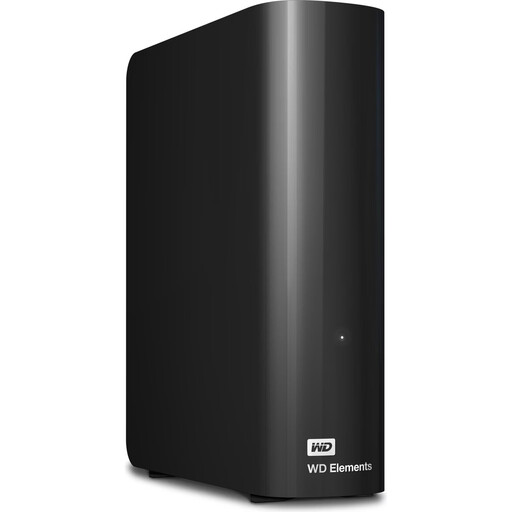
WD Elements 10TB Desktop, NTFS
A desktop HDD for a large collection that’s backed up mainly at a fixed workstation.
10 TB; 3.5-inch format; USB 3.2 Gen 1; NTFS; external power adapter required. The product description says the drive needs to be reformatted for macOS.
View at Joybuy
Frequently asked questions
Does a Lightroom Classic catalogue backup cover all my photos?
No. According to Adobe, Lightroom Classic backups include only the catalogue file. Edited photos and exports need to be backed up separately. Also check where your original images and other project files are stored.
How can I check that I can restore older project versions?
Decide which folders and versions your backup software should include, then test restoring the files you need. Germany’s Federal Office for Information Security recommends checking from time to time that the data you need is present in full and can be read.
What should I check when switching between Windows and Mac computers?
Check the file system, connection and cable for the specific drive, as well as whether you can restore files using your backup software. Germany’s Federal Office for Information Security recommends checking for potential compatibility issues before backing up if you plan to use the drive across different platforms.
Is an HDD or SSD better for a photo catalogue?
An HDD is worth considering if storage space for your archive and project versions is the priority. An SSD may suit you better if you often transfer large files or use the drive on the move. Check the requirements of the specific SSD and your computer rather than assuming the advertised maximum speed is guaranteed.
Do I need to consider data protection when backing up photos of identifiable people?
That depends on what the photos contain and whether you use them personally or professionally. Germany’s Federal Commissioner for Data Protection and Freedom of Information explains that the GDPR governs the processing of personal data. You can’t determine whether it applies to a particular collection, or what safeguards are needed, just by choosing a hard drive.


